Create & Manage Gym Discount Codes
Create, edit, and track discount codes for plans and products.
Finegym's discount system allows you to create promotional codes that apply to memberships and products. Configure percentage or fixed-amount discounts with flexible usage limits and validity periods.
Overview
Discounts can be applied to:
- Membership Plans - Recurring or one-time membership purchases
- Products - Items and merchandise
Each discount has:
- Unique discount code
- Amount (percentage or fixed)
- Validity period
- Optional usage limits
Creating Discounts
Basic Setup
Location: Discounts → Add Discount
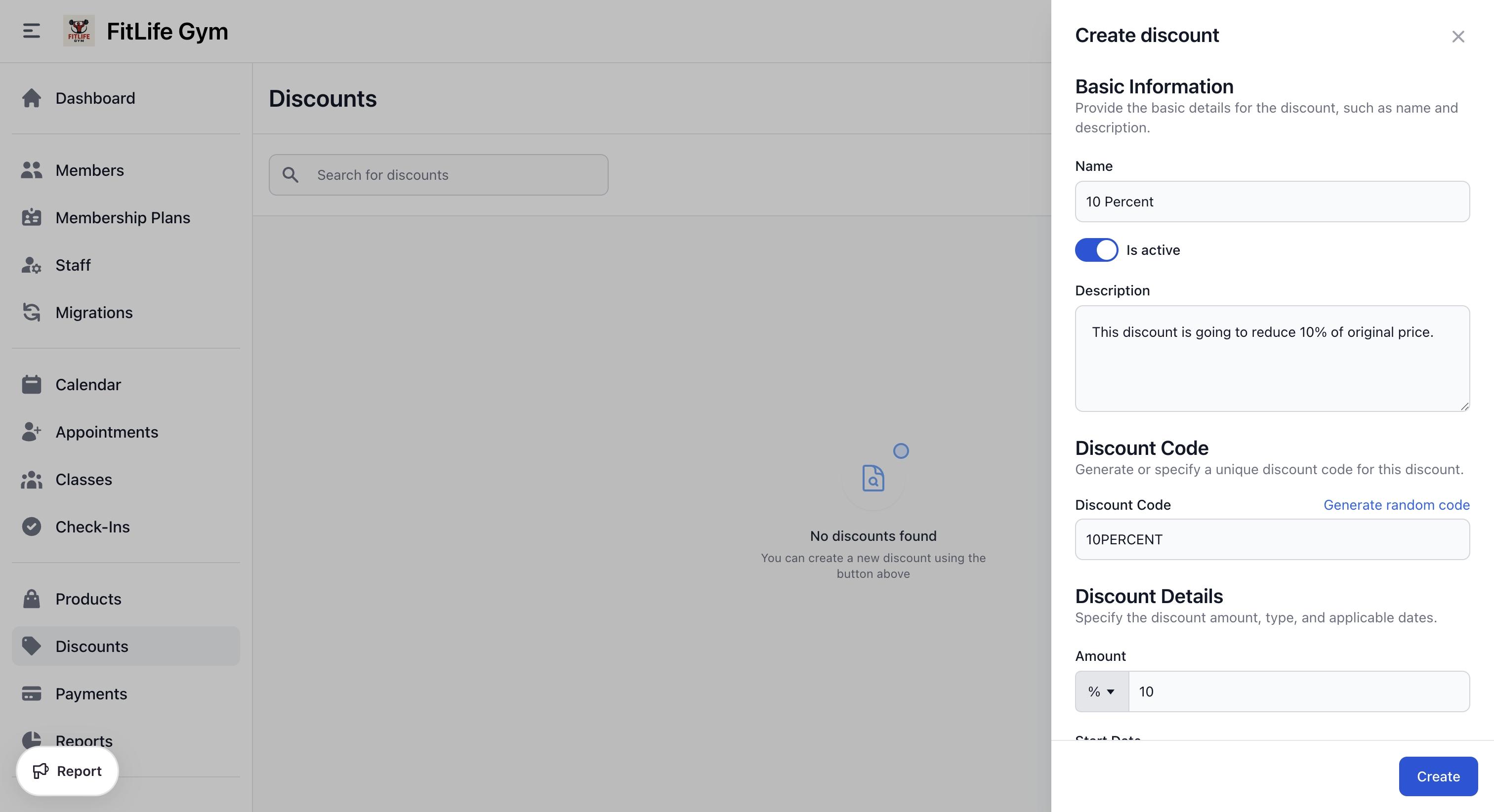
Click Add Discount to create a new discount:
Discount Information
- Name — Internal name (e.g., "New Year Promo")
- Discount Code — Code customers enter (e.g., "NEWYEAR25")
- Description — Internal notes (e.g., "2025 New Year promotion")
Discount Amount
- Amount — Numeric value
- Is Percentage — Toggle for % or fixed
Examples:
- 25% off: Amount = 25, Is Percentage = Yes
- $10 off: Amount = 10, Is Percentage = No
Percentage discounts cannot exceed 100%.
Validity Period
Control when the discount is usable:
- Start Date — When discount becomes active
- End Date — When discount expires (optional)
- Is Active — Manual on/off toggle
Examples:
- Flash sale: Start today, end tomorrow
- Evergreen: Start date only, no end
- Future launch: Start date in the future
Applicability
Choose what the discount applies to:
- Applicable to products — Can be used on product items
- Applicable to memberships — Can be used on membership plans
You must select at least one option.
Validity Scope
- All items — Applies to all items in selected categories
- Specific items — Only selected products/plans
When "Specific items" is selected:
- Choose individual products
- Select specific membership plans
Membership Discount Settings
When applicable to memberships, configure recurring payment behavior:
Recurring Plan Payments
- Apply to every payment — Discount continues for life of membership
- Limit to a set number of payments — Discount applies to X payments only
Number of Payments
If "Limit to a set number of payments" is selected:
- Enter the Number of payments allowed
- After that, full price applies
Example: 3 months discounted
- Recurring Plan Payments: Limit to a set number of payments
- Number of payments allowed: 3
- Member gets discount on first 3 monthly payments
Usage Limits
Control how many times a discount can be used:
Total Usage Limit
- Limit Total Uses — Enable overall cap
- Total Uses — Maximum number of uses
When the limit is reached, the discount becomes unavailable.
Example: First 100 customers
- Limit Total Uses: Yes
- Total Uses: 100
Per Customer Limit
- Limit Uses Per Customer — Enable per-person cap
- Uses Per Customer — Max uses per member
Prevents the same member from using the discount multiple times.
Example: One-time use per member
- Limit Uses Per Customer: Yes
- Uses Per Customer: 1
Discount Statuses
Discounts have automatic status based on their configuration:
- Active — Is active, within date range
- Inactive — Manually deactivated
- Upcoming — Active but start date in future
- Expired — End date has passed
Status Flow
Inactive → Upcoming → Active → Expired
    ↑__________________________|
         (can reactivate)
Managing Discounts
Viewing Discounts
Location: Discounts
The discount list shows:
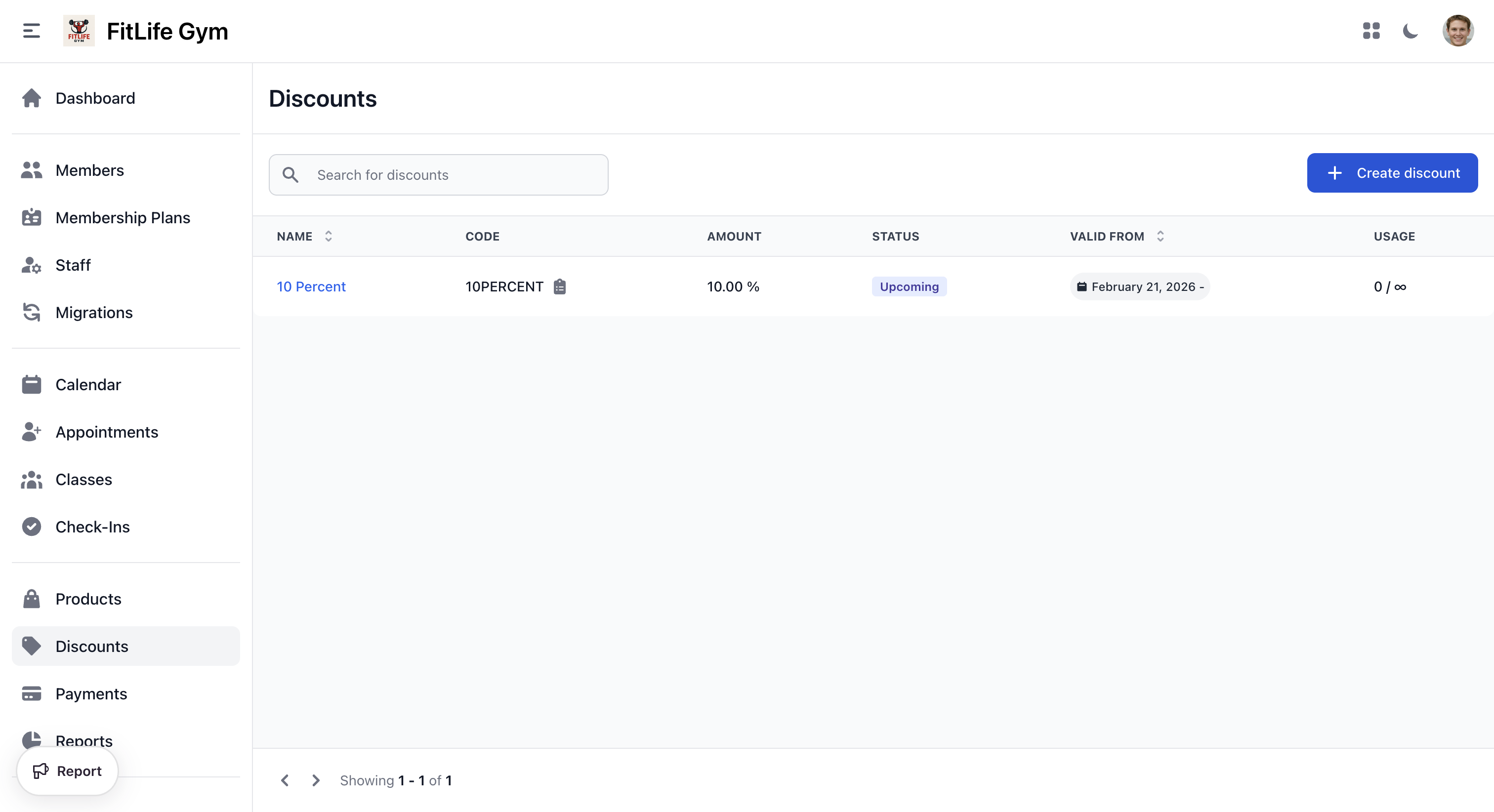
- Name — Discount name
- Code — Discount code
- Amount — Discount value (with % or currency)
- Status — Current status
- Valid from — Start and end dates
- Usage — Usage count vs. limit
Editing Discounts
Click a discount to modify:
- Name and description
- Amount
- Validity dates
- Usage limits
- Applicability settings
Viewing Discount Usage
Location: Discounts → [Discount] → Manage
See detailed usage information:
Active recurring memberships using this discount
- Membership — Membership plan name
- Member name — Member's name
- Created at — Membership creation date
- Next Billing Date — Next scheduled billing date
Recent orders with this discount
- Invoice number — Related invoice number
- Member name — Member's name
- Created at — Order date
- Status — Invoice status
- Created by — Staff who created the order
- Total amount — Order total
Deactivating Discounts
To stop a discount from being used:
- Open the discount
- Toggle Is Active to off
- Save changes
The discount:
- Cannot be applied to new purchases
- Existing memberships keep their discount
Deleting Discounts
Discounts can only be deleted if:
- Never been used on any invoice
If the discount has been used, deactivate instead.
Applying Discounts
During Membership Signup
When a member purchases a membership:
- Enter the discount code
- System validates the code
- Discount applied to eligible items
- Total updated with discount
On Invoices
Staff can add discounts to invoices:
- Open a draft or open invoice
- Click the pencil icon next to the discount field
- Select the discount in the "Update discount" panel
- Click Save
Discount Validation
The system validates discounts before applying:
- Code exists — Code not found
- Status active — Discount inactive/expired
- Within dates — Outside valid period
- Usage limit — Total uses exhausted
- Per customer limit — Member exceeded their limit
- Applicable — Items not eligible
Troubleshooting
Discount Code Not Working
Check:
- Code is spelled correctly
- Discount status is Active
- Within valid date range
- Usage limits not exceeded
- Items are eligible
Discount Showing Wrong Amount
Verify:
- Percentage vs fixed amount setting
- Which items the discount applies to
- Whether items are eligible
Can't Delete Discount
Discount has been used on invoices. Options:
- Deactivate instead
- Keep for record-keeping
Related Topics
- Discount Examples & Strategies - Common discount patterns and best practices
- Membership Plans - Plans eligible for discounts
- Products - Products eligible for discounts
- Invoice Management - Applying discounts on invoices