Export your data
Download your members, payments, balances and payroll as a spreadsheet, for your accountant or another system.
Most lists and money reports in Finegym download as a CSV file, which opens in Excel, Numbers or Google Sheets. Here is what you can download, and where.
| What | Where | Needs |
|---|---|---|
| Members: name, email, phone, language, birthday, address, and whether they have an active membership | Members, the download button above the list | Members permission |
| A plan's memberships: each member on it, start and end date, status, payment type, discount and visits used this period | The plan's page in Plans, Actions > Download memberships | Members permission |
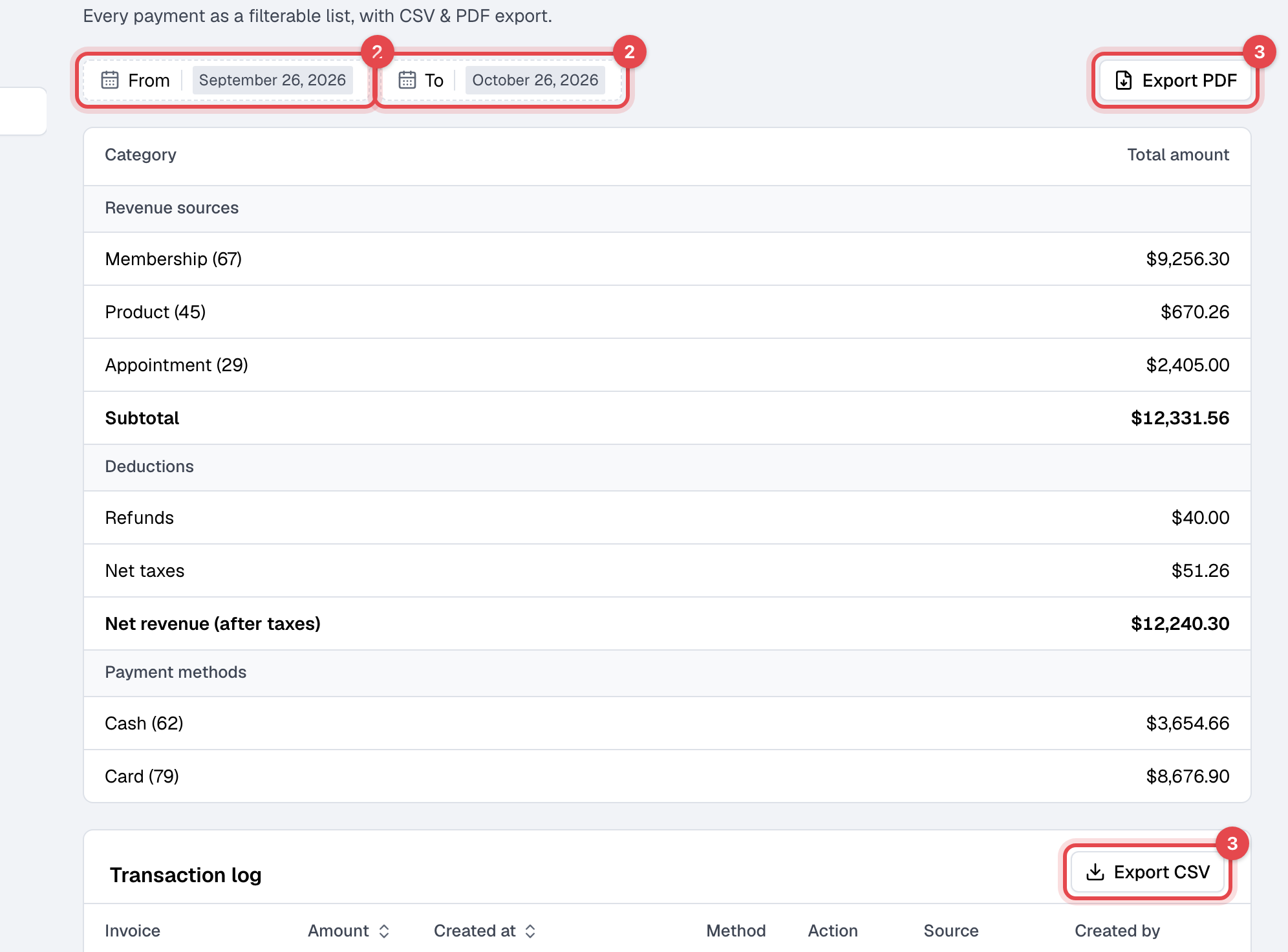
| Transactions: every payment and refund in the period, as CSV; the period's totals, as PDF | Reports > Transactions, Export CSV and Export PDF | Reports permission |
| Outstanding balances: who owes what, and since when | Reports > Outstanding balances, Export CSV | Reports permission |
| Payroll: each staff member's classes, appointments, hours, attendees and pay | Reports > Payroll, Export CSV | Reports permission, or anyone for their own pay under My pay |
| Expenses, and the Income & expenses report | Expenses, Export CSV on the Expenses and Income & expenses tabs | Expenses permission |
| One invoice or receipt | The invoice's page, Download invoice as PDF or Download receipt as PDF | Sales, Refunds or Reports permission |
Download your members
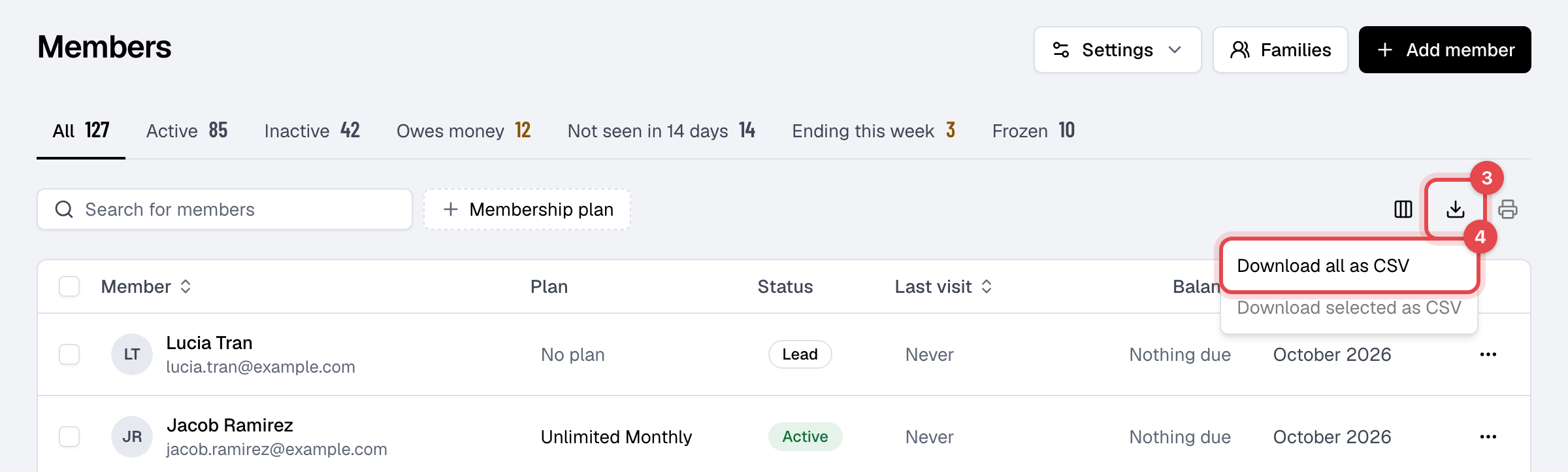
- Open Members.
- To download only some members, tick them in the list. The box at the top ticks everyone on the page.
- Click the download button above the list, at the right.
- Click Download all as CSV, or Download selected as CSV for the ones you ticked.
Download a report
- In Reports, open Transactions, Outstanding balances or Payroll.
- Set the From and To dates to the period you want. Outstanding balances is always as of today.
- Click Export CSV, or Export PDF on Transactions.
What happens next
The file downloads to your computer, named after what's in it and its dates, such as
transactions_2026-09-25_to_2026-10-25.csv. Nothing changes in Finegym.
Good to know
- Download all as CSV downloads every member, leads included, whichever tab or search the list is on. To download a group, tick its members first.
- Times in the CSVs are your business's time, wherever the computer that downloads them is.
- Sales, New members, Visits, Bookings and Referral sources don't download: the numbers by period are in the table under each report's chart.
- The outstanding balances file follows the list on screen: what you searched for, in the order you sorted it.