Review and export transactions
Every payment and refund for the dates you pick, added up by what was sold and how it was paid.
The Transactions report lists the money that came in and went back for the dates you pick, and adds it up: what for, how it was paid, refunds and tax. Use it to close your books or send to your accountant.
Before you start
- You need the Reports permission. The Owner and Managers have it.
Steps
-
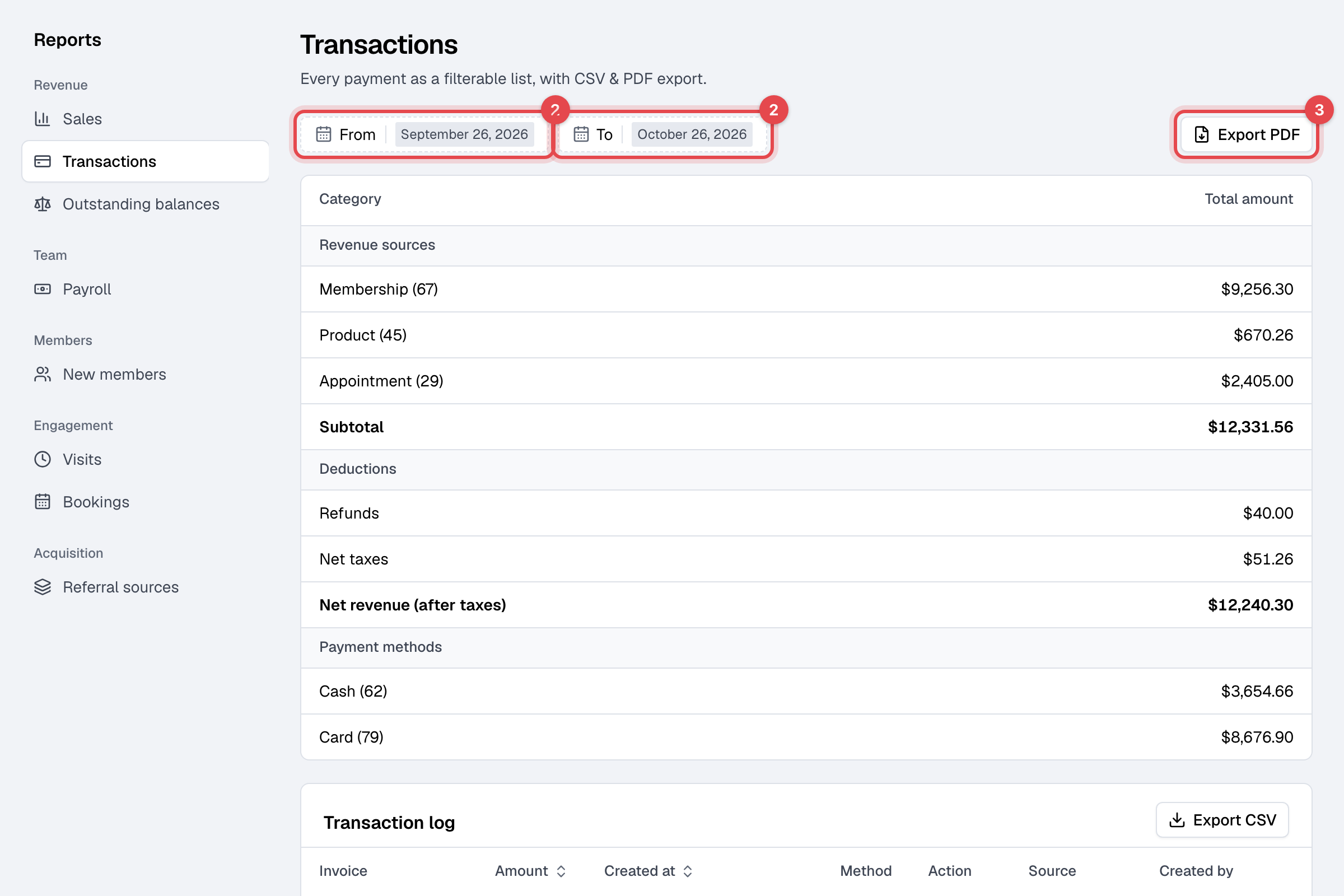
Go to Transactions: in Reports, under Revenue.
-
Set From and To. The report opens on the last month.
-
To download the totals, click Export PDF.
-
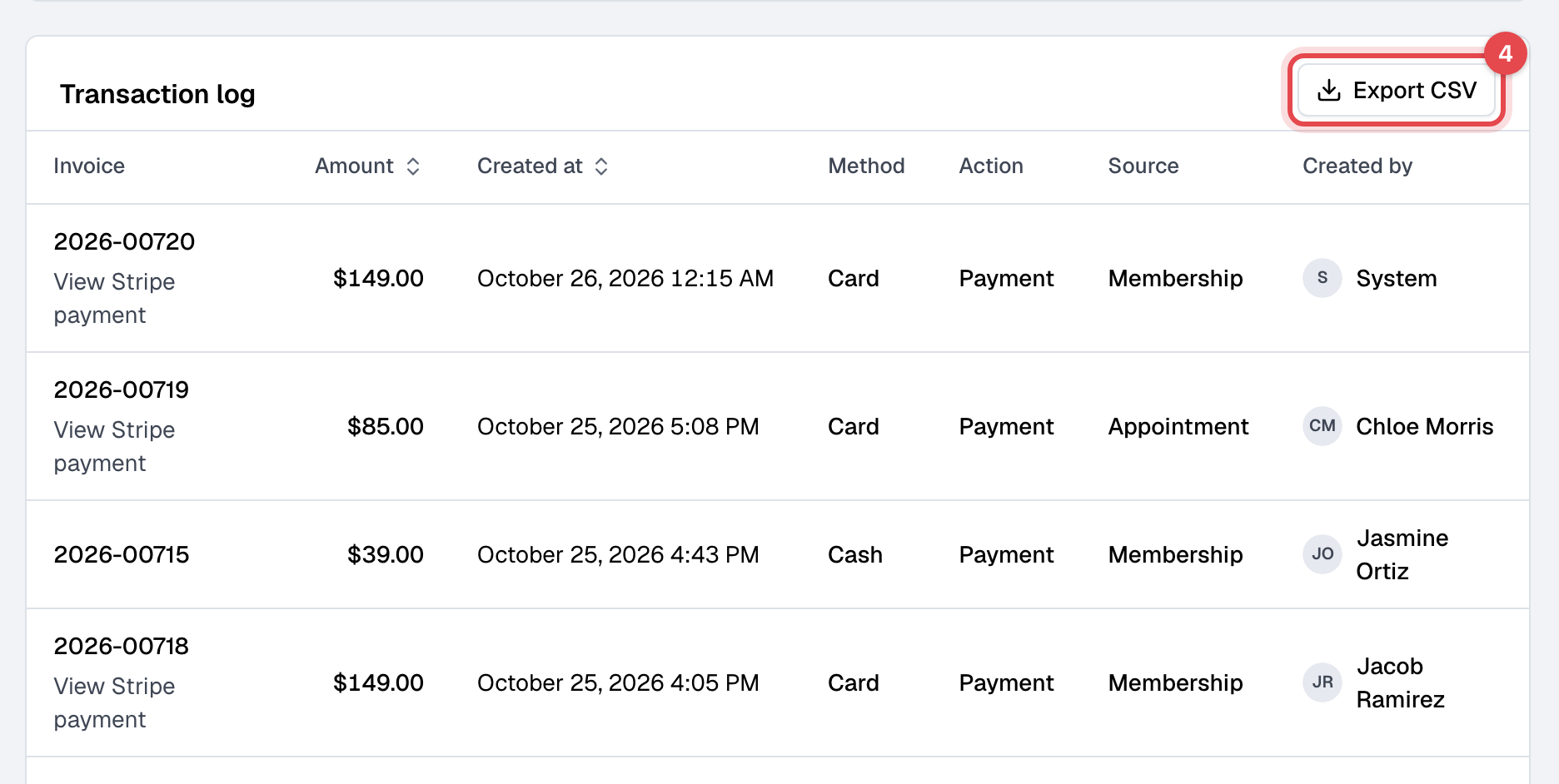
To download every payment and refund, click Export CSV on the Transaction log.
What the report shows
| Part | What it adds up |
|---|---|
| Revenue sources | Payments for each Membership, Product and Appointment, with how many |
| Subtotal | All payments |
| Deductions | Refunds, and Net taxes: the tax in the payments, less the tax in the refunds |
| Net revenue (after taxes) | The subtotal less refunds and taxes |
| Payment methods | Payments by Cash, Card and each custom payment method, with how many |
The Transaction log lists each payment and refund: its Invoice, Amount, Created at, Method, Action (Payment or Refund), Source, and who it was Created by. A card payment has a View Stripe payment link.
Good to know
- An invoice paid in parts counts in each period by what was paid in it, its tax too.
- The CSV has the member's name and email and the card's brand and last four digits. Its dates are in your business's time zone.
- The income and expenses report counts the same money as income: payments less refunds.