Find and filter members
Use the views, search and the plan filter to get to the members you need, and download them as CSV.
Members lists everyone who trains with you, whether or not they hold a membership. Each row shows their plan, status, last visit, what they owe and when they joined.
Steps
-
Open Members.
-
Click a view to narrow the list. Each shows how many members it holds:
View Shows All Everyone Active Members with an active membership, their own or a family's Inactive Members without one, leads included Owes money Members with unpaid invoices Not seen in 14 days Members with an active plan who haven't checked in for that long Ending this week Members whose last membership ends within 7 days, with nothing after it Frozen Members with a frozen membership -
Type in Search for members to find someone by name, email, phone or any custom field.
-
To see only the holders of certain plans, click Membership plan and tick them. Reset clears the search and filter.

-
Click a name to open their profile. A column heading with arrows sorts the list by it.
Download members as CSV
-
To download only some members, tick the box on each of their rows.
-
Click the download icon above the list, then Download all as CSV or Download selected as CSV.
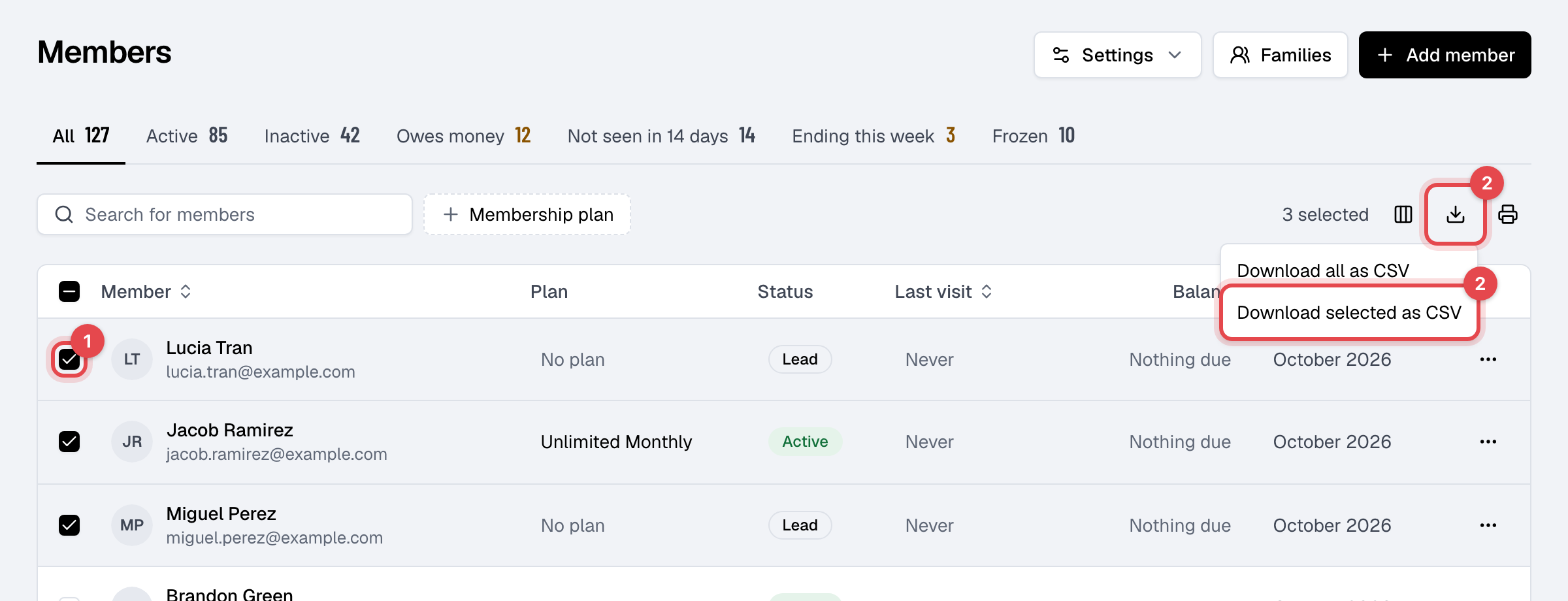
The file has each member's name, email, phone, language, date of birth, address, country and active membership. Download all as CSV takes every member, whatever the view or search shows.
Good to know
- Add columns: the columns icon shows Phone, Date of birth and any of your custom fields as extra columns. Your choice is kept for you, in this browser.
- Not seen in 14 days follows your setting: change the number of days under General settings > Member retention.
- Owes money and the Balance column are shown only to staff who handle money, with the Sales, Refunds or Reports permission. Downloading takes Members.
- The search box at the very top of the admin finds members from any page.