Gym Payment Methods Configuration
Choose which payment methods your gym accepts.
Configure custom payment methods for your gym.
Location: Settings → Custom Payment Methods
note
Cash and Card (Stripe) are built-in payment types and always available. Custom payment methods appear alongside Cash when recording manual payments.
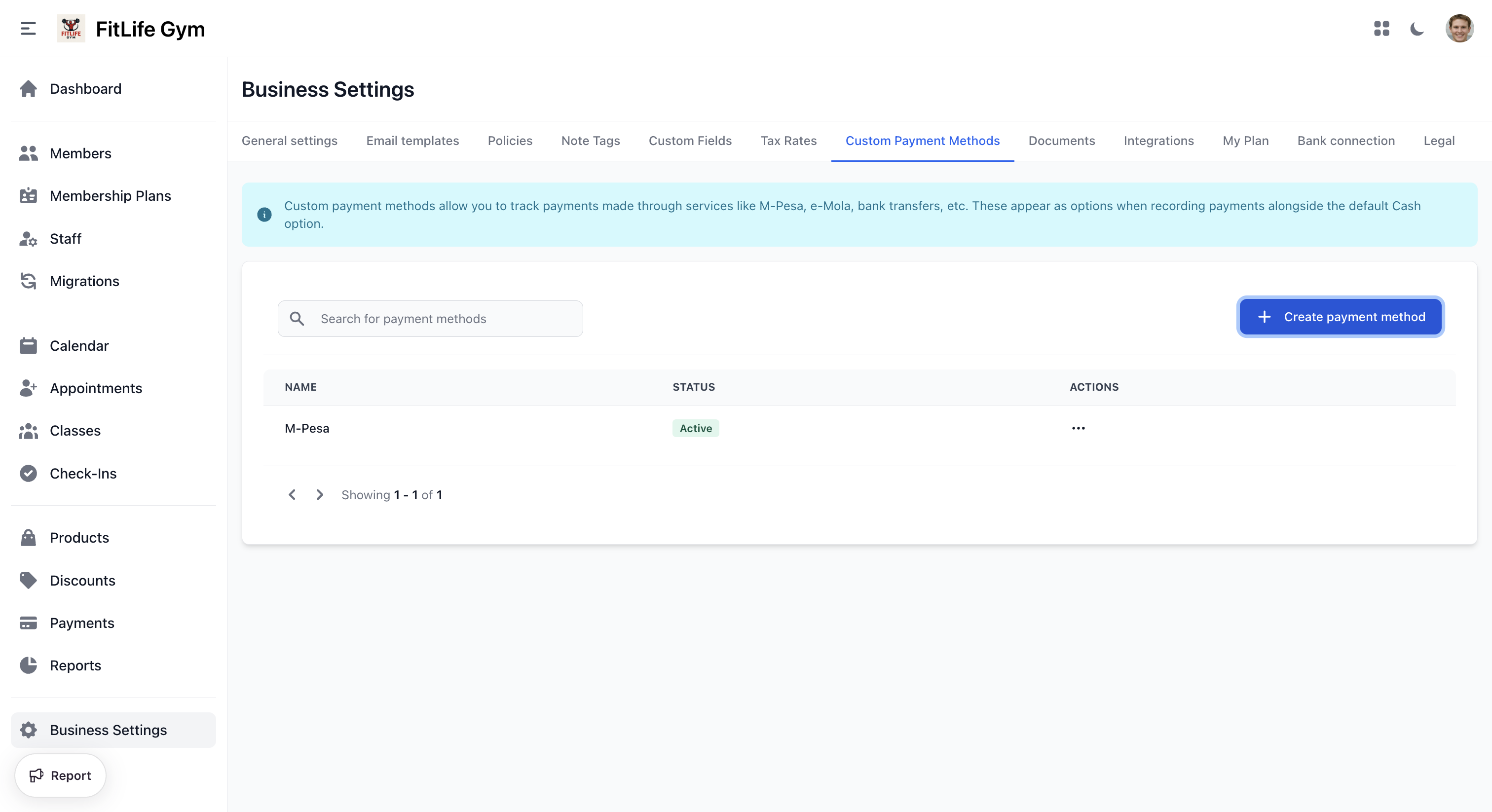
Payment Methods List
The payment methods table shows:
- Name — Payment method name
- Status — Active or Inactive
- Actions — Edit or Delete
Adding a Payment Method
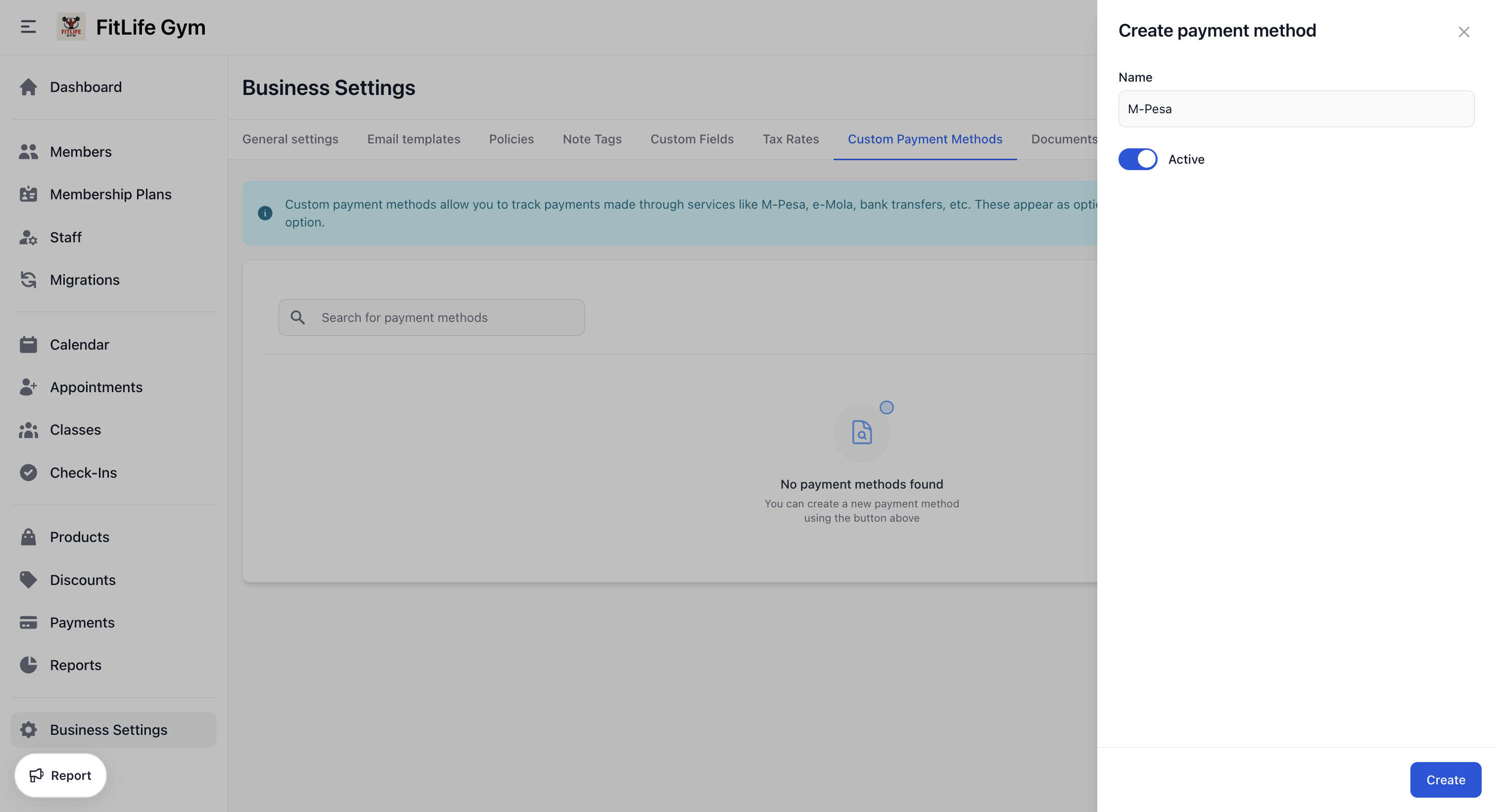
- Click Add Payment Method
- Configure:
- Name — Payment method name (e.g., "Bank Transfer", "M-Pesa", "Venmo")
- Active — Toggle to enable or disable
- Click Create
How Custom Methods Work
Custom payment methods:
- Appear in payment dropdowns when recording payments alongside Cash
- Require manual payment recording
- No automatic processing (staff marks as paid)
Managing Payment Methods
From the actions menu on each payment method:
- Edit — Modify the name or toggle active status
- Delete — Permanently remove the payment method
Troubleshooting
Payment Method Not Showing
Check:
- Method is active (not disabled)
- You have the correct permissions
- Page has been refreshed
Related Topics
- Payments & Invoices - Processing payments
- Integrations - Stripe setup for card payments
- Members Management - Assigning memberships with payment