Gym Tax Rates & Tax Configuration
Set up the tax rates that apply to your sales.
Configure tax rates for your products and memberships.
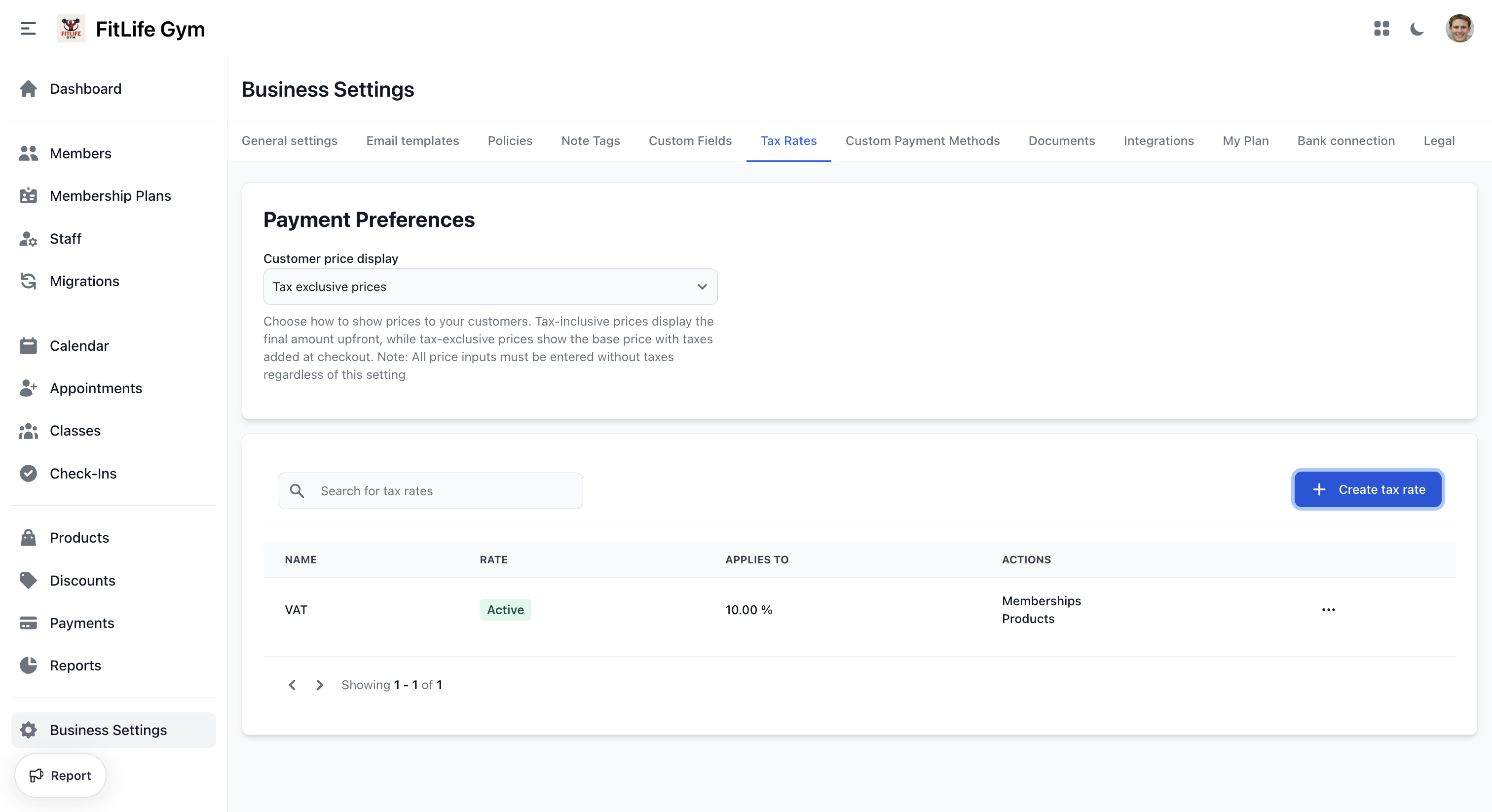
Payment Preferences
Location: Settings → Tax Rates
Configure how prices display:
- Customer price display — Select how prices are shown to customers:
- Tax inclusive prices — Prices shown include taxes
- Tax exclusive prices — Taxes added at checkout
note
All price inputs must be entered without taxes regardless of this setting.
Tax Rate List
The tax rates table shows:
- Name — Tax rate name
- Rate — Rate value with type indicator (% or currency)
- Applies to — Memberships, Products, or both
- Actions — Edit, Delete, or Archive/Unarchive
Adding Tax Rates
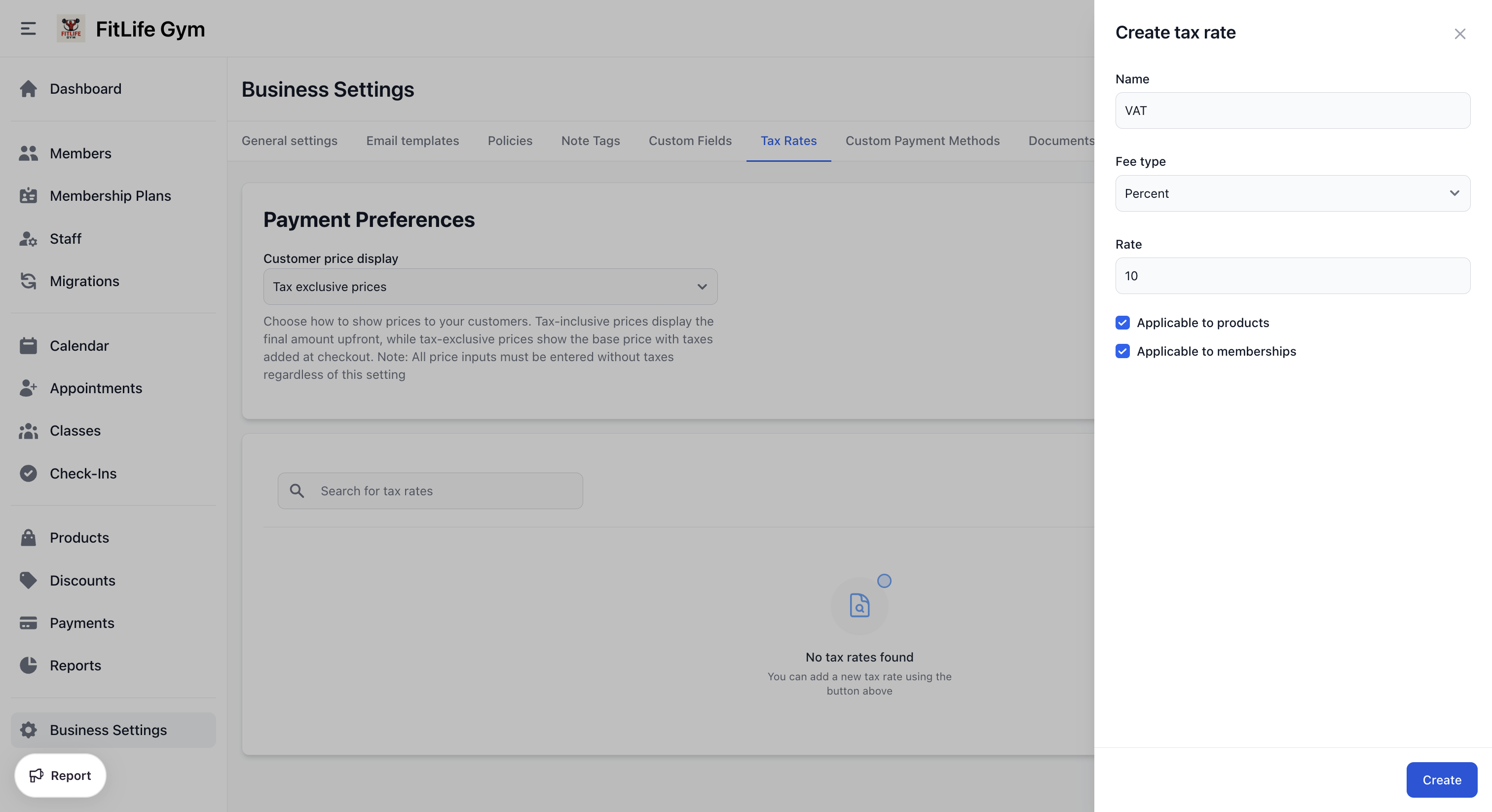
- Click Add Tax Rate
- Configure:
- Name — Tax name (e.g., "Sales Tax")
- Fee type — Percent or Flat amount
- Rate — Rate value (e.g., 8.5 for percent, or a flat currency amount)
- Applicable to products — Apply this tax to products
- Applicable to memberships — Apply this tax to membership plans
- Click Save
Multiple Tax Rates
You can create multiple taxes that stack:
- State sales tax
- City tax
- Special district tax
All applicable taxes are calculated and shown separately on invoices.
Example
If you have:
- State tax: 6%
- City tax: 2%
A $100 membership would show:
- Subtotal: $100.00
- State tax: $6.00
- City tax: $2.00
- Total: $108.00
Managing Tax Rates
From the actions menu (⋯) on each tax rate:
- Edit — Modify the tax rate details
- Delete — Permanently remove the tax rate (only available if the tax rate has not been used)
- Archive / Unarchive — Deactivate or reactivate tax rates that have been used
note
Past invoices retain their original tax calculations.
Tax Display on Invoices
Invoices show:
- Subtotal (before tax)
- Each tax rate with amount
- Total (including all taxes)
Troubleshooting
Tax Not Applying
Verify:
- Tax rate is active (not archived)
- Correct applicability selected (products/memberships)
- Price setting matches expectation (inclusive/exclusive)
Wrong Tax Amount
Check:
- Tax rate percentage is correct
- Multiple taxes aren't stacking unexpectedly
- Inclusive vs exclusive setting
Related Topics
- General Settings - Business configuration
- Payments & Invoices - How taxes appear on invoices
- Products - Product pricing with tax