Custom Member Fields & Note Tags
Collect the extra member details that matter to you.
Extend member profiles with custom fields and organize staff notes with tags.
Custom Fields
Overview
Custom fields let you collect additional member information beyond the default profile fields.
Location: Settings → Custom Fields
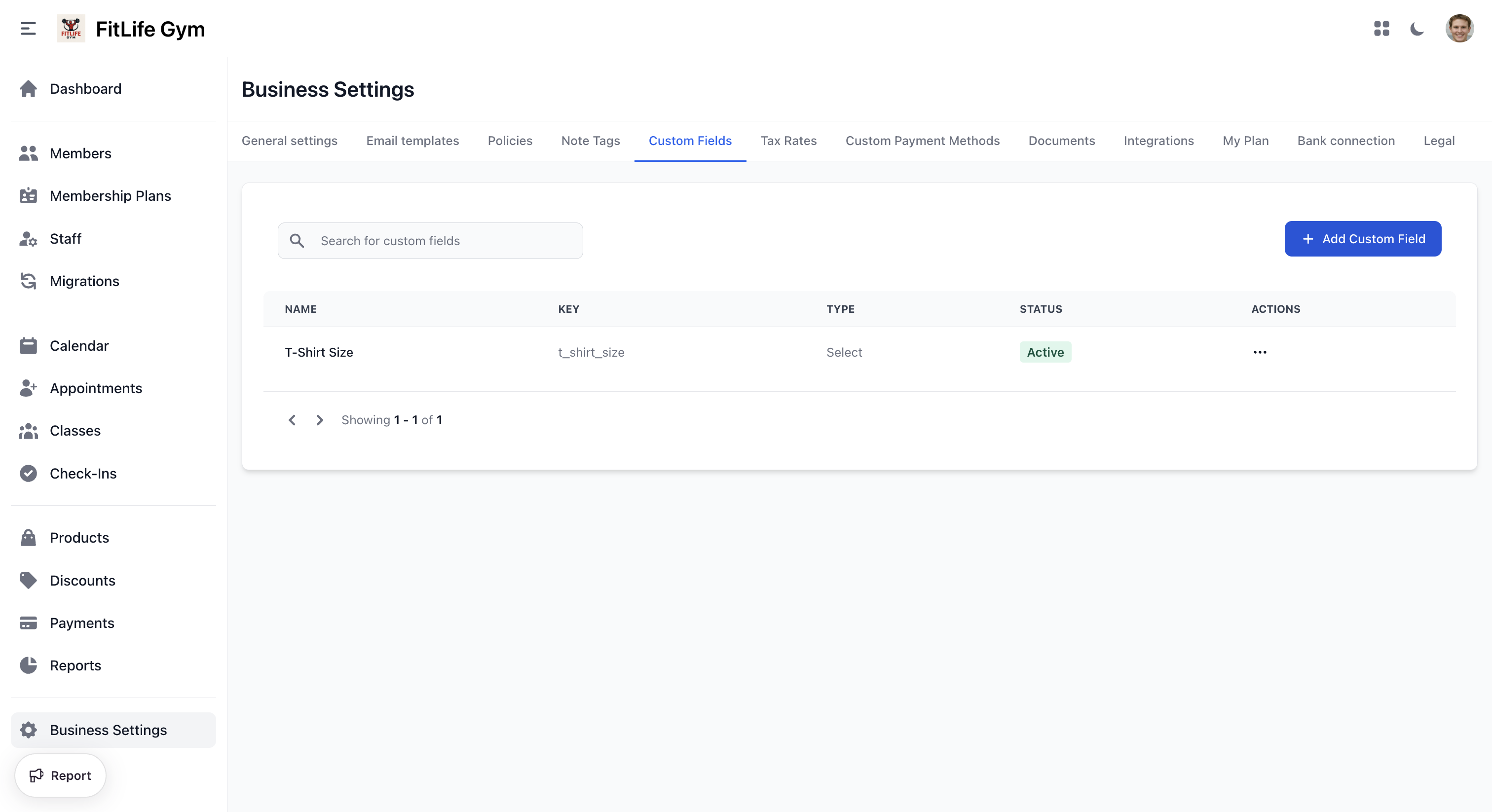
Custom Fields List
The custom fields table shows:
- Name — Field display name
- Key — Unique identifier
- Type — Field type
- Status — Required, Active, or Inactive badges
- Actions — Edit or Delete
Adding Custom Fields
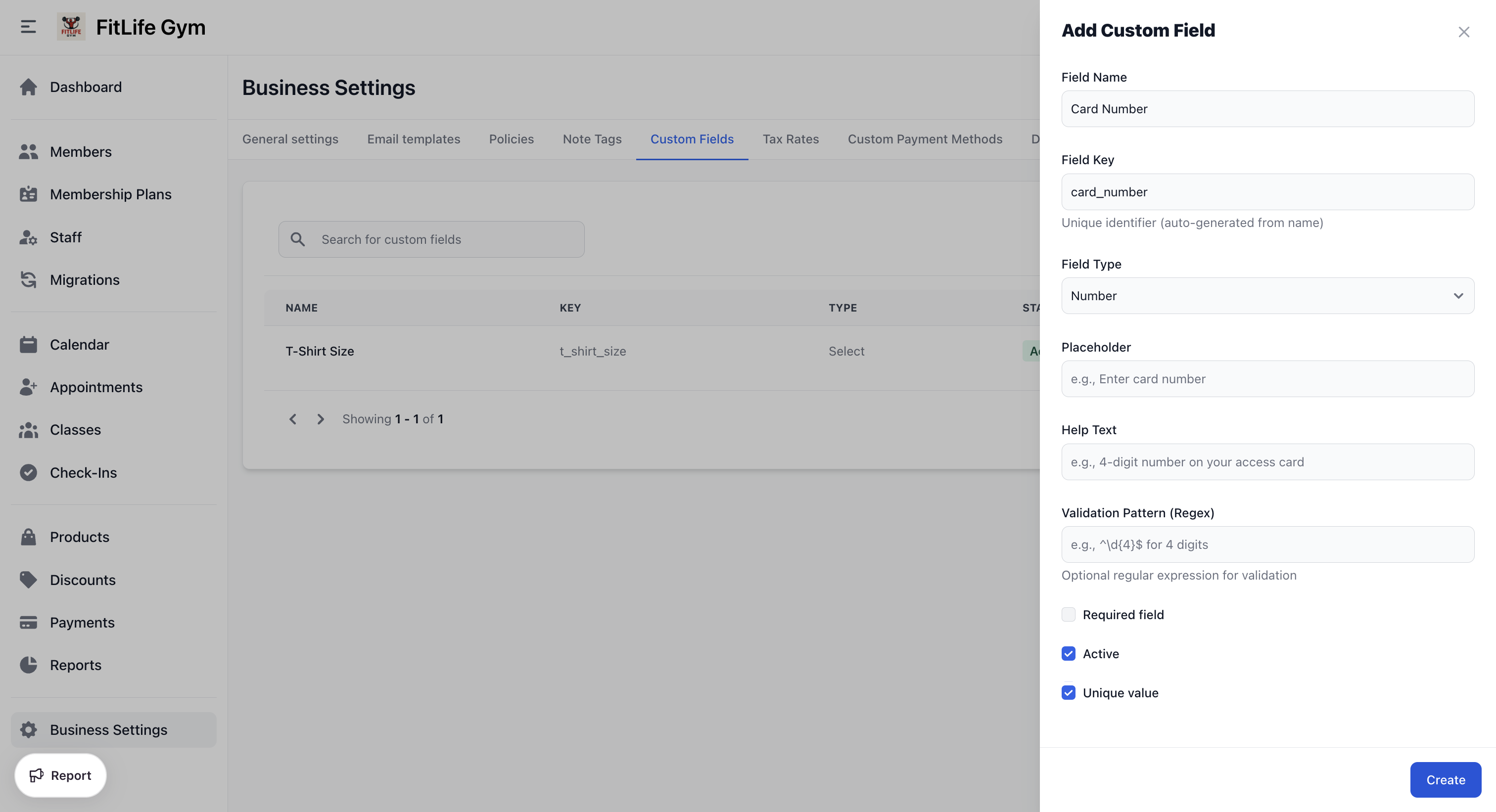
- Click Add Custom Field
- Configure:
- Field Name — Display label (e.g., "Card Number")
- Field Key — Unique identifier, auto-generated from name (e.g., "card_number")
- Field Type — Text, Number, Date, Select, Checkbox, or Email
- Options — List of options (only for Select type)
- Placeholder — Placeholder text shown in the input
- Help Text — Descriptive text shown below the field
- Validation Pattern (Regex) — Optional regular expression for validation
- Required field — Must be filled when creating members
- Active — Whether the field is visible on member profiles
- Unique value — Value must be unique across all members
- Click Save
note
Field Key and Field Type cannot be changed after creation.
Managing Custom Fields
From the actions menu on each custom field:
- Edit — Modify field settings (except key and type)
- Delete — Permanently remove the field
warning
Deleting a custom field removes it from all member profiles.
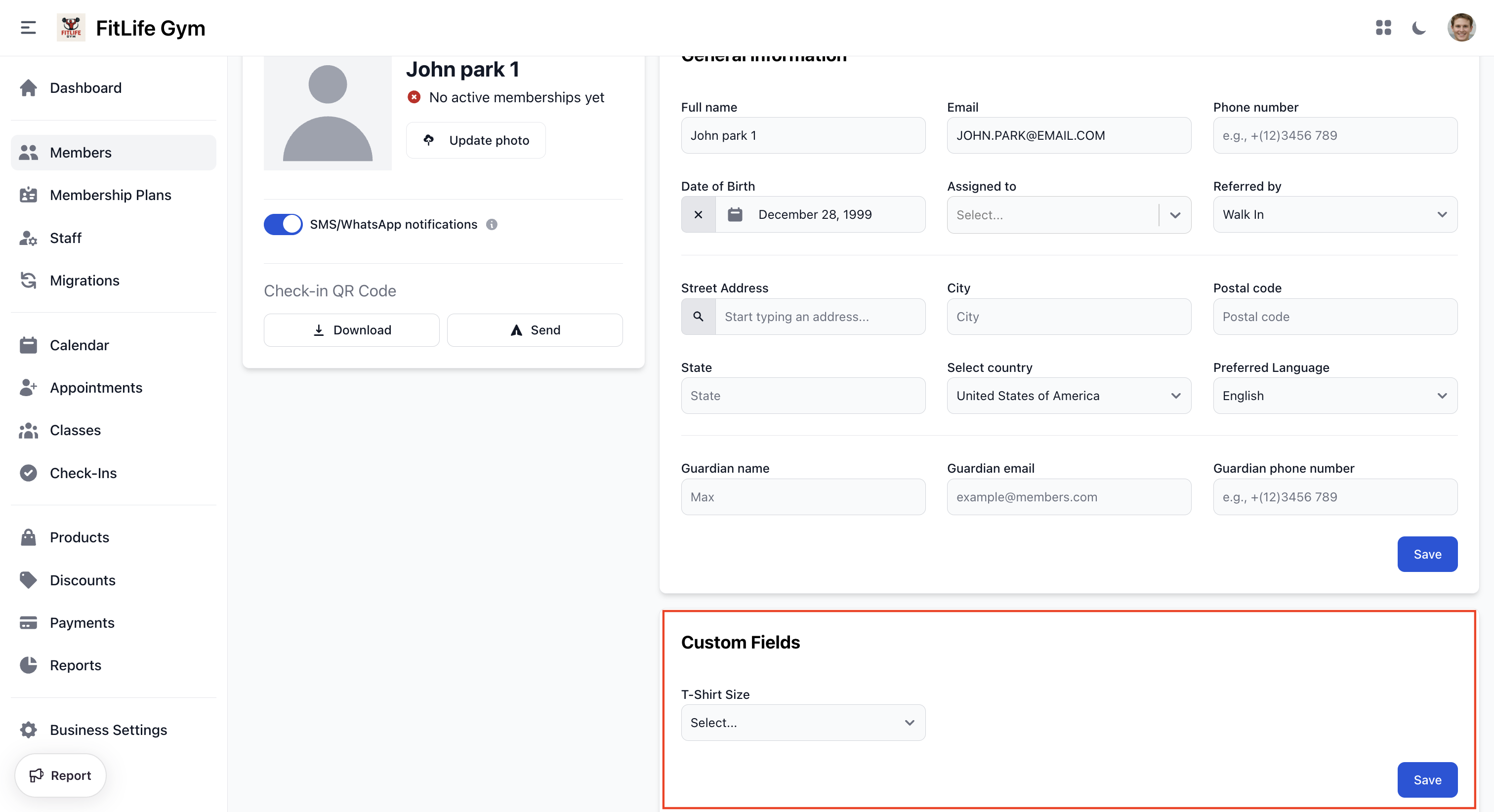
Where Custom Fields Appear
- Member profile — Dedicated custom fields section (only active fields are shown)
Note Tags
Overview
Note tags help categorize staff notes on member profiles.
Location: Settings → Note Tags
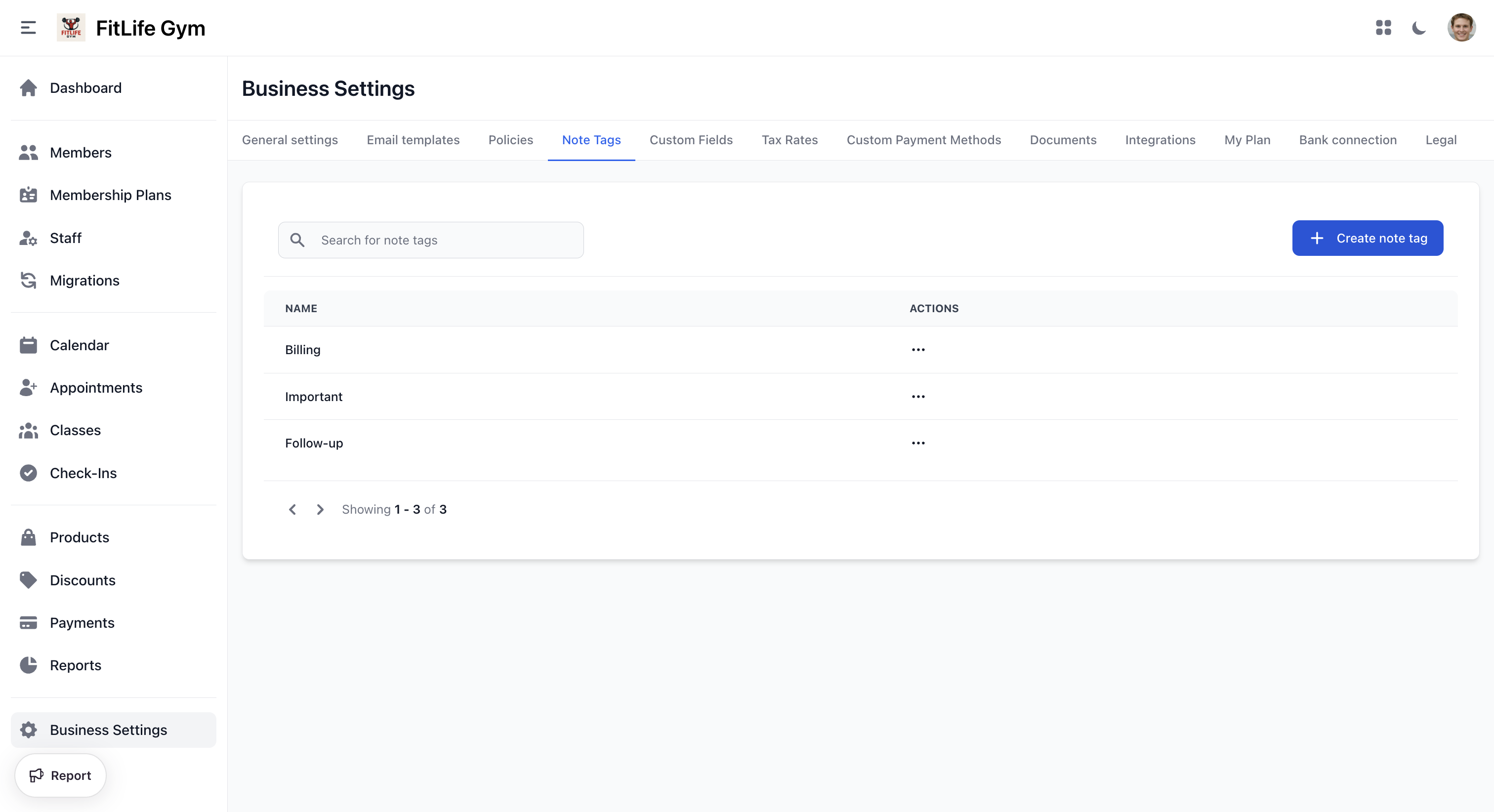
Note Tags List
The note tags table shows:
- Name — Tag name
- Actions — Edit or Delete
Creating Tags
- Click Add Tag
- Enter Name (e.g., "Medical", "Payment Issue", "VIP")
- Click Save
Using Tags
When adding notes to member profiles, you can select one or more tags from a dropdown to categorize the note.
Troubleshooting
Custom Field Not Showing
Check:
- Field is active
- Page has been refreshed
Related Topics
- Members Management - Using custom fields on profiles
- Reports & Analytics - Member data and reporting