How automations work
Triggers, steps, goals and results, and when each message really goes out.
An automation is a trigger followed by steps. When the trigger fires for a member, they enter the flow and move down its steps one by one, until the flow ends or they reach its goal. Only active automations take members in. To set one up, see Set up an automation.
Triggers
| Trigger | Fires |
|---|---|
| New member joins | When staff add a member, or a lead becomes a member by buying a paid membership or being marked as one. Imported members don't enter. |
| Someone becomes a lead | When someone sends your inquiry form or signs up on your website, a lead comes from a connected app, or staff add a lead. |
| Membership starts | When a membership is bought or given to a member. |
| Membership is canceled | When a membership is canceled, by the member or by staff, even if it runs until a later date. |
| Membership expires in N days | In the morning, N days before a membership's end date. Memberships without an end date never trigger it. |
| Member reaches N visits | At the check-in that brings a member to that many visits. |
| Punchcard has N visits left | When a check-in or a booking leaves that many visits on a punchcard. |
| No visit for N days | In the morning of the day a member's last check-in is N days ago. Members who never checked in don't trigger it. |
| Member's birthday | In the morning of their birthday, if their profile has one. |
"In the morning" means soon after 9:00 in your business's time zone. Other triggers act within a few minutes. Only for these plans narrows the four membership triggers to the plans you tick; with none ticked, every plan counts.
Each member can enter is either Only once ever or Every time it triggers. With the second, But not again within (days) keeps a member from entering again too soon (90 days unless you change it). A member is never in the same automation twice at once.
Steps
| Step | What it does | Skipped for |
|---|---|---|
| Send email | An email in your business's name, with your logo, main color and an unsubscribe link. Replies go to your customer service email. | Members who unsubscribed |
| Send SMS | A text over your Twilio connection (by WhatsApp when only WhatsApp is turned on there). | Members who haven't agreed to marketing texts, have no phone number, or turned off SMS/WhatsApp notifications; everyone, without Twilio |
| Send push notification | A notification in the member app. | Members without the app, or with News and offers turned off in it |
| Wait | Pauses for days and hours, at least an hour. | |
| Split by segment | Members who match a segment take one branch, everyone else the other. It is always the last step; each branch goes on by itself. |
A skipped step doesn't stop the flow: the member moves on to the next step. See Email and text consent for who agreed to what.
Timing and limits
- Quiet hours: texts and push notifications wait between 21:00 and 8:00 in your business's time zone, then go out at 8:00. Emails go out at any time.
- Weekly cap: no member gets more than 5 automation messages in any seven days. Change it under Settings on the Automations tab (Max marketing messages per member per week). Messages over the cap are skipped and the flow goes on. Campaigns don't count toward it.
Goals and results
Stop when, under Settings in the builder, is the automation's goal: They check in, They book a class, A new membership starts or The lead becomes a member. A member who reaches it leaves the flow at once, so nobody hears "we miss you" after coming back. Reaching it within 7 days after their flow finished counts too.
- The automations list shows each automation's Messages sent (and how many were opened) and how many Reached the goal.
- Activity, in the builder, counts who entered, who is in the flow now and who reached the goal, and lists the latest messages, each sent or skipped and why.
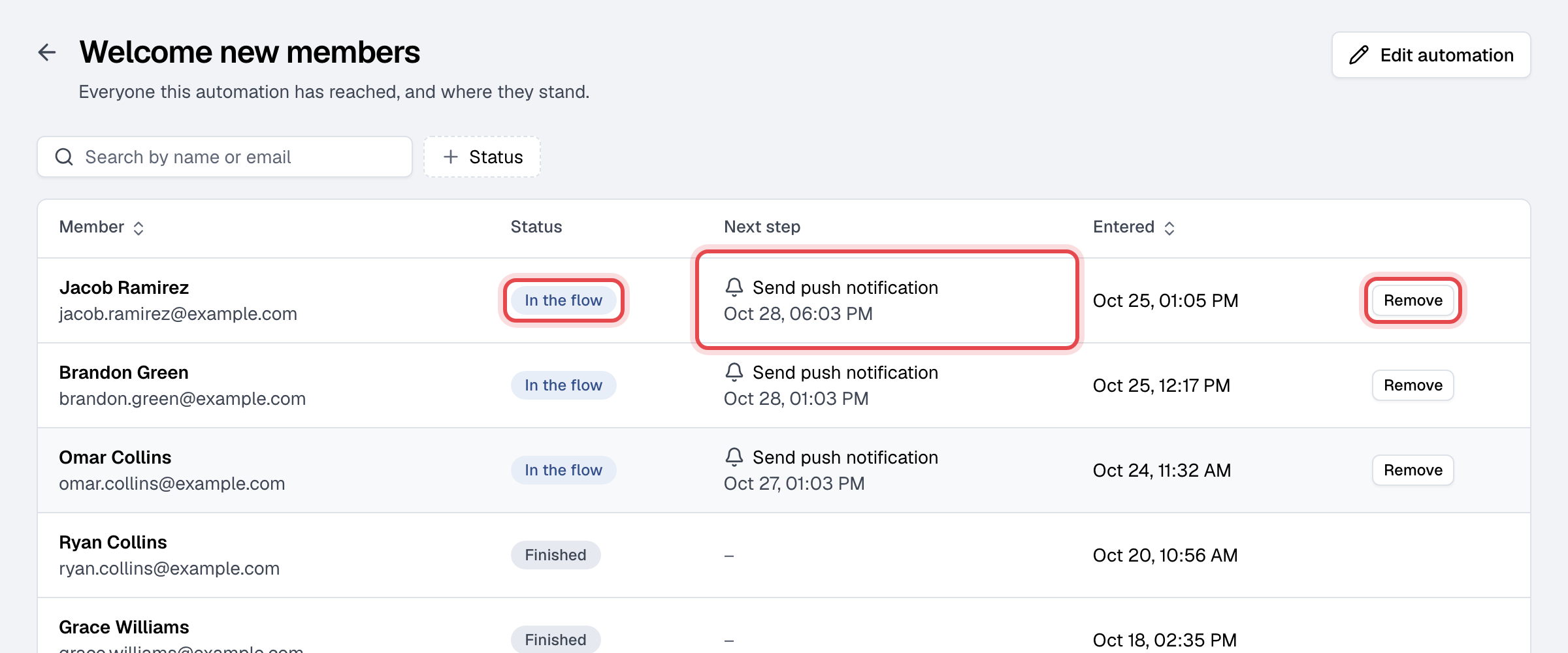
- People, in the row's ⋯ menu, lists everyone the automation reached, with their status (In the flow, Reached the goal, Finished, Left the flow or Removed by staff) and their next step. Remove takes a member out; nothing more is sent to them from it.
Opens are an estimate, because some email apps open messages on their own; clicks are the surer sign. To stop tracking them, turn off Track opens and clicks under Settings on the Automations tab.