Set up an automation
Welcome new members, win back the ones who stopped coming and remind everyone to renew, with messages that go out by themselves.
An automation sends a member a series of messages when something happens, such as joining or not visiting for two weeks. Start from a template, make the messages yours, and activate it.
Before you start
- Marketing is on the Growth plan.
- You need the Marketing permission. The Owner and Managers have it.
- For text messages, connect Twilio first: see Twilio text messages.
Steps
-
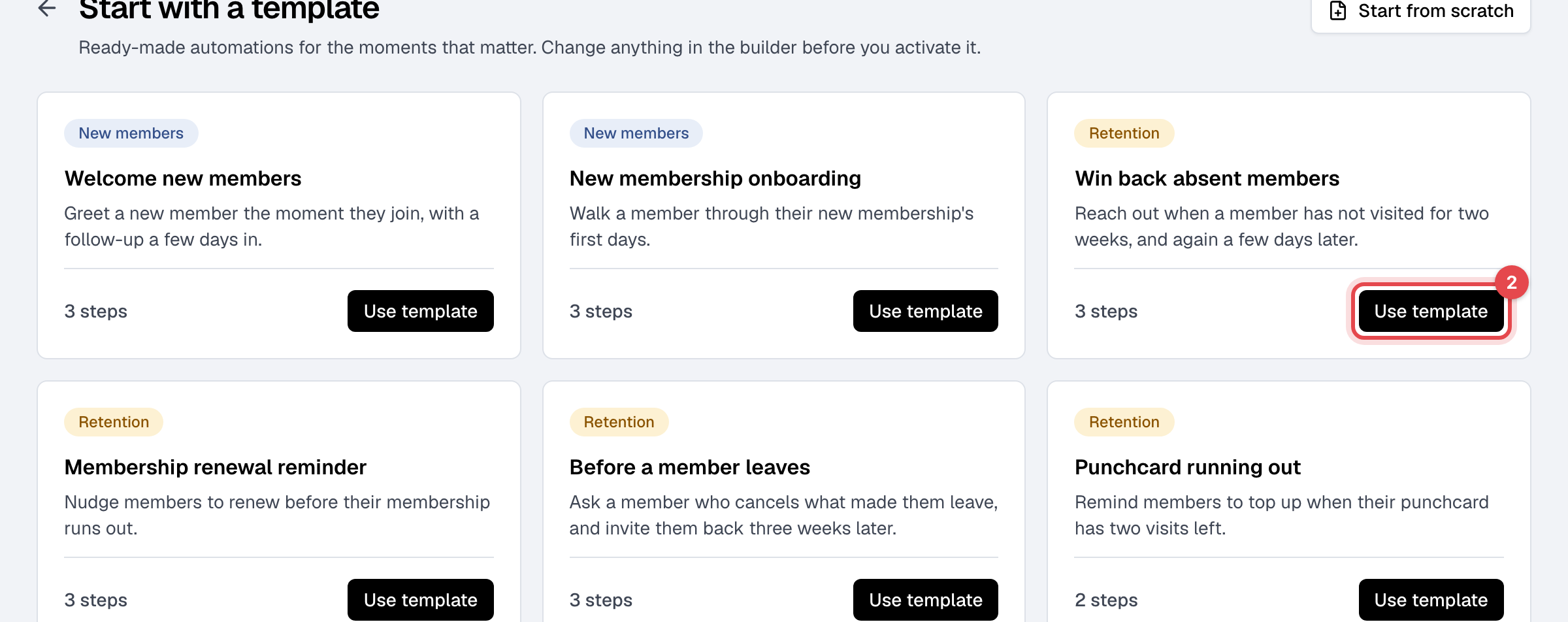
In Marketing, click New automation > Use a template. To build one from nothing, choose Start from scratch instead.
-
Click Use template on the one you want, such as Win back absent members. The builder opens with its steps, and the automation is saved as a draft.
-
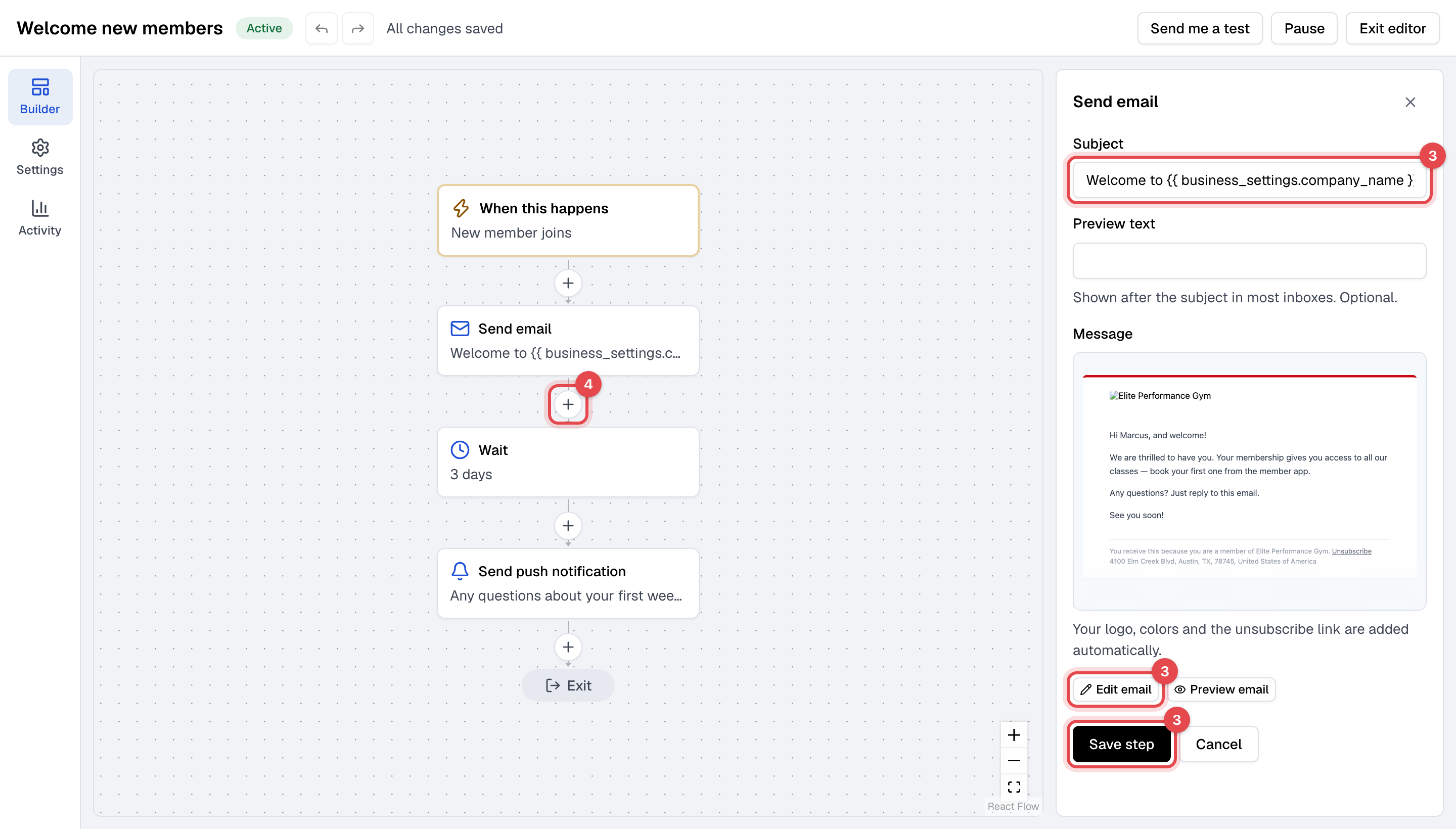
Click a step to change it. For an email, change the Subject, then click Edit email to write it full screen and Done when you finish. Click Save step.
-
To add a step, click + where it should go, pick Send email, Send SMS, Send push notification or Wait, fill it in and click Save step.
-
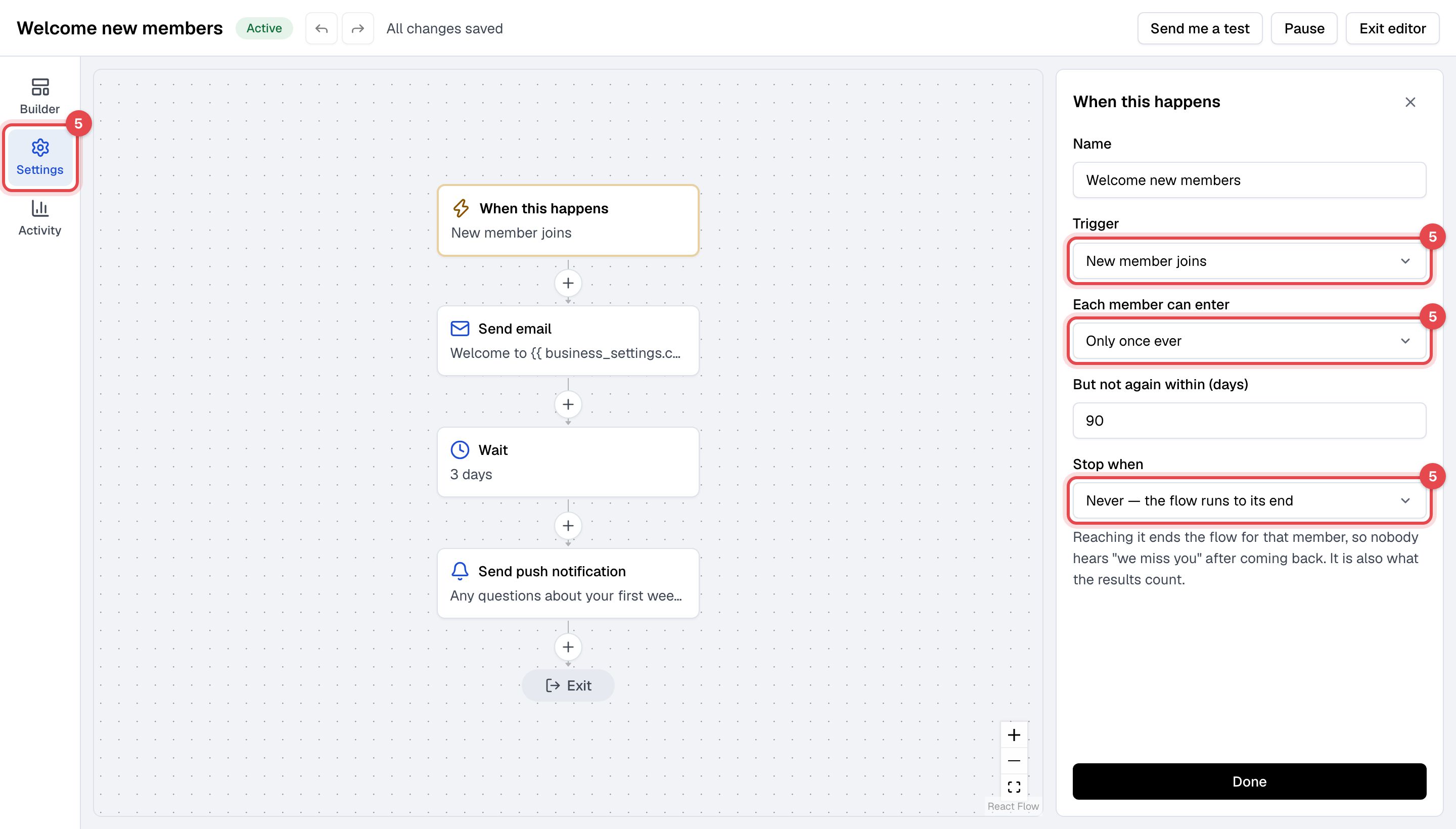
Click Settings on the left and check the Trigger, Each member can enter and Stop when. Changes here save on their own.
-
Click Send me a test: the automation's first email arrives in your inbox, marked "[Test]".
-
Click Activate.
What happens next
- From now on, each member the trigger fires for enters the flow and gets its steps in order. It doesn't reach back: members who joined or stopped coming before you activated it aren't added.
- Emails go out in your business's name, with your logo and an unsubscribe link. Members who unsubscribed, or haven't agreed to texts, are skipped for that step and the flow goes on. See Email and text consent.
- The automation's row in Marketing shows the messages sent and how many reached the goal. In the builder, Activity shows what went to whom.
Good to know
- Changing a live automation is safe: members already in it finish the version they entered.
- Pause stops the automation: nobody new enters, and members already in it wait where they are. Turned back on, each one carries on from their step, with the wait they had left. To take a member out, use the automation's People page, in the row's ⋯ menu.
- An active automation can't be deleted. Pause it first. Deleting it deletes its history.
- A split (Split by segment) can only be the last step of a flow; each of its two branches then goes on by itself.