Send a campaign
Tell all your members, or a segment, about holiday hours, a new class or an offer, by email, text or app notification.
A campaign is one message from your business to all your members or to a segment, sent once: holiday hours, a new class, an offer. Send it as an email, a text message or an app notification, now or at a time you pick.
Before you start
- Marketing is on the Growth plan.
- You need the Marketing permission. The Owner and Managers have it.
- Text messages need your Twilio connection, with SMS turned on. See Twilio text messages.
Steps
-
In Marketing, open the Campaigns tab and click New campaign. It opens as a draft.
-
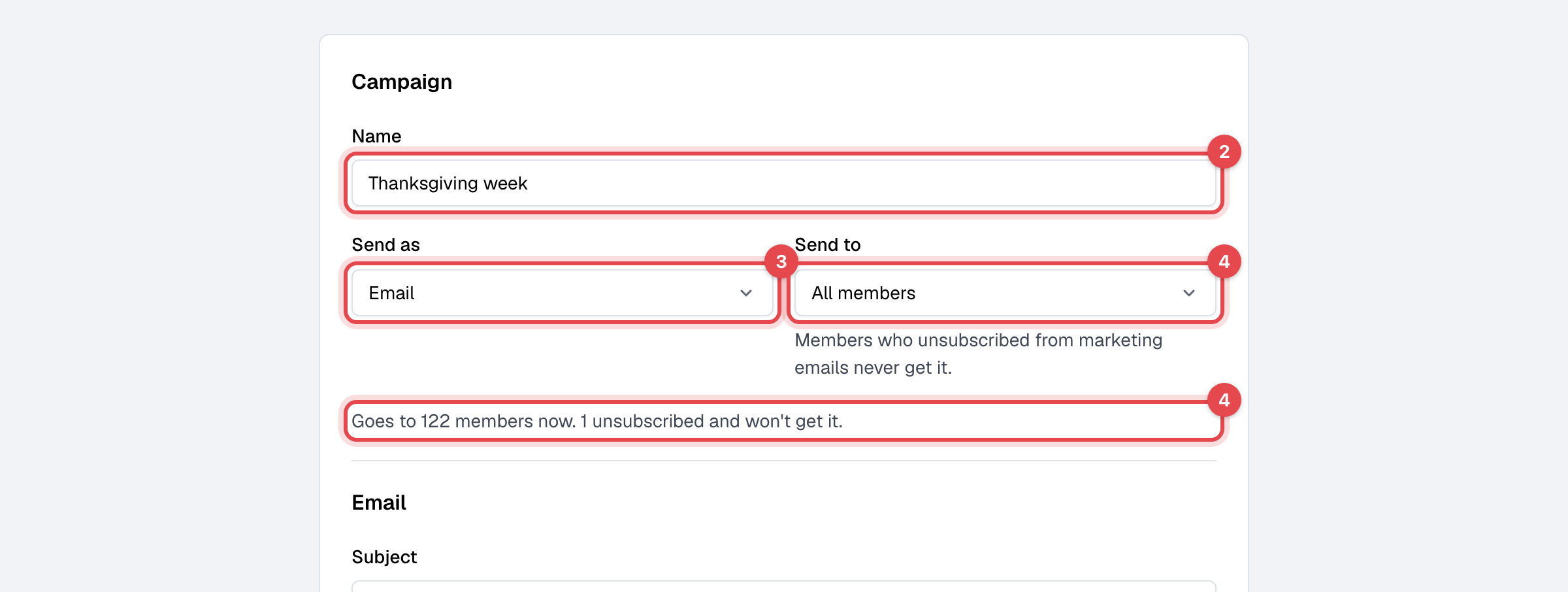
Under Name, give it a name your staff will recognize, such as "Thanksgiving week". Members don't see it.
-
Under Send as, choose Email, Text message or App notification.
-
Under Send to, keep All members or pick a segment. The line below says how many members it goes to now, and how many it will skip.
-
Write the message:
- Email: the Subject, an optional Preview text, then Edit email to write it full screen. Send me a test sends it to your own inbox.
- Text message: up to 600 characters.
- App notification: a Title and a Message of up to 200 characters.
-
Click Send now and confirm, or Schedule for later and pick the day and time. To finish later, click Save draft.

What happens next
-
Sent now, it goes out in the background; a large list takes a few minutes. You can't stop it once it has started.
-
Scheduled, it goes out within five minutes of the time you picked. Until then, open it and click Cancel schedule to make it a draft again.
-
It goes to whoever is in the audience when it goes out, each email address and phone number once (a family sharing an email gets one copy):
Sent as Skips Email Members who unsubscribed from marketing emails, and leads who didn't agree to them Text message Members who haven't agreed to marketing texts, have no phone number, or turned off SMS/WhatsApp notifications App notification Members without the app, or with News and offers turned off in it -
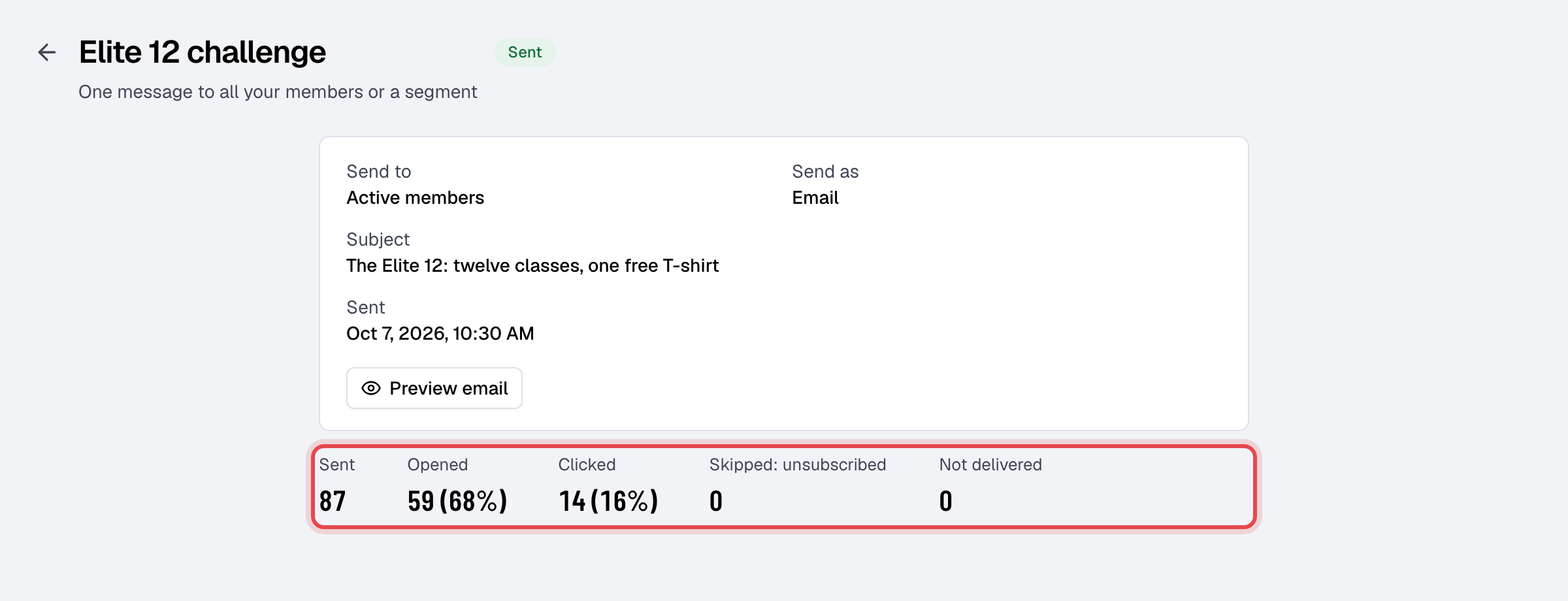
Open a sent campaign to see how it did: Sent, Opened and Clicked (emails only), how many were skipped, and Not delivered.
Good to know
- All members includes your leads.
- Texts and app notifications can't be sent or scheduled between 21:00 and 8:00 in your business's time zone. Emails can go out at any time.
- On a free trial, add a payment method to send or schedule. Drafts and test emails work without one.
- Only a draft can be changed. Drafts and scheduled campaigns can be deleted from their ⋯ menu; a campaign that went out stays in the list as a record.