Roles and permissions
What the Owner, Managers, Front desk and Coaches can each do, and how to give someone more or less.
Every staff member has a role: a set of permissions named after a job. Every staff member can look up members and leads and see the schedule. Permissions let them change things, and see money.
The roles
| Role | Holds |
|---|---|
| Owner | Every permission, and what only the owner can do: the business's Finegym plan and billing (My plan), the Bank connection, the Branded app, the Legal pages, the business's time zone, transferring ownership and deleting the business. Each business has one owner. |
| Manager | Every permission. Not what only the owner can do. |
| Front desk | Members, Bookings, Check-ins and Sales. No refunds, reports, expenses or setup. |
| Coach | Bookings and Check-ins, for their own classes and appointments only, and their own pay. See What coaches can do. |
| Custom | The permissions you tick. |
The permissions
| Permission | Lets them | Manager | Front desk | Coach |
|---|---|---|---|---|
| Members | Add and edit members and their families, notes and documents, import members and handle leads. | Yes | Yes | No |
| Bookings | Book members into classes and appointments, cancel their bookings and run waitlists. | Yes | Yes | Their own sessions |
| Check-ins | Check members in, remove check-ins and switch on front desk mode. | Yes | Yes | Their own sessions |
| Sales | Create invoices, take payments, and sell or change memberships and products. | Yes | Yes | No |
| Refunds | Refund payments. Needs Sales. | Yes | No | No |
| Schedule | Set up classes, class and appointment types, and the days the business is closed. | Yes | No | No |
| Plans and products | Set up membership plans, products and discounts. | Yes | No | No |
| Reports | See reports, revenue, transactions and everyone's pay. | Yes | No | No |
| Expenses | Record the business's expenses and see the income and expenses report. | Yes | No | No |
| Marketing | Send campaigns and run automations and segments. | Yes | No | No |
| Staff | Add staff, choose their roles and permissions, and set their pay and availability. | Yes | No | No |
| Settings | Change the business's settings, integrations, email templates and documents. | Yes | No | No |
Payments, invoices and saved cards are seen by whoever holds Sales, Refunds or Reports. Every staff member, whatever their role, sets their own hours under My availability and sees what they earned under My pay, in the menu behind their picture at the top right.
Change someone's role
- In Staff, open the staff member and click the Permissions tab.
- Under Role, choose the role, or tick the permissions under Permissions yourself.
- Click Save changes. It takes effect at once; if they're signed in, their menus change when they reload the page.
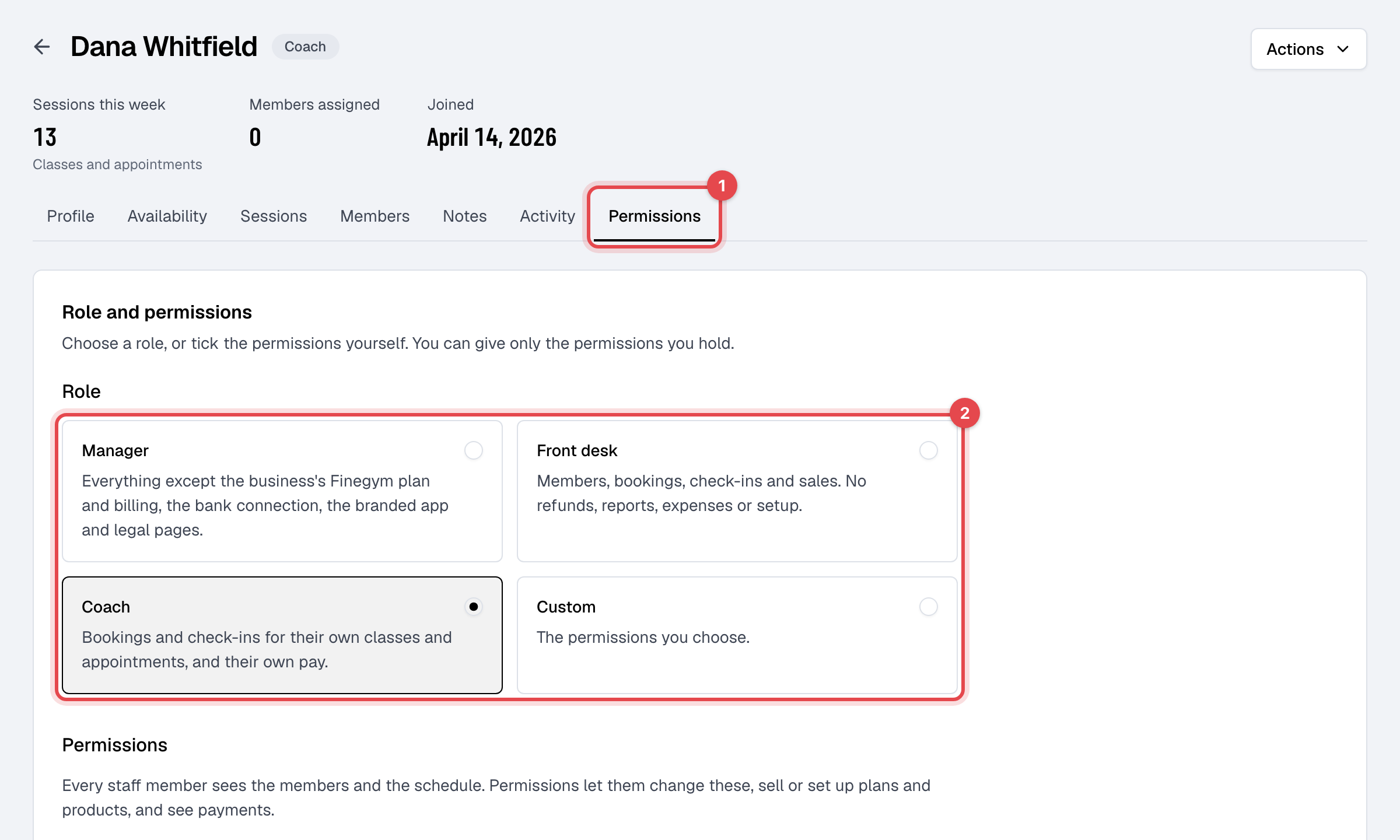
How roles and permissions fit together
- A role ticks its permissions. Ticking exactly a role's permissions shows that role; anything else is Custom.
- Only their own classes and appointments shows under Check-ins once Bookings or Check-ins is ticked. It is what makes a Coach a coach. A coach you also give Members becomes Custom and still reaches only their own sessions.
- Refunds needs Sales: ticking Refunds ticks Sales too.
- Roles keep up with Finegym. When a new permission is added to a role, everyone with that role gets it. Staff on Custom keep exactly what is ticked.
Who can change a role
- The owner, and anyone with the Staff permission.
- You give only what you hold. A permission you don't hold can't be ticked, and a role that needs one can't be chosen. The owner holds them all.
- Nobody changes their own. On your own page the tab shows: "You cannot change your own role or permissions. Ask the owner or someone with the Staff permission."
- The owner's role never changes. Their tab says they hold every permission. To make someone else the owner, transfer ownership.