Transfer ownership
Make another staff member the owner of the business, with its Finegym plan and billing.
Make another staff member the owner, for example when you sell the business or a partner takes over the account. It happens at once, and you stay on as a Manager.
Before you start
- Only the owner can do this.
- The new owner must already be on your staff and have set up their account with the link in their welcome email. See Add staff.
- If the business is scheduled for deletion, cancel the deletion first.
Steps
-
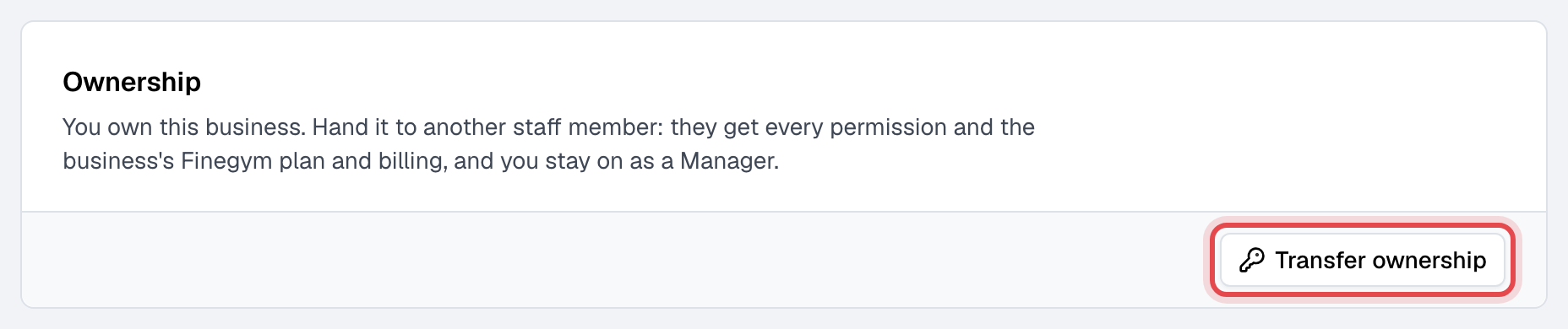
In Settings, open General settings and, under Ownership, click Transfer ownership. Or open the staff member in Staff and choose Actions > Make owner.
-
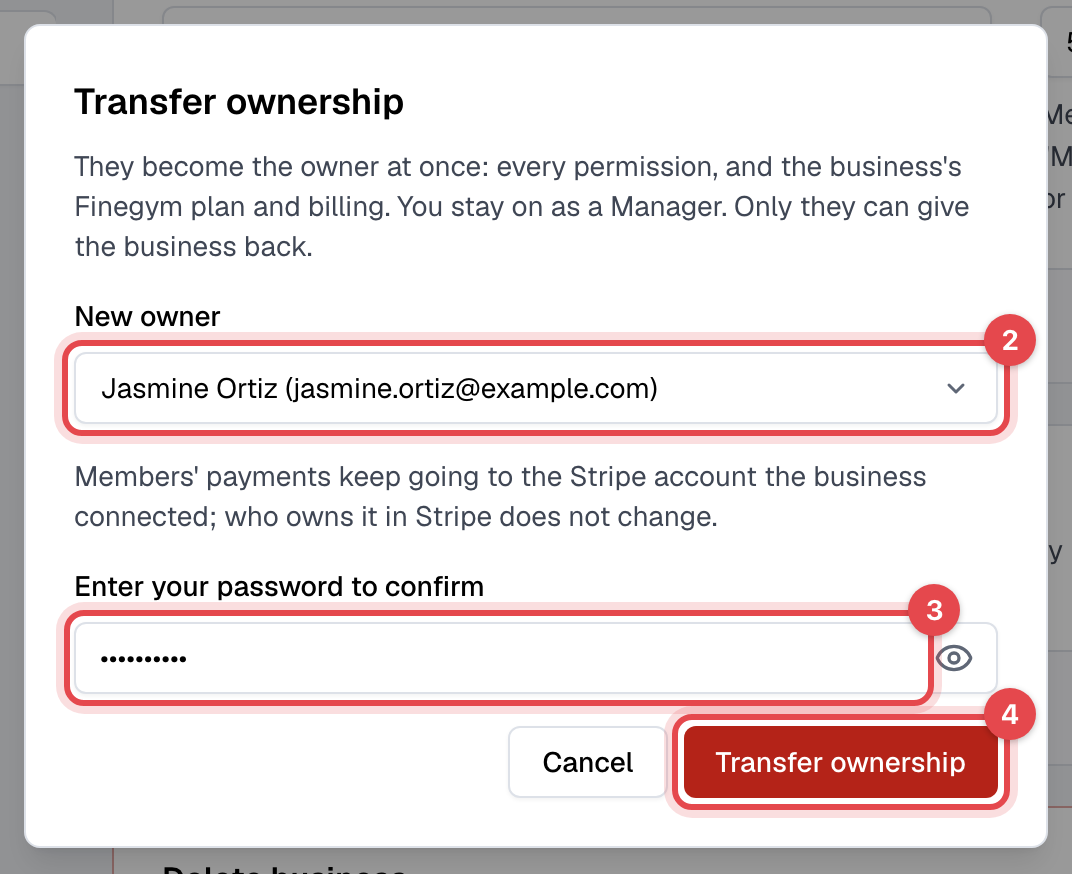
Under New owner, choose the staff member. Only staff who have set up their account are listed.
-
Under Enter your password to confirm, enter your own password.
-
Click Transfer ownership.
caution
You can't undo this yourself. Only the new owner can give the business back, the same way.
What happens next
- They become the owner: every permission, and the business's Finegym plan and billing. Finegym's invoices for your plan go to their email from now on.
- You stay on as a Manager, with every permission except the Finegym plan and billing, the bank connection, the branded app and the legal pages.
- Finegym emails you both. The new owner is asked to check the plan and the payment card in Settings, under My plan.
- Members' payments keep going to the Stripe account the business connected. Who owns that account in Stripe doesn't change; if it should be the new owner, change it in Stripe.
Good to know
- Not in the list? They haven't set up their account yet. Open them in Staff and, on the Profile tab under Access, click Send setup link.
- Someone who already owns another business on Finegym with the same email address can't take this one. Give them a different email first.
- The transfer is recorded in the activity log.