Add staff
Give a coach, front desk worker or manager their own sign-in, with the role that fits their job.
Add everyone who works at your business as staff. Each person signs in to the admin with their own email and password, and sees only what their role allows.
Before you start
- You need the Staff permission. The Owner and Managers have it.
- You can give only the permissions you hold yourself. The owner holds them all.
Steps
-
In Staff, click Add staff.
-
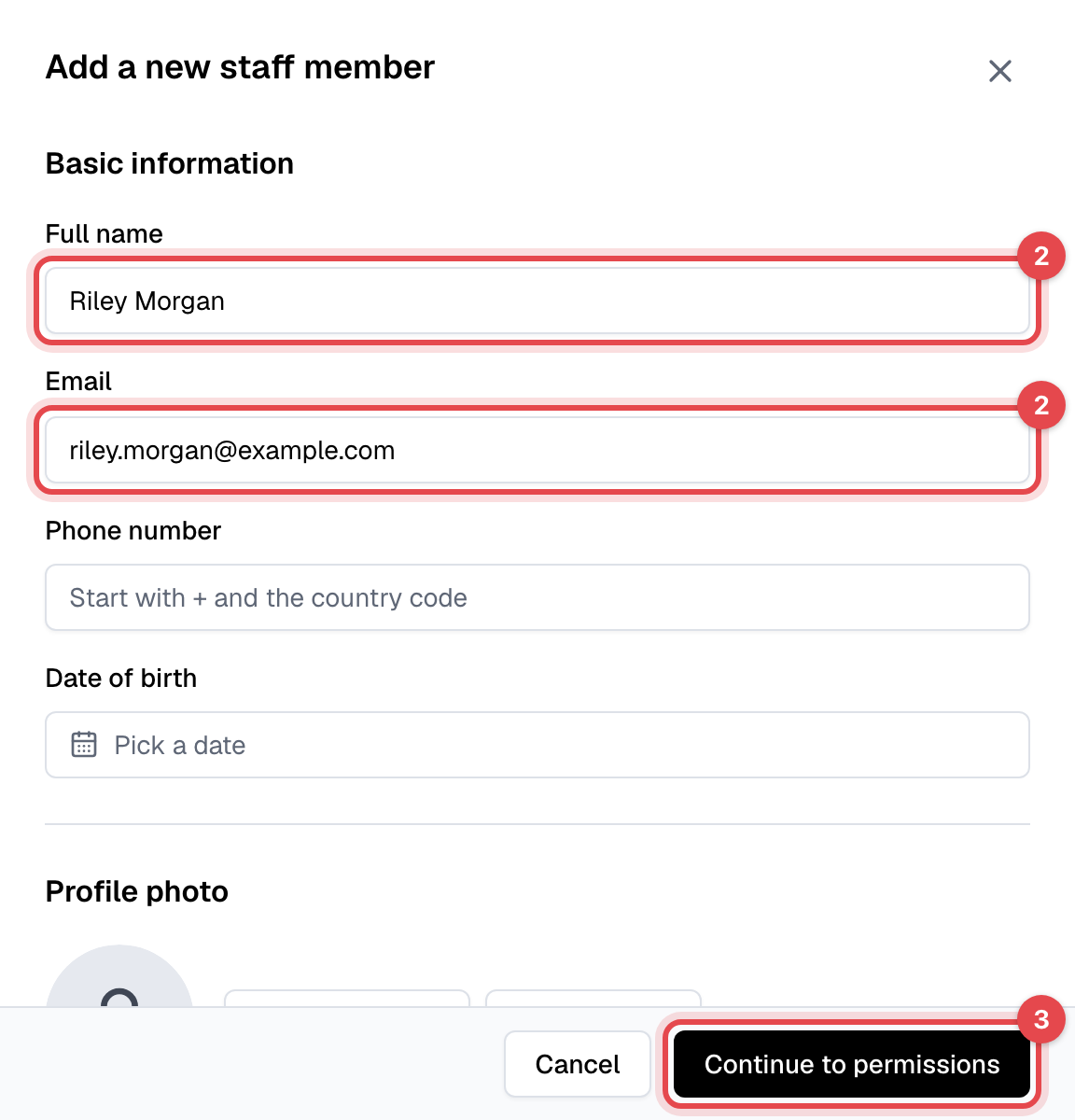
Enter their Full name and Email. They sign in with this email, so use one they read. The phone number, date of birth, photo and address are optional, and Country starts as your business's.
-
Click Continue to permissions.
-
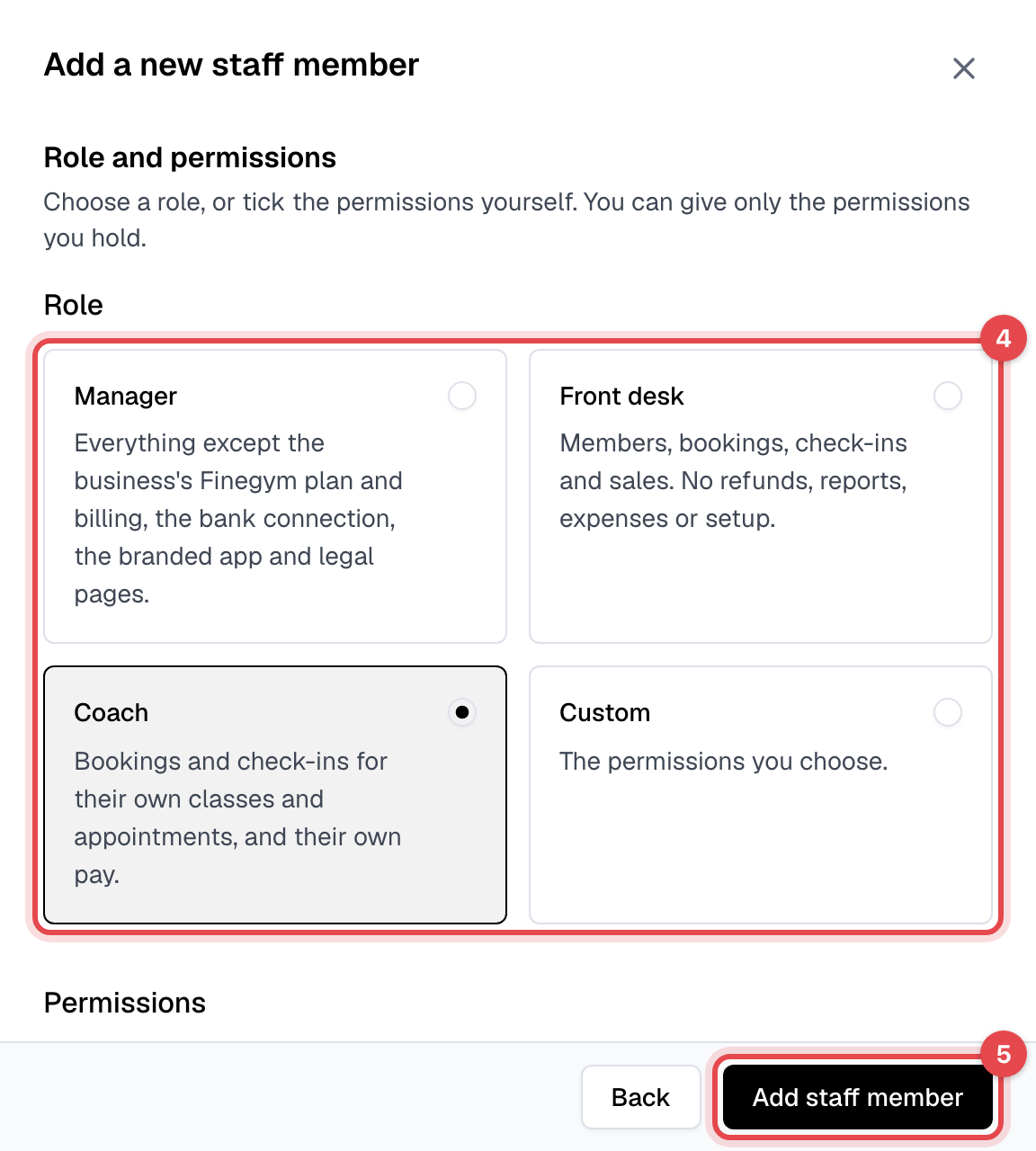
Under Role, choose Manager, Front desk or Coach. To give a different set, tick the permissions yourself under Permissions, and the role becomes Custom.
-
Click Add staff member.
What happens next
- Finegym emails them a link to set up their account. It opens the admin, where they choose a password and are signed in. The link works once and expires after 3 days; on an expired link, they click Email me a new link.
- Until they have set up their account, their page shows Invited next to their name. To send the link again, open them in Staff and, on the Profile tab under Access, click Send setup link.
- They see the parts of the admin their role allows. See Roles and permissions.
Good to know
- Paid per class or per hour? Set their rate on their Profile tab, under Pay rate. See Staff pay and payroll.
- Giving appointments? Set their hours on their Availability tab. See Coach availability.
- Only the owner can change a staff member's email once they're added.
- Someone leaving? Open them in Staff, then Actions > Delete staff member. Their classes and appointments stay on the schedule with no coach, so give them to someone else first. You can't delete yourself.