I can't find a page or button
A page or button that's missing for you is usually one your role doesn't include, or one your Finegym plan or the owner holds.
Why it happens
From most to least common:
-
Your role doesn't include the permission. Every staff member can open Today, the schedule, Members and Leads. Changing things, and seeing money, takes a permission, and the pages and buttons that need one are hidden without it. A link to such a page says "You do not have permission to access this page." and opens Today instead.
What's missing Permission it needs Payments, members' Balance, the Owes money view Sales, Refunds or Reports Taking payments, creating invoices, selling memberships Sales Refund on a payment Refunds Reports Reports Expenses Expenses Plans, Products, Discounts in the menu Plans and products, or Sales Add member, editing members and families Members Booking members into classes and appointments Bookings Check-ins, Scan member, Front desk mode Check-ins Marketing Marketing Staff Staff Settings (Closures also opens with Schedule) Settings -
Marketing is on the Growth plan. On another plan, Marketing shows "Marketing is part of the Growth plan". Leads are on every plan. Integrations need the Starter plan or above.
-
Only the owner has it. These are the owner's alone, whatever role others have: My plan (your Finegym plan and billing), Bank connection, Branded app and Legal in Settings; changing the time zone; Transfer ownership; and Delete business. A Manager has everything else.
-
You're a coach. A coach books members and checks them in only for the classes they coach and the appointments they give. Today shows only their own sessions, and other staff's classes on the calendar have no booking or check-in buttons for them. Coaches don't have Scan member or Front desk mode.
What to do
Nobody can change their own role. Ask the owner, or a staff member with the Staff permission, to do this for you:
-
In Staff, click the staff member's name.
-
Open the Permissions tab.
-
Under Role, pick the role that fits, or tick the permissions they need under Permissions. Ticking your own mix makes the role Custom.
-
Click Save changes.
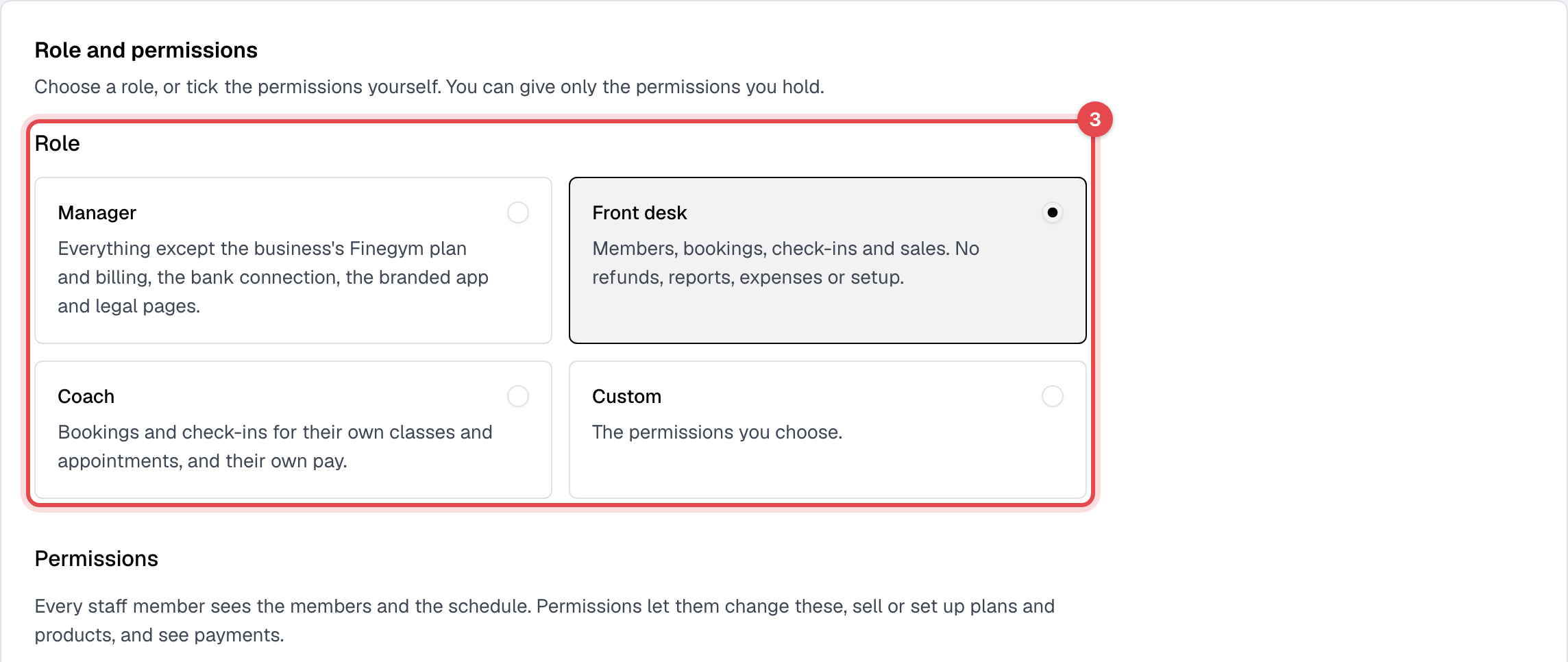
The staff member sees the change when they reload the page.
- You can give only the permissions you hold yourself; the owner holds them all.
- For a page that's on a higher Finegym plan, the owner clicks Upgrade to unlock on it. Other staff read "Ask the owner to upgrade."
Still stuck?
Write to support@finegym.io with your business name, your email (the staff member's), and the page or button you're looking for, with what you see instead.