Trainer Working Hours & Availability
Set when each trainer is available to be booked.
Configure staff working hours, set custom availability for specific dates, and link schedules to appointment types.
Setting Up Regular Hours
Location: Staff → [Staff Member] → Availability
Creating a Schedule
- Click Add Schedule (if none exists)
- Name the schedule (e.g., "Main Schedule")
- Add time slots for each working day
Adding Time Slots
For each day they work:
- Select the Day of Week
- Set Start Time and End Time
- Add multiple slots if they have breaks
Example:
- Monday — 9:00 AM - 12:00 PM, 1:00 PM - 5:00 PM
- Tuesday — 9:00 AM - 5:00 PM
- Wednesday — 9:00 AM - 5:00 PM
- Thursday — 9:00 AM - 12:00 PM
- Friday — 9:00 AM - 3:00 PM
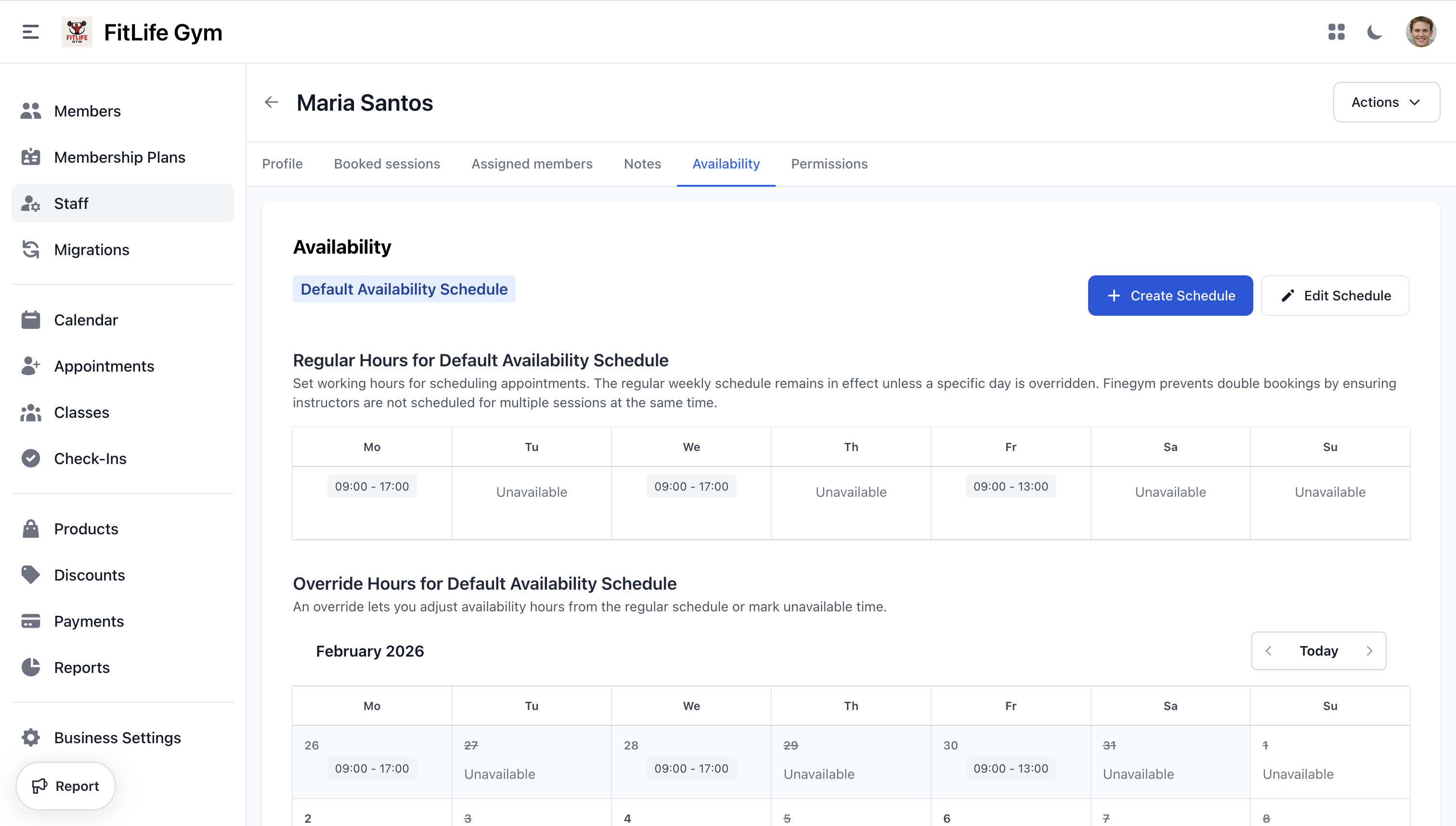
Custom Availability (Overrides)
Override regular hours for specific dates:
- Go to the Availability tab
- Click on a date in the calendar
- Choose:
- Mark Unavailable: Block entire day
- Set Custom Hours: Specific hours for that day
Use for:
- Vacation days
- Holidays
- Special schedules
- Sick days
Linking to Appointment Types
For staff to appear available for an appointment type:
- The appointment type must have their schedule linked
- Go to Appointments → [Appointment Type] → Edit
- Add the staff member's schedule
Multiple Schedules
Staff can have multiple schedules for different appointment types. For example:
- "PT Schedule" for personal training
- "Consultation Schedule" for nutrition consults
Booked Sessions
Viewing Staff Appointments
Location: Staff → [Staff Member] → Booked Sessions
See all appointments booked with this staff member:
- Date & Time — Scheduled appointment
- Appointment Type — Type of service
- Member — Client name
- Status — Reserved, Checked In, etc.
Filtering Sessions
Filter by:
- Date range
- Appointment type
- Status
Best Practices
Availability Management
- Keep schedules up to date
- Use custom availability for known absences
- Block time for breaks and admin tasks
- Communicate changes to booked clients
Troubleshooting
Staff Not Appearing for Appointments
Verify:
- Staff has a schedule configured
- Schedule has time slots
- Schedule is linked to the appointment type
Related Topics
- Staff Profiles & Permissions - Managing staff accounts and roles
- Appointment Types & Scheduling - Staff appointment schedules
- Booking & Managing Appointments - Managing reservations