Personal Training & Appointment Setup
Define your appointment types and how they're booked.
Define appointment services your staff can offer, configure scheduling rules, and manage staff availability for one-on-one sessions.
Overview
The appointment system has three main components:
- Appointment Types - Define services offered (Personal Training, Consultation, etc.)
- Staff Schedules - Each staff member's available time slots
- Reservations - Booked appointment instances
Appointment Types
Appointment types define the services your staff can offer.
Creating an Appointment Type
Location: Appointments → Appointment Types → Add Appointment Type
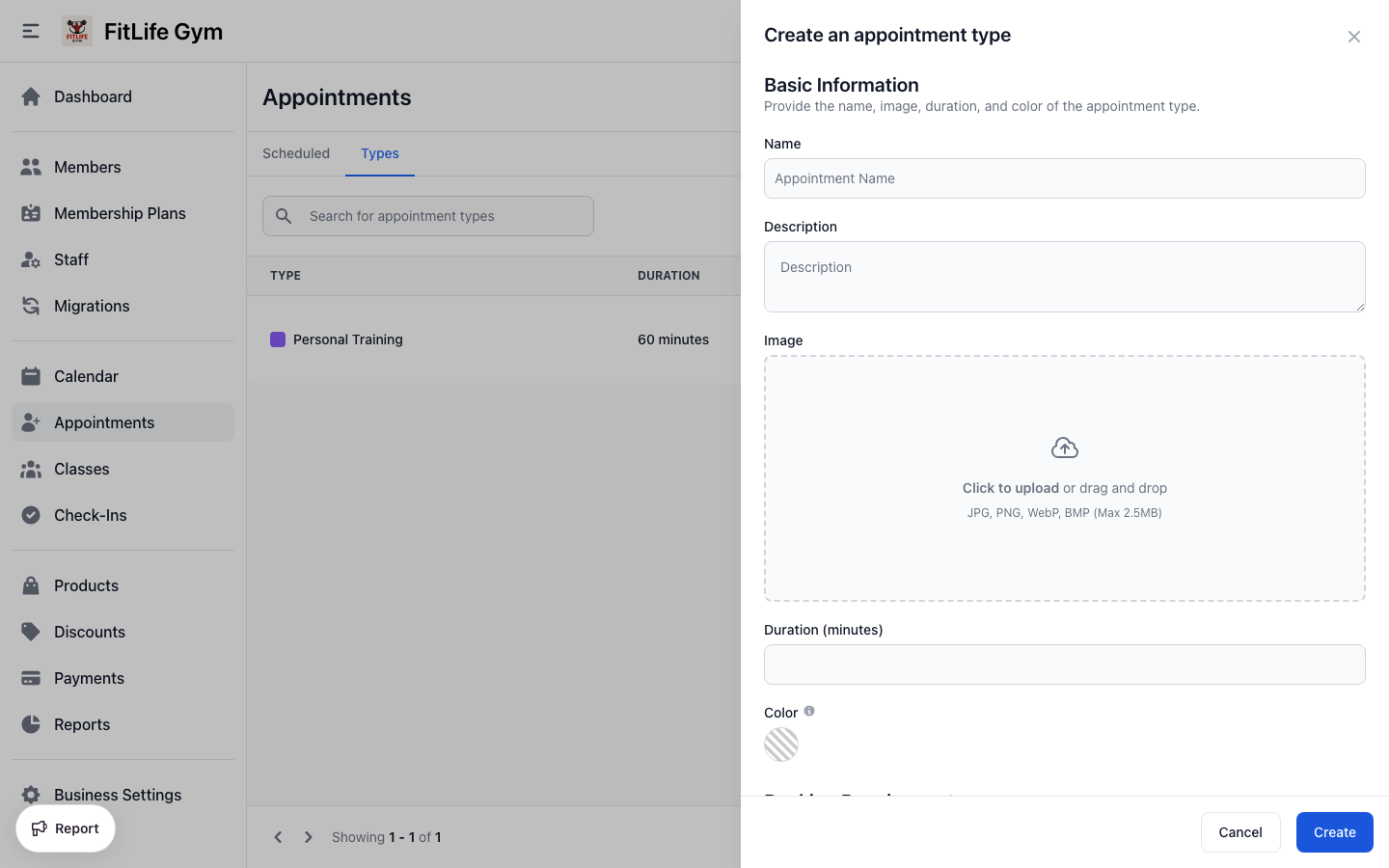
Click Add Appointment Type and configure:
Basic Information
- Name — Service name (unique) (e.g., "Personal Training Session")
- Color — Calendar display color (e.g., #3498DB)
- Duration (minutes) — Session length in minutes (e.g., 60)
- Description — What the service includes (e.g., "One-on-one training session...")
- Images — Add one or more photos for the appointment type. Drag to reorder; the first image is used as the cover. These photos appear on your public booking pages so members can see the service before booking.
Drop-In Settings
Allow members without membership to pay per session:
- Allow drop-ins — Enable pay-per-session option
- Drop in price — Price for non-members
When drop-ins are enabled:
- Members without membership can book
- They pay the drop-in fee at booking
- Great for trial sessions or walk-ins
Drop-in price must be set if drop-ins are allowed. Free drop-ins are not permitted.
Scheduling Settings
Control how appointments are booked:
Minimum Booking Notice
How far in advance members must book:
- At start time — Book until session begins
- 15 minutes - 4 weeks before — Minimum notice required
Example: Set to "24 hours before" to give staff time to prepare.
Buffer Times
Add padding between appointments:
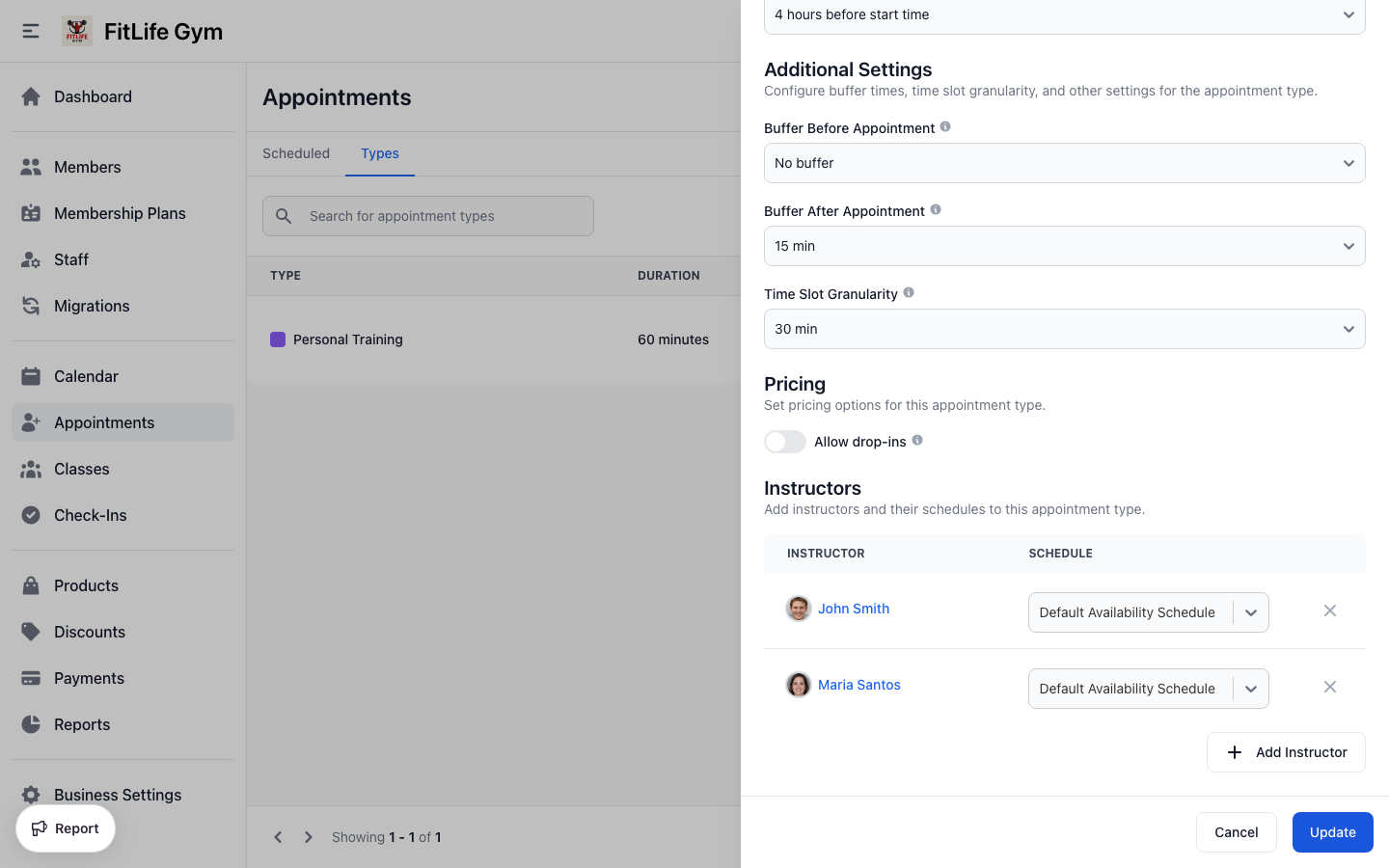
- Buffer Before Appointment — Time blocked before appointment
- Buffer After Appointment — Time blocked after appointment
Buffer options: No buffer, 5, 10, 15, 30, 45, or 60 minutes
Use buffers for:
- Setup/cleanup time
- Travel between locations
- Preventing back-to-back bookings
Time Slot Granularity
How appointment start times are spaced:
- 5 minutes — 9:00, 9:05, 9:10...
- 15 minutes — 9:00, 9:15, 9:30...
- 30 minutes — 9:00, 9:30, 10:00...
- 60 minutes — 9:00, 10:00, 11:00...
Smaller granularity = more booking options but more complex scheduling.
Late Cancellation
Define the cutoff for penalty-free cancellations:
- At start time — Cancel anytime without penalty
- 15 minutes - 4 weeks before — Cancellations after this are "late"
Late cancellations may count against usage depending on membership plan settings.
Minimum Booking Notice and Late Cancellation apply to members booking themselves. You and your staff can always book or cancel on a member's behalf, even inside these windows.
Assigning Staff
Link staff schedules to this appointment type:
- Click Add Instructor
- Select a staff member
- Their schedule becomes available for this type
Multiple staff: Add as many staff members as offer this service.
Schedule warnings: If a staff member has no time slots configured, a warning appears prompting you to set up their availability.
Staff Schedules & Availability
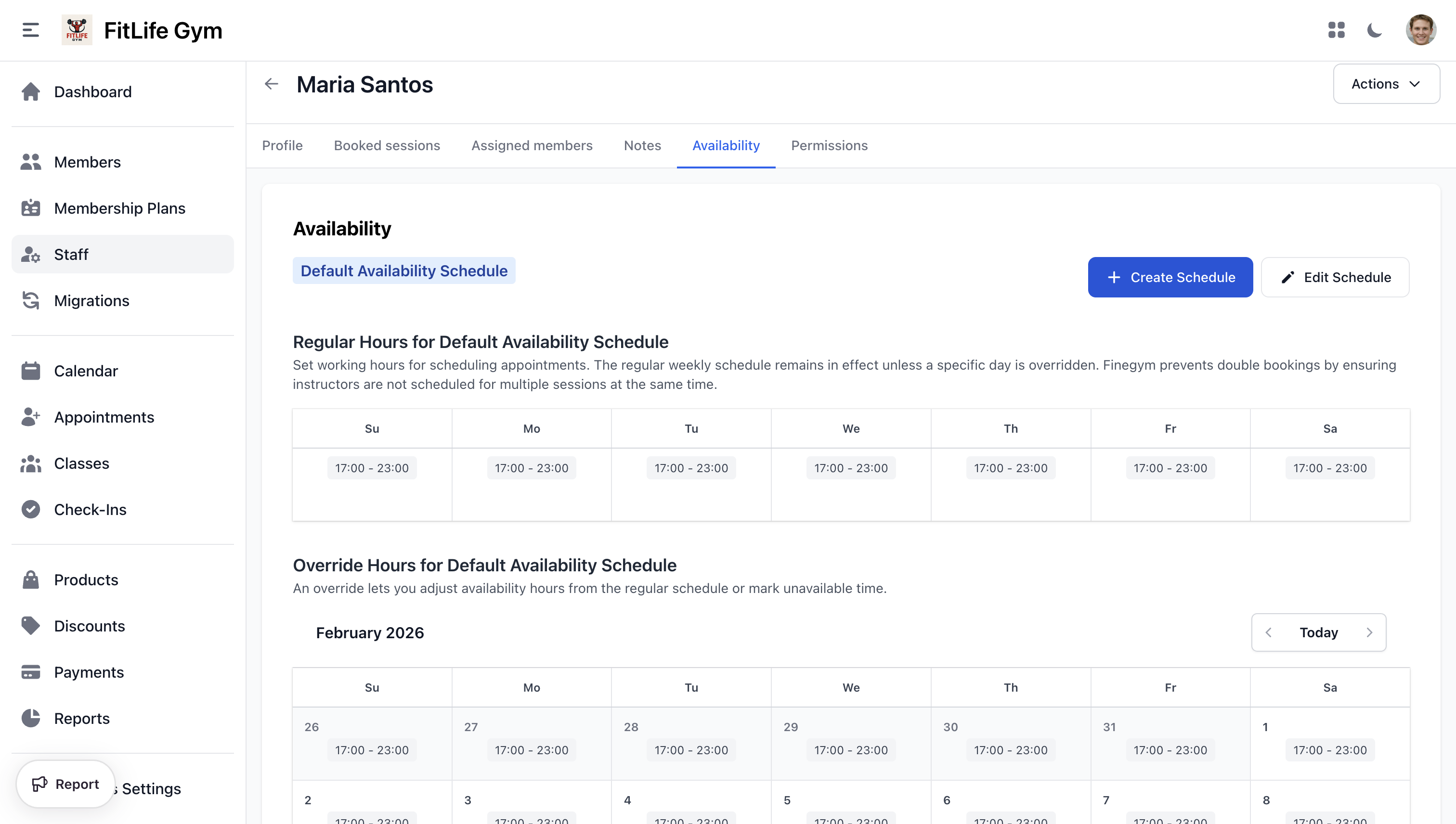
Each staff member has a schedule defining when they're available for appointments.
Accessing Staff Schedules
Location: Staff → [Staff Member] → Availability Tab
Or from the appointment type configuration.
Regular Schedule
Set recurring weekly availability:
- Select the Day of Week (Monday-Sunday)
- Add Time Slots:
- Start Time
- End Time
- Repeat for each day they work
Example Schedule:
- Monday: 9:00 AM - 5:00 PM
- Wednesday: 9:00 AM - 5:00 PM
- Friday: 9:00 AM - 1:00 PM
Custom Availability
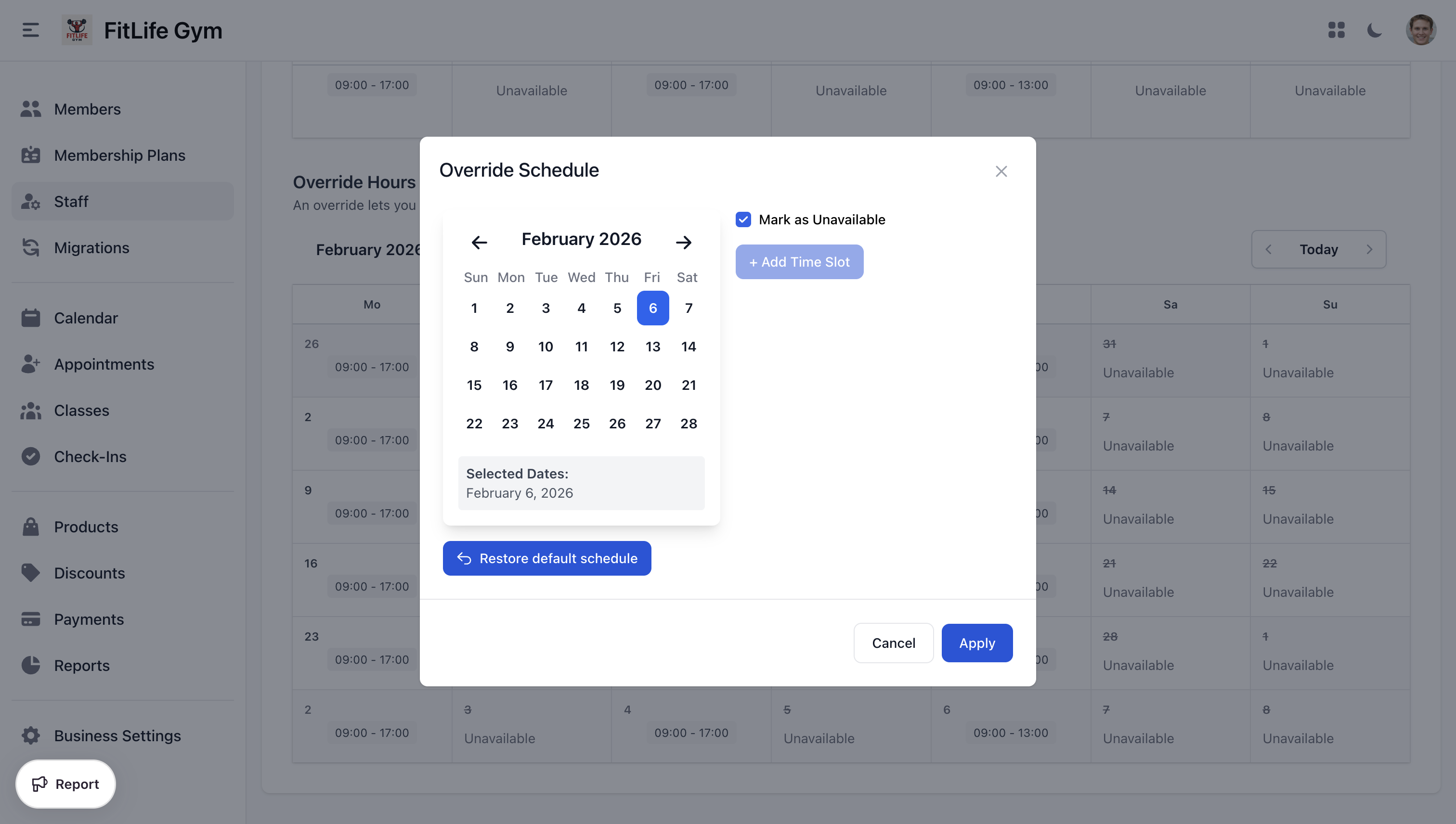
Override regular schedules for specific dates:
- Go to Custom Availability
- Select a Date
- Choose:
- Unavailable: Block the entire day
- Custom Hours: Set specific time slots
Use for:
- Holidays
- Vacation days
- Training days
- Special hours
How Availability Works
When members book:
- System checks the appointment type's linked staff
- For each staff, checks:
- Custom availability for the date (takes priority)
- Regular weekly schedule
- Applies buffer times and existing bookings
- Shows available slots
Membership & Pricing
Membership-Based Booking
Members with active memberships can book if:
- Plan allows "All appointment types" OR
- Plan specifically includes this appointment type
- Has available usage (if limited)
- Membership isn't frozen
Drop-In Payments
For members without membership:
- Enable "Allow Drop-ins" on appointment type
- Set drop-in price
- Member pays at booking via Stripe
- Invoice created automatically
Usage Tracking
Appointment attendance counts toward:
- Membership usage limits (if configured)
- Punchcard credits (if punchcard plan)
Troubleshooting
"No available time slots"
Check:
- Staff schedules have time slots configured
- Staff is linked to appointment type
- Date isn't marked as unavailable
- Existing bookings aren't filling all slots
"Cannot delete appointment type"
Reservations exist for this type. Options:
- Archive the appointment type instead
- Cancel all associated reservations first
Staff Schedule Not Showing
Ensure:
- Staff schedule is linked to appointment type
- Time slots are configured in the schedule
- No custom unavailability blocking the date
Related Topics
- Booking & Managing Appointments - Book and manage appointment reservations
- Staff Management - Managing staff profiles and schedules
- Membership Plans - Appointment type restrictions
- Schedule & Classes - Group class scheduling