Gym Staff Profiles, Roles & Permissions
Add your team and control what each person can do.
Add staff members with configurable permissions, manage their profiles, and assign appropriate roles for your gym operations.
Overview
Staff management includes:
- Staff Profiles - Basic information and contact details
- Permissions - Control what each staff member can access
- Notes - Internal notes about staff members
- Assigned Members - Members assigned to this staff for tracking
Adding Staff Members
Creating a Staff Account
Location: Staff → Add staff
Click Add staff to create a new staff member:
Step 1: Basic Information
- Profile Photo — Profile picture (optional)
- Full name — Staff member's name (required)
- Email — Login email address (required)
- Phone number — Contact phone number (optional)
- Date of Birth — Date of birth (optional)
- Street Address — Full address with auto-complete (optional)
- City — City (optional)
- Postal code — Postal/zip code (optional)
- State — State/province (optional)
- Select country — Country (required, defaults to business country)
- Preferred Language — Language for notifications. Leave as Gym default to use your gym's default language (optional)
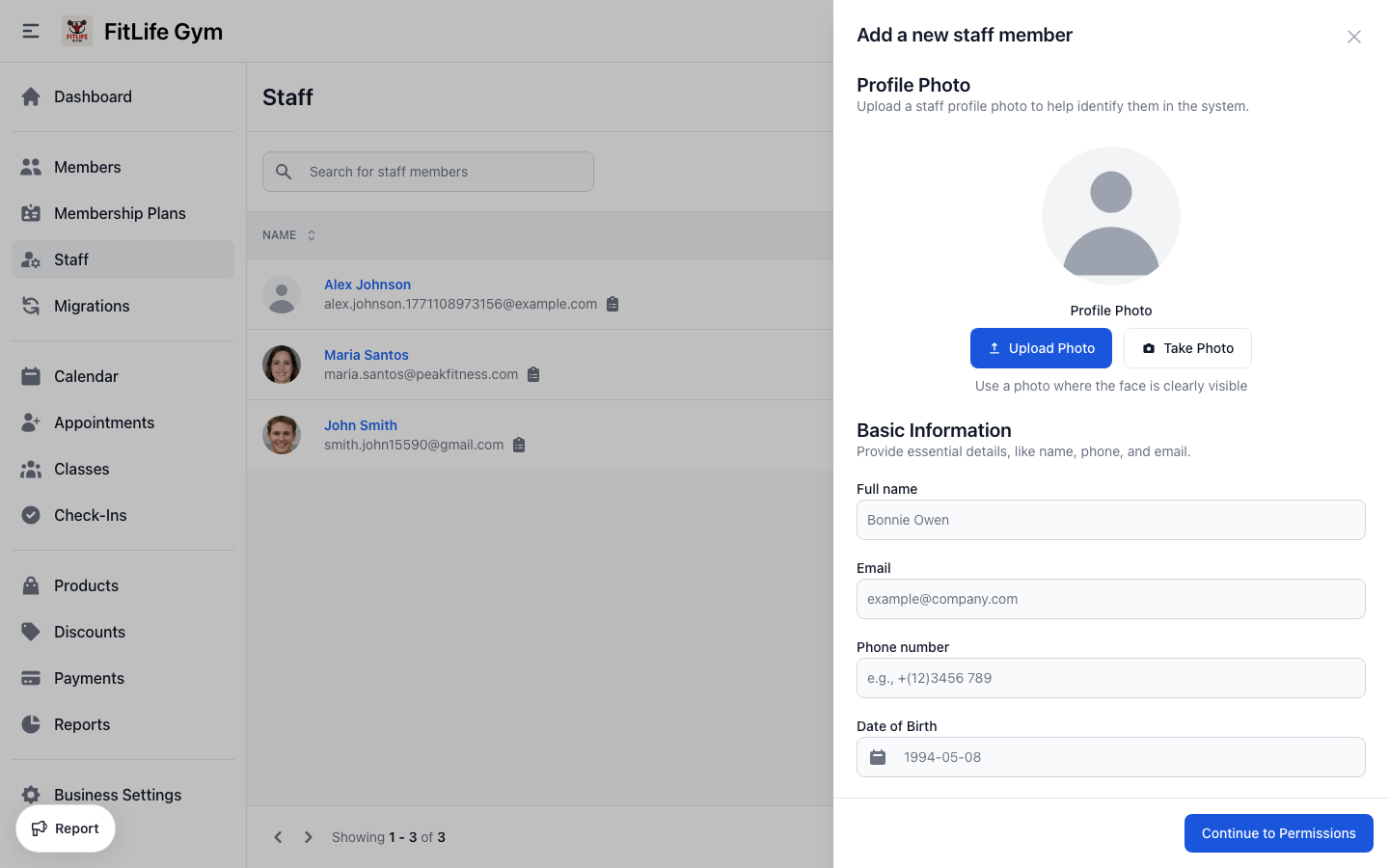
The email address is used for:
- Staff login credentials
- System notifications
- Password reset
Step 2: Permissions
Select which areas the staff member can access. See Permissions for details.
Staff vs Members
Staff accounts are different from member accounts:
- Admin dashboard access — Staff: Yes, Members: No
- Mobile app access — Staff: No, Members: Yes
- Can process check-ins — Staff: Yes, Members: No
- Can view reports — Staff: Based on permissions, Members: No
- Has membership — Staff: No, Members: Yes
Staff Profile
Accessing a Staff Profile
From the Staff list, click on any staff member to view their profile.
The profile page contains tabs:
- Profile — Basic information, photo, contact
- Booked sessions — Their upcoming appointments
- Assigned members — Members assigned to them
- Activity — Everything this staff member has done (check-ins processed, bookings, membership changes, and more)
- Notes — Internal notes
- Availability — Appointment schedule
- Permissions — Access control settings (owner only)
Editing Staff Information
Click Edit on the profile card to modify:
- Name and contact details
- Profile photo
- Address information
Staff Notes
Add internal notes about staff members:
- Go to the Notes tab
- Click Add Note
- Enter note text
- Optionally add a tag
- Save
Permissions
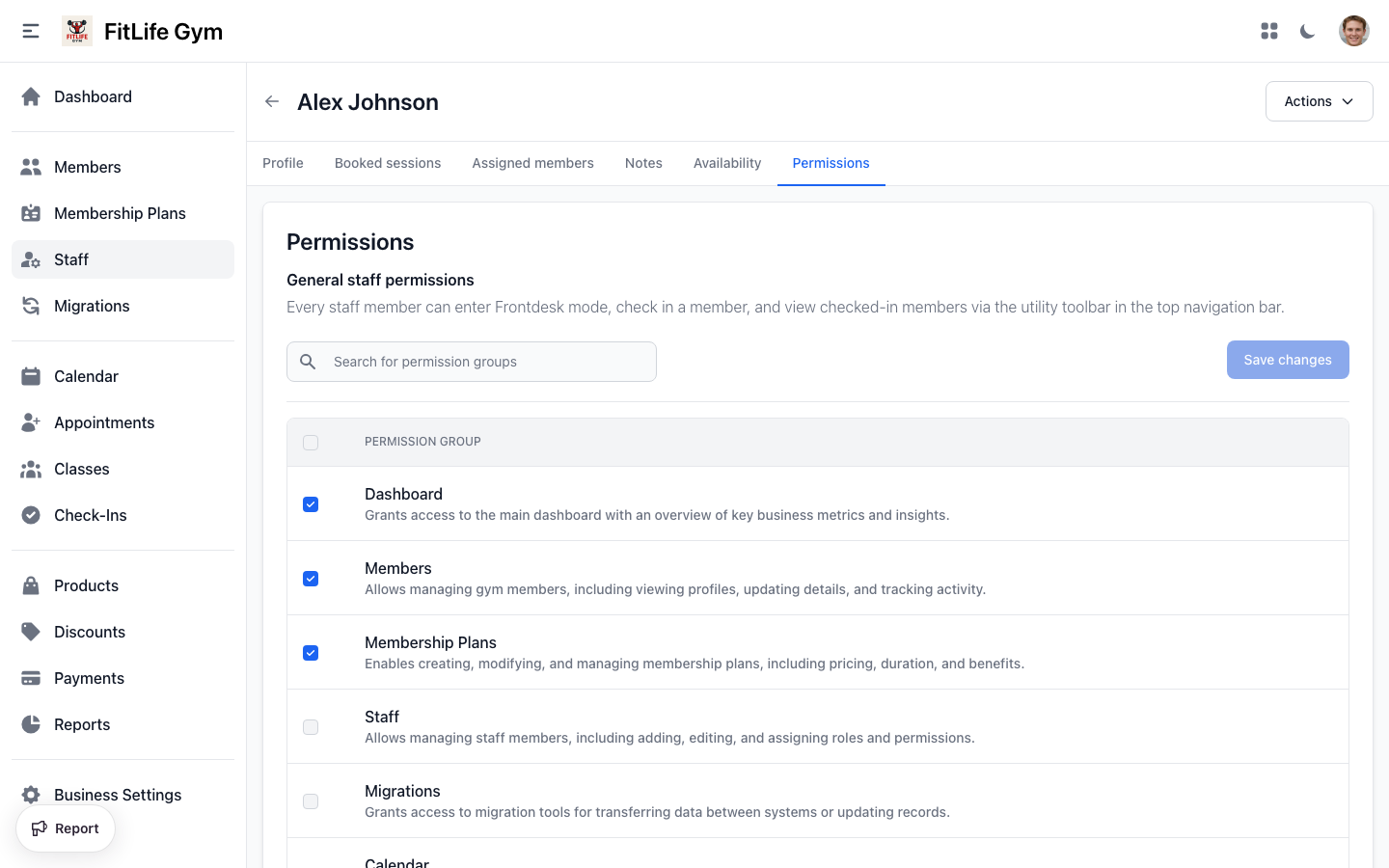
Permissions control what each staff member can see and do in the admin dashboard.
Permission Groups
Finegym uses permission groups to manage access:
- Dashboard — Main dashboard access
- Members — Member profiles and management
- Membership Plans — Membership plan configuration
- Staff — Staff management
- Migrations — Data migration tools
- Calendar — Calendar view
- Appointments — Appointment types and bookings
- Classes — Class management
- Check-Ins — Check-in processing
- Products — Product catalog and inventory
- Discounts — Discount codes and promotions
- Payments — Invoices and transactions
- Reports — Analytics and reporting
- Settings — System configuration
- Refunds — Process refunds
Assigning Permissions
Location: Staff → [Staff Member] → Permissions
- Go to the staff member's Permissions tab
- Check the boxes for each permission group to grant
- Click Save Changes
Permission Examples
Receptionist:
- Members ✓
- Calendar ✓
- Check-Ins ✓
Personal Trainer:
- Appointments ✓
- Calendar ✓
Manager:
- All permissions ✓
Owner/Admin:
- All permissions (automatically granted)
Owner Permissions
The account owner has full access and cannot have permissions removed. This ensures there's always someone with complete system access.
Best Practices
Onboarding New Staff
- Create their account with basic info
- Set appropriate permissions (least privilege)
- Configure availability if they take appointments
- Add them to relevant appointment types
- Provide training on permitted features
Permission Management
- Start with minimal permissions
- Add more as needed
- Review permissions periodically
- Remove access for departing staff promptly
Security
- Each staff member should have unique login
- Don't share accounts
- Use strong passwords
- Review active sessions periodically
Troubleshooting
Staff Can't See Certain Features
Check their permissions:
- Go to Staff → [Staff Member] → Permissions
- Verify the necessary group is checked
- Save changes and have them refresh
Can't Delete Staff Member
Staff members cannot delete their own account. To delete another staff member, use the delete option in the staff profile dropdown menu.
Related Topics
- Staff Availability & Scheduling - Configure appointment schedules
- Appointments - Staff appointment schedules
- Schedule & Classes - Assigning coaches to classes
- Check-Ins & Attendance - Frontdesk mode