Booking & Managing Gym Appointments
Book, reschedule, and manage one-on-one appointments.
Book appointments for members, manage existing reservations, handle cancellations and no-shows, and view appointment notifications.
Booking Appointments
Staff Booking (Admin)
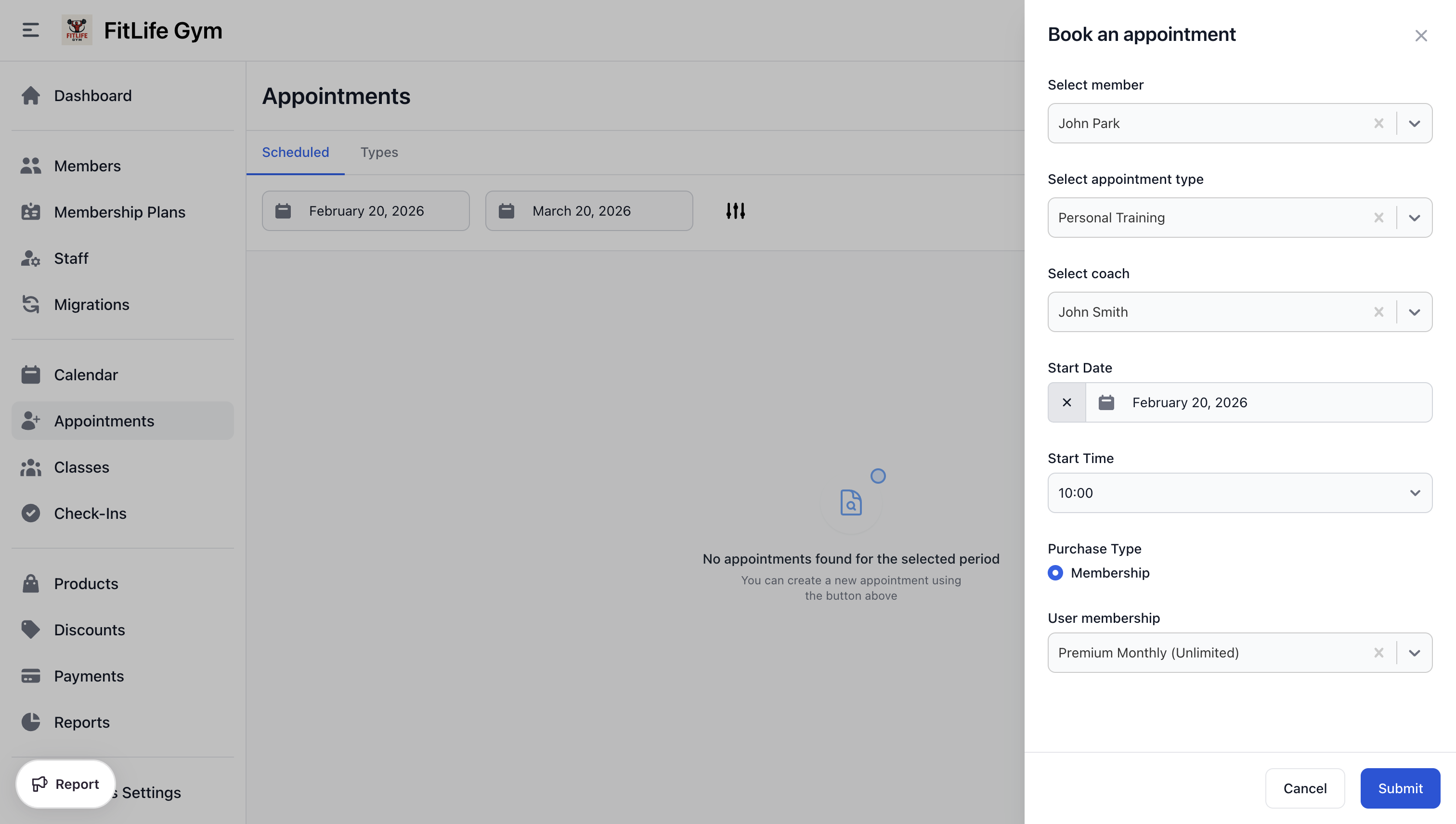
Location: Appointments → Book an appointment
Staff can book appointments for members. You can also click an empty time slot on the calendar to start booking with the date and time pre-filled.
- Click Book an appointment (or click an empty calendar slot)
- Select the Appointment Type
- Choose the Staff Member (from linked schedules)
- Select Date and Time Slot
- Search and select the Member
- Choose their Membership (if multiple)
- Confirm booking
Booking Validation
The system validates:
- Staff is available at selected time
- No conflicting bookings
- Member has valid membership (or pays drop-in)
- Membership allows this appointment type
- Booking is within minimum notice period
Managing Appointments
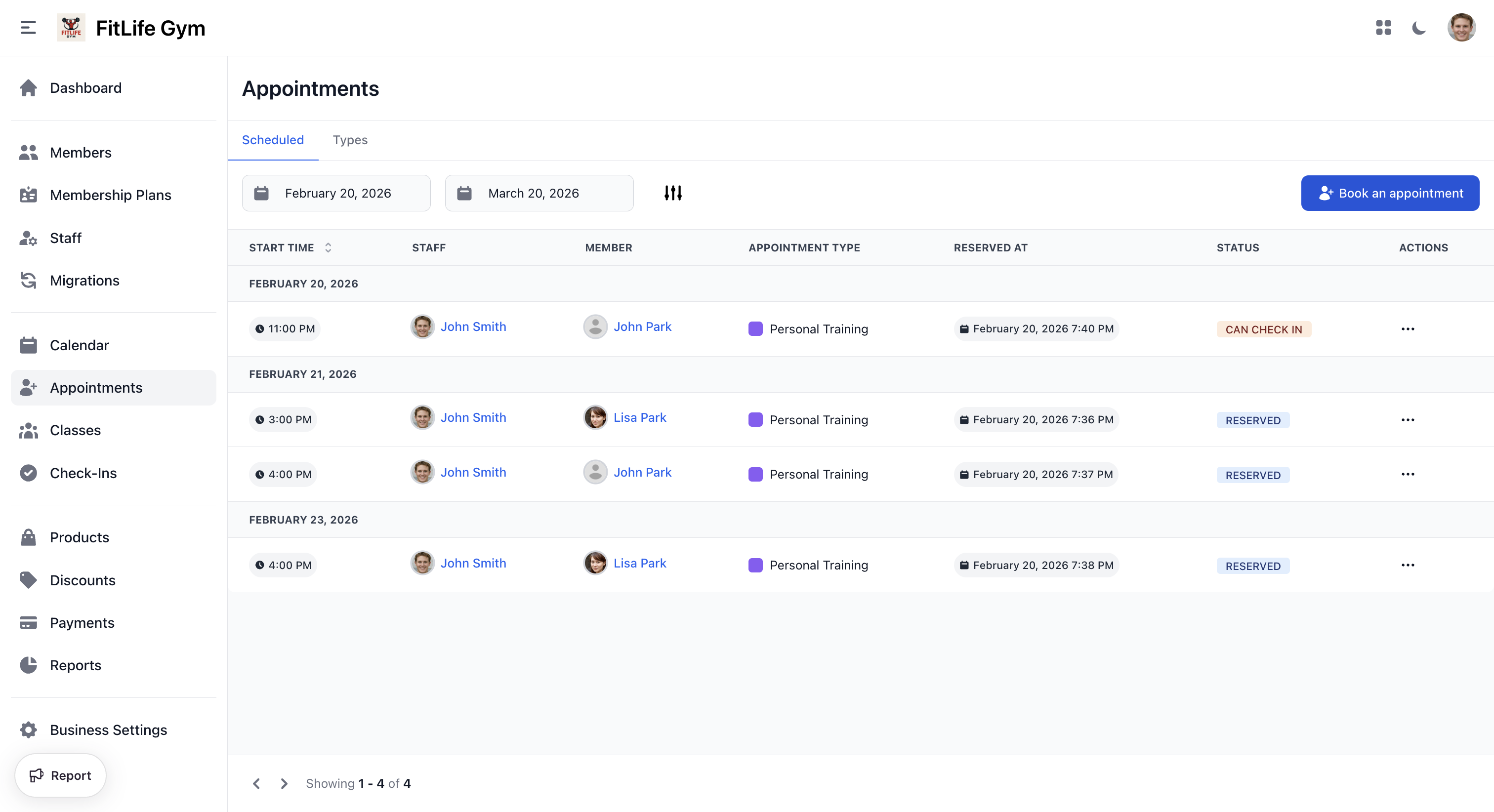
Appointments List
Location: Appointments → Appointments
View all scheduled appointments:
- Start time — Scheduled date and time
- Staff — Assigned staff member
- Member — Client name
- Appointment type — Service name with color indicator
- Reserved at — When the appointment was booked
- Status — Current appointment status
- Actions — Check in, edit, or cancel
Filtering Appointments
Filter by:
- Date range
- Appointment type
- Staff member
- Member
- Status
Appointment Actions
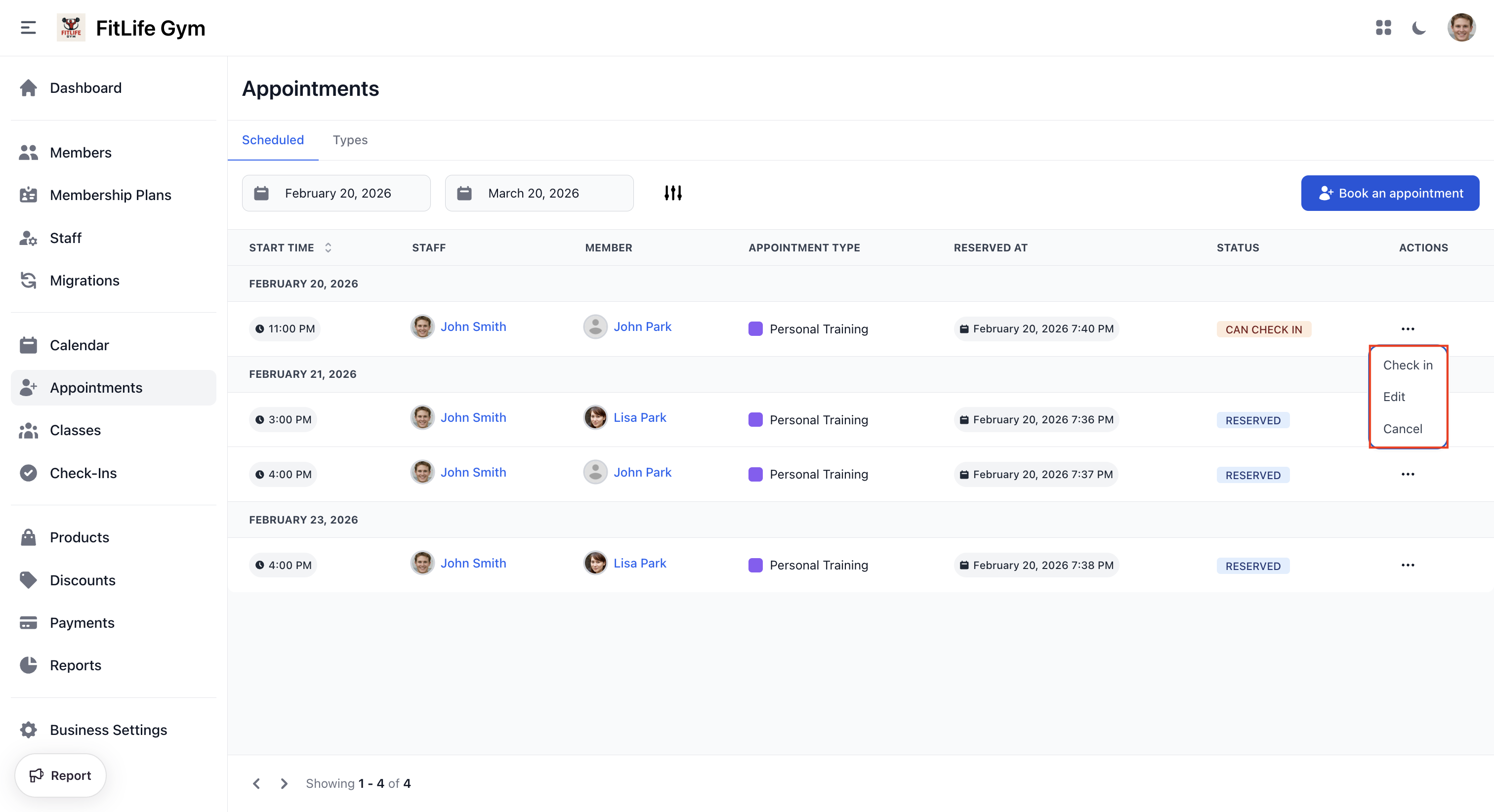
Available actions depend on the appointment status:
- Check in — Mark member as attended (when check-in window is open)
- Edit — Change staff, date, or time
- Cancel — Cancel the appointment
Marking a No-Show as Present
If a member attended but wasn't checked in, the appointment marks them No-Show once its time passes. Staff can correct this afterwards:
- Open the actions menu on the appointment — Mark as present appears only while the status is No-Show
- Click Mark as present
The appointment is recorded as attended and counts as usage. There's no time limit, and members can't back-date their own appointments — it's a staff-only correction.
Appointment Statuses
- Reserved — Confirmed reservation (no usage impact yet)
- Can Check In — Check-in window is open
- Checked In — Member attended (counts as usage)
- No-Show — Member didn't attend
- Cancelled — Appointment was cancelled
Late Cancellations
If cancelled after the late cancel cutoff:
- May still count against membership usage
- Depends on membership plan's "Ignore No-Shows" setting
Calendar Integration
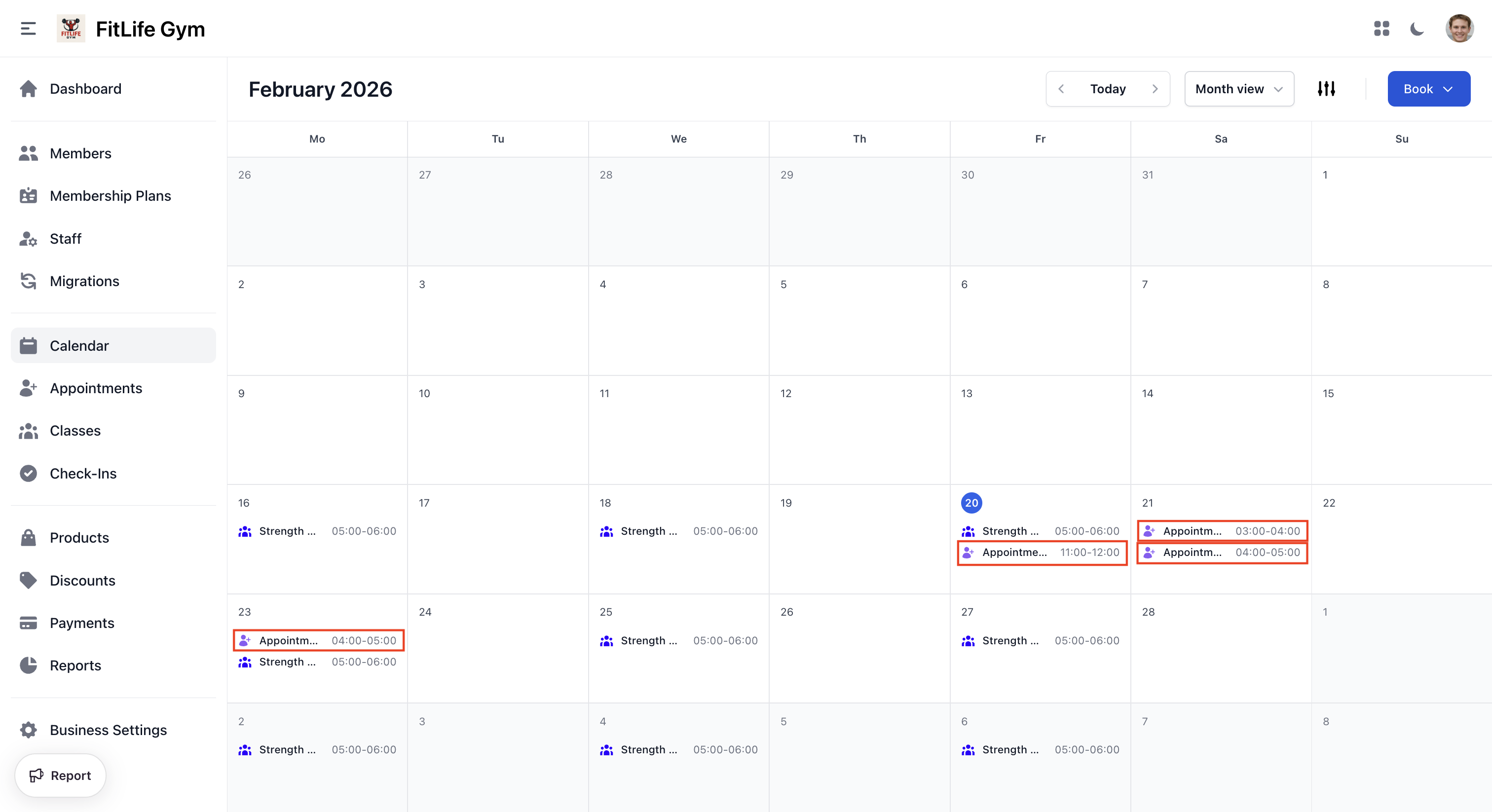
Appointments appear on the main calendar:
Location: Calendar
- Displayed in appointment type's color
- Shows staff name and time
- Click to view details or manage
Staff Calendar View
Filter calendar by staff to see individual schedules:
- Their appointments
- Available slots
- Blocked time
Notifications
Booking Confirmations
When an appointment is booked:
- Member receives confirmation email
- Staff receives notification
Cancellation Notices
When cancelled:
- Member receives cancellation confirmation
- Staff is notified
- Slot becomes available again
Best Practices
Booking Policies
- Set minimum booking notice for planning
- Define clear late cancellation policies
- Communicate policies to members
Managing No-Shows
- Track no-show patterns
- Consider charging for repeated no-shows
- Send reminder notifications
Troubleshooting
Member Can't Book Appointment
Verify:
- Membership allows this appointment type
- Has available usage
- Within minimum booking notice window
- Membership isn't frozen
Related Topics
- Appointment Types & Scheduling - Configure appointment types and staff availability
- Check-Ins & Attendance - Processing appointment check-ins
- Staff Management - Managing staff profiles