Business Setup
Get your gym's core settings in place.
Configure your business information, tax rates, and connect Stripe for payment processing.
Initial Setup Checklist
After creating your account, follow this checklist to get your gym fully operational:
Essential Setup (Do First)
- Upload your logo - Brand your admin portal and member communications
- Complete business information - Address, contact details, website
- Configure tax rates - Set up applicable taxes for your region
- Connect your bank/Stripe - Enable payment processing
- Create your first membership plan - Define what you'll sell
Recommended Setup
- Customize email templates - Personalize member communications
- Set up digital documents - Waivers, contracts, policies
- Configure custom fields - Collect additional member information
- Add staff members - Give your team access
Optional Setup
- Configure SMS messaging - Set up Twilio for text notifications
- Create custom payment methods - Track alternative payments (M-Pesa, bank transfers)
- Set up note tags - Organize member notes with categories
Configuring Settings
Navigate to Settings from the left sidebar to access all configuration options.
General Settings
Location: Settings → General
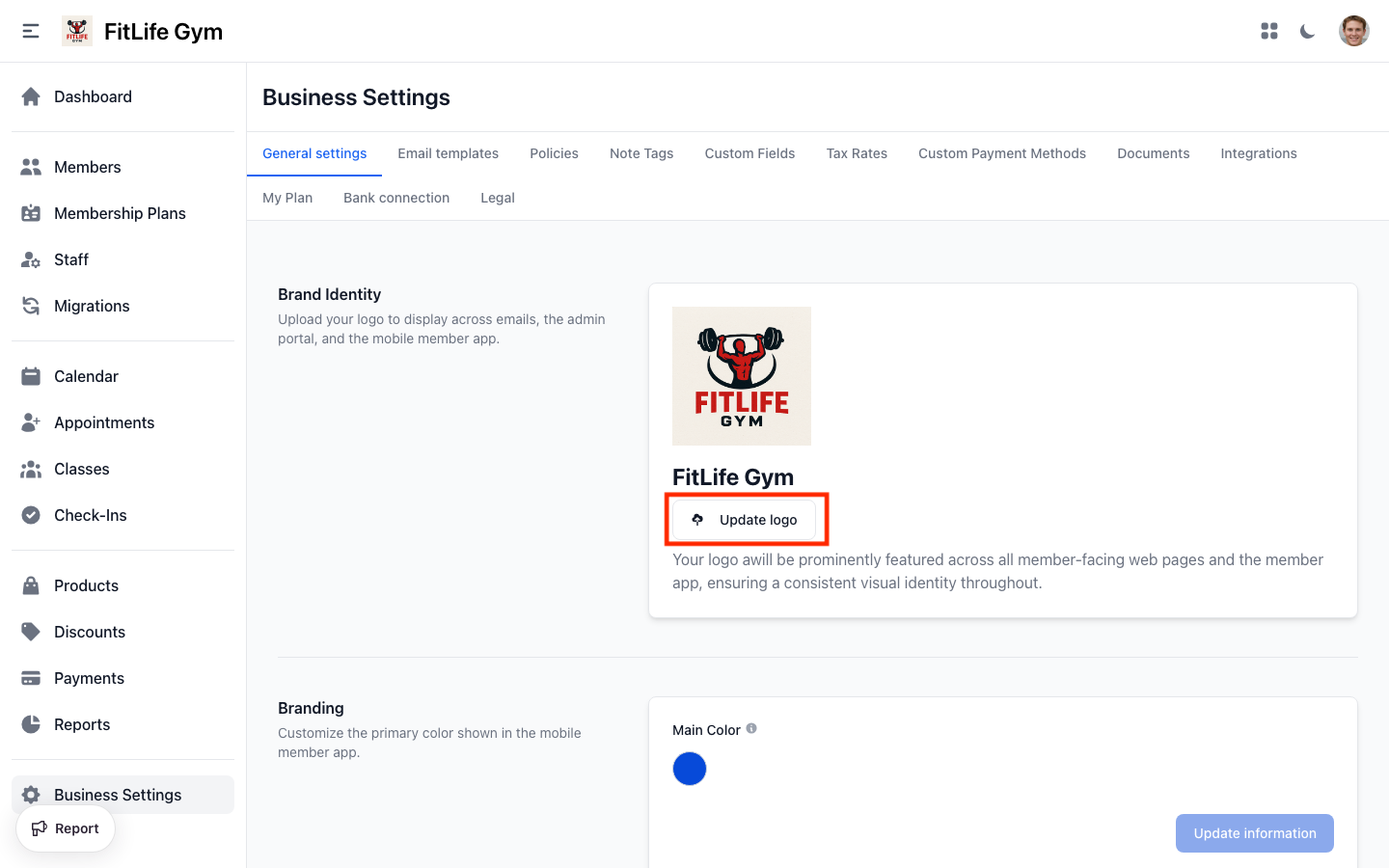
Brand Identity
Your logo appears on:
- The admin dashboard
- Member emails
- The mobile app
To upload your logo:
- Click the Logo card
- Click Upload or drag and drop your image
- Recommended size: 200x200 pixels minimum, PNG or JPG format
Business Information
Complete your business profile:
- Company Name — Your official business name (required)
- Company Website — Your website URL (optional)
- Address — Full business address (auto-complete available) (recommended)
- VAT/Tax ID — Your tax identification number (if applicable)
- Customer Service Email — Email for member inquiries (required)
- Customer Service Phone — Phone for member support (recommended)
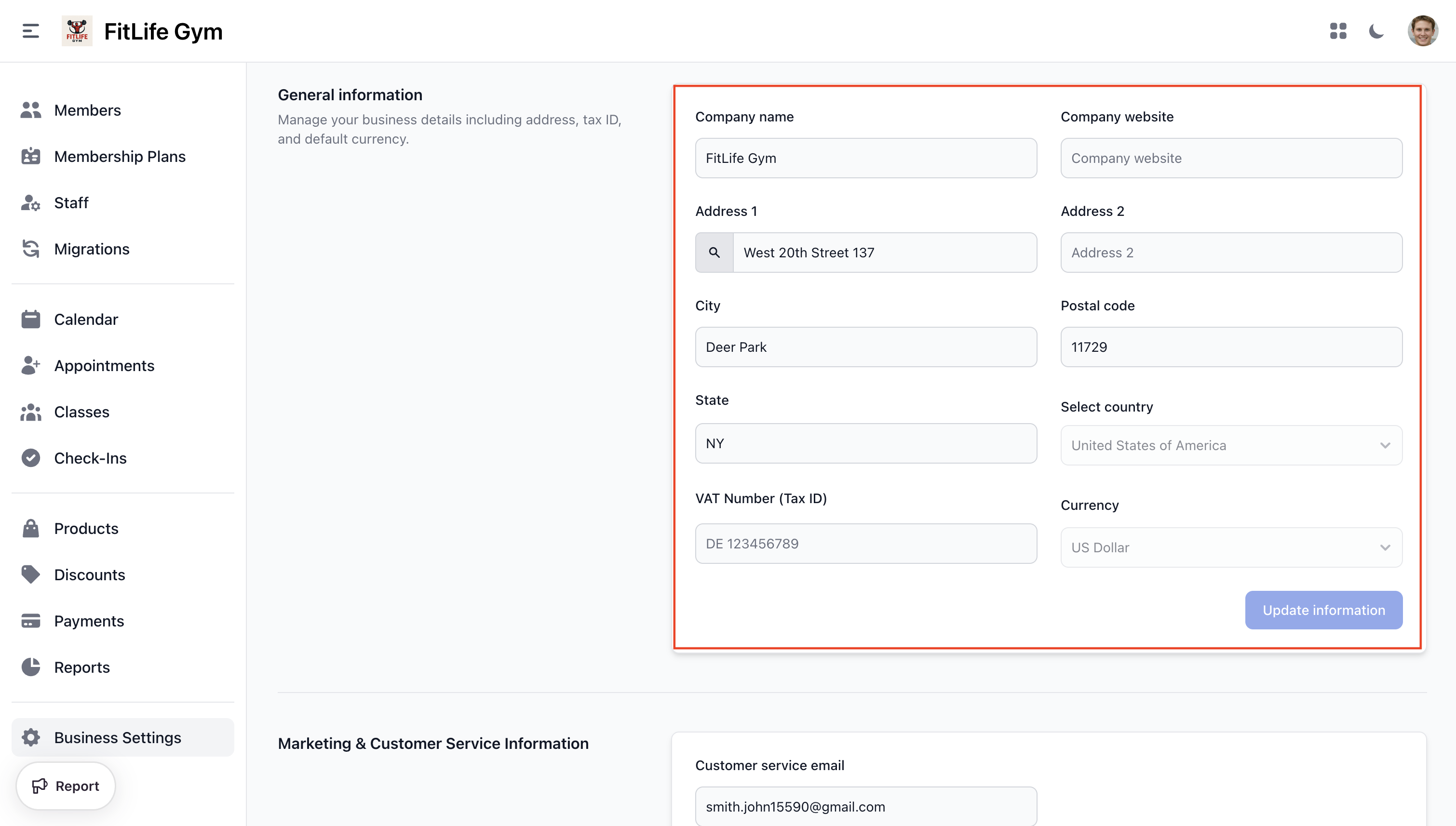
Your Country and Currency are set during signup and cannot be changed later. Contact support if you need to modify these.
Timezone
Your timezone affects:
- Class and appointment scheduling
- Report date ranges
- Automated email send times
The timezone is automatically set based on your country during signup.
Tax Configuration
Location: Settings → Tax Rates
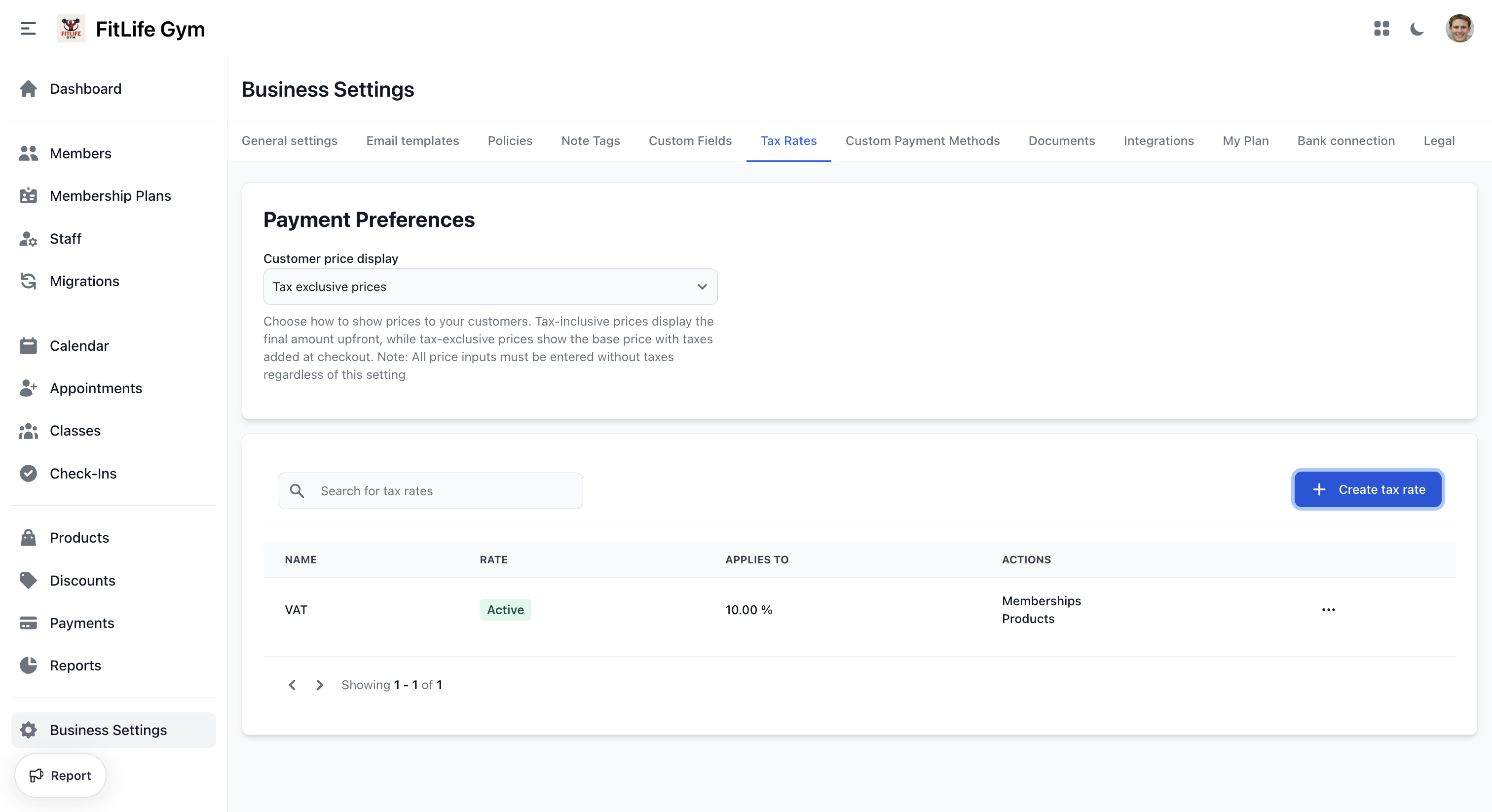
Set up taxes to ensure correct invoicing:
Understanding Tax Display
First, choose how prices are displayed to members:
| Option | Description | Example |
|---|---|---|
| Tax Exclusive | Prices shown without tax, tax added at checkout | $50 + $5 tax = $55 total |
| Tax Inclusive | Prices shown include tax | $55 (includes $5 tax) |
Creating Tax Rates
- Click Add Tax Rate
- Enter the tax details:
- Name: e.g., "VAT", "Sales Tax", "GST"
- Rate Type: Percentage or Fixed Amount
- Rate: The tax percentage (e.g., 20 for 20%) or fixed amount
- Applies to: Select Memberships, Products, or both
- Click Save
For a 20% VAT that applies to all sales:
- Name: "VAT"
- Type: Percentage
- Rate: 20
- Applies to: Both Memberships and Products
Payment Methods
Location: Settings → Payment Methods
Finegym supports multiple payment methods:
Default Payment Methods
- Card (via Stripe) - Automatic recurring billing
- Cash - Manual payment tracking
Custom Payment Methods
Add additional payment methods your gym accepts:
- Click Add Payment Method
- Enter the name (e.g., "Bank Transfer", "M-Pesa", "Check")
- Set as Active
- Click Save
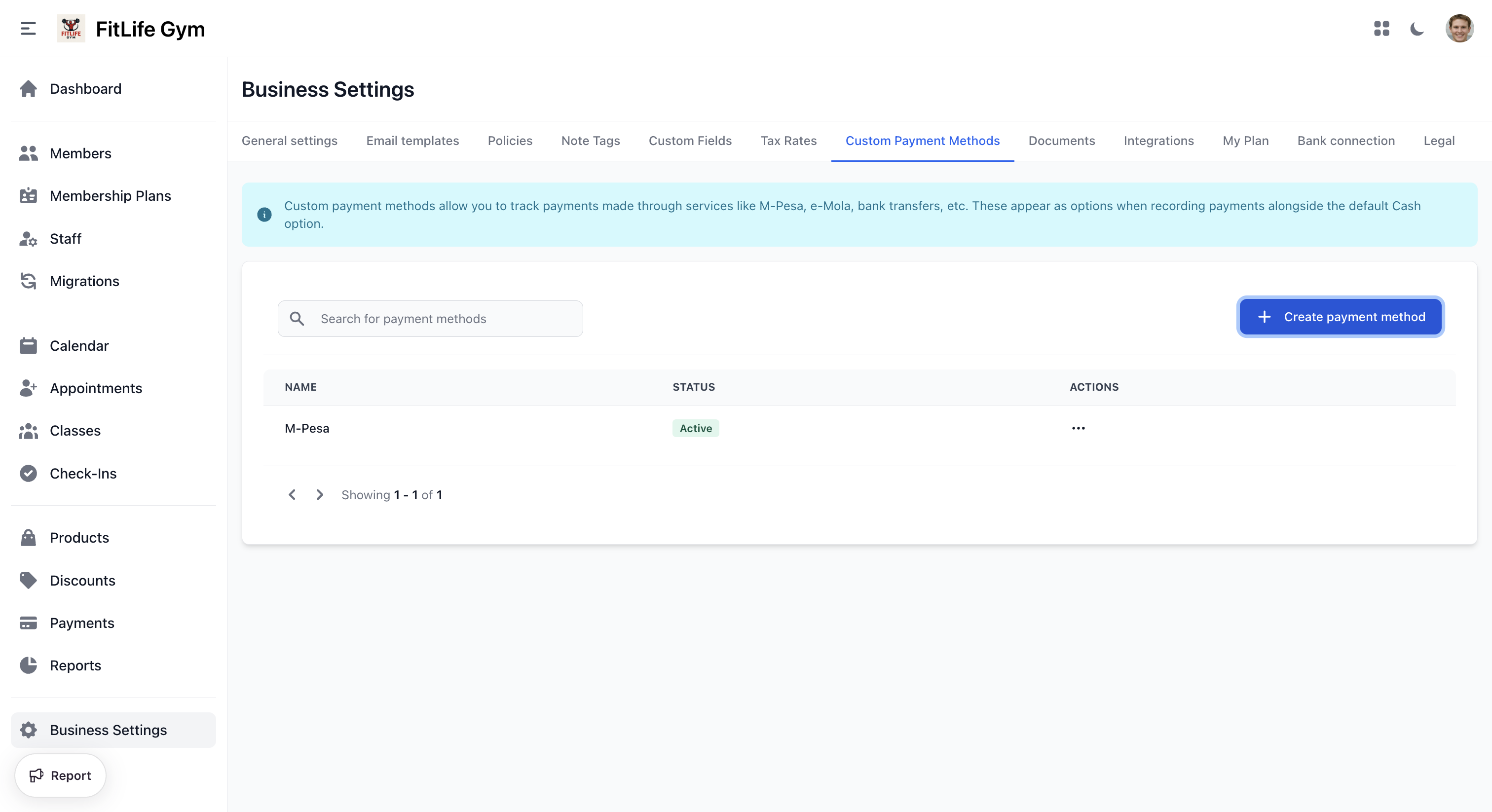
Custom payment methods are for tracking purposes. Actual payment processing still occurs outside Finegym for these methods.
Setting Up Payments
Connecting Stripe (Card Payments)
Location: Settings → Bank Connection
To accept card payments and enable automatic recurring billing:
- Navigate to Settings → Bank Connection
- Click Connect with Stripe
- Follow the Stripe onboarding process:
- Create or log into your Stripe account
- Provide business verification documents
- Add bank account for payouts
- Once connected, you'll see your connection status as "Active"
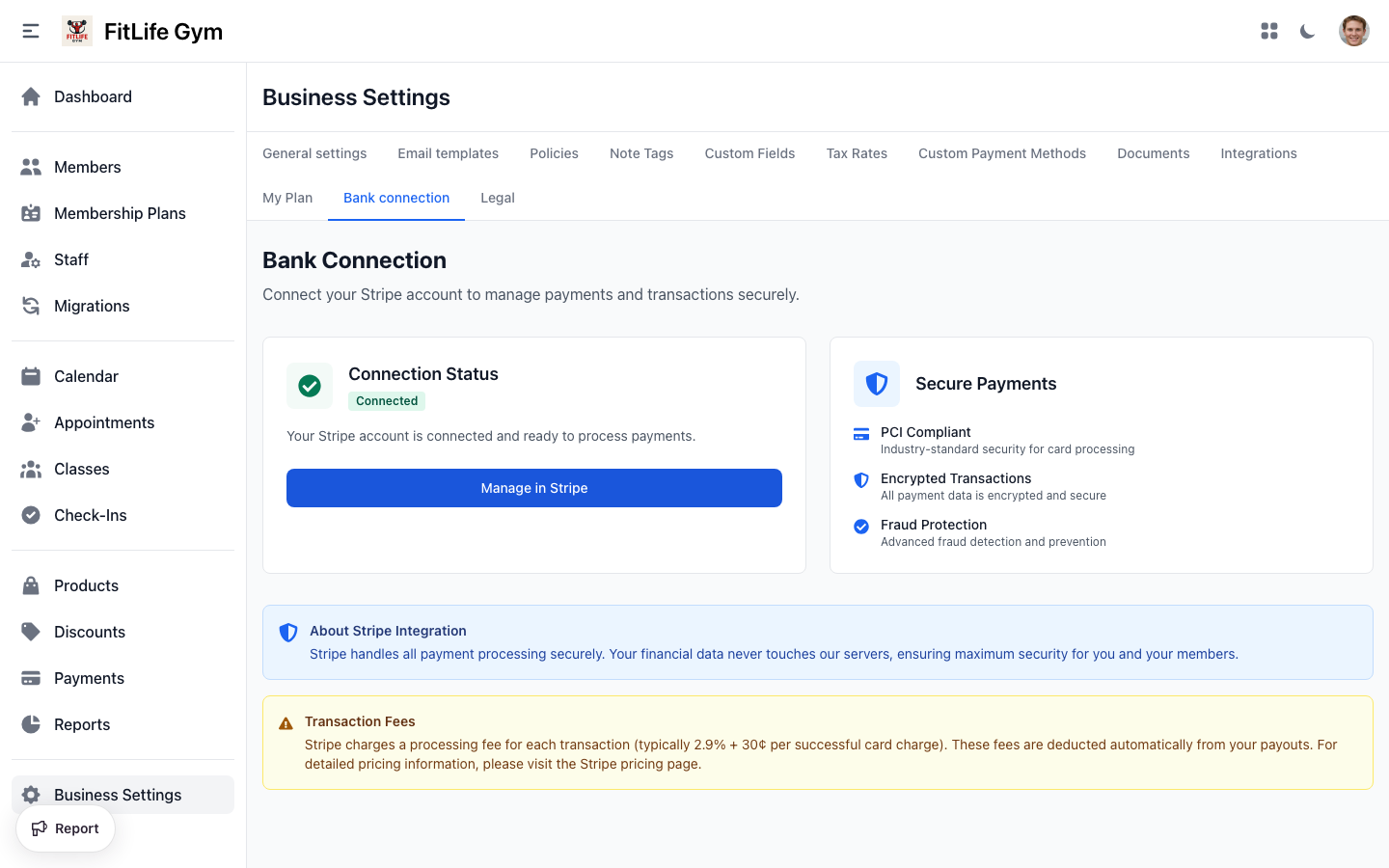
Without Stripe connected, you can only process manual payments (cash, bank transfer). Recurring memberships require Stripe for automatic billing.
What Stripe Enables
| Feature | Without Stripe | With Stripe |
|---|---|---|
| Manual payments (cash) | ✅ | ✅ |
| Card payments | ❌ | ✅ |
| Automatic recurring billing | ❌ | ✅ |
| Online membership purchase (member app) | ❌ | ✅ |
| Online membership purchase (gym website) | ❌ | ✅ |
| Failed payment retry | ❌ | ✅ |
Related Topics
- Your First Workflow - Create your first plan, add a member, and process a check-in
- General Settings - Detailed settings reference
- Tax Configuration - Tax setup details
- Integrations - Twilio SMS and WhatsApp
- Bank Connection - Stripe payment setup
- Your Gym Site - The site visitors book from and members sign in to
- Embed Widgets - Put booking into a website you already have
- Activity Log - Track all actions across your gym