Track leads
Keep everyone who might join in one list, give each an owner and a day to follow up.
A lead is someone interested in your business who hasn't bought anything yet. Leads lists them with where they came from and what they asked, and moves them along on its own as they book and buy. Leads are on every Finegym plan.
Before you start
- You need the Members permission to add leads or change them. The Owner, Managers and Front desk have it. Every staff member can see the list.
Steps
-
Open Leads. It opens on Open leads: those still New, Contacted or Trying it out.
-
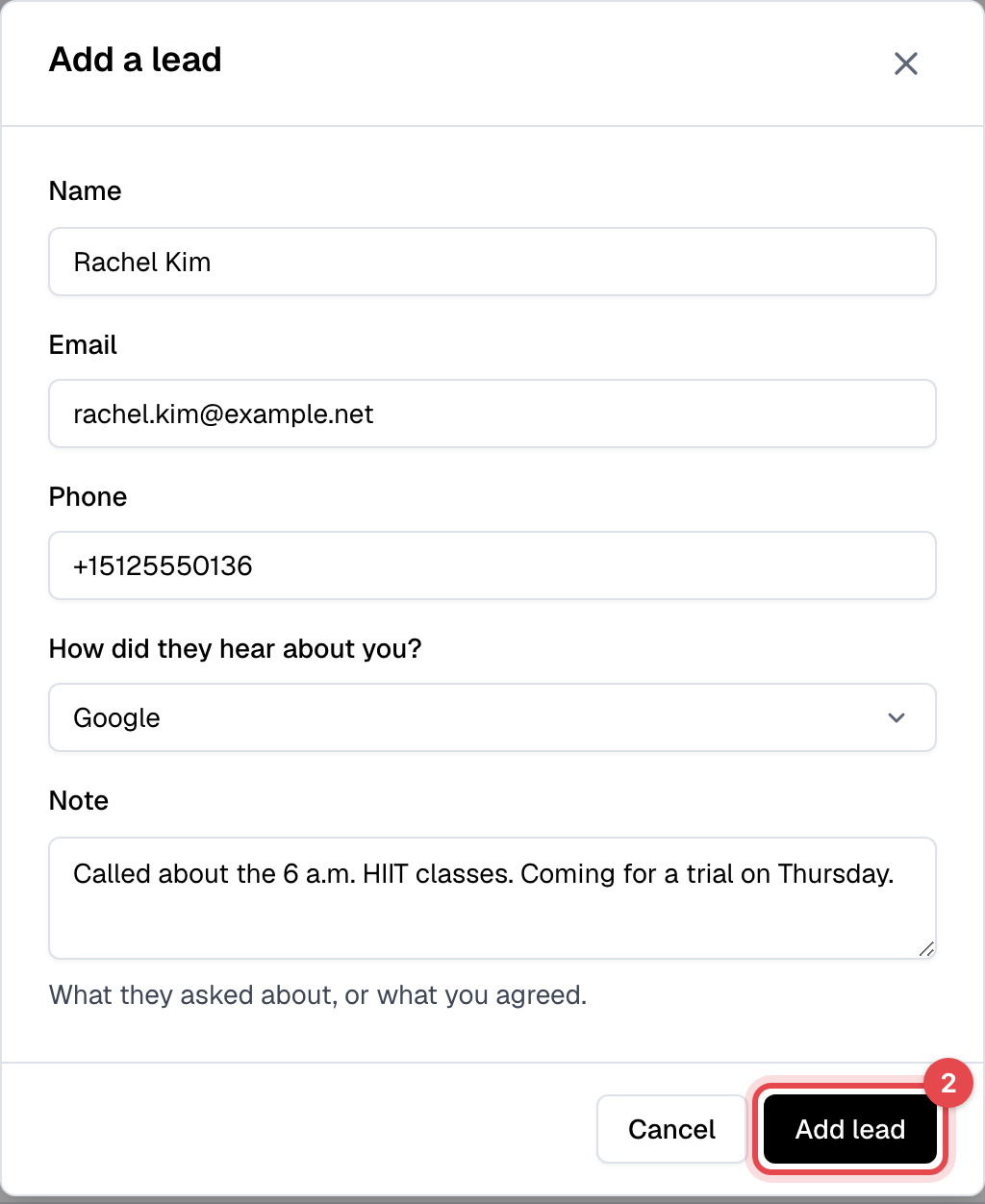
To add someone who called, messaged or walked in, click Add lead, enter their Name, Email and, if you have them, Phone, how they heard about you and a Note, and click Add lead.
-
On a lead's row, pick who follows them up under Assigned to.
-
Set Follow up on to the day to get back to them, such as two days after a trial class.
-
Once you've been in touch, change the Status, for example to Contacted, and set the next follow-up day. Changes on the row save at once.

What happens next
- A lead whose follow-up day has come shows Due. Follow-ups due lists only those, and Assigned to me shows only yours.
- The status moves on its own: Trying it out when they book a class or appointment or start a free plan, Became a member when they start a paid membership, wherever they do it.
- When a lead who never set a password gets a membership or free trial, or you mark them Became a member, Finegym emails them the welcome with a link to set up their account, their PIN and QR code.
- Closed lists those who Became a member or are Not interested, and the count at the top says how many became members in the last 30 days.
Good to know
- Every lead is also in Members, with a Lead badge, and their profile works like any member's. Lead details in the row's menu shows their message and where they came from.
- Someone who asks again doesn't get a second account: the new message is added to their lead, and one marked Not interested goes back to New.
- Follow every lead up automatically on the Growth plan, with the Follow up new leads automation template. See Set up an automation.
- Leads from Facebook or Instagram ads can arrive by themselves through Zapier, on Starter and Growth.