Add a member
Add someone who trains with you; they get an email to set up their sign-in.
Add a member for each person who trains with you. Once they're in, you can sell them a membership, book them into classes and check them in.
Before you start
- You need the Members permission. The Owner, Managers and Front desk have it.
- A child who trains on a parent's membership and has no email of their own is added from the parent's profile instead. See Set up a family.
- Bringing many people over from other software? See Import members.
Steps
-
In Members, click Add member.
-
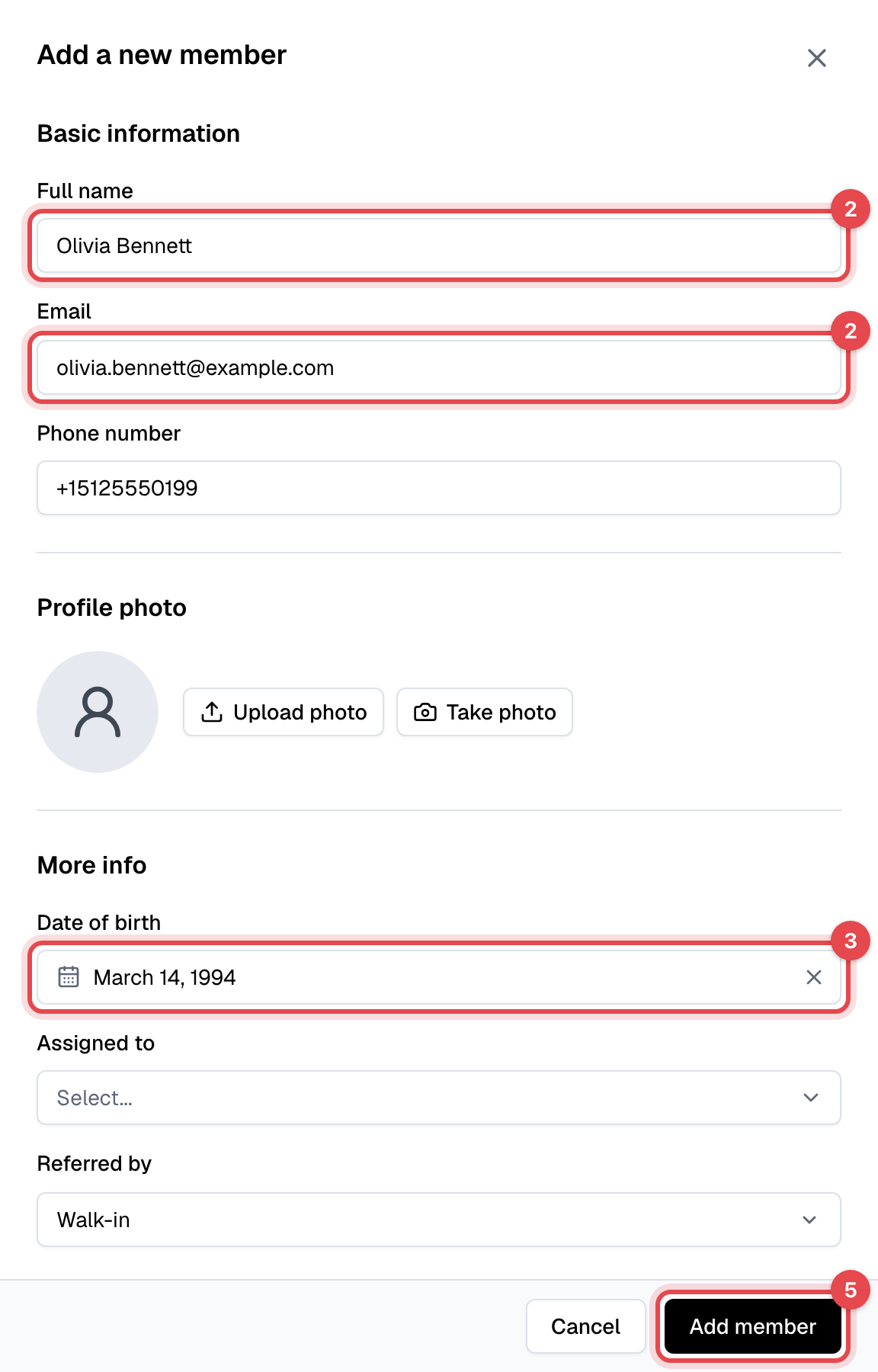
Enter their Full name and Email. Add a Phone number, starting with + and the country code, if you have it.
-
Pick their Date of birth. It's required.
-
Fill in anything else you know: a Profile photo (upload one, or Take photo with the camera), who it's Assigned to (the staff member who looks after them), how they were Referred by (for Existing member or Staff member, also the Referrer), their Address, Preferred language, and Guardian info for a minor.
-
Click Add member.
What happens next
- Finegym emails them a welcome with a Set up your account link to choose their password, and their check-in PIN and QR code. The link works once and expires after 7 days. See Give members app access.
- They show as Inactive in Members until they hold a membership. To sell them one, see Assign a membership.
- On the Growth plan, automations that start when a new member joins start for them.
Good to know
- One email, one person. Capitals don't count, so
Jane@Gym.comandjane@gym.comare the same member. Children who share a parent's email are added as dependents. - Already a lead? Adding someone with a lead's email completes that lead's account rather than making a second one: it takes the details you entered and sends the welcome email. They stay a lead until they buy a membership.
- Changing Assigned to later, on the member's Profile tab, emails the staff member you assign.
- Members can also sign themselves up on your website or at the front desk kiosk. Website sign-ups show as Lead until they buy a membership.