Set a coach's availability
Set the hours members can book a coach for appointments, week after week, and change single days such as a day off.
A coach's availability is the hours members can book them for appointments. Set their regular week once, then change single days for a holiday, a half day or extra hours.
Before you start
- Anyone on your staff can set their own hours: open the menu under your initials (top right) and click My availability.
- To set someone else's, you need the Staff permission. The Owner and Managers have it.
Set the regular week
- In Staff, open the coach and their Availability tab.
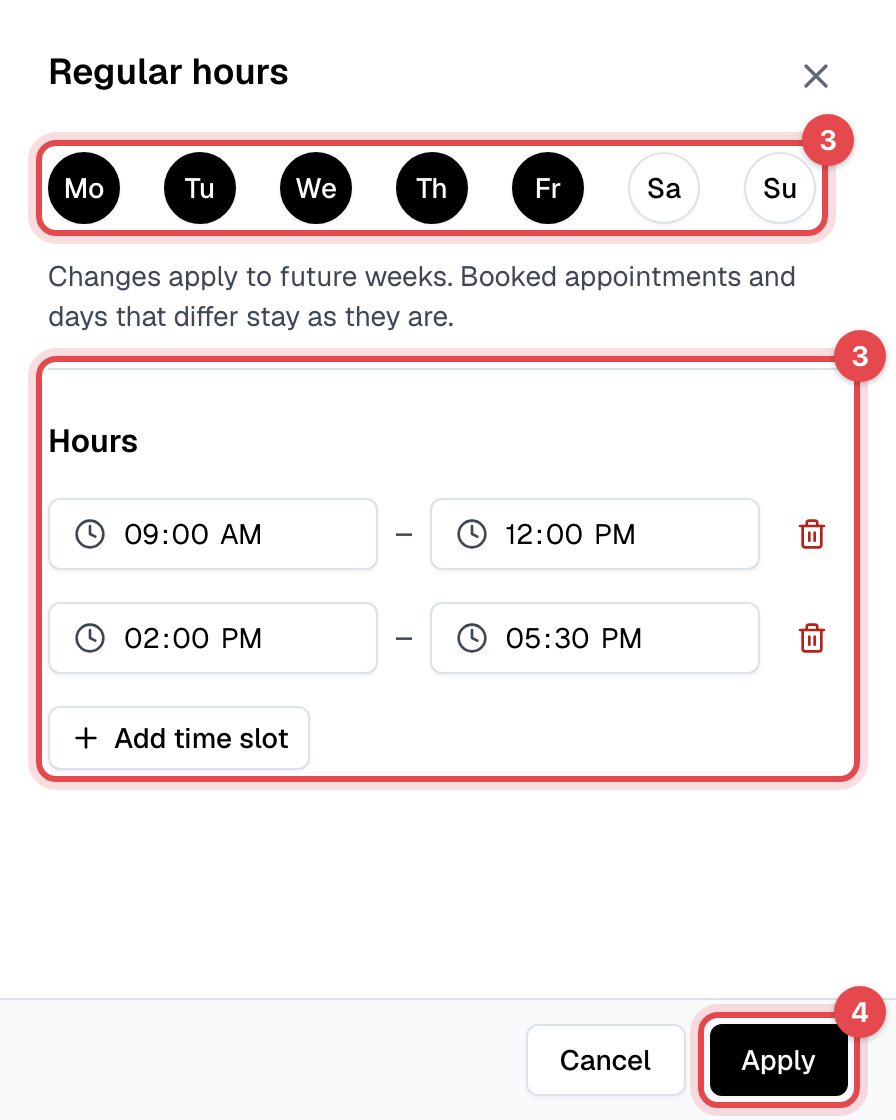
- Under Regular hours, click a day.
- Select every day that has the same hours, enter a start and end time, and click Add time slot for another range, such as the afternoon after a lunch break. A day with no hours is off.
- Click Apply.
Change single days
- Under Days that differ, click the date. You can select more dates in the window that opens.
- Tick Mark as unavailable for a day off, or click Add time slot and enter that day's hours.
- Click Apply.
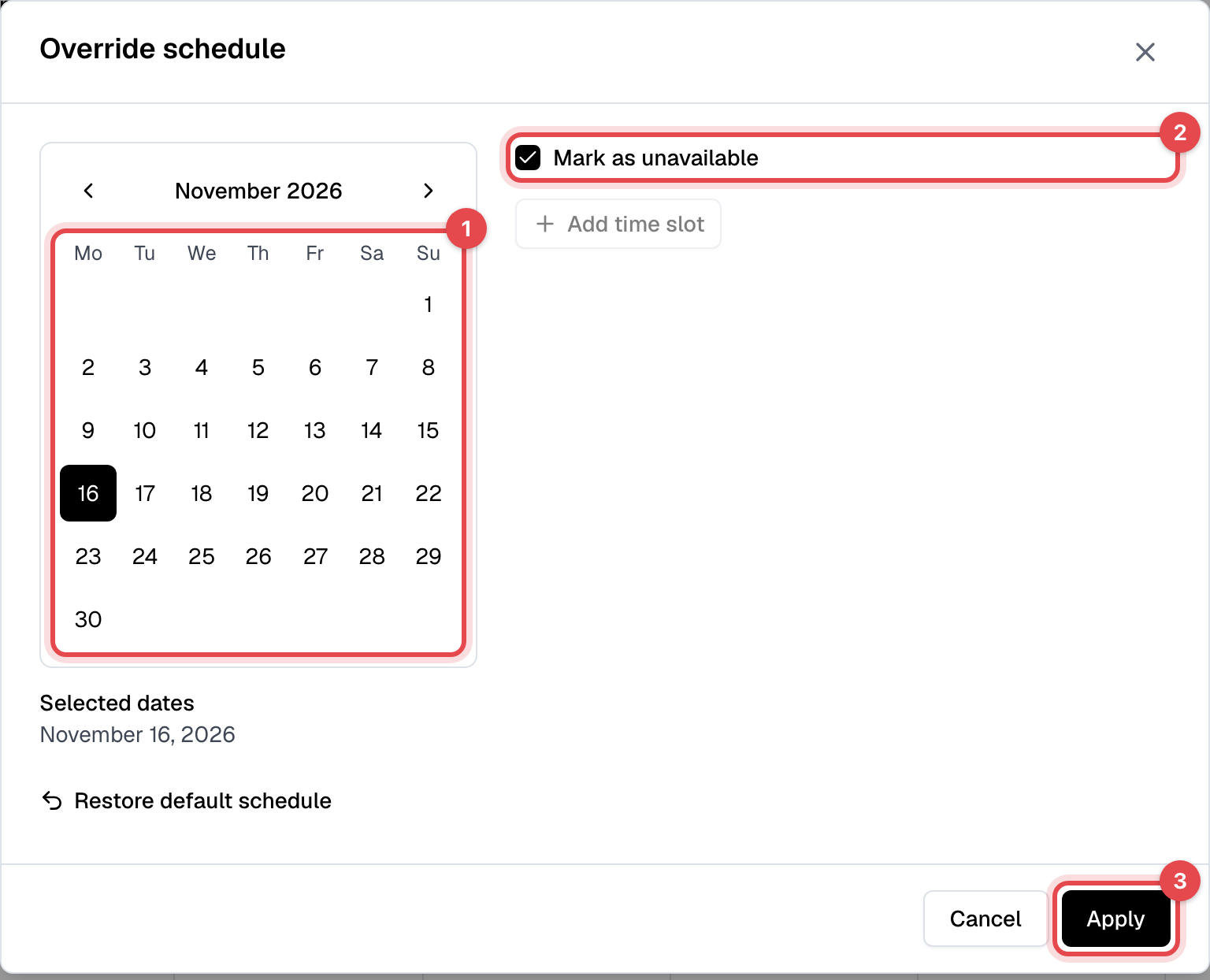
Changed days show a dot. To undo one, click it and choose Restore default schedule.
What happens next
- Members are offered appointment times only within these hours, for every appointment type that uses this schedule.
- Appointments already booked stay booked, even when they fall outside the new hours.
Good to know
- A coach is never booked twice. The classes they teach and the appointments they give, of any type, are taken out of these hours, with each type's buffers around them.
- A coach who connects Google Calendar loses the times they're busy there. A closure closes every coach's hours.
- A coach can keep more than one schedule, such as a summer timetable; each appointment type uses the one you picked for it.