Gym Product Catalog & Inventory
Sell products and keep track of your stock.
Manage your product catalog — create products with categories, variants, pricing, and inventory tracking.
Overview
The Products system includes:
- Product Catalog - Items available for sale
- Categories - Organize products into groups
- Product Options - Variants with different prices/inventory
- Inventory Tracking - Monitor stock levels
Product Categories
Organize products into categories for easier management.
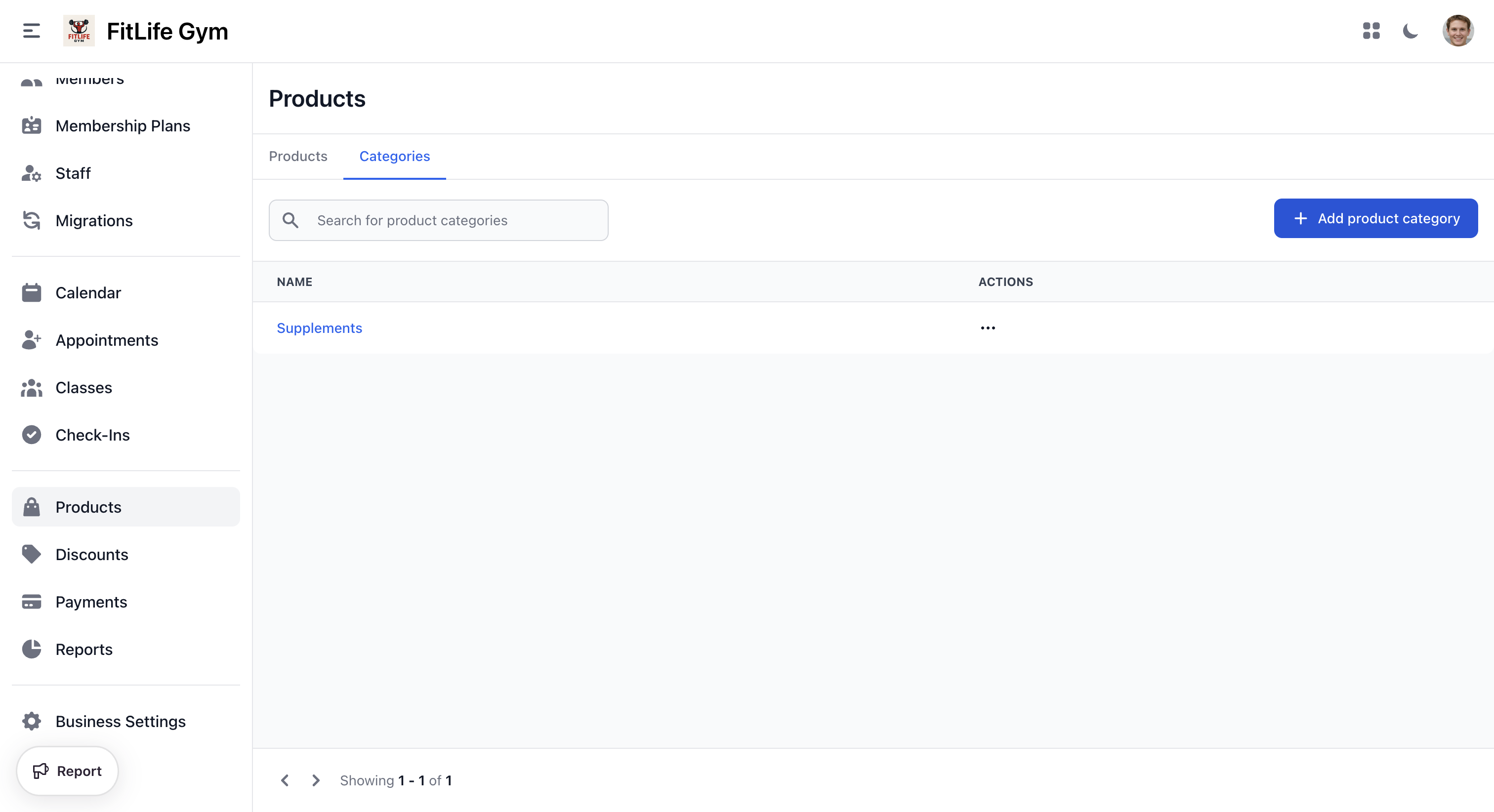
Creating Categories
Location: Products → Categories → Add product category
- Click Add product category
- Enter Category Name (e.g., "Supplements", "Apparel", "Drinks")
- Save
Managing Categories
- Edit — Change category name
- Delete — Remove category (products in this category will become uncategorized)
Products
Creating Products
Location: Products → Add product
Click Add product to create a new item:
Basic Information
- Name — Product name (e.g., "Protein Powder")
- Description — Product details (e.g., "Whey protein, 2lb container")
- Category — Product category (e.g., "Supplements")
- Images — One or more product photos; the first is the cover (Upload JPG/PNG)
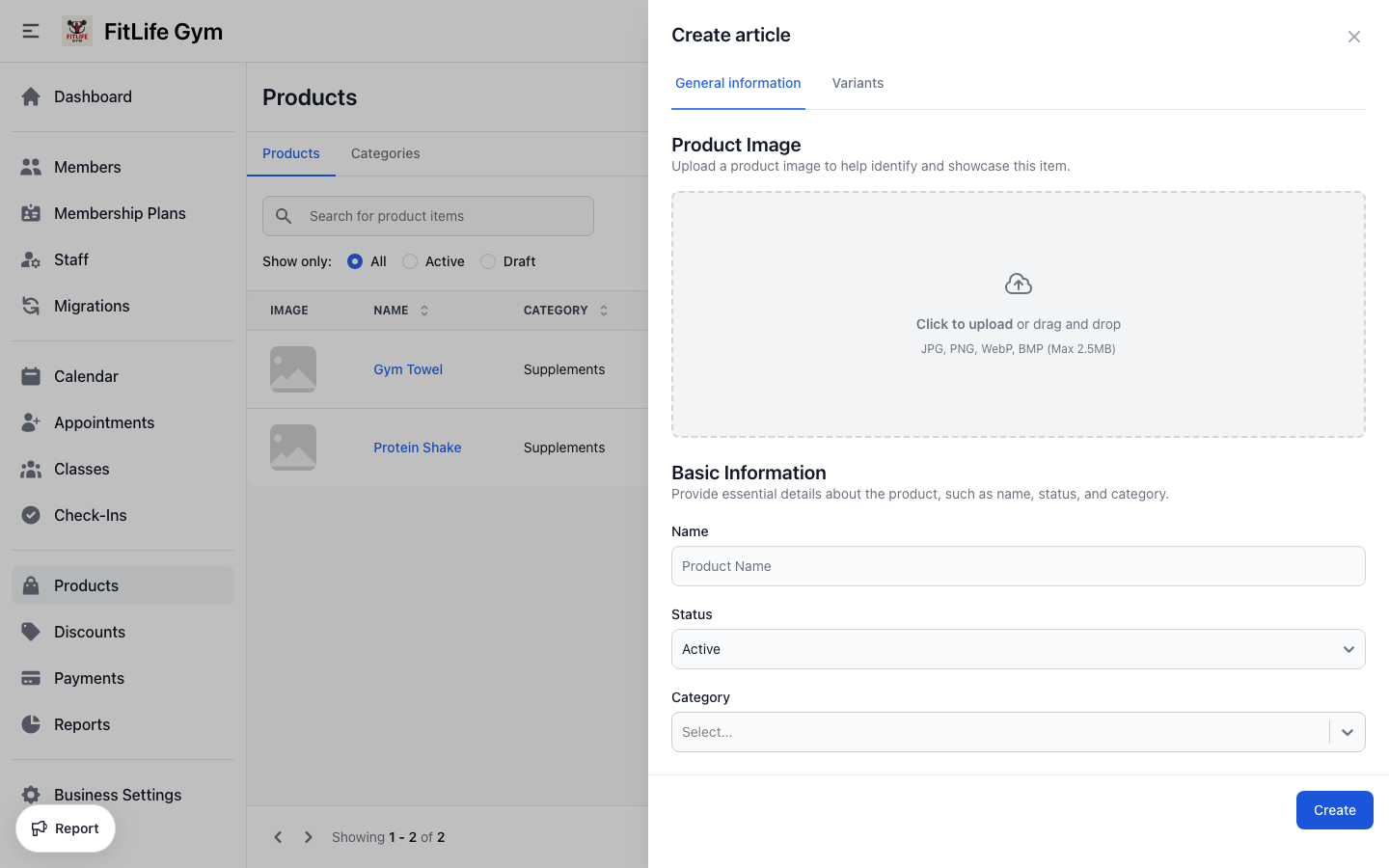
Status
- Active — Available for sale
- Draft — Hidden, not for sale
Inventory Tracking
- Track Inventory — Monitor stock levels
When enabled:
- Stock counts are maintained per option
- Stock decreases automatically with each sale
Product Options (Variants)
Products can have multiple variants with different prices and inventory.
Adding Options
- In the product form, go to Options
- Click Add option
- Enter:
- Name: Variant name (e.g., "Small", "Large")
- Price: Variant price
- Inventory: Stock count (if tracking enabled)
- Display Order: Order in which variants appear
- Add more options as needed
Example: T-Shirt with sizes
| Option | Price | Inventory |
|---|---|---|
| Small | $25 | 10 |
| Medium | $25 | 15 |
| Large | $25 | 12 |
| XL | $28 | 8 |
Example: Protein Powder flavors
| Option | Price | Inventory |
|---|---|---|
| Chocolate | $45 | 20 |
| Vanilla | $45 | 15 |
| Strawberry | $45 | 10 |
Managing Options
- Edit — Change name, price, inventory
- Delete — Remove variant
At least one option is required for each product. For products without variants, create a single "Default" option.
Inventory Management
Tracking Stock
When inventory tracking is enabled:
- Set initial stock counts for each option
- Stock decreases with each sale
- View current levels in product list
Inventory Indicators
- In Stock — Inventory > 0
- Out of Stock — Inventory = 0
Updating Inventory
To adjust stock:
- Open the product
- Click on the option
- Update Inventory count
- Save
Common reasons to update:
- Received shipment
- Damaged goods
- Inventory count correction
- Returns
Product Images
Each product can have multiple images, managed as a gallery in the product form:
- Add images — Upload one or more photos to the gallery
- Cover image — The first image is the cover — the photo shown in the product list and on invoices
- Reorder — Drag images to change their order; move a photo to the front to make it the cover
- Remove — Delete an image you no longer want
Image changes are saved when you save the product.
Managing Products
Viewing Products
Location: Products
The product list shows:
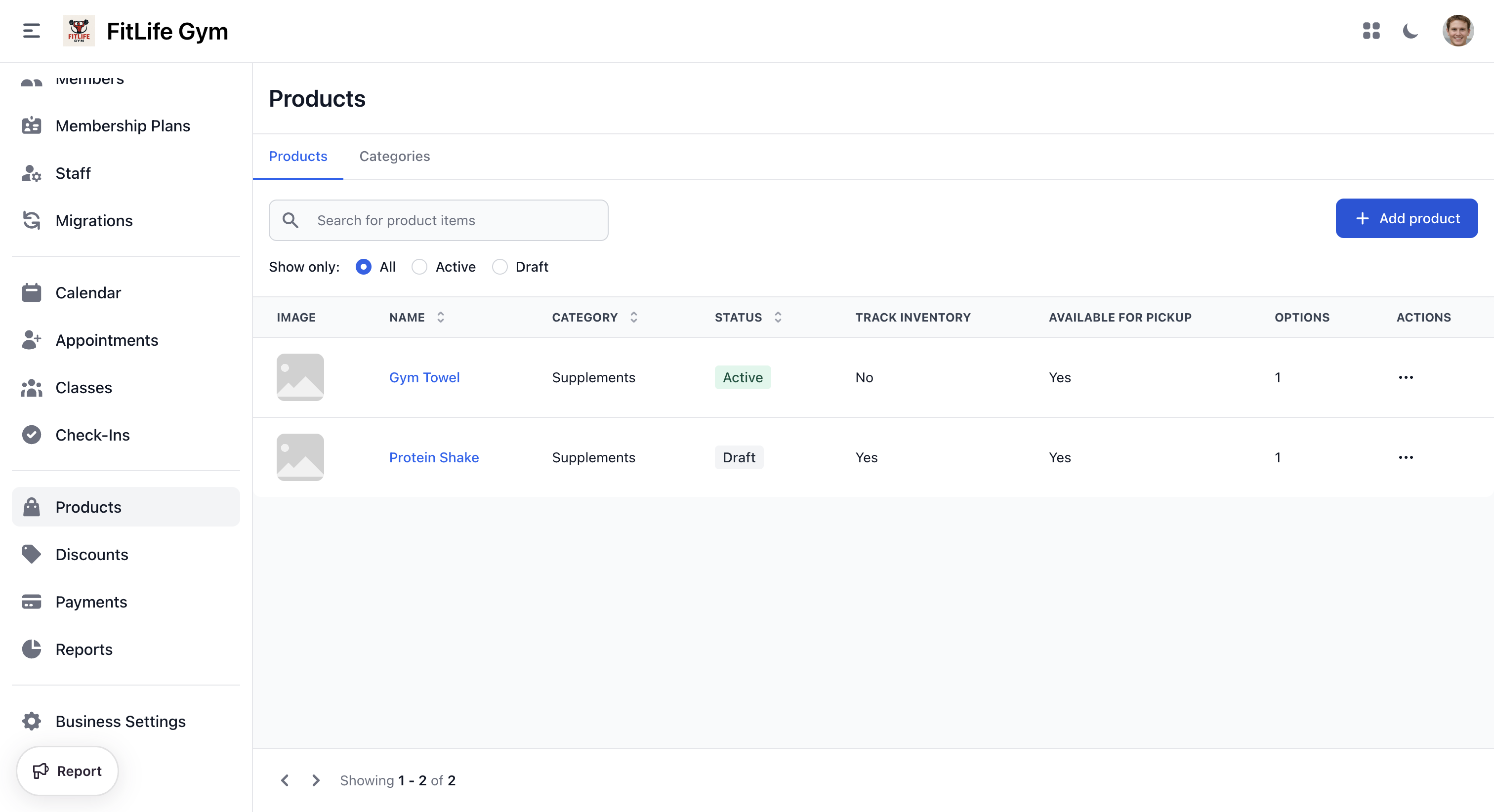
- Image — Product photo
- Name — Product name
- Category — Product category
- Status — Active/Draft
- Total sales — Units sold, counting only paid invoices that were not refunded
- Stock — Inventory on hand across all variants (a dash when inventory is not tracked)
- Options — Number of variants
- Actions — Manage, Edit, or Delete
Filtering Products
Filter by:
- Status (All/Active/Draft)
- Search by name
Editing Products
Click a product to manage:
Editable fields:
- Basic information
- Images
- Options and pricing
- Inventory levels
- Status
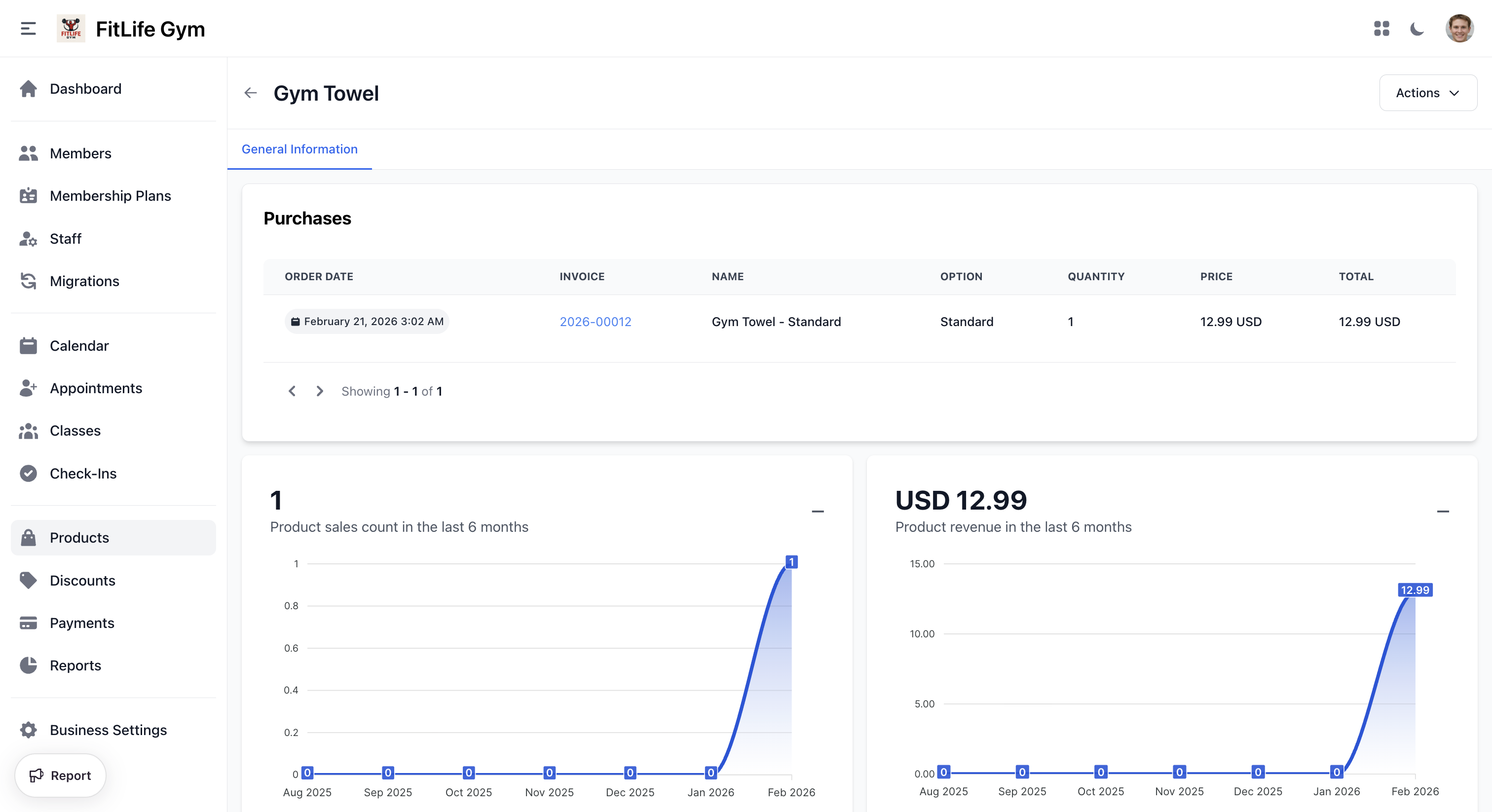
Product Overview & Sales
Opening a product gives you two tabs.
Overview — how the product is doing, and how it is set up:
- Sales count chart — units sold per period
- Revenue chart — money taken per period
- Product details — category, status, inventory tracking, and a Variants list showing each variant's price and stock, with an Out of stock badge when it runs low
Sales — the individual purchases:
- Order date — When the sale was made
- Invoice — Link to the invoice the sale belongs to
- Status — The invoice's status (Paid, Refunded, Open, and so on)
- Name and Option — The product and variant sold
- Quantity, Price, and Total
The Status column tells you whether the money was actually kept. A purchase on a refunded or unpaid invoice still appears in the list for your records, but it is excluded from the Total sales and revenue figures — so the list can be longer than the sales count, and that is correct.
Archiving Products
To remove a product from sale:
- Open the product
- Change status to Draft
- Save
The product:
- Hidden from product list
- Remains in catalog for records
- Can be reactivated later
Deleting Products
Products can be deleted from the product detail page via the Delete button.
Pricing
Setting Prices
Prices are set per option:
- Open product
- Edit the option
- Set Price
- Save
Currency
Prices use your business currency (configured in Settings).
Taxes
Product taxes are applied based on:
- Tax rates configured in Settings
- Tax-inclusive or exclusive pricing setting
See Tax Configuration for tax setup.
Best Practices
Product Setup
- Use clear, descriptive names
- Add quality product images
- Write helpful descriptions
- Organize into categories
Inventory Management
- Set realistic initial counts
- Regular inventory audits
- Track low-stock items
- Reorder before stockouts
Category Organization
- Use logical groupings
- Keep category names short
- Don't over-categorize
- Review and consolidate periodically
Troubleshooting
Product Not Showing
Check:
- Status is "Active"
- At least one option exists
- Option has price set
- Not filtered out
Inventory Not Updating
Verify:
- "Track Inventory" is enabled
- Inventory count is set on options
- Transaction completed successfully
Can't Delete Product
If the delete fails, try:
- Change status to Draft instead
- Check for related data
Price Showing Incorrectly
Check:
- Option price is correct
- Tax settings (inclusive/exclusive)
- Currency settings
Related Topics
- Invoice Management - Processing product sales
- Discounts - Product discounts
- Tax Configuration - Tax and currency settings