Gym Invoice Management & Billing
Create, send, and keep track of member invoices.
Invoices are the core financial documents in Finegym. Every payment for memberships, products, or appointment drop-ins is tracked through detailed invoices.
Invoice Lifecycle
Draft → Open → Paid
              ↘ Uncollectible → Paid/Void
              ↘ Void
- Draft — Being prepared, can be edited
- Open — Finalized, awaiting payment
- Paid — Payment received in full
- Uncollectible — Payment attempts failed
- Void — Cancelled, no payment expected
Viewing Invoices
Location: Payments → Invoices
The invoice list shows:
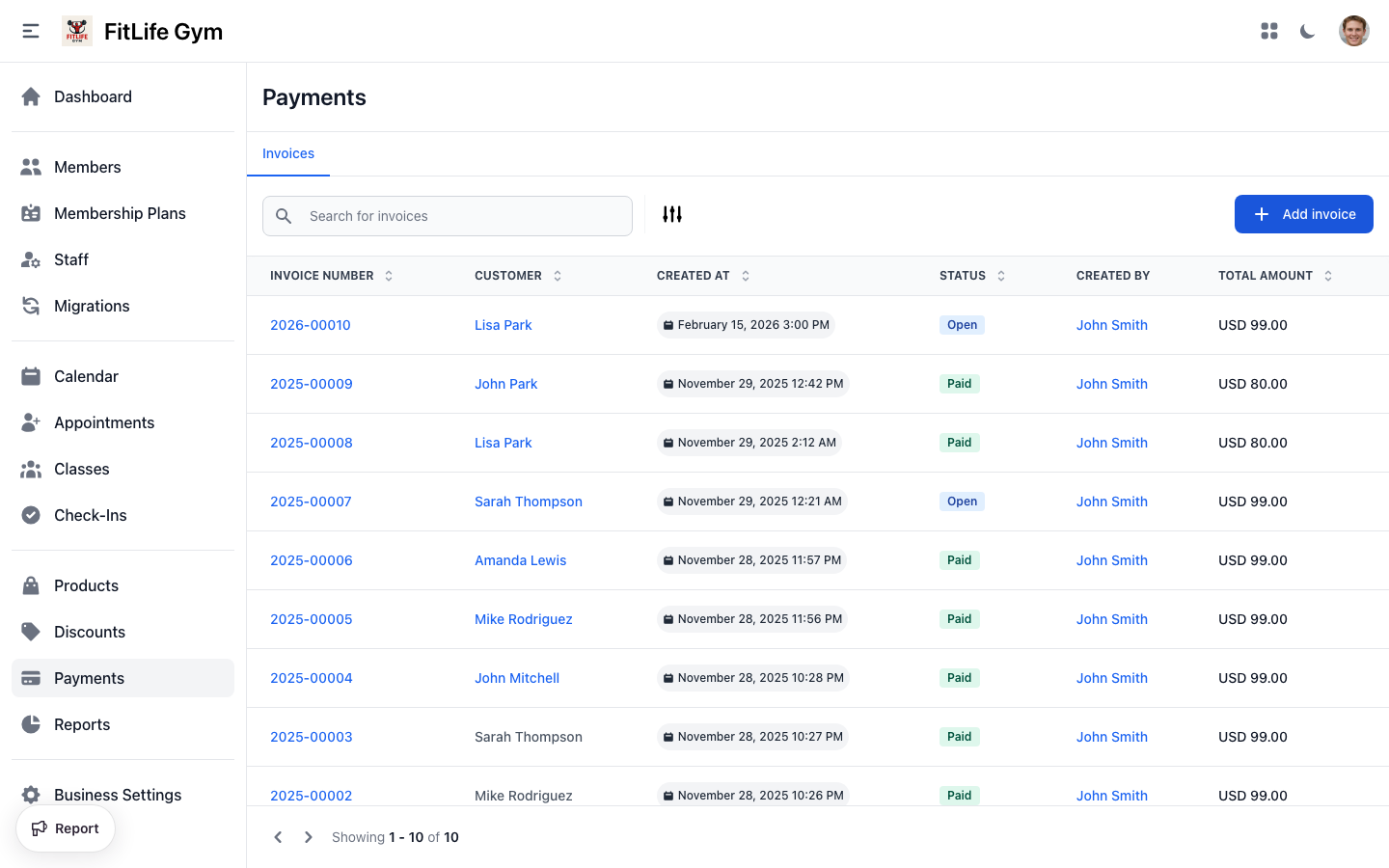
- Invoice number — Unique invoice number
- Customer — Member or customer name, or Guest for a walk-in sale
- Items — Summary of line items on the invoice
- Created at — Invoice creation date
- Status — Current invoice status
- Created by — Staff member who created the invoice
- Total amount — Total invoice amount
Creating an Invoice
Location: Payments → Invoices → Add invoice
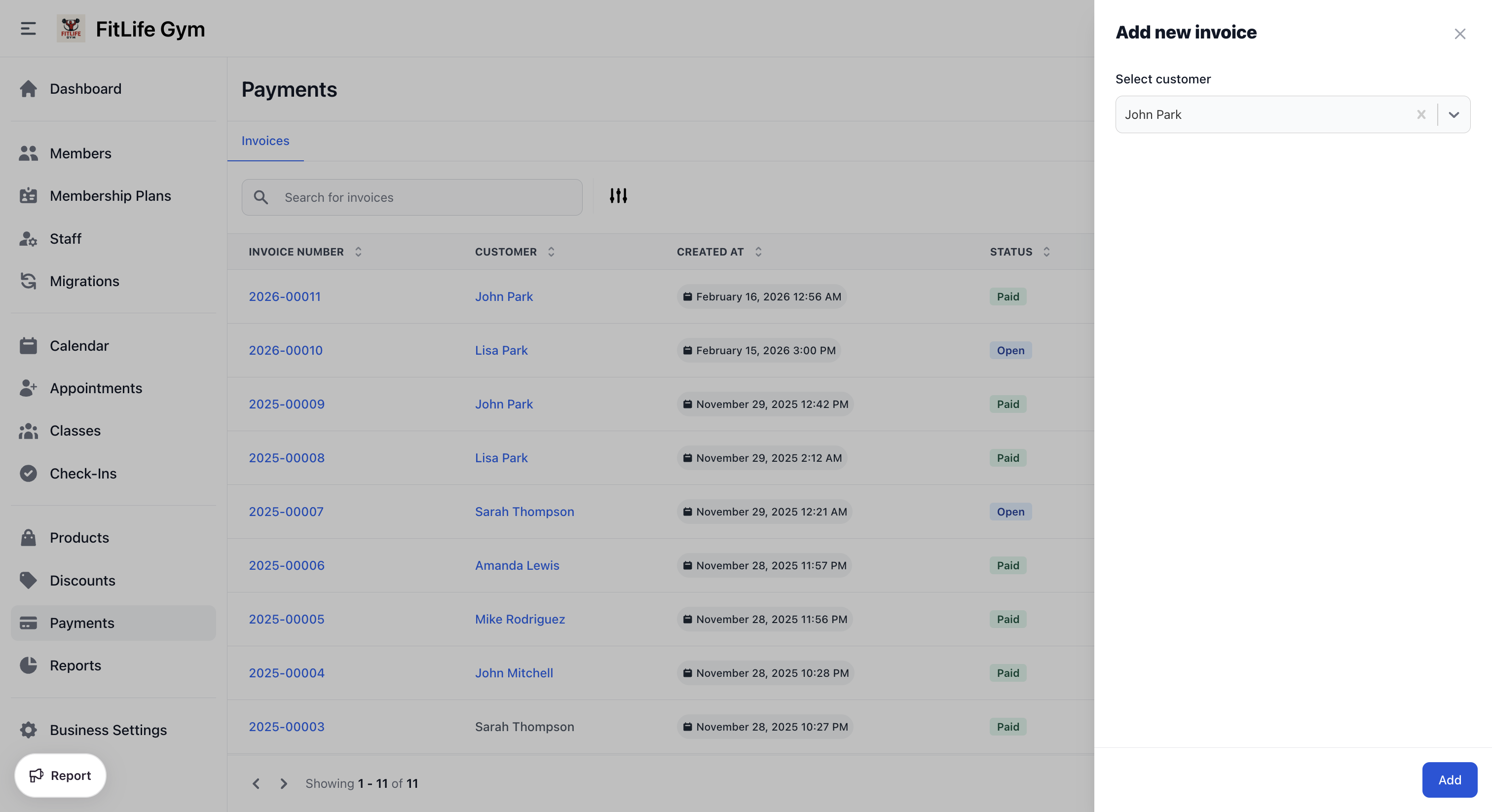
- Click Add invoice
- Select a Customer, or turn on Check out as guest for a walk-in sale
- Click Add
- You are redirected to the invoice detail page where you can add items and discounts
Walk-In (Guest) Sales
Not every sale is to a member. To sell a drink, a towel, or a day pass to someone who walks in off the street, turn on Check out as guest when creating the invoice instead of picking a customer.
A guest sale:
- Creates no member record — nothing to clean up afterwards, and your member count stays accurate
- Shows as "Guest" in the customer column of the invoice list
- Can be paid by cash or card, exactly like any other invoice
- Sends no emails — there is no address to send to. Download the receipt PDF if the customer wants one
Everything else works normally: line items, discounts, taxes, refunds, and reporting all behave the same, and the money appears in your revenue reports alongside member sales.
If the walk-in is likely to come back, add them as a member instead. You keep their purchase history, and you can email them later.
Invoice Details
Viewing Invoice Details
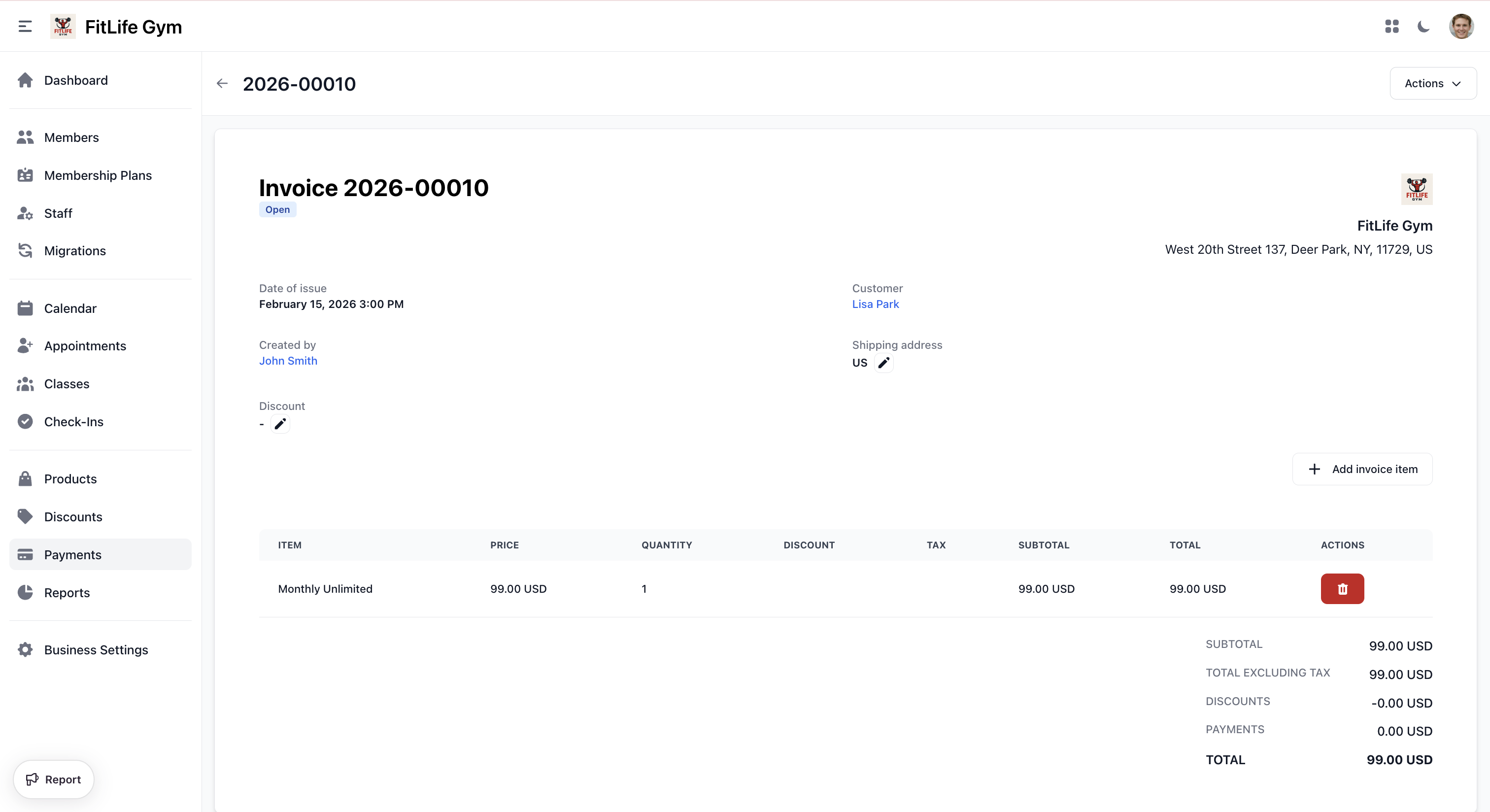
Click any invoice to see:
- Customer information
- Line items with prices
- Taxes applied
- Discounts
- Total amount
- Payment history
- Transaction records
Invoice Items
Each invoice contains line items:
- Item — Item name/description
- Price — Price per unit
- Quantity — Number of units
- Discount — Applied discount
- Tax — Applied tax rate
- Subtotal — Amount before tax
- Total — Total for this item
Adding Invoice Items
While invoice is in Draft or Open status:
- Click Add invoice item
- Set Quantity
- Select a Product
- Choose a Product option
- Click Add
Removing Invoice Items
In Draft or Open status (before any transactions are recorded):
- Click the delete icon on the item
- Confirm removal
Applying Discounts
Add or modify a discount on the invoice:
- Click the Update discount button (pencil icon)
- Select from existing discounts
- Discount applies to eligible items
Invoice Statuses
Draft
- Invoice being prepared
- Items can be added/removed
- Discounts can be applied
- Not yet sent to customer
Actions available:
- Delete invoice
- Send invoice (moves to Open)
- Pay with Cash
- Pay with Card (if Stripe connected)
- Pay with custom payment methods
Open
- Invoice sent to customer, awaiting payment
- Items can still be added/removed (if no transactions recorded)
- Discounts can still be applied
Actions available:
- Send invoice
- Change invoice status (Void or Uncollectible)
- Pay with Cash
- Pay with Card (if Stripe connected)
- Pay with custom payment methods
- Download invoice as PDF
Paid
- Full payment received
- Transaction(s) recorded
Actions available:
- Send receipt
- Refund invoice
- Download invoice as PDF
- Download receipt as PDF
Uncollectible
- Payment attempts failed
- Manual follow-up needed
Actions available:
- Send receipt
- Change invoice status
- Download invoice as PDF
- Download receipt as PDF
Void
- Invoice cancelled
- No payment expected
- For record-keeping only
Actions available:
- Download invoice as PDF
- Download receipt as PDF
Invoice Actions
Send Invoice
Email invoice to customer:
- Click Send invoice from the actions menu
- Customer receives an email with the invoice details and a link that opens the invoice on your gym site, where they can pay it by card
- Draft invoices move to Open status when sent
The same link goes out in the text message version, and in the automatic email for a recurring membership invoice. Members who prefer the app can still pay there — the link is an addition, not a replacement.
Download PDF
Generate PDF documents:
- Download invoice as PDF — Invoice document
- Download receipt as PDF — Receipt document (available for paid/uncollectible/void invoices)
Change Invoice Status
For Open or Uncollectible invoices:
- Click Change invoice status from the actions menu
- Select Void or Uncollectible
- Confirm the change
Refund Invoice
For Paid invoices:
- Click Refund invoice from the actions menu
- Confirm the refund
Taxes
How Taxes Work
Taxes are configured in Tax Configuration and applied to:
- Membership plans
- Products
- Appointment drop-ins
Tax Display
Invoice shows:
- Subtotal (before tax)
- Each tax rate and amount
- Total (including tax)
Multiple Tax Rates
If multiple taxes apply:
- Each tax listed separately
- Amounts shown individually
- Combined in total
Best Practices
Invoice Management
- Review drafts before finalizing
- Send invoices promptly
- Follow up on unpaid invoices
- Keep records organized
Record Keeping
- Export transactions monthly
- Reconcile with bank statements
- Keep PDF copies of significant invoices
- Archive old records
Troubleshooting
Invoice Won't Send
Verify:
- At least one item added
- A customer is selected, or Check out as guest is on
- All required fields complete
Can't Pay an Invoice
An invoice with no line items cannot be paid — there is nothing to charge for. Add at least one item first.
If Pay with Card is missing, check that Stripe is connected in Payment Methods.
Related Topics
- Payments & Transactions - Processing payments and refunds
- Membership Plans - Recurring billing setup
- Products - Selling products
- Discounts - Creating discounts
- Tax Configuration - Tax setup