Gym Check-In Methods & Frontdesk Kiosk
Every way members can check in — QR, PIN, and kiosk.
Finegym provides multiple ways to check members in and out of your facility. Whether using manual lookup, QR code scanning, or a self-service kiosk, the system validates memberships and tracks attendance automatically.
Check-In Methods
Manual Check-In (Dashboard)
Location: Check-Ins
The simplest way to check in a member:
- Navigate to the Check-Ins section
- Search for the member by name, email, or phone
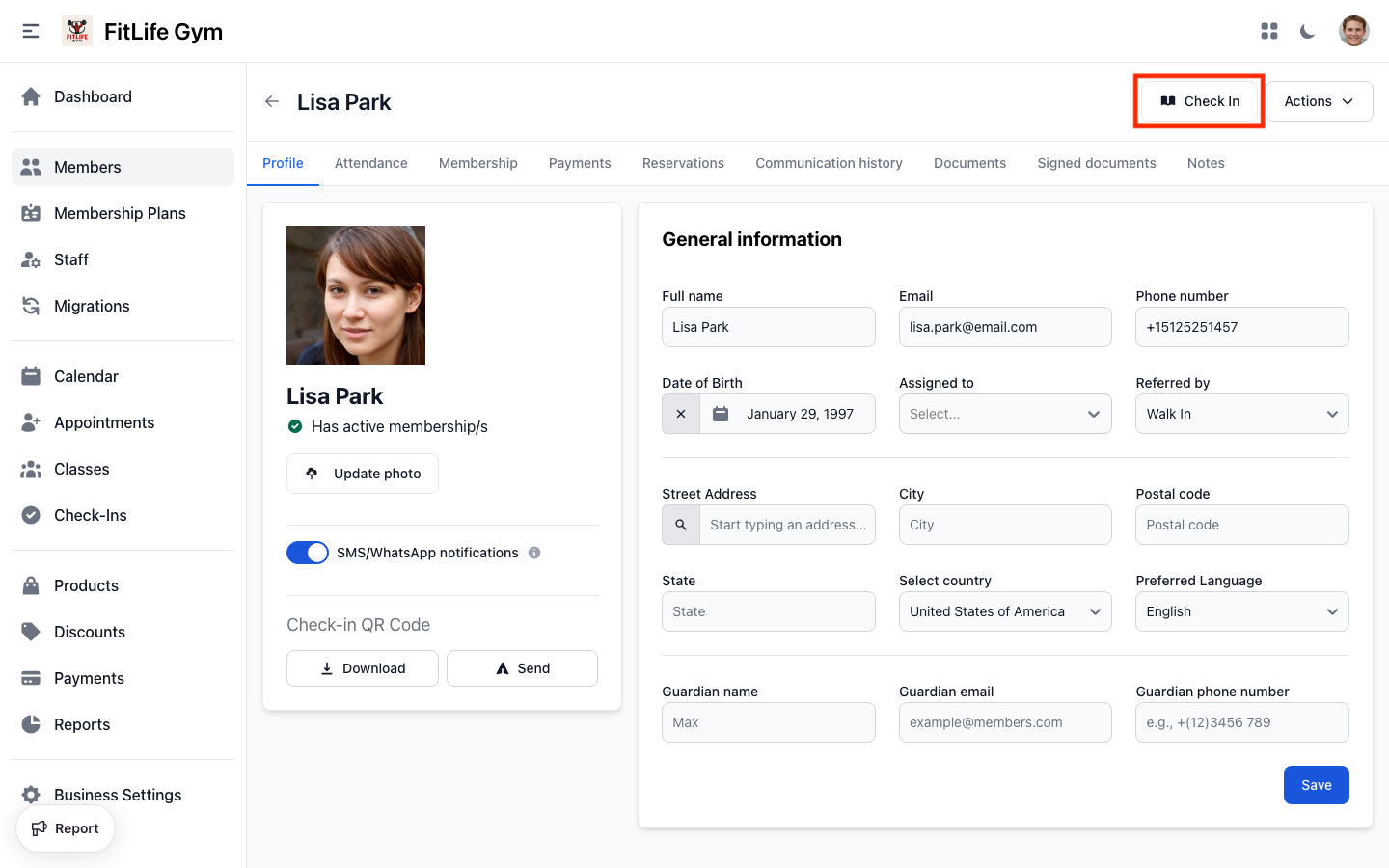
- Click Check In on the member
- If the member has multiple active memberships, select which one to use
- Confirm the check-in
QR Code Scanning (Staff Modal)
Scan a member's QR code from the mobile app:
- Click the tools icon (grid) in the top navigation bar
- Select Scan member
- Point your device camera at the member's QR code
- The system identifies the member and processes the check-in
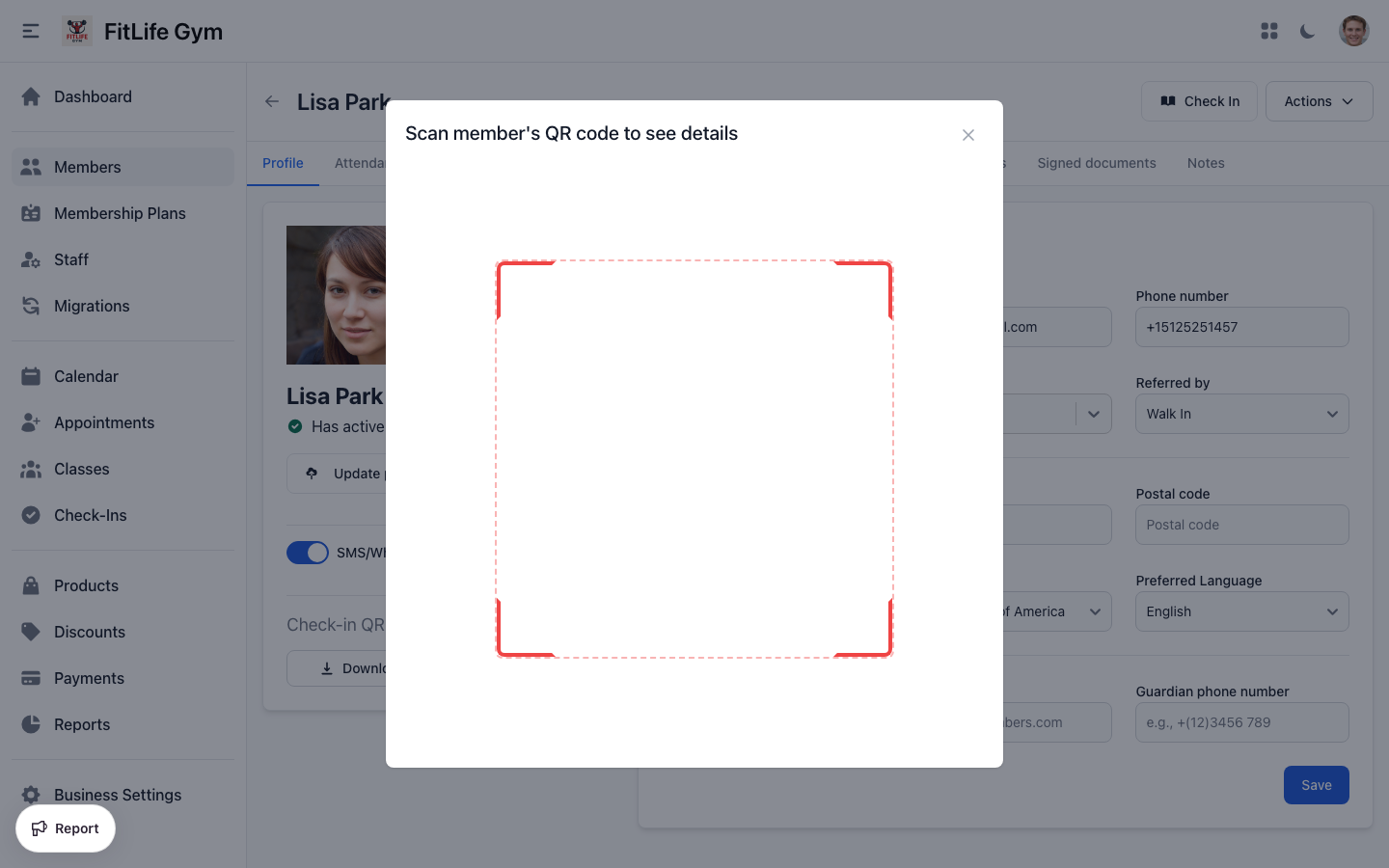
The QR code contains the member's unique identifier encoded with your gym's tenant domain, ensuring secure identification.
Members can present the code from the mobile app or a printed member card — the scanner reads both QR codes and barcodes.
PIN Code Check-In
Members can check in using a 6-digit PIN:
- Member enters their PIN on the keypad
- System looks up the member
- Validates their membership
- Processes the check-in
PIN codes are set in the member's profile settings.
Frontdesk/Kiosk Mode
A dedicated self-service screen for member check-ins:
- Staff enables Frontdesk Mode
- Members can:
- Scan their QR code from the mobile app
- Enter their PIN code
- System processes check-in automatically
- Audio feedback confirms success or failure
Frontdesk Mode
Setting Up Frontdesk Mode
Frontdesk mode transforms a device into a self-service kiosk:
- Click the tools icon (grid) in the top navigation bar
- Select Frontdesk mode
- Confirm by clicking Yes, I'm sure
- The screen switches to kiosk view
Frontdesk Interface
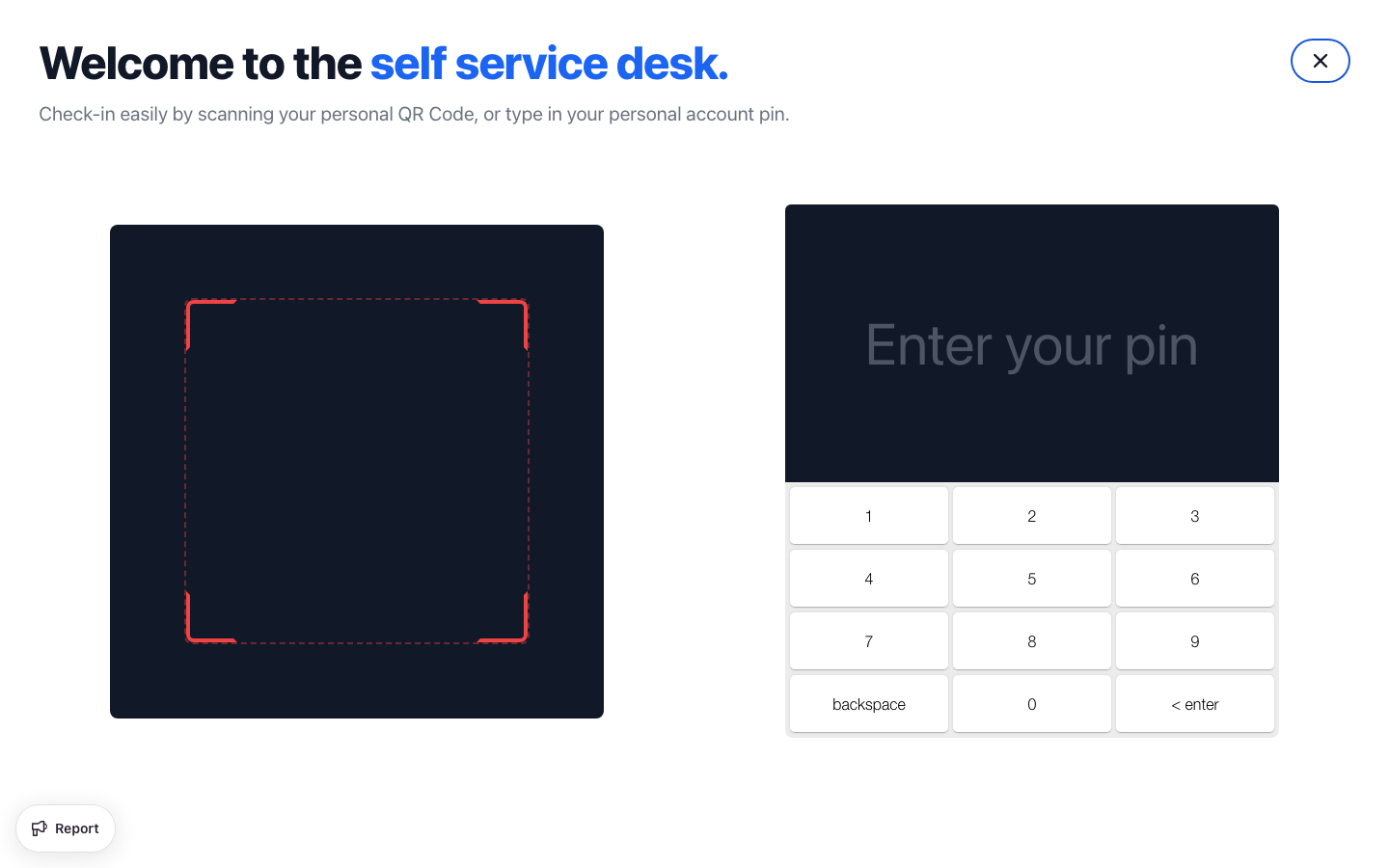
The frontdesk screen shows:
Left side: QR Code Scanner
- Camera automatically scans for member QR codes
- Instant processing on successful scan
Right side: PIN Pad
- On-screen numeric keyboard
- Members enter their 6-digit PIN
- Press Enter to check in
Exiting Frontdesk Mode
To return to the normal dashboard:
- Click the X button in the corner
- Enter your password to confirm
- You're returned to the dashboard
Password protection prevents unauthorized exit from kiosk mode.
Sound Feedback
Frontdesk mode uses audio cues:
- Success — Check-in completed
- Info — Multiple memberships available (selection needed)
- Error — No active membership or validation failed
Check-In Process
How Check-In Works
When a member checks in, the system:
- Identifies the member (via search, QR, or PIN)
- Retrieves active memberships that are:
- Not archived
- Not frozen
- Within valid dates
- Have available usage
- Validates restrictions:
- Time window (if configured)
- Class/appointment type restrictions
- Usage limits
- Processes the check-in
- Updates usage counters
Multiple Membership Selection
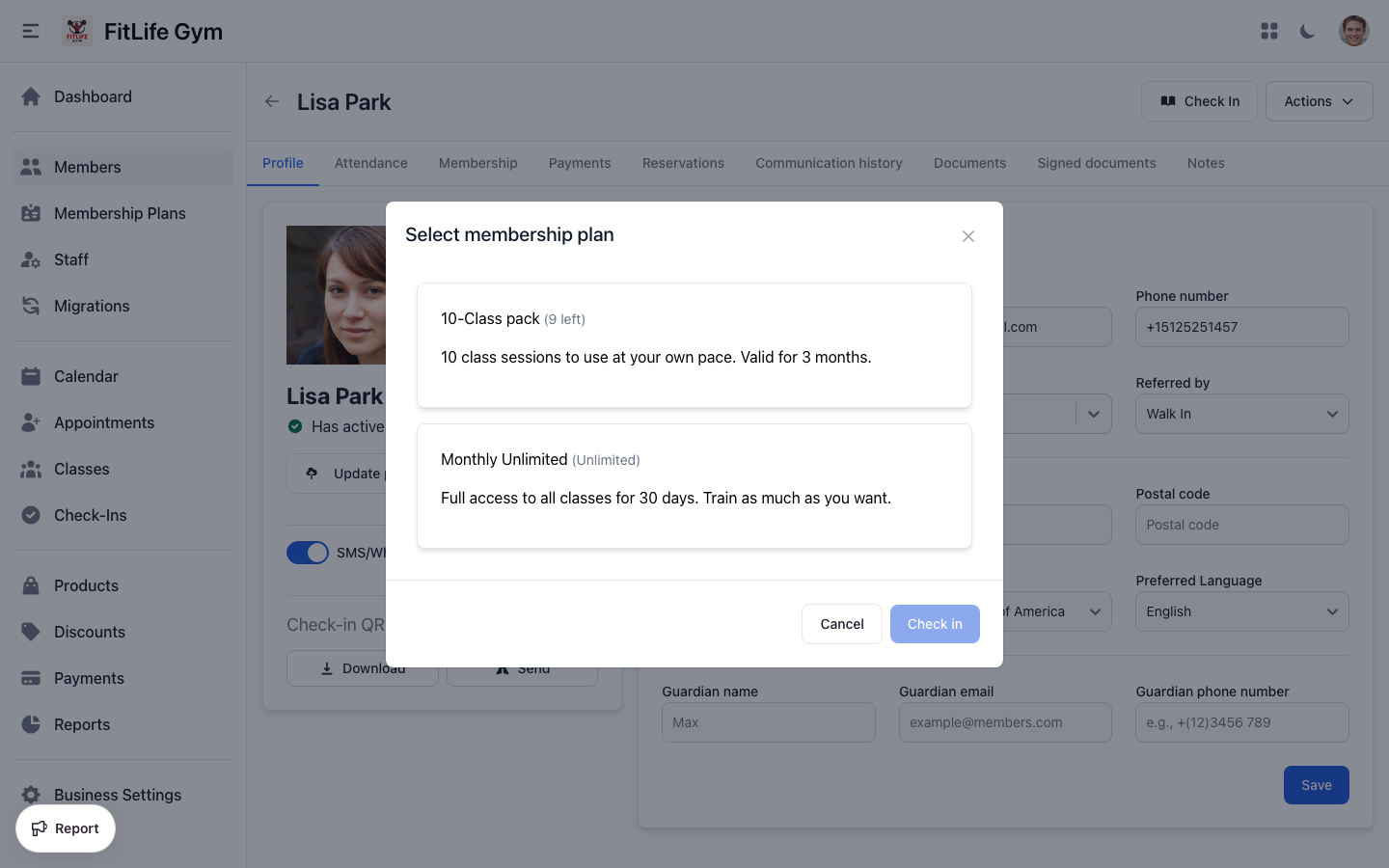
If a member has multiple active memberships with available usage:
- A selection modal appears
- Staff or member chooses which membership to use
- Each option shows:
- Plan name
- Remaining usage (if limited)
- "Unlimited" for unlimited plans
Check-In Validation Rules
The system enforces these rules:
- Active Membership Required — Member must have at least one active, non-frozen membership
- One Open-Gym Visit Per Day — A member's second open-gym check-in on the same day is rejected, so a scan on the way out or a card read twice never becomes a second visit or uses a second credit. Class and appointment check-ins are separate and still work after an open-gym visit. Staff can record a genuine second session on purpose, from the member's profile or the Scan member window, with Check in anyway; the self-service kiosk cannot.
- Usage Limits — If plan has limits, must have remaining usage this period
- Time Window — If plan is time-restricted, current time must be within window
- Frozen Membership — Frozen memberships cannot be used for check-in
- Blocked Member — Blocked members cannot check in
Check-In Failure Messages
Common check-in failure reasons:
- "No active membership plan" — No valid membership found. Assign a membership or renew expired one.
- "Already checked in today at 09:12" — The member's open-gym visit for today is already recorded. Nothing to do at the kiosk. From the member's profile or the Scan member window, Check in anyway records a second session on purpose.
- "Usage limit reached" — Period usage exhausted. Wait for reset or upgrade plan.
- "Membership is frozen" — Membership on hold. Unfreeze the membership.
- "Outside time window" — Time-restricted plan. Check in during allowed hours.
- "Member is blocked" — Account blocked. Unblock the member.
Deleting a Check-In
A check-in recorded by mistake — a duplicate scan, or the wrong member at the desk — can be removed by staff:
- Open Check-Ins, or the Attendance tab on the member's profile
- Open the row's ⋯ menu and choose Delete check-in
- Confirm
The visit no longer counts. A limited plan gets the session back, and a class or appointment booking behind the check-in stays in place, so the right member can be checked in again straight away. The removal is recorded in the member's activity, with who did it.
To cancel a booking rather than a check-in, use Cancel reservation on the class or appointment, or on the Reservations tab of the member's profile.
Member's QR Code
How QR Codes Work
Each member has a unique QR code that:
- Contains their member ID encoded with your gym's tenant identifier
- Is static and does not change
- Can be displayed in the mobile app
Accessing the QR Code (Mobile App)
Members access their QR code:
- Open the Finegym mobile app
- Tap the QR code icon on the home screen
- Show the code to the scanner
Member PIN Codes
How PIN Codes Work
A unique 6-digit PIN is automatically generated when a member is created. Members receive their PIN in the welcome email and can view it in the mobile app alongside their QR code.
PINs are used at the frontdesk kiosk for self-service check-in.
Best Practices
Frontdesk Setup
For optimal kiosk experience:
- Use a dedicated tablet or monitor
- Position near entrance for easy access
- Ensure good lighting for QR scanning
- Keep device charged/plugged in
- Test audio levels for feedback sounds
Handling Check-In Issues
When members have problems:
- Check their membership status first
- Verify they're not blocked
- Check for frozen memberships
- Review usage limits
- Manual check-in as backup if needed
Accurate Tracking
For reliable attendance data:
- Train staff on consistent check-in procedures
- Encourage QR code or PIN use for accuracy
- Review no-shows regularly
Troubleshooting
QR Scanner Not Working
Check:
- Camera permissions are enabled
- Good lighting conditions
- QR code is clearly visible
- Member's app is up to date
"No Active Membership" Error
Check member profile for:
- Expired memberships
- Frozen memberships
- Cancelled memberships
- Exhausted punchcard credits
Check-In Not Recording
Ensure:
- Internet connection is stable
- Browser/app is refreshed
- Try clearing cache
Related Topics
- Attendance Tracking - View and export attendance history
- Adding & Managing Members - Managing member profiles
- Membership Plans - Configuring plan settings
- Schedule & Classes - Class reservations