Create your Finegym account
Sign your business up in five short steps, without a card.
Sign your business up once. It takes about two minutes, needs no card, and makes you the business's Owner, with every permission.
Before you start
- Use an email address you read: you sign in with it, and Finegym's messages about your plan go there. It can't be one that already has a Finegym business, or a throwaway address.
Steps
-
Open the sign-up page.
-
Enter your Business name. Finegym makes the Business ID from it; change it now if you want another, because it can't be changed later. Click Continue.
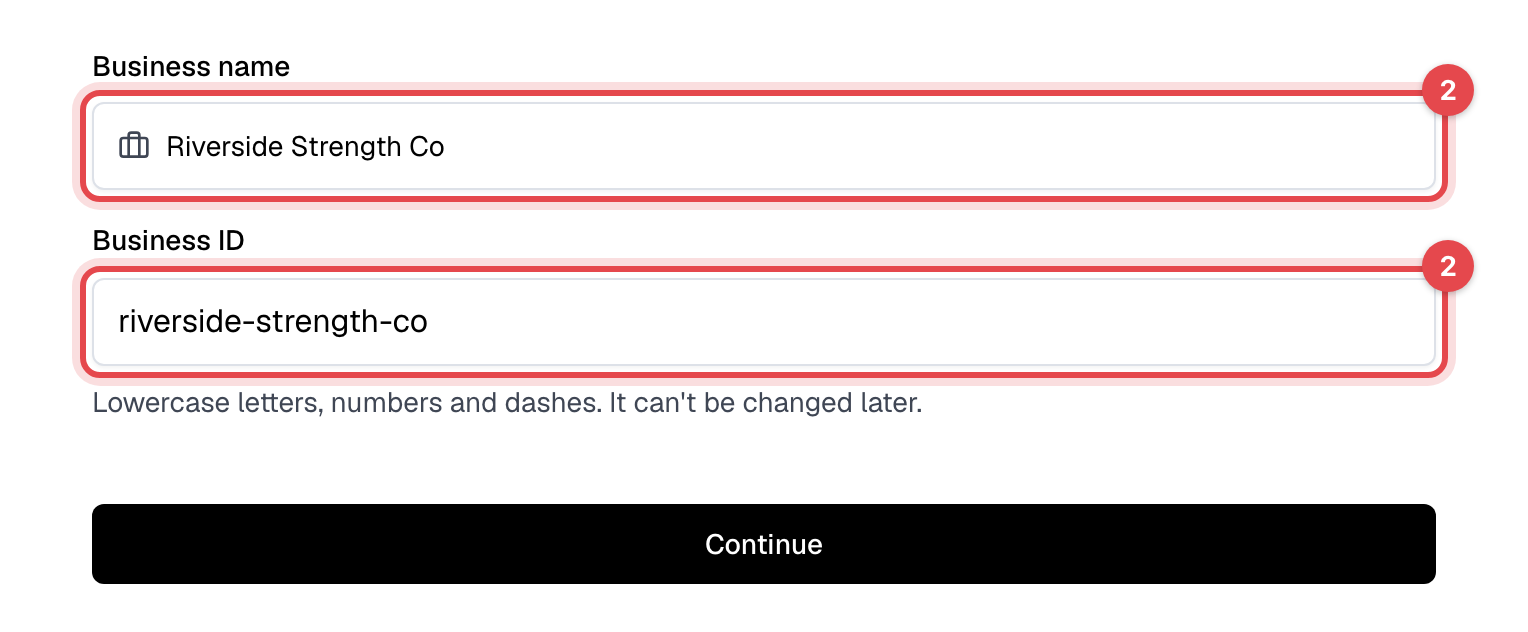
-
Enter your Full name, Email and a Password of at least 8 characters, and pick your Country. If the country has more than one time zone, check the Timezone Finegym picked. Click Continue.
-
Type the 6-digit code we emailed you and click Continue. The code works for 10 minutes; Resend code sends a new one.
-
Pick Free, Starter or Growth, and for a paid plan Monthly or Yearly. Click Continue.
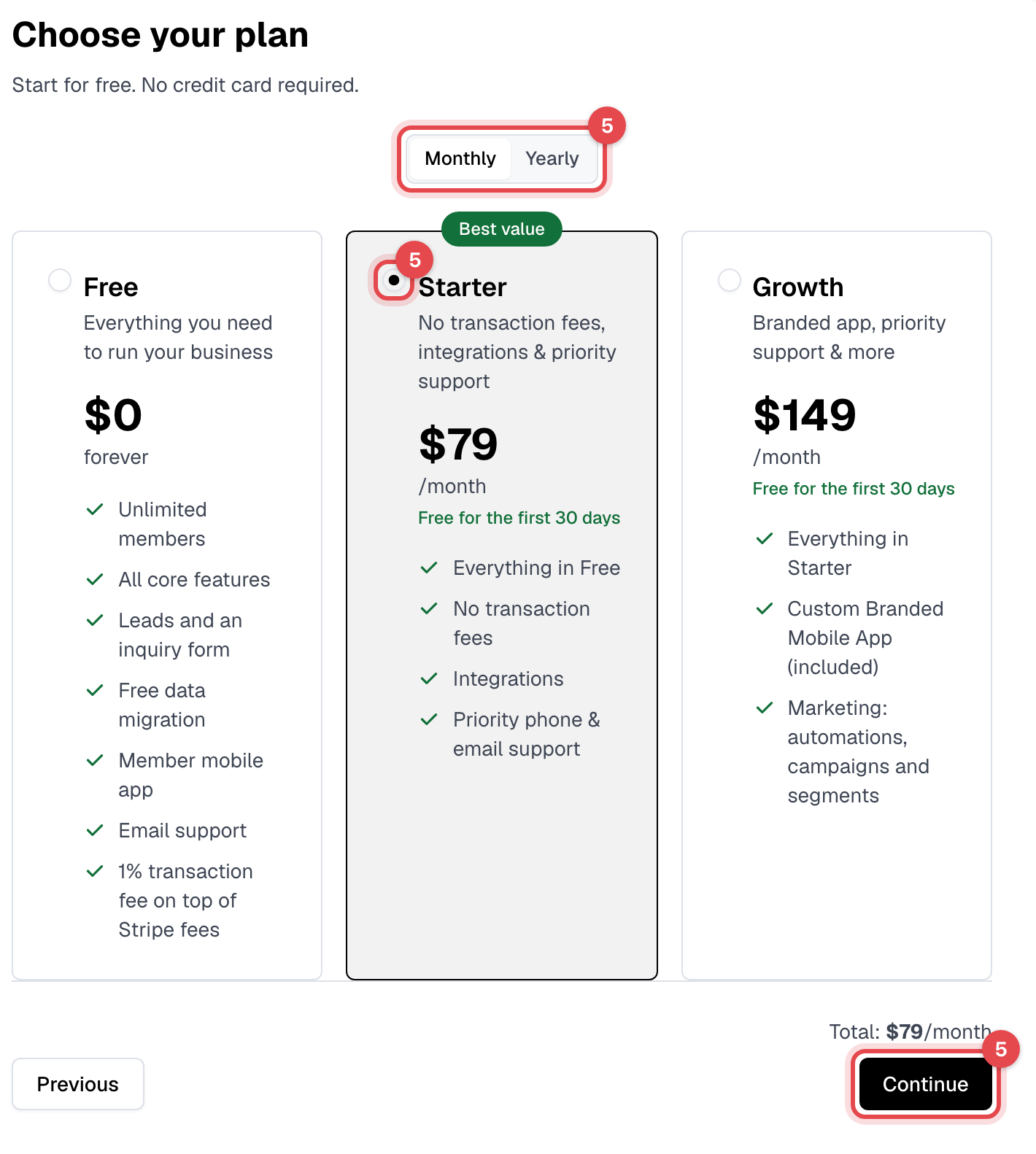
-
Tick Accept all to accept the legal terms (click a title to read it), then click Finish.
What happens next
- Finegym sets up your business, which takes about 20 seconds, and signs you in. Today opens with a Set up your business checklist: see Set up your business.
- We email you a welcome message.
- Starter and Growth start with 30 days free. Add a card under Settings > My plan before they end: see Finegym plans and billing. Free stays free.
- Your business has its own website at
https://<your business ID>.sites.finegym.io, where members book, buy and sign in. See Share your website.
Good to know
- Your country sets your currency. Neither can be changed after sign-up. The time zone can, in General settings.
- Signing in later: at app.finegym.io, enter your email and then your password, or use Sign in with Google. If your email has more than one business, pick yours from the list; each shows its Business ID.
- Staff don't sign up. You add them and they get their own sign-in: see Invite your team.