Gym Class Scheduling & Calendar Management
Build and manage your class calendar.
Schedule single or recurring classes, assign coaches, and view everything on a unified calendar with month, week, and day views.
Scheduling Classes
Creating a Single Class
Location: Classes → Schedule a class
You can create a class in two ways:
- Click an empty time slot on the calendar — the date and time are pre-filled automatically
- Click the "Schedule a class" button and fill in all details manually
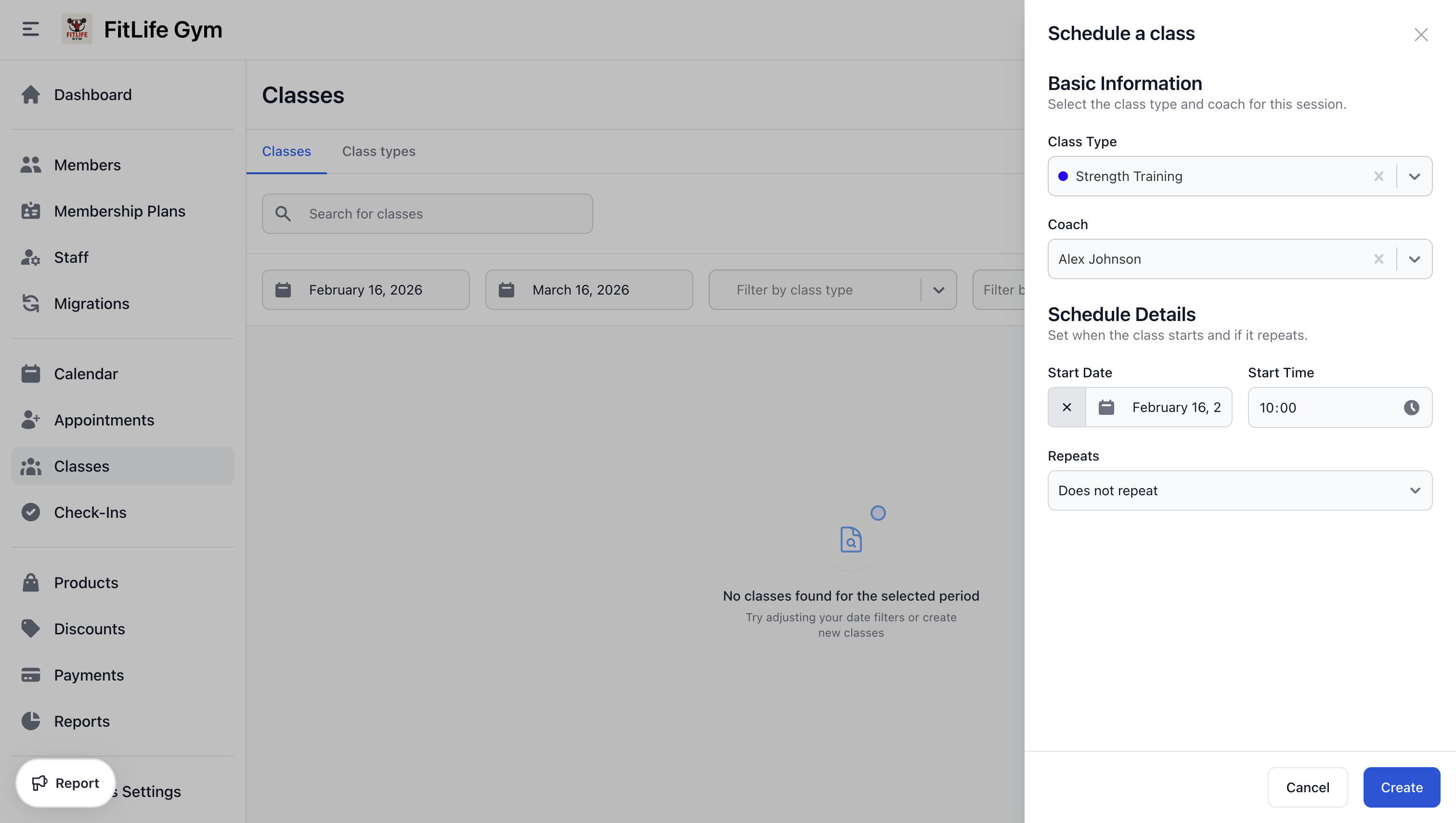
To schedule a class:
- Click Schedule a class (or click an empty calendar slot)
- Select the Class Type
- Choose the Date
- Set the Start Time (end time auto-calculates from duration)
- Optionally assign a Coach
- Click Save
Creating Recurring Classes
Schedule multiple classes at once:
- Click Schedule a class
- Select the Class Type
- Set the Start Date and Start Time
- Choose Repeats option:
- Does not repeat (single class)
- Daily
- Weekly
- If repeating, select which days:
- Monday through Sunday checkboxes
- Set the End Condition:
- On a date: Specify end date
- After occurrences: Number of classes to create
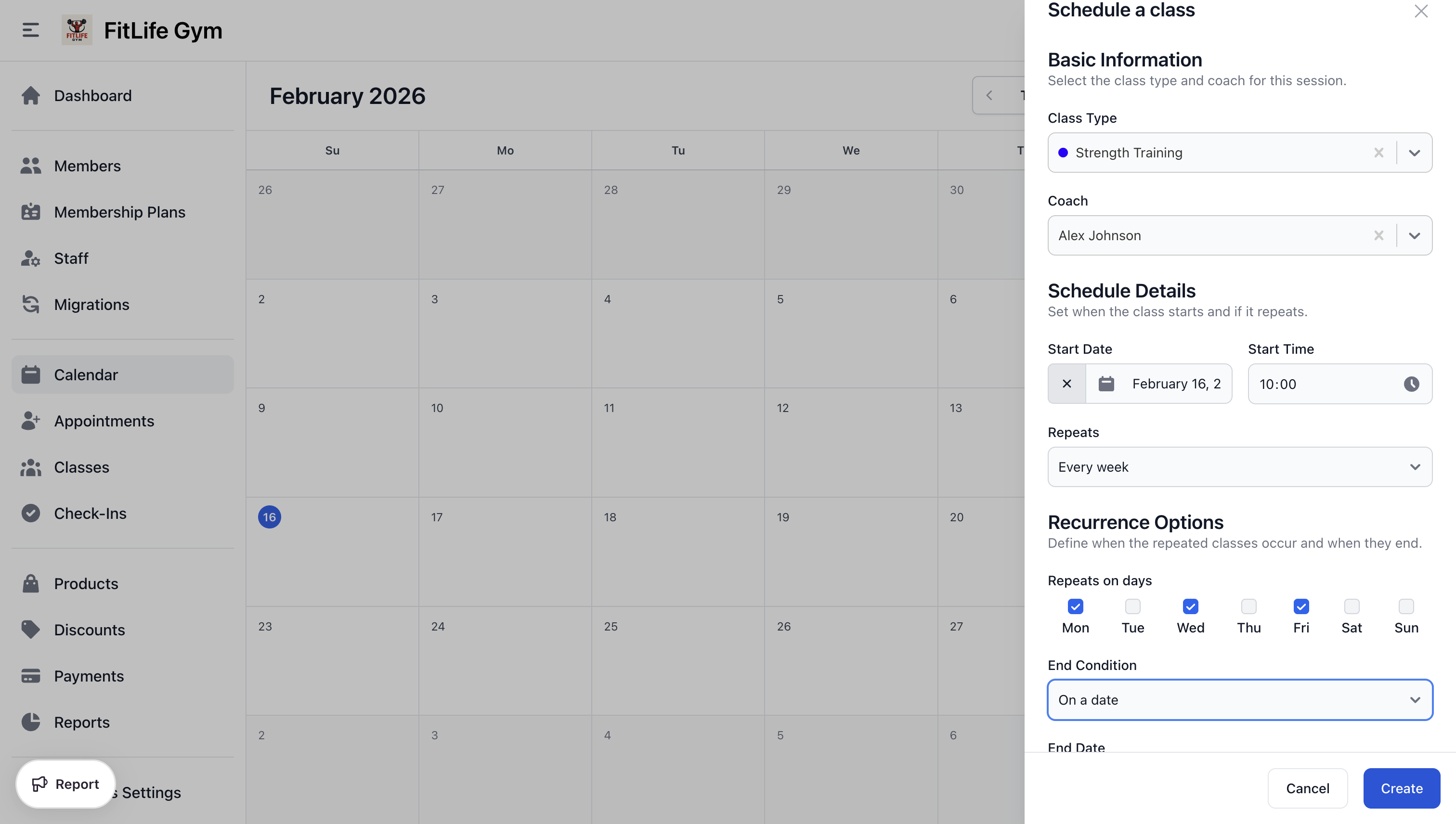
Example: Weekly yoga every Monday and Wednesday for 3 months
- Start Date: January 1
- Repeats: Weekly
- Days: Monday, Wednesday
- End Condition: On a date → March 31
Assigning Coaches
Assign a staff member as the class coach:
- Select the coach from the dropdown
- Only staff members appear in the list
- Coach is optional
Coach assignment:
- Shows on calendar and class details
- Helps with staff scheduling
- Appears in member-facing views
Class List View
Location: Classes
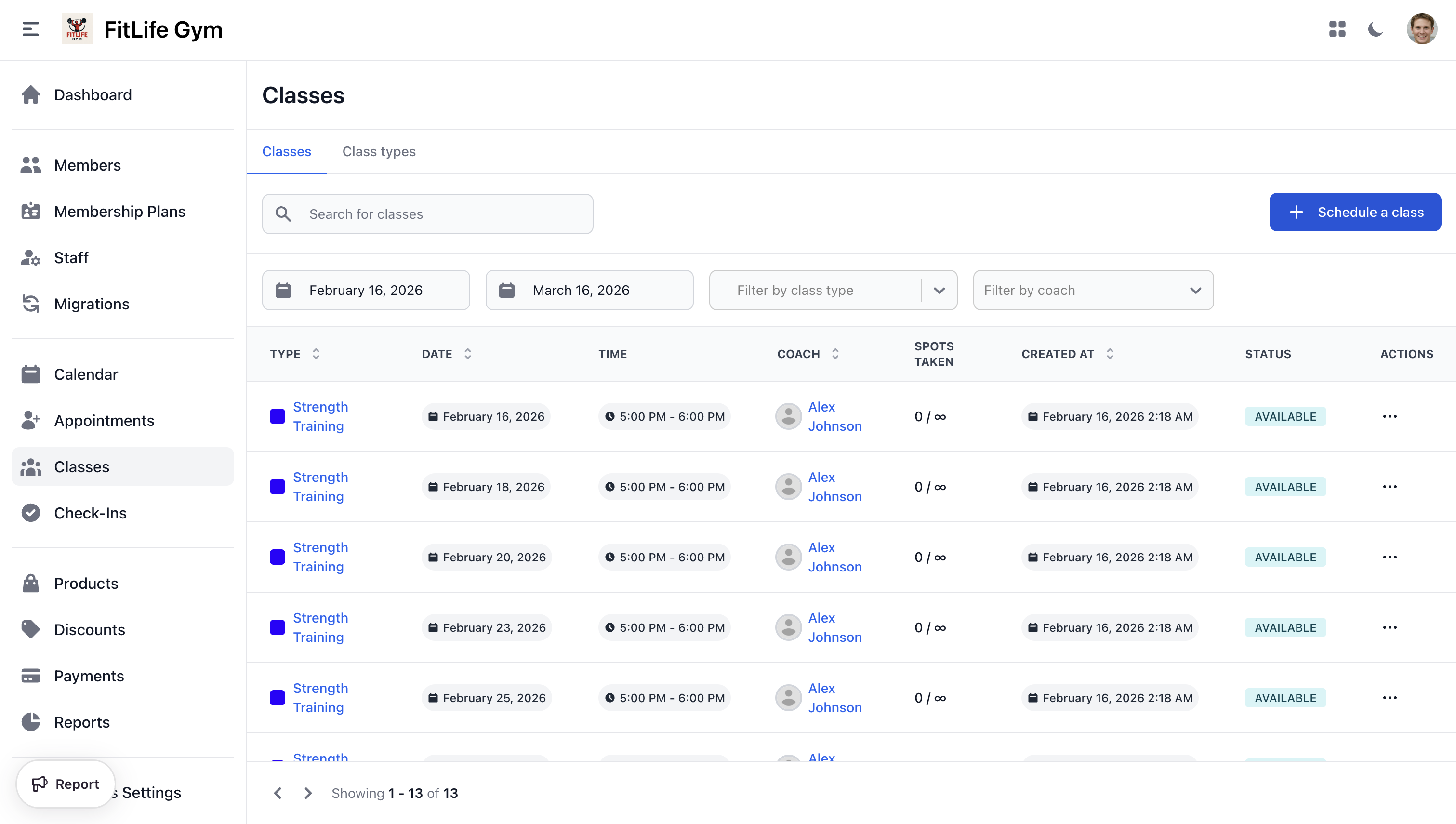
View all scheduled classes in a list:
- Type — Class type name with color indicator
- Date — Scheduled date
- Time — Start and end time
- Coach — Assigned coach
- Spots taken — Reservations vs. capacity
- Created at — When the class was created
- Status — Current class status
- Actions — Edit, Delete
Filter by:
- Date range
- Class type
- Coach
Calendar View
Accessing the Calendar
Location: Calendar
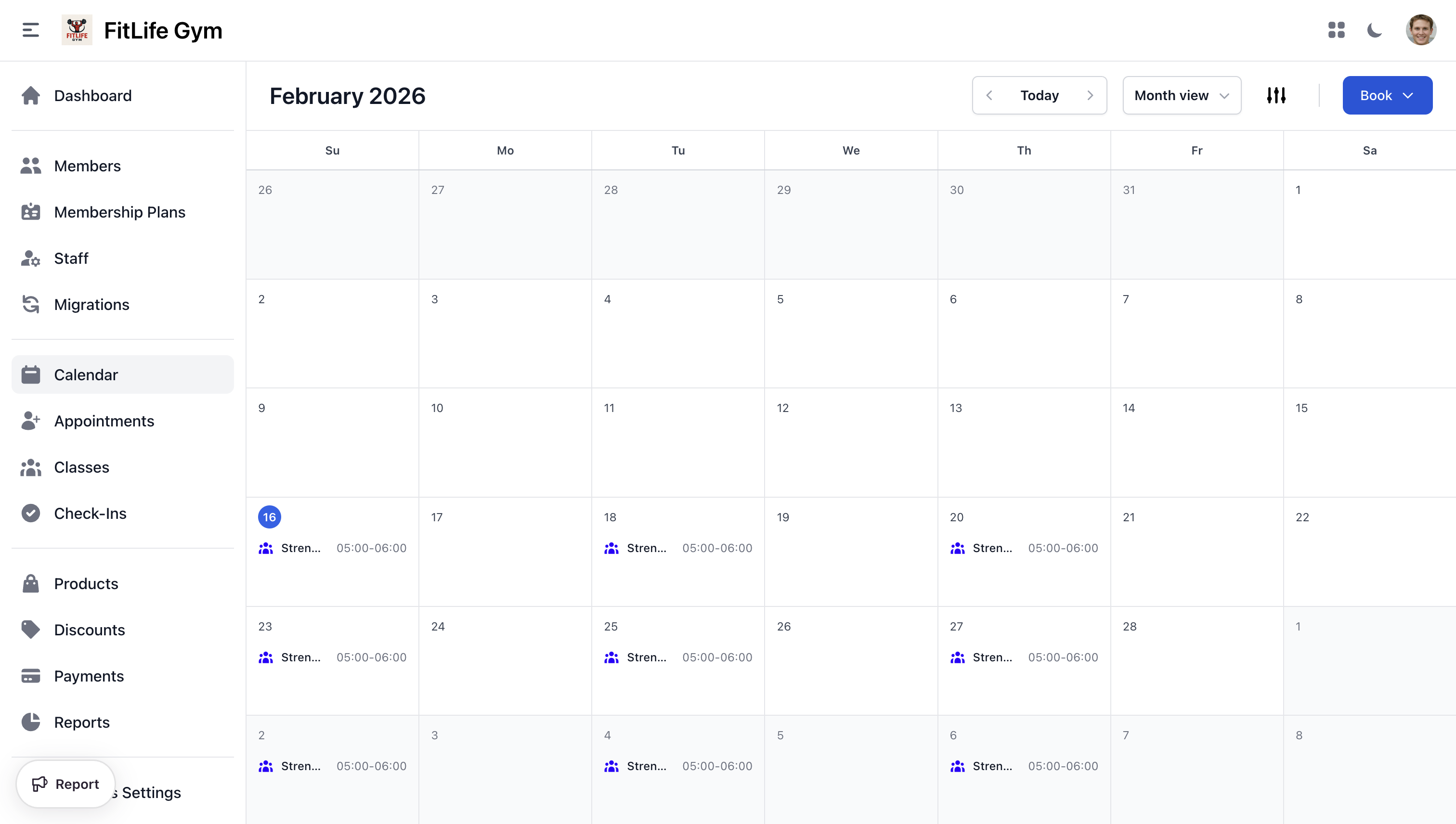
The calendar provides a visual overview of all classes and events.
Calendar Views
- Month — Overview of the entire month
- Week — Detailed weekly view
- Day — Hour-by-hour view of a single day
Switch views using the buttons in the top right.
Calendar Navigation
- Today: Jump to current date
- Arrows: Navigate forward/backward
- Date picker: Jump to specific date
Calendar Events
Each class appears as a colored block showing:
- Class type name
- Time
- Coach (if assigned)
- Spots filled (if limited)
Calendar Colors
Classes display in the color assigned to their class type. This helps quickly identify different types at a glance.
Filtering the Calendar
Use the filter dropdown to show/hide:
- Specific class types
- Classes by coach
- Events
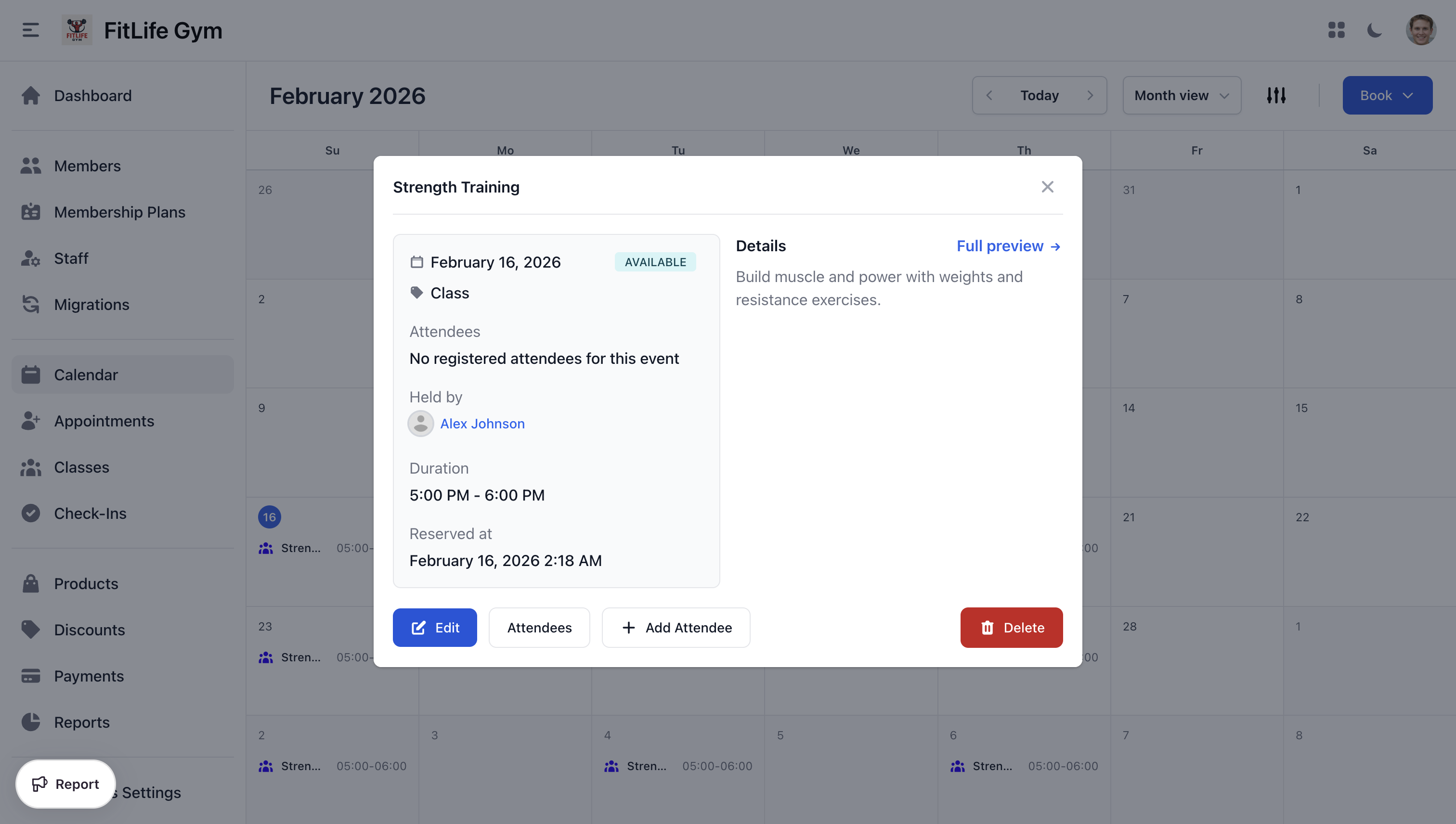
Clicking Calendar Events
Click any class on the calendar to:
- View details
- See reservations
- Edit the class
- Delete the class
Editing & Deleting Classes
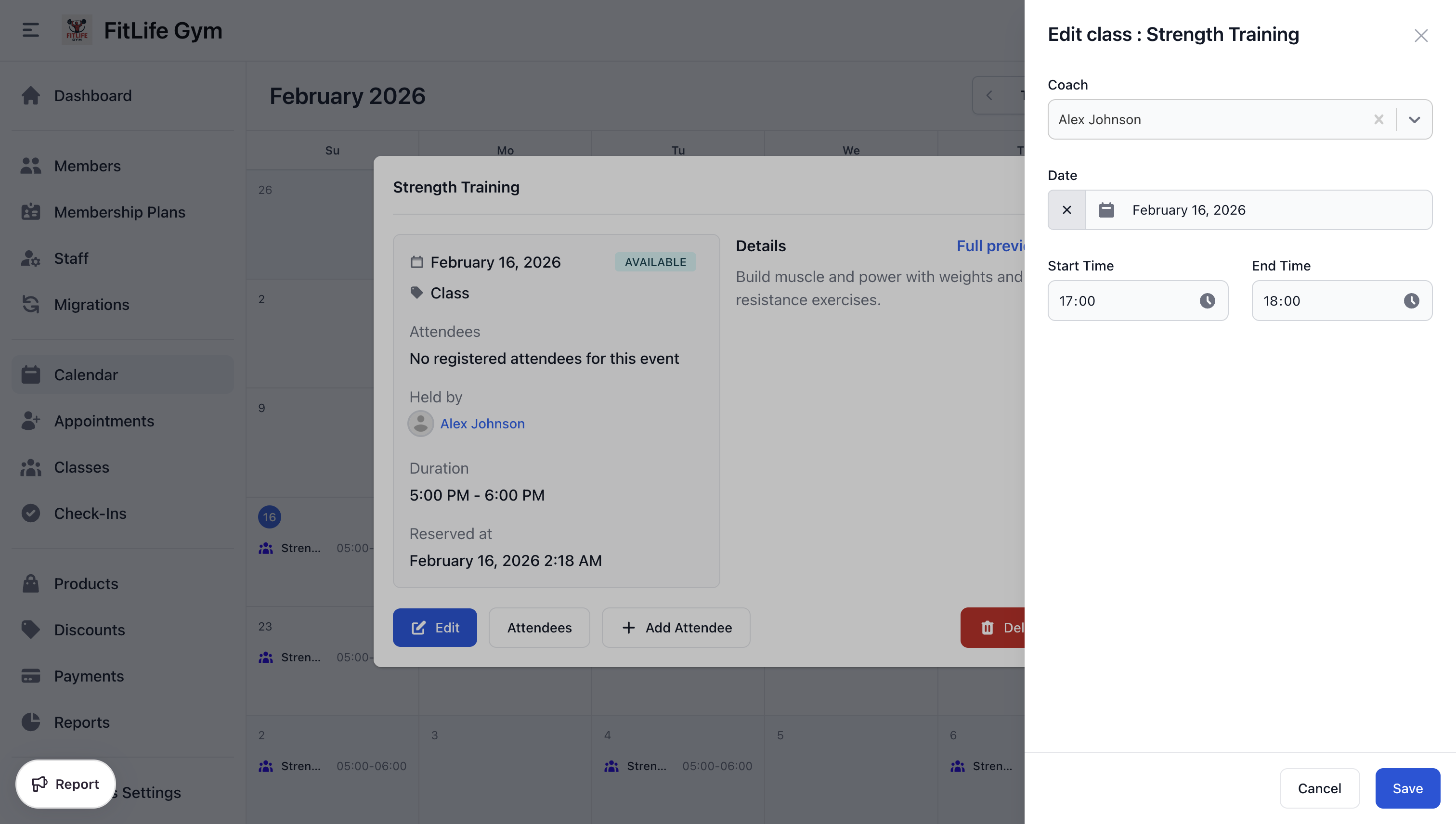
Editing a Single Class
Click on a class to modify:
- Date and time
- Coach assignment
- (Class type cannot be changed)
Existing reservations are preserved when editing.
To change the time or coach of many upcoming classes at once, use Bulk Editing Classes instead.
Deleting Classes
To delete a class:
- Click the class
- Select Delete
- Confirm
Deleting a class:
- Removes all reservations
- Notifies booked members (if notifications enabled)
- Cannot be undone
Best Practices
Scheduling Strategy
- Create recurring classes for your regular schedule
- Leave buffer time between classes
- Consider peak hours for popular classes
- Assign coaches for accountability
Class Type Organization
- Use descriptive names ("Morning Yoga" vs just "Yoga")
- Choose distinct colors for easy identification
- Write helpful descriptions for members
- Upload attractive images
Communication
- Keep class descriptions updated
- Notify members of schedule changes
- Post cancellations promptly
Troubleshooting
Class Not Showing on Calendar
Verify:
- Date is within calendar view range
- Class type isn't filtered out
- Class wasn't deleted
Related Topics
- Class Types & Setup - Configure class types and settings
- Bulk Editing Classes - Change the time or coach of many classes at once
- Managing Reservations - Handle class bookings and attendance
- Appointments - One-on-one bookings
- Staff Management - Managing coaches