Use front desk mode
Turn a tablet at your door into a kiosk where members check themselves in, book and buy a plan.
Front desk mode turns the screen you're signed in on into a self-service kiosk, where members check themselves in with their QR code or PIN.
Before you start
- You need the Check-ins permission. The Owner, Managers and Front desk have it; coaches, who check in only their own classes, can't turn it on.
- The kiosk acts as you. Members can do there only what your permissions allow: booking needs Bookings, buying a plan Sales, signing documents Members, and New here? Sign up both Members and Sales. What they do is recorded as done by you.
- Your account, not the device, is in front desk mode: while it's on, the dashboard opens the kiosk wherever you're signed in. Use a staff account kept for the kiosk.
- To take card payments on the tablet, set up card payments.
Turn on front desk mode
- Sign in on the tablet or computer at your door.
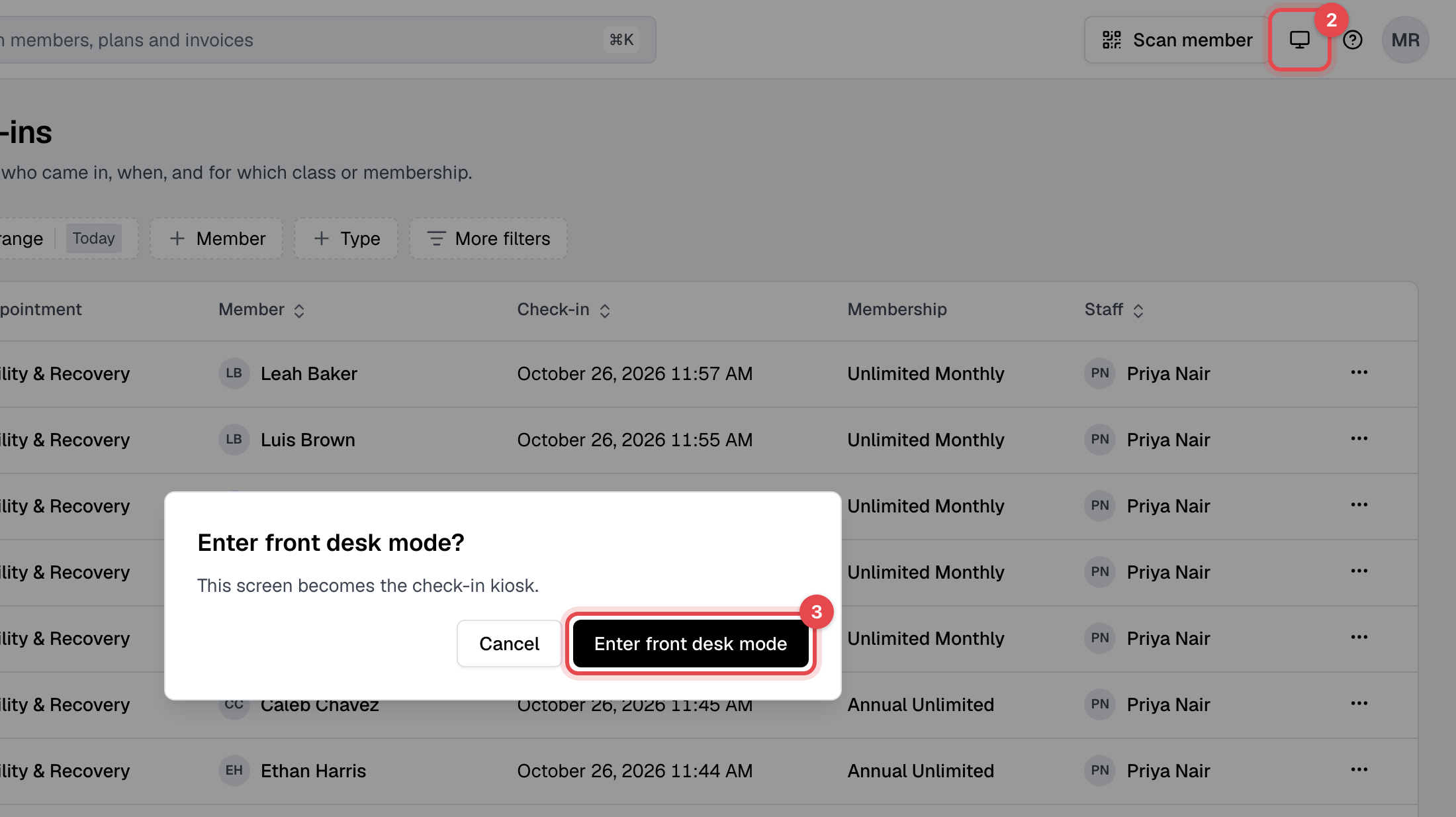
- At the top of any page, click the Front desk mode button, the screen next to Scan member.
- Click Enter front desk mode.
The kiosk shows your business's name and logo, New here? Sign up, the camera for QR codes and a PIN pad.
Leave front desk mode
- Tap the X at the top right.
- Enter the password of the account that turned it on, and tap Submit.
What members can do
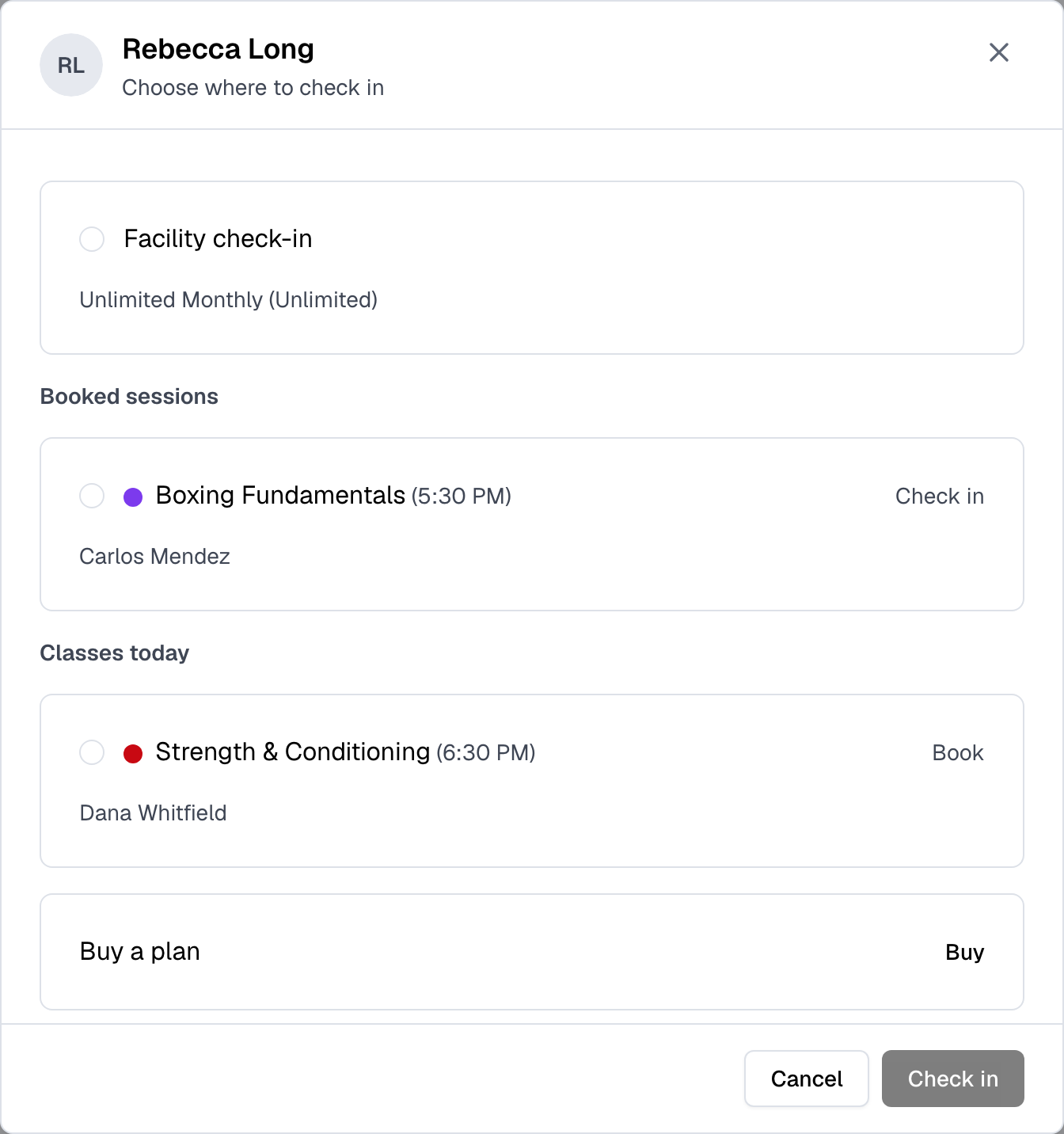
A member scans their QR code, or types their PIN and taps Check in. A window with their name lists what they can do now, with nothing chosen:
- Facility check-in, on each membership they can use.
- Booked sessions: check in to today's classes and appointments they booked.
- Classes today: Book, or Join waitlist when a class is full.
- Appointments: book a time still free today, with a coach or First available.
- Buy a plan: the plans that are active and set to Show on website.
They tap one, then the button at the bottom. Nothing is recorded before that.
A new visitor taps New here? Sign up and goes through Your details, Choose a plan, Payment and Sign the documents, then checks in with Check in now. Their QR code and PIN are emailed to them.
What happens next
- Plans bought at the kiosk start today, without a discount, and are added once Stripe confirms the payment. Without card payments, the kiosk says "Please pay at the desk. Our staff will check you in." and adds nothing: assign the plan yourself.
- "Your payment went through. Our staff will check you in." means Stripe took longer than 30 seconds. The plan appears on their profile once it confirms: don't charge them again.
- A member's window closes after a minute without a touch, and sign-up after three minutes.
Good to know
- Blocked members are told "Please ask at the desk."
- The kiosk plays a sound for each result, so members notice it while looking away.
- The kiosk records one facility check-in a day. Staff can record a second with Check in anyway.