Check in with your QR code
Show your code or type your PIN when you arrive, or check in from your booking, and see your visits.
Every member has a personal QR code and a 6-digit PIN. Checking in records your visit, and your booking if you have one.
At the front desk
-
Open your code:
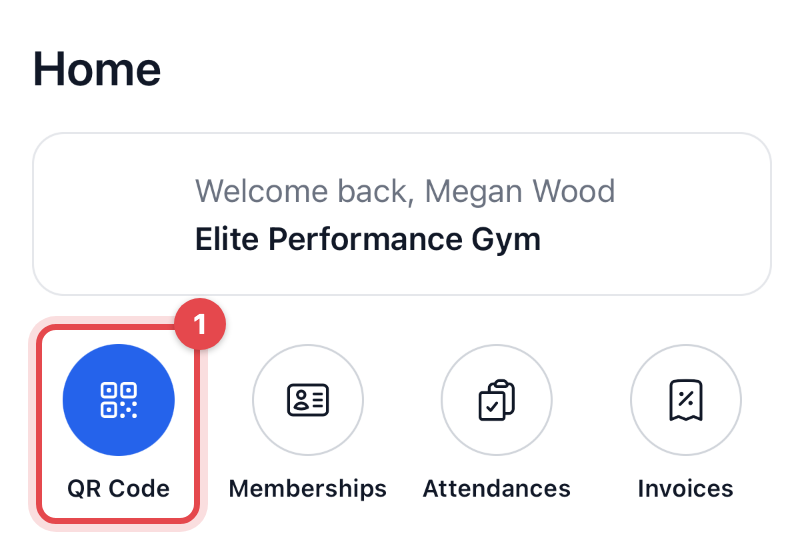
- in the app, tap QR Code at the top of Home (it's also the first row in Menu);
- on the website, open Account and tap Show my code, or Check in in the account menu.
-
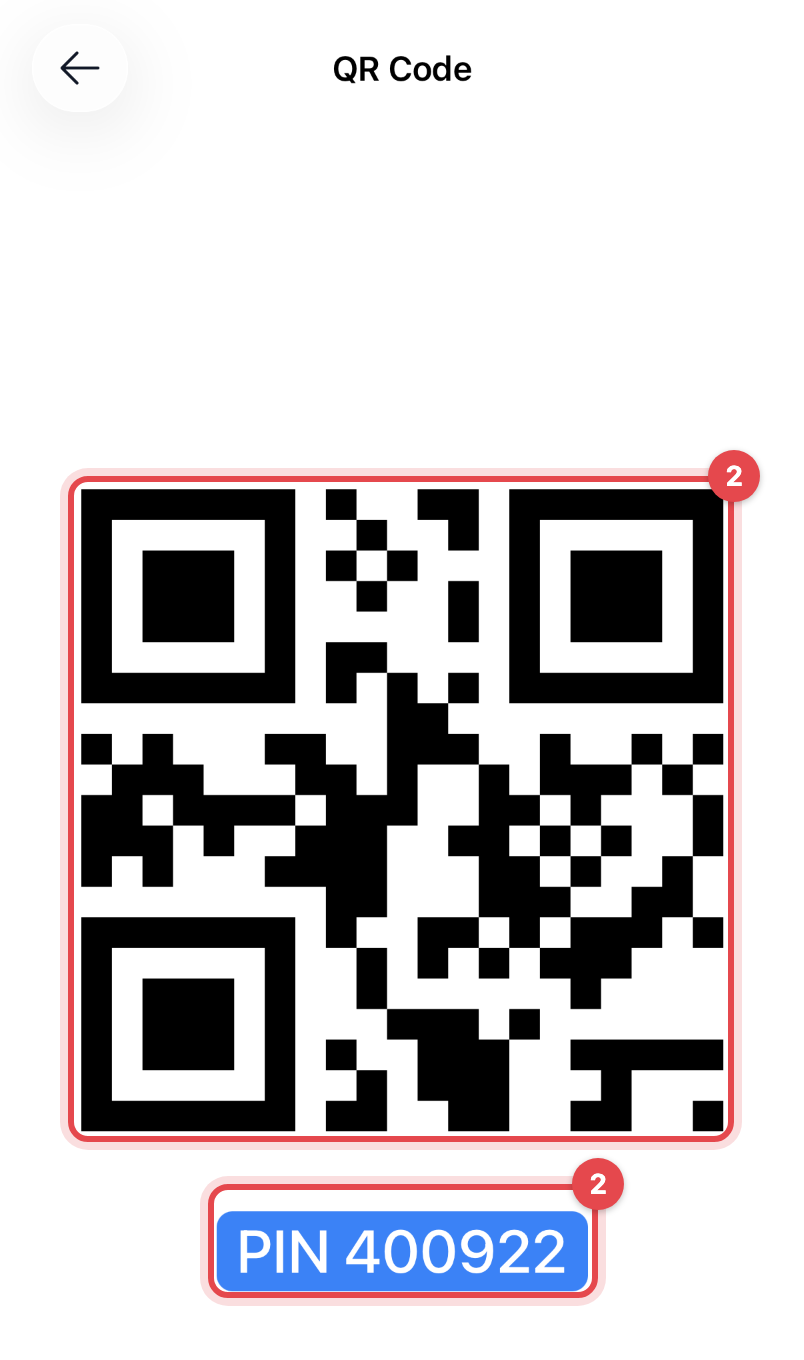
Hold it up to the scanner or the front desk's tablet. Your PIN is shown with the code: on a self-service tablet that reads "Scan your QR code, or type your PIN", you can type it instead.
From your booking
On the day of a class or appointment you booked, you can check yourself in without the front desk:
-
Open the booking: on the website, Account → Reservations; in the app, the class or the booking under Reservations.
-
Tap Check in (Check In in the app).
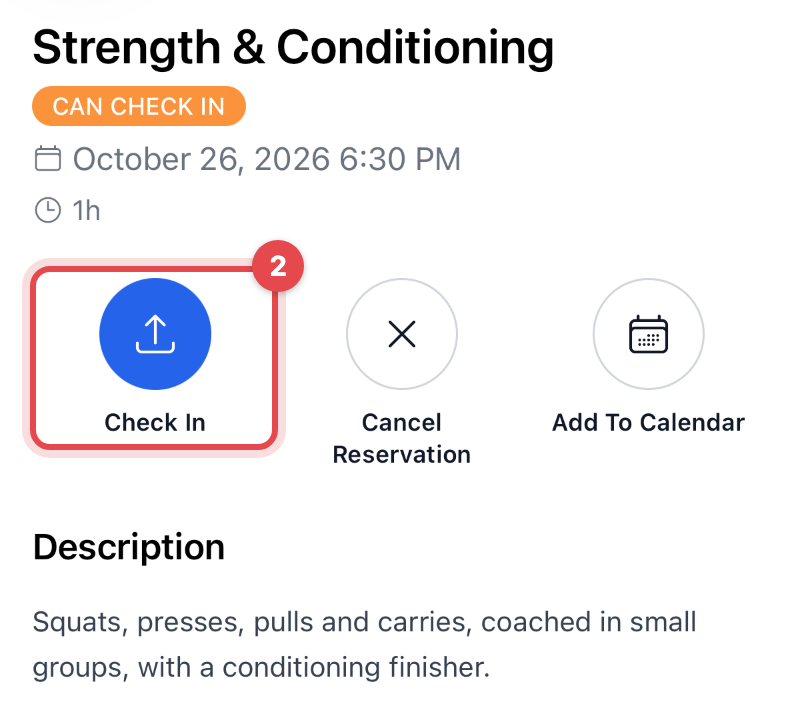
The button appears from the start of that day until the session ends.
What happens next
- Staff see you as checked in, with your photo if you've added one.
- A booked class or appointment shows Checked in.
- A visit without a booking uses one session of a membership that has a limit. A booked session used it when you booked.
- Your visits are listed under Attendances (in Menu in the app, in the account menu on the website), newest first, with the membership each one used. Pick other dates to look further back.
Good to know
- Your code doesn't change. A screenshot of it works too, and the same code is in your welcome email.
- Check-in refused? Your membership is checked when you check in: it must be active, not frozen, and allowed at that time of day. If the business asks for signed documents first, sign them: see Sign documents.
- Missed the session? After it ends, the booking reads No show and only staff can still mark you present.
- Keep your PIN to yourself: anyone who has it can check in as you.