Check members in
Record a member's visit from their profile, by scanning their QR code, or from search.
Check a member in when they arrive, so the visit is recorded and counted against their plan. Members can also check themselves in at a front desk kiosk.
Before you start
- You need the Check-ins permission. The Owner, Managers and Front desk have it.
- Coaches check members in to their own classes and appointments, from the class or appointment: see What coaches can do.
- The member needs a membership they can use today.
Steps
-
Find the member, one of three ways:
- Open them from Members and click Check in at the top of their profile.
- Click Scan member at the top of any page, hold the QR code from their app (or the code on their member card) up to the camera, and click Check in.
- Press ⌘K (Ctrl+K on Windows), type their name and choose Check in and their name.

-
If a window opens, choose what to check them in to: Facility check-in, a session under Booked sessions, or a class under Classes today.
-
If more than one of their memberships could pay for it, choose one under Use membership.
-
Click the button at the bottom: Check in, or Book for a class they haven't booked yet. Once it's booked, choose it under Booked sessions and click Check in.
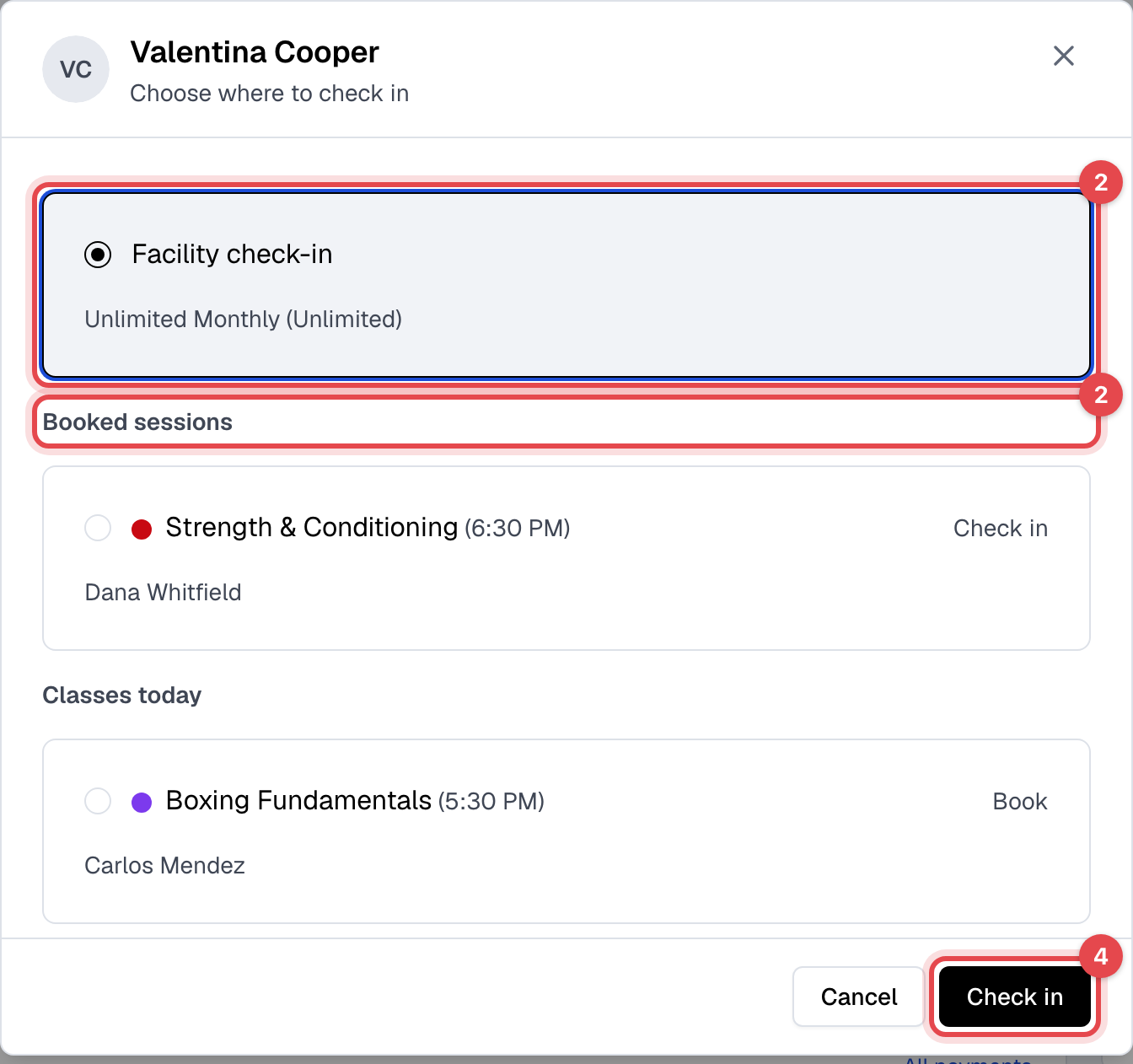
The window opens only when the member has a booking today or more than one membership to use. Otherwise the click records a facility check-in at once.
What happens next
- The visit appears on Check-ins, on the member's Attendance & bookings tab, and under Arrivals on Today.
- A facility check-in uses one visit of a limited plan or a punchcard. Checking in to a booking doesn't use another: the booking already did.
Good to know
- One facility check-in a day. A second one the same day is refused ("Already checked in today"), so a member scanning on the way out isn't counted twice. For a genuine second visit, click Check in anyway. Class and appointment check-ins aren't affected.
- Classes they can't book are greyed out under Classes today, with the reason, such as Not in their plan or Fully booked.
- A check-in is refused when the membership is frozen, outside its plan's hours, out of uses, blocked by a declined payment, or the member has documents to sign. The message says which.
- The member's PIN, shown on their profile, is for the kiosk.
- To undo a check-in, see Find or delete a check-in.