A member can't check in
A check-in needs a membership the member can use right now; a few rules can turn them away even with one.
Why it happens
From most to least common:
- No membership they can use today. They have none, it starts later or has ended, or its visits are used up. At the desk, Check in says "No active membership plan" (on their profile it's greyed out). At the kiosk, the member is offered a plan to buy, or told "Please ask at the desk."
- They already checked in today. A walk-in check-in counts once a day. You see "Already checked in today" and can choose Check in anyway for a second visit. The kiosk can't do that.
- The membership is frozen. "This membership is frozen and cannot be used for check-ins or reservations."
- A card payment was declined. While the membership's bookings are blocked, walk-in check-ins are refused too, for staff as well. A class booked before still checks in. See A member's card payment was declined.
- Documents to sign. With Require document signing turned on: "You have unsigned documents that need to be signed before proceeding." At the kiosk, the member can sign them on the spot.
- Outside the plan's hours. Plans with Restrict time window refuse check-ins outside it: "Action is not allowed at this time. Allowed hours are from … to …" This applies when checking in to a booked class too.
- The member is blocked. They can't check themselves in to a class, and the kiosk says "Please ask at the desk." Staff can still check them in from the admin.
- The class isn't today, or is over. A booked class can be checked in to on its day, until it ends. After that the booking is a no-show.
Opening a Kisi door isn't a check-in: it doesn't count as a visit.
What to do
-
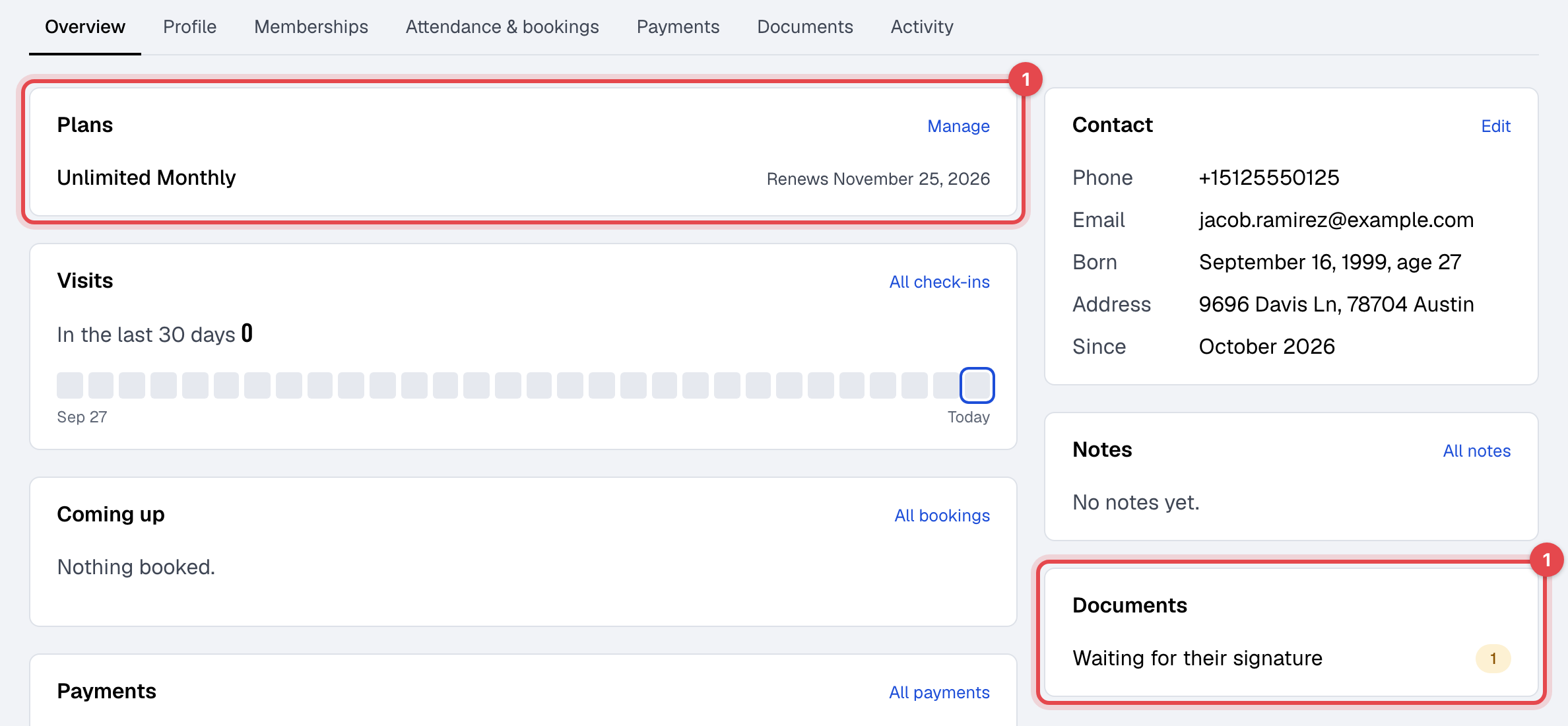
Open the member in Members. On Overview, the Plans card shows what they hold, and Documents shows what's waiting for their signature.
-
On the Memberships tab, the Active column shows Frozen or Bookings blocked. Fix it from the membership's Actions menu, or click Assign membership for a new one. This needs the Sales permission.
-
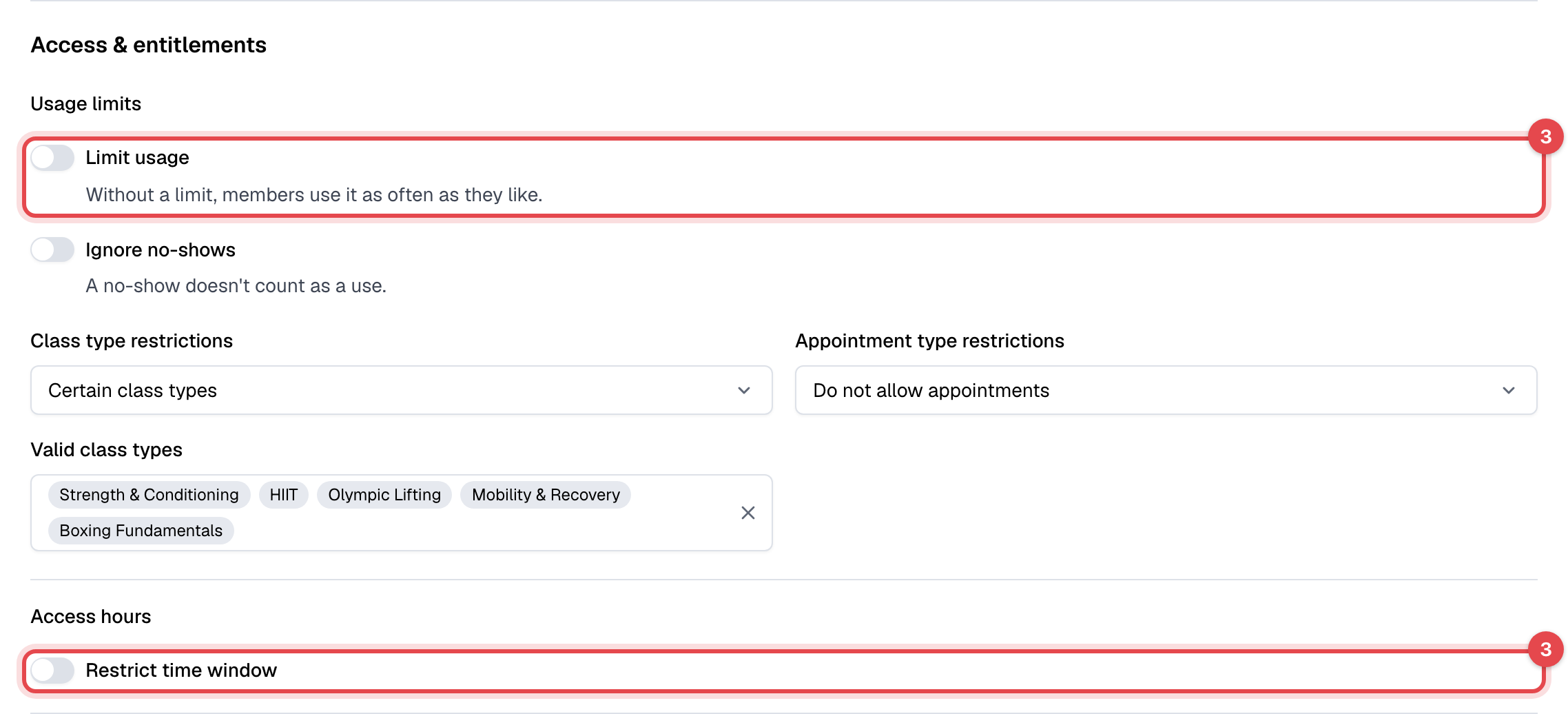
For visits or hours, open the plan in Plans and check Usage limits and Access hours under Access & entitlements (with the Plans and products permission).
-
Check them in again with Check in on their profile or Scan member in the top bar.
-
For a class that has ended, open the class, click Actions on the member's row, then Mark as present.
Staff need the Check-ins permission to check members in. A coach checks members in only to their own classes and appointments.
Still stuck?
Write to support@finegym.io with your business name, the member's email, how they tried to check in (front desk, kiosk, app or website), when, and the message they or you saw.