Book members into a class
Add a member to a class, cancel their booking, and see how the waitlist fills a full class.
Members book classes themselves in the app and on your website. Book for them from the class's page when they call or ask at the desk, and cancel for them the same way.
Before you start
- You need the Bookings permission. The Owner, Managers and Front desk have it, and a Coach on the classes they coach.
- The member needs an active membership that covers the class. See Plan limits and restrictions.
Book a member
- Open the class: click it in Classes, or on the Calendar and then Open class page.
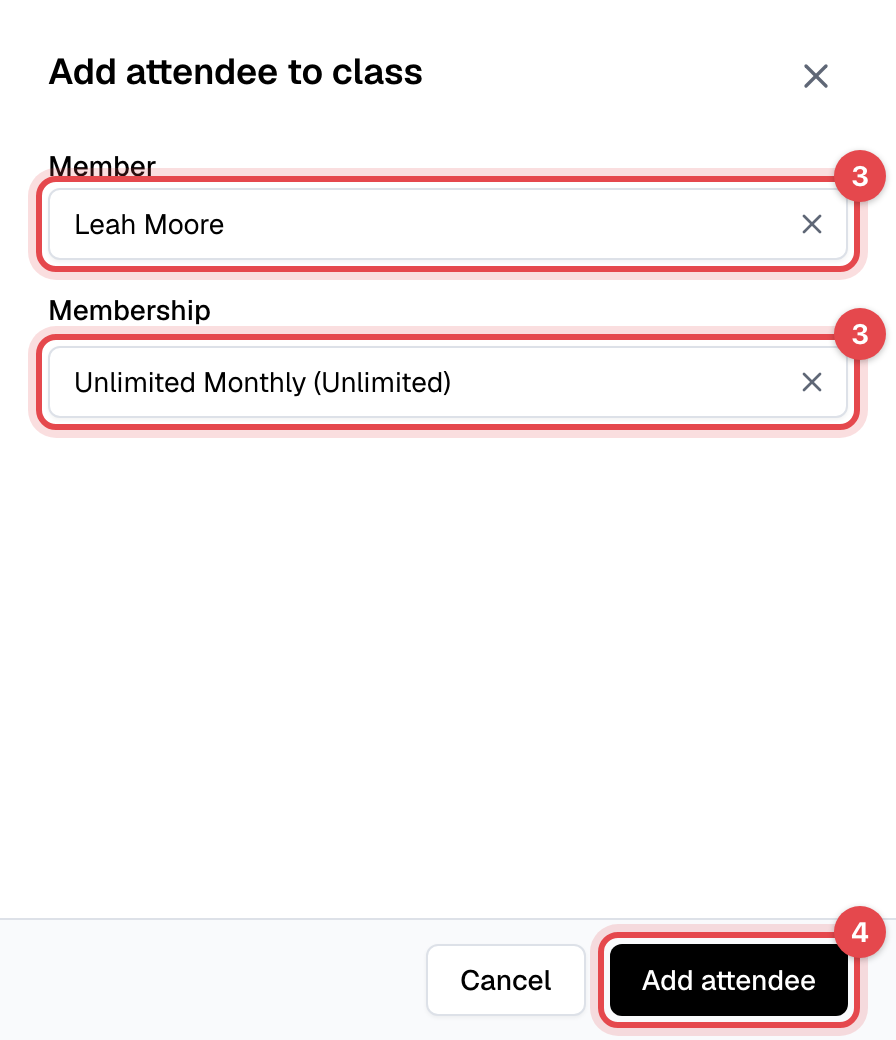
- Under Attendees, click Add attendee. When the class is full, the button reads Add to waitlist.
- Pick the Member, then the Membership to use. The list shows their active memberships that cover this class and have visits left, and a relative's membership shared with the family.
- Click Add attendee (or Add to waitlist).
Cancel a booking
- Under Attendees, open the member's menu (⋯) and click Cancel booking.
- Click Cancel booking again to confirm.
What happens next
- A booked member gets the Event booked - Member email, and the coach Event booked - Staff.
- A canceled member gets the visit back and the Event canceled by the business email. If someone is waiting, the first in line takes the spot.
- On the day of the class, Check in is in each member's menu (with the Check-ins permission). After the class, anyone not checked in shows No show, and Mark as present fixes a forgotten check-in.
How the waitlist works
A class takes a waitlist once it's full, if its class type has Limit attendance ticked. Members join it in the app or on your website until booking closes; you add them with Add to waitlist. The Waitlist card on the class lists everyone in order.
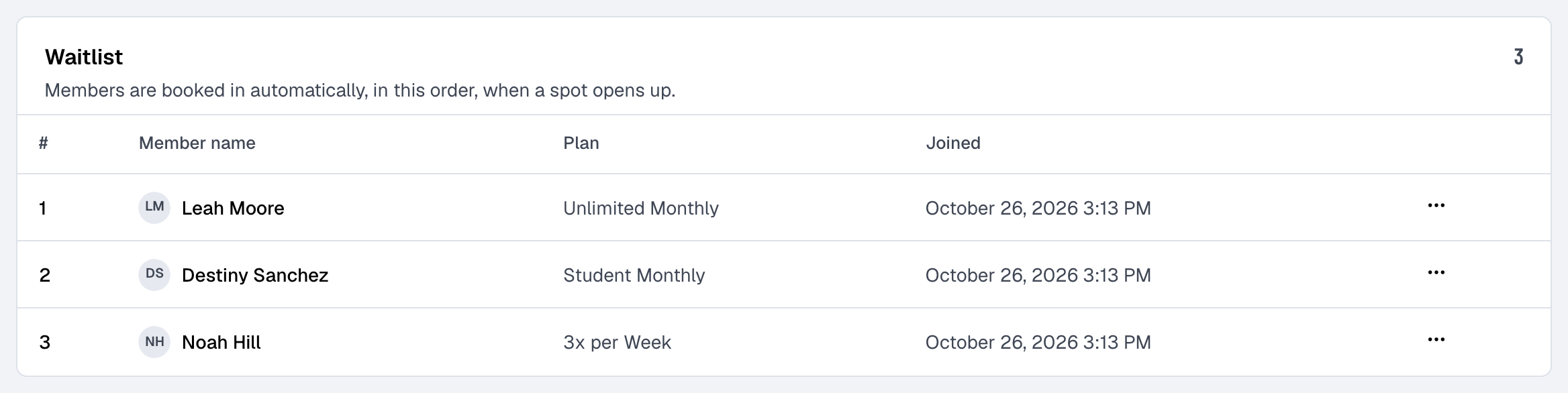
When a spot opens (a booking is canceled, or you raise or remove the class type's attendance limit), the first member in line whose membership can still be used is booked in and emailed. Someone whose membership has expired, is frozen or has no visits left is skipped, keeps their place and is emailed once. Waiting uses up nothing. To take someone off, click Remove from waitlist in their menu; they're emailed.
Good to know
- Staff can book outside the class type's booking window, and book a blocked member, but not into a full class or on a closed day.
- The waitlist emails can be changed or turned off in Email templates.
Related
- Enroll a member in a class series
- Check members in
- Create a class type
- Book a class: the member's side, to send them