Ask members questions
Add your own fields to member profiles, and have members answer them, like an emergency contact.
Custom fields add your own details to every member's profile, such as an emergency contact, a T-shirt size or a membership number from another system. Mark a field Ask members and members answer it themselves, on your website and in the app.
Before you start
- You need the Settings permission. The Owner and Managers have it.
Add a custom field
-
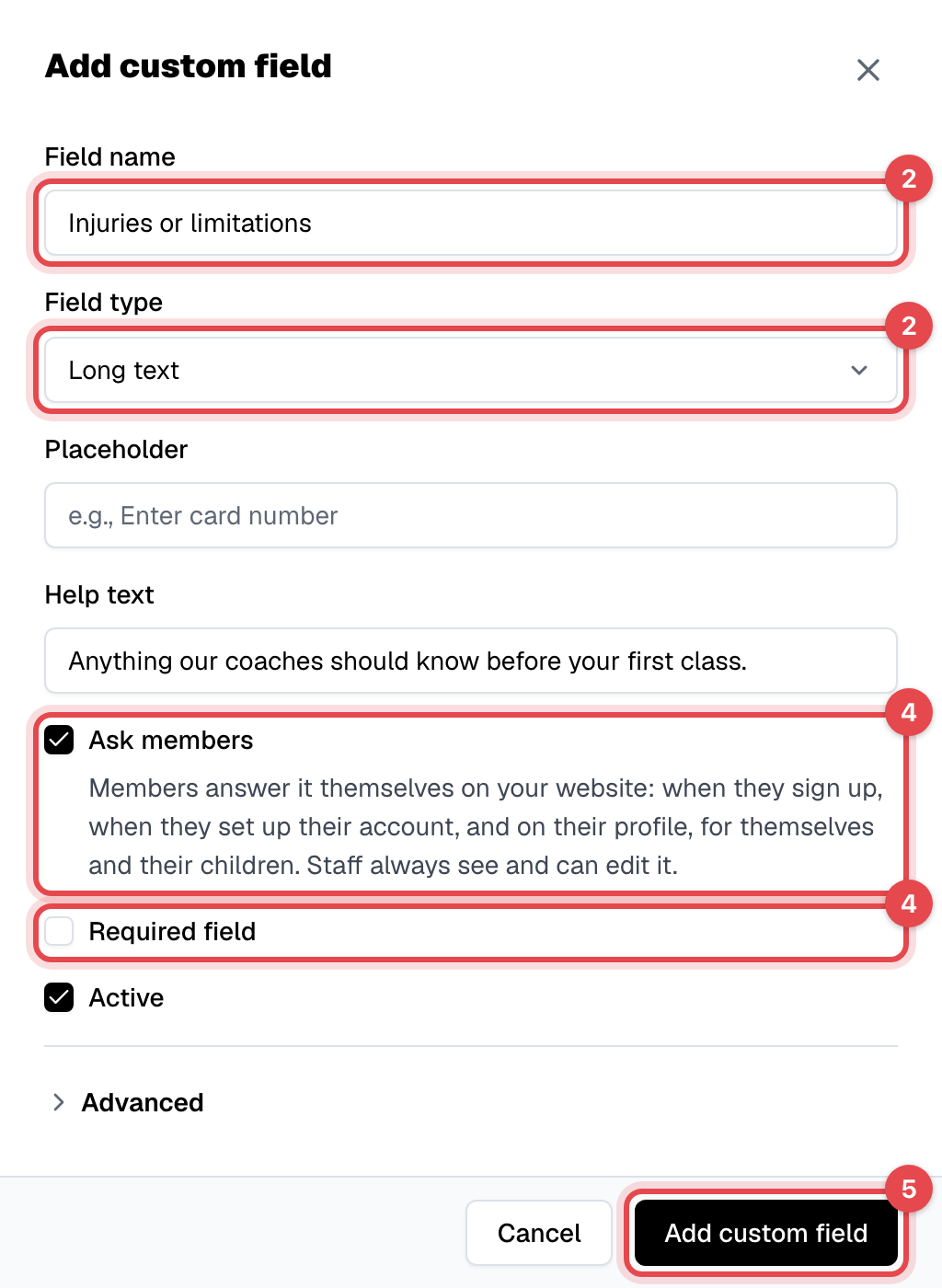
In Settings, open Custom fields and click Add custom field.
-
Enter the Field name and pick the Field type: Text, Long text, Number, Date, Select (dropdown), Checkbox or Email. For a dropdown, add its Options.
-
Optionally add a Placeholder and a Help text to explain what to enter.
-
Tick Ask members to have members answer it, and Required field if it can't be left empty. Keep Active ticked.
-
Click Add custom field.
Add common questions
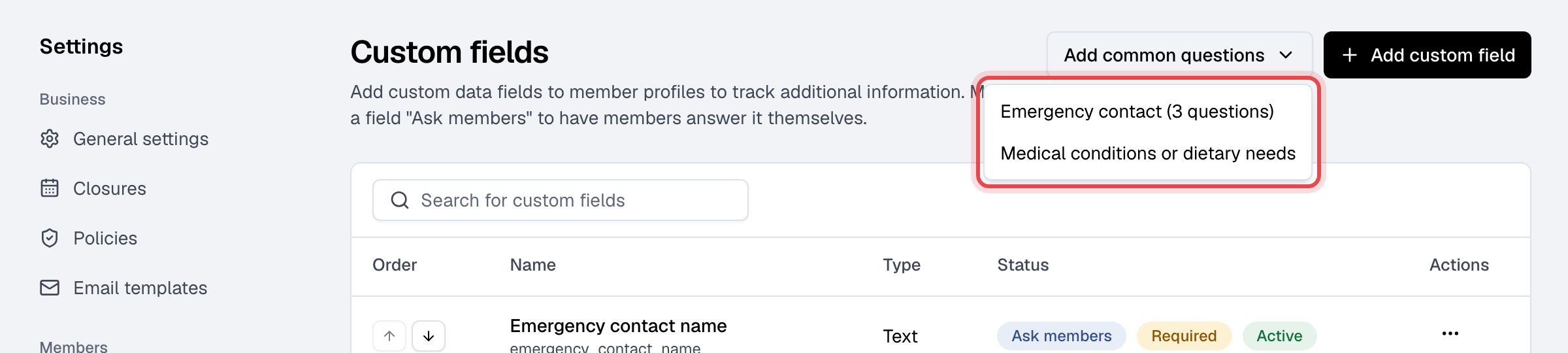
Click Add common questions next to Add custom field, and pick one. They're added as ordinary custom fields, already asked of members:
| Pick | Adds |
|---|---|
| Emergency contact (3 questions) | Emergency contact name and phone (required), and relationship |
| Medical conditions or dietary needs | One long-text question |
A question you already have isn't added twice.
What happens next
Staff see and edit every active field under Custom fields on the member's Profile tab. A field marked Ask members is also answered by members:
| When | Where |
|---|---|
| Signing up on your website | Below the password |
| Setting up their account | Straight after they choose a password from their welcome email |
| Any time | Website: Account > Profile > Questions from your business. App: Menu > Personal details, same section |
| For their children | Whoever manages a family answers for each child |
A member who hasn't answered a required question, such as one you added after they joined, is asked for it on their website account and on the app's Home screen until they answer. It never stops them booking or buying.
Good to know
- The order in which members are asked is the list's: move a field with the arrows in Order.
- The field type and the Field key (under Advanced) can't be changed once the field is made. Deleting a field removes it, and its answers, from every member.
- Required field is also asked by the front desk kiosk when someone signs up there.
- Answers show on the member's Overview, under Answers, and as columns you can add in Members. Other members never see them.