Print member cards
Design a wallet-size check-in card with your branding, then print it for one member or many.
A member card carries the member's photo, name and check-in code, scanned at the desk like the QR code in their app. Cards are bank-card size (CR80, 85.6 × 54 mm), for any PVC card printer, or for paper.
Before you start
- Designing cards takes the Settings permission. Printing them is open to every staff member.
Design your card
-
In Settings, open Member cards.
-
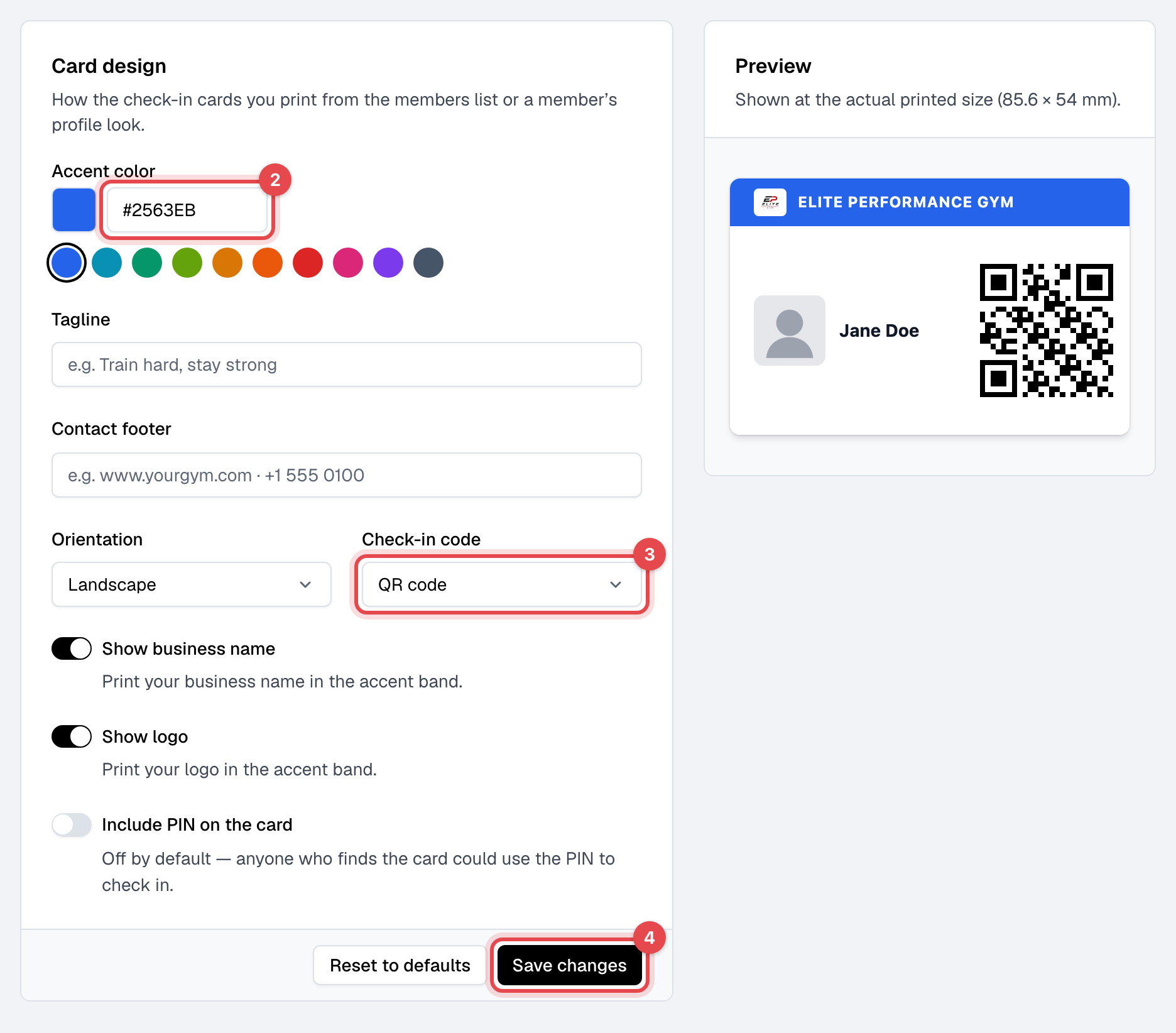
Set the Accent color of the band at the top, and add a Tagline and a Contact footer if you like.
-
Choose the Orientation and the Check-in code: QR code or Barcode. Switch Show business name, Show logo and Include PIN on the card on or off. The Preview shows the card at its printed size as you go.
-
Click Save changes. Reset to defaults puts every option back.
Print cards
-
For one member, open their Profile tab and, under Access, click Print card.
-
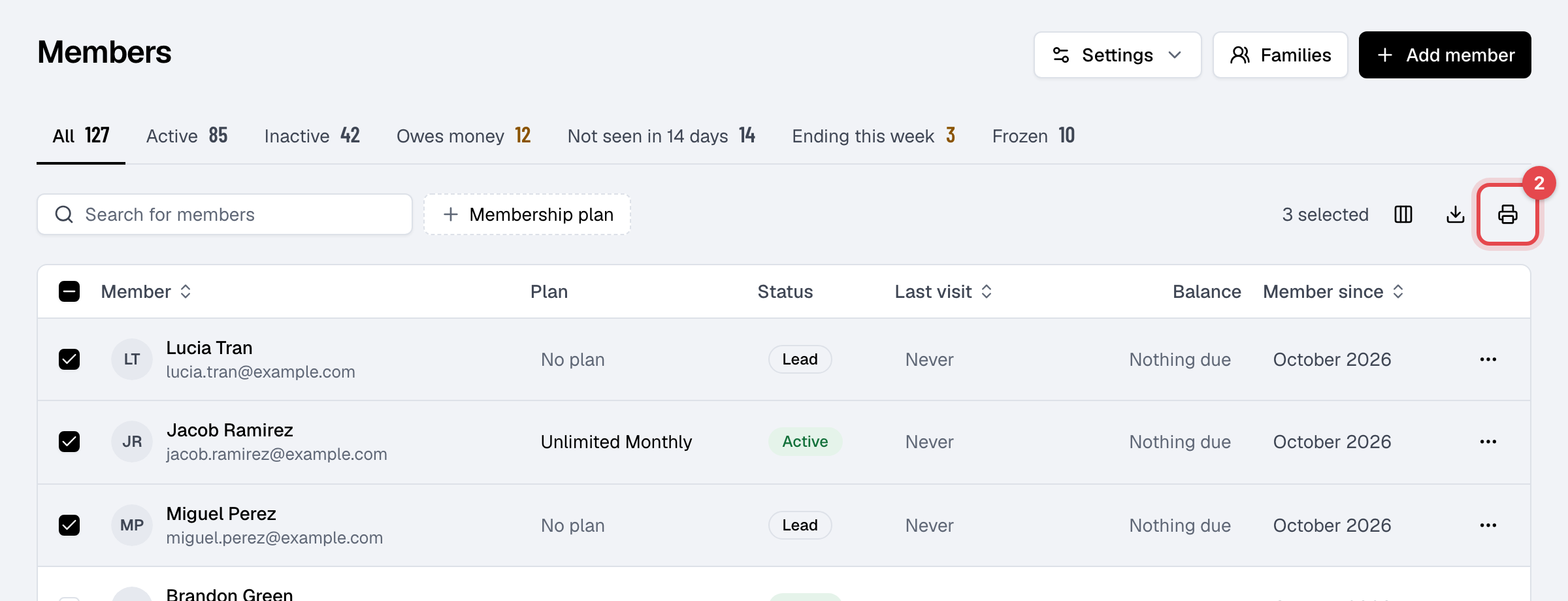
For several, tick them in Members and click the printer icon above the list.
-
In your browser's print window, pick the card printer and print. To check first, choose Save as PDF: the PDF is exactly what prints.
Good to know
- Leave Include PIN on the card off unless you need it: anyone who finds the card could use the PIN to check in.
- QR code or barcode both hold the same code and scan the same way. A barcode is harder to scan on a portrait card, where it has less width.
- With no Accent color, the band takes your business's main color.
- The print window opens as a new browser window: allow pop-ups for Finegym if nothing appears.