Give members app access
Send a member a new link to set up their sign-in, or set a password for them.
Members sign in to the Finegym app, or to your website, with their email and a password they choose. Every new member is emailed a link to choose it. When that email went missing or the link expired, send a new one, or set a password yourself.
Before you start
- You need the Members permission. The Owner, Managers and Front desk have it.
- The member needs an email address on their profile. A child added as a dependent signs in through the parent who manages the family instead.
Send a new setup link
-
Open the member from Members and go to the Profile tab.
-
Under Access, Sign-in access says whether they've set up their account. Click Send setup link.

-
Click Send.
Finegym emails them their welcome again: a Set up your account link, their check-in PIN and QR code. The link opens your website, where they choose a password and are signed in. It works once and expires after 7 days; on an expired link they click Email me a new link. A password they already had keeps working until they use the new link.
Set a password for them
-
On the member's Profile tab, under Access, click Set password.
-
Enter a New password of at least 8 characters, and again under Confirm password.
-
Click Save password, and give the password to the member.
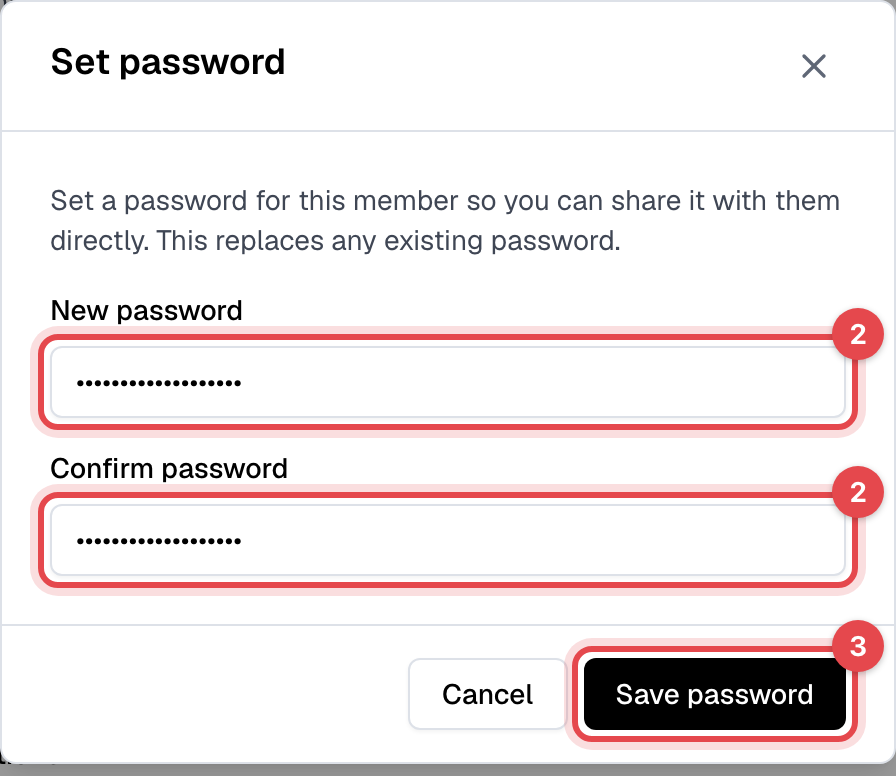
They can sign in with it at once, and change it later in the app. It replaces any password they had.
Good to know
- Send setup link needs the New member account created email turned on in Settings > Email templates. See Customize email templates.
- Nobody can see a member's password, you included. That's why you set a new one rather than look it up.
- Members can do it themselves: Forgot password? on the sign-in screen, in the app or on your website, emails them a reset link.
- Still no email? Check the address on their profile for a typo, and their spam folder. See A member didn't get an email.