The member profile
Everything about one member on one page, from their plan and visits to what they owe.
Click a member's name anywhere in the admin to open their profile. The top of the page says who they are and how they stand; the tabs below hold the detail.
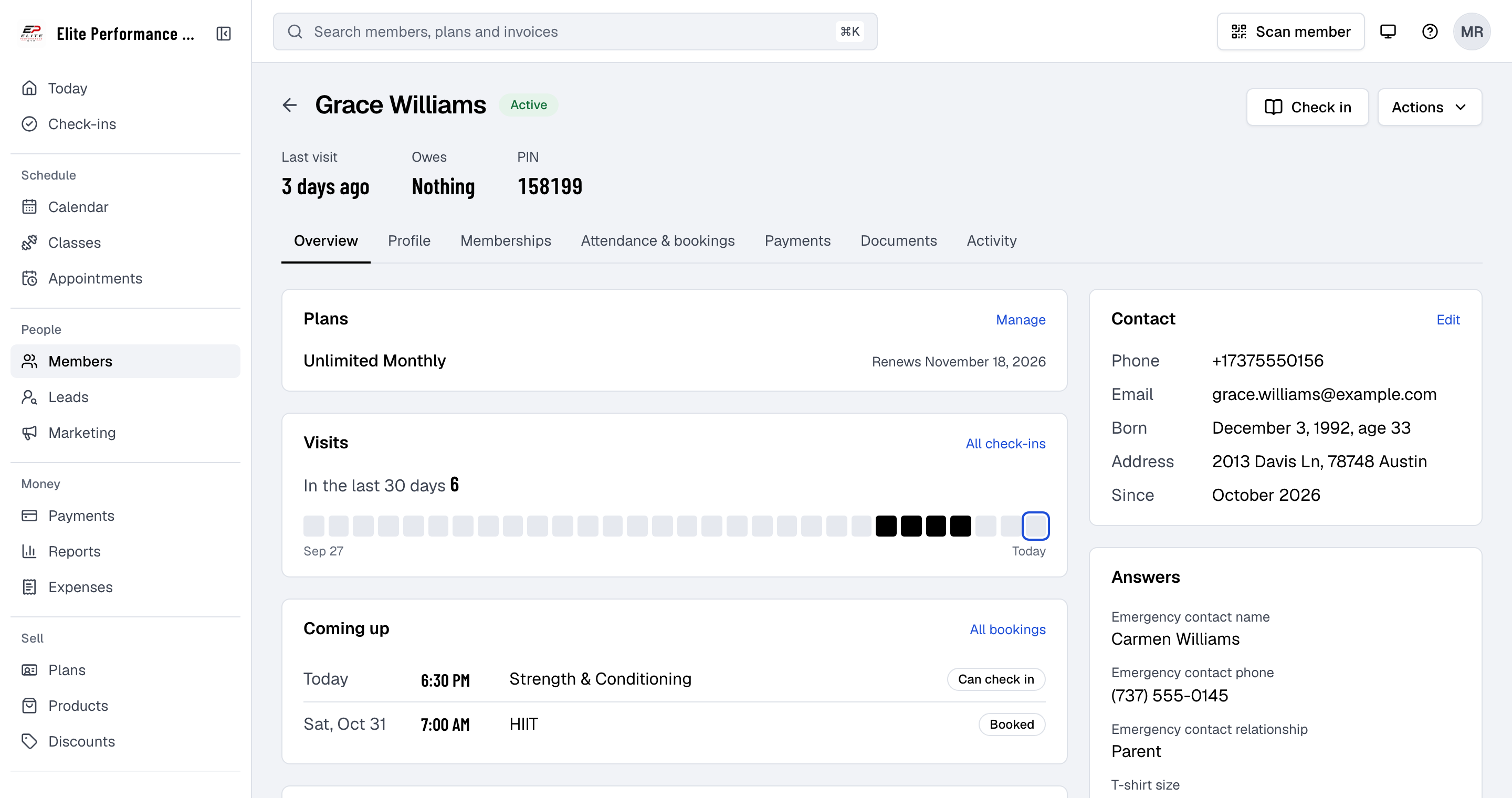
The header
- Their status: Active with a membership, Inactive without one, Frozen or Frozen until a date, or Blocked.
- Last visit, what they Owe, and their check-in PIN. When they owe money, a banner says how much, with See payments.
- Check in, to check them in now. See Check members in.
- Actions: Assign membership, Add note, Book class, Book an appointment, and then Block member and Delete member. Each shows only to staff with the permission for it.
The tabs
| Tab | What's there |
|---|---|
| Overview | Their plans, visits in the last 30 days, what's coming up, recent payments, notes, documents, contact details and their answers to your questions |
| Profile | Their details, address and guardian, your custom fields, their family, their check-in QR code and sign-in, and whether they get texts |
| Memberships | Every membership they hold or held, with Assign membership. A child on a family plan shows Covered by a family membership |
| Attendance & bookings | Attendance: every check-in, with the membership it used. Bookings: their classes and appointments |
| Payments | Their invoices and payments. When you take cards, Billing portal opens Stripe's page where their saved cards can be changed |
| Documents | To sign: documents waiting for their signature, which you can sign with them at the desk. Signed documents: what they've signed |
| Messages | Every email, text and WhatsApp sent to them, each opening in full. On the Growth plan, the automations they're in |
| Activity | Everything that happened on their account, by whom |
Who sees what
Every staff member can open a profile. Changing it takes a permission:
| To | You need |
|---|---|
| Edit their details, add notes, manage their family, send their setup link, block or delete them | Members |
| Sell or change a membership | Sales |
| Book them into a class or appointment | Bookings |
| See the Payments tab and what they owe | Sales, Refunds or Reports |
Good to know
- Each card on Profile saves on its own, with its own Save changes.
- Notes are on Overview; All notes lists every one. See Add notes and tags.
- On the Growth plan, Notifications and marketing on the Profile tab shows whether they get your marketing emails and texts, and Messages the automations they're in. See Email and text consent.