Add notes and tags
Keep what staff should know about a member on their profile, with a reminder when it matters.
A note keeps something staff should know about a member, such as an injury, a goal or a promise you made, on their profile. Members don't see notes. A note can also remind you by email, on a date or when the member next checks in.
Before you start
- You need the Members permission to add, edit or delete notes. The Owner, Managers and Front desk have it. Every staff member can read them.
Add a note
-
Open the member from Members, click Actions, then Add note.
-
Write the Note.
-
Under Reminder type, keep No reminder needed, or choose On specific date and set the Reminder date, or At next check-in.
-
Pick Tags if you use them. Tags are made in Settings first (see below).
-
Click Add note.
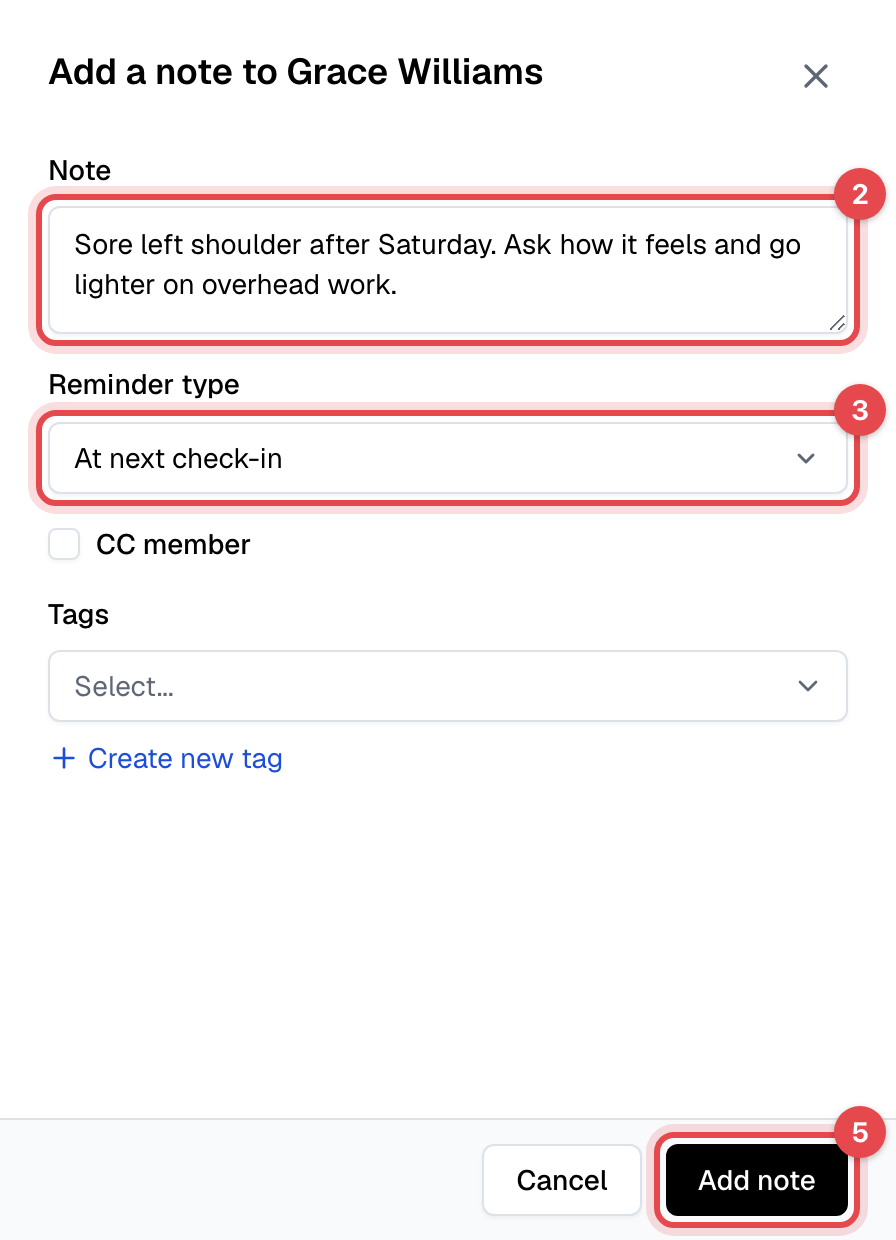
The note shows under Notes on the member's Overview; All notes lists every one, with its tags, who wrote it and whether its reminder was sent. Edit or delete a note from its menu there.
Create note tags
- In Settings, open Note tags and click Create note tag.
- Enter the tag's Name, such as Injury or Payment plan, and click Create note tag.
Creating tags here takes the Settings permission.
What happens next
- When the reminder is due, the staff member who wrote the note gets an email, "Reminder from Finegym", with the note in it. At next check-in sends it as the member checks in, however they check in. The note's Reminder sent column then says Sent.
Good to know
- CC member, offered once you choose a reminder, sends the member a copy of the reminder email, note and all. Leave it off for anything they shouldn't read.
- A reminder goes to whoever wrote the note. To remind someone else, they write the note.
- Staff members have notes too, on their page in Staff.