Import members
Bring many members in at once from a spreadsheet or your old software's export.
Upload a CSV file of your members, such as your old software's client export, match its columns to Finegym's, fix anything Finegym can't read, and import everyone at once. Nothing is saved until the last click.
Before you start
- You need the Settings permission to open Import & migrate, and Members to import. The Owner and Managers have both.
- Save your file as CSV. From Excel or Google Sheets, use Save as or Download and pick CSV.
Steps
-
In Settings, open Import & migrate. On Import members, click Choose File and pick your CSV file. No export at hand? Click Download template and fill it in.
-
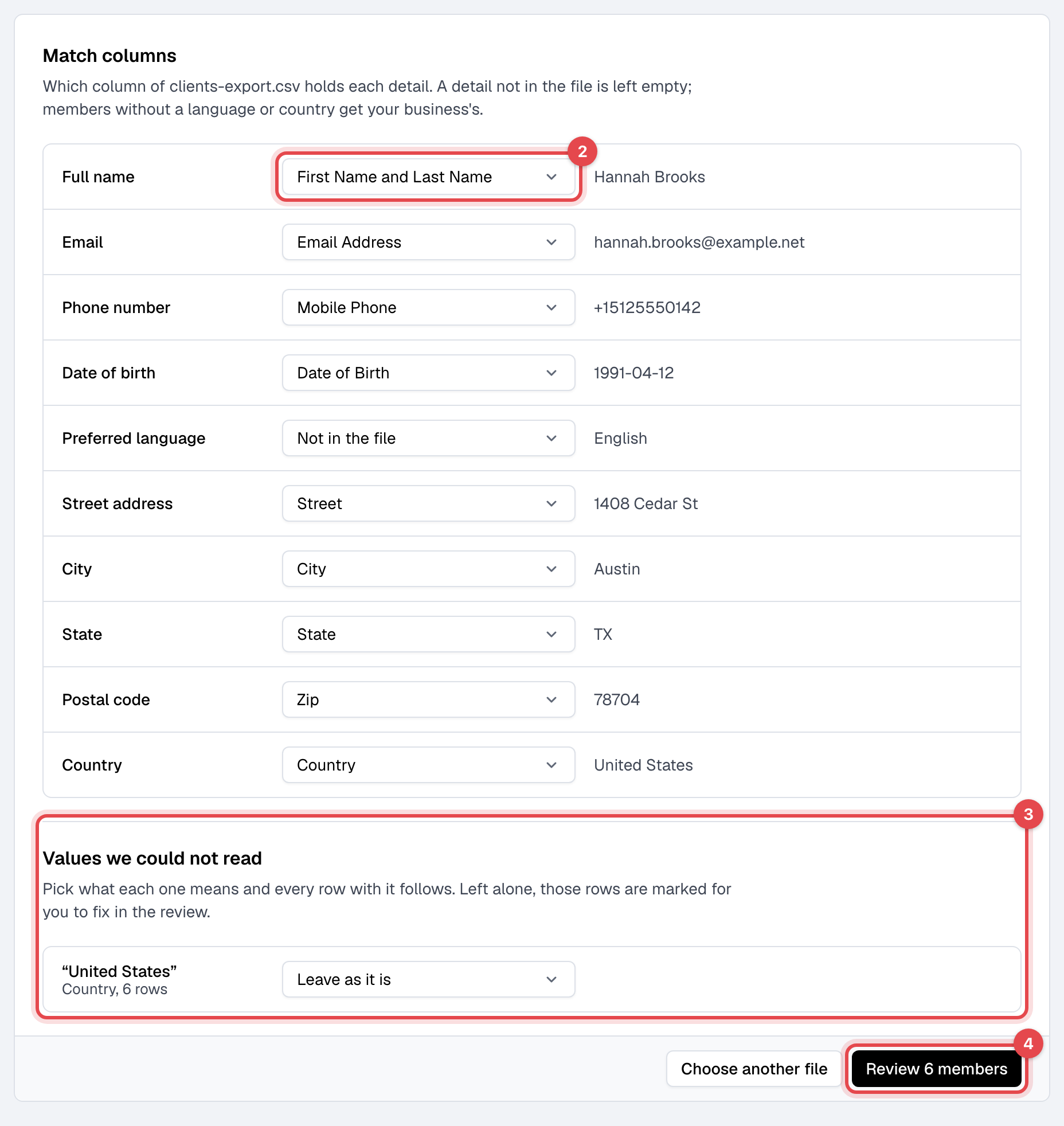
Under Match columns, check which column of your file holds each detail, from Full name to Country. Finegym guesses from the headings; pick Not in the file for a detail your file doesn't have. A first-name and a last-name column can be joined into Full name.
-
If Values we could not read appears, pick what each one means, such as the country a spelling stands for. Every row with that value follows.
-
Click Review 120 members (the number is your file's rows).
-
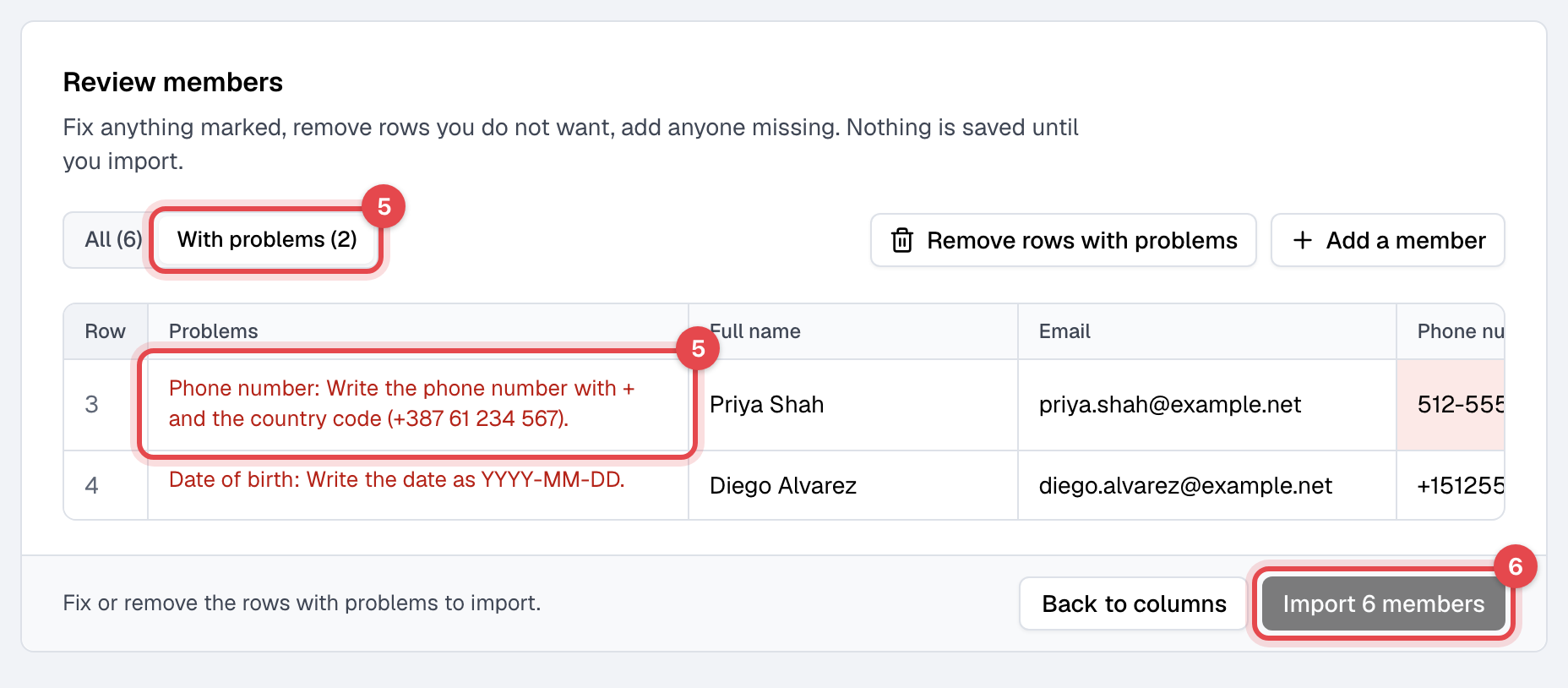
Fix each marked cell; With problems shows only the rows to fix. Click the bin on a row you don't want, Remove rows with problems to drop them all, or Add a member for someone the file missed.
-
Click Import 120 members.
What happens next
- Every row is imported, or none is. If Finegym refuses a row, for example an email that already belongs to a member, nothing is saved: the cell is marked, and you fix it and import again.
- Imported members get no email yet and can't sign in. They wait for you on Assign memberships, then Send welcome emails. See Switch from another system.
Good to know
- Dates are read as YYYY-MM-DD, as day.month.year with dots, and with slashes when the day is over 12. Anything else is marked for you to write as YYYY-MM-DD.
- Phone numbers start with + and the country code; 00 at the start becomes +.
- An empty language or country becomes your business's. Only Full name is required; a member imported without an email can't sign in until you add one on their profile.
- The same email twice, in the file or already in Finegym, is refused. Capitals don't count.