Publish your policies
House rules, cancellation and privacy policies that members can read in the app and from every email.
Policies are pages your members can read: house rules, your cancellation policy, your privacy policy. Members find them in the member app and through a link at the bottom of every email Finegym sends for you.
Before you start
You need the Settings permission. The Owner and Managers have it.
Write a policy
-
Open Policies and click Create policy document.
-
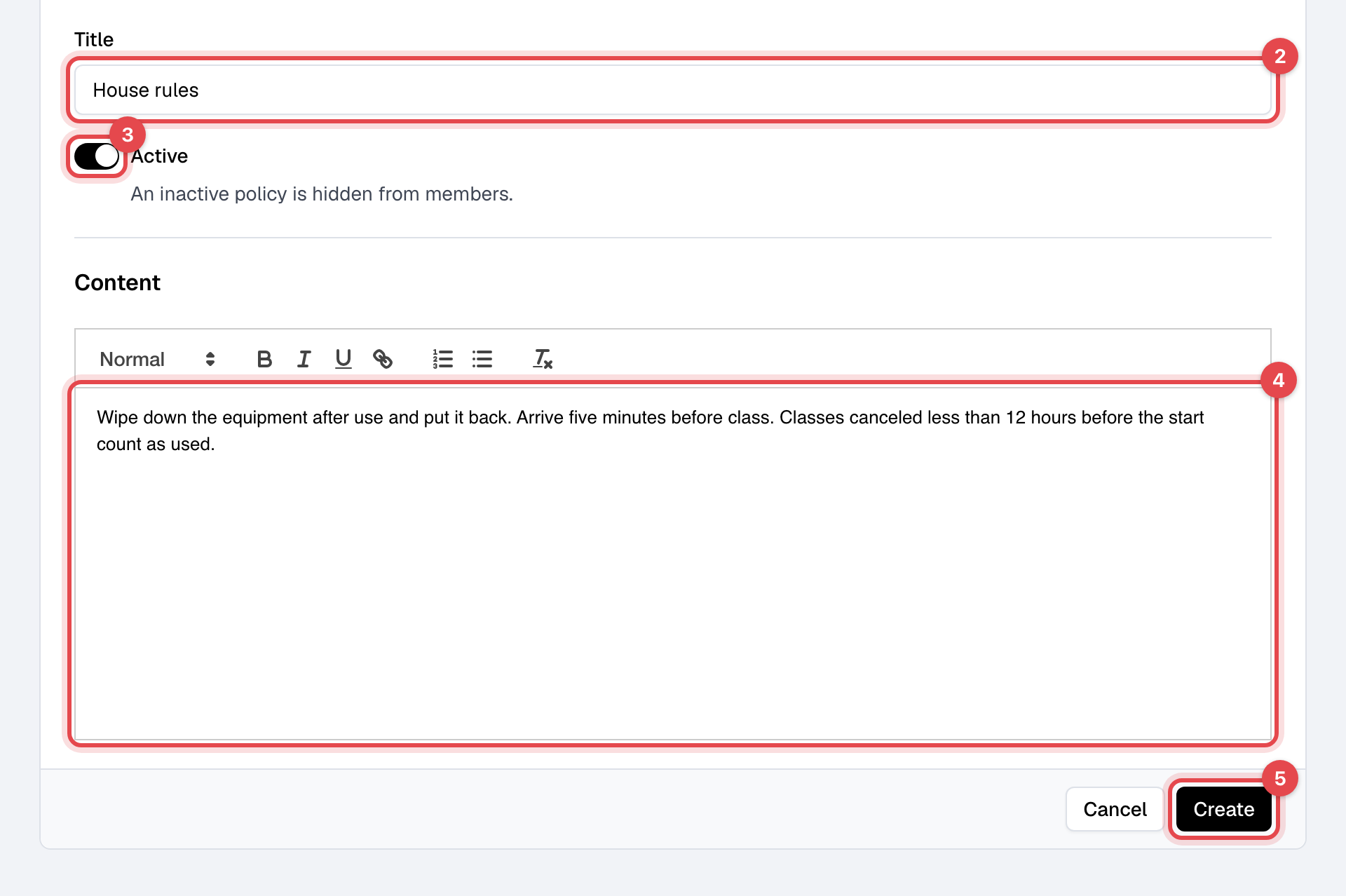
Enter a Title, such as "House rules" or "Cancellation policy".
-
Leave Active on to show it to members. An inactive policy is hidden from them.
-
Write the policy under Content.
-
Click Create.
To change a policy later, click its title, edit it and click Save changes. To remove it, use Delete policy in the menu at the top of its page.
What happens next
- Members read your active policies in the member app, under Legal in the menu, and through the Privacy Policy link at the bottom of your emails. Both open one page that lists them all.
- Each policy also has its own address: open the policy and copy its Public link, under Where members read it. Put it on your website or send it to someone who asks.
Good to know
- Members aren't asked to agree to a policy. For something each member must sign, such as a waiver or a membership agreement, create a document instead: see Collect signed waivers and documents.
- Legal (under Finegym account in Settings, for the owner only) is different: it links to Finegym's own terms for your business's use of Finegym (Terms and Conditions, Privacy Policy, Cookie Policy, Refund Policy and Copyrights Policy). They aren't your business's policies.