Collect signed waivers and documents
Waivers and agreements your members sign on their phone, on your website or at the front desk.
Documents are what members sign: a liability waiver, a membership agreement, a photo release. You write each one once and choose whose plans need it; every member on those plans is asked to sign, and you can see who hasn't.
Before you start
You need the Settings permission to create documents. The Owner and Managers have it.
Create a document
-
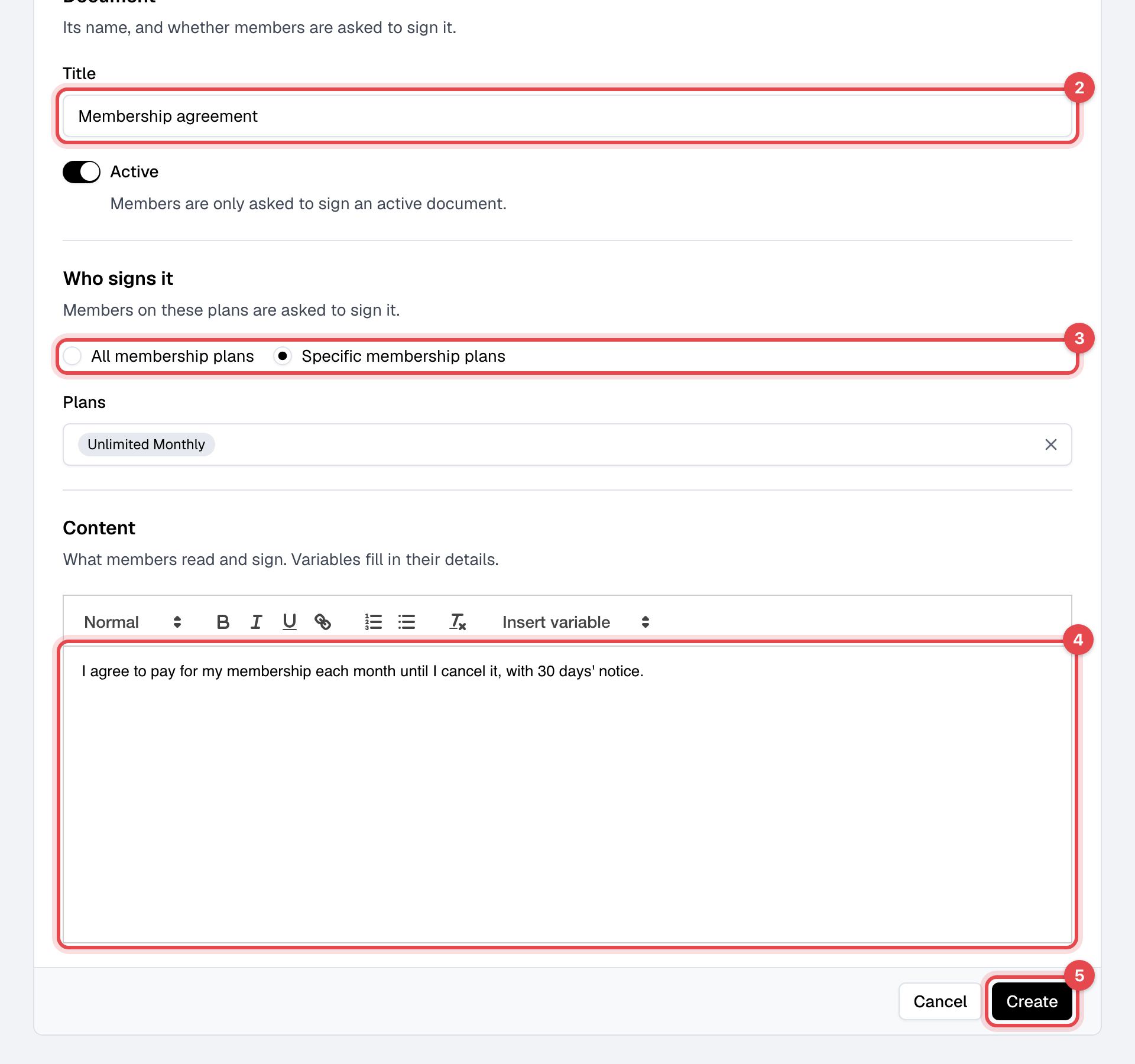
Open Documents and click Create digital document.
-
Enter a Title. Leave Active on: members are only asked to sign an active document.
-
Under Who signs it, choose All membership plans (every member), or Specific membership plans and pick them under Plans.
-
Write the text under Content. Insert variable adds each member's details, such as their name, to the copy they sign.
-
Click Create.
Require signing
On Documents, switch on Require document signing. A member with a document still to sign then can't book a class or an appointment, buy a plan or a drop-in on your website, or check in, until they sign it, even when staff do it for them.
On your website, the document opens as a Before you continue step inside the booking or the checkout: the member reads and signs it there, and the booking or payment goes on. Nothing is paid before the signature. In the app, the booking is refused until they sign under Documents.

What happens next
-
Every member who has to sign it gets the Document ready for signature email, while that template is on, and a text if Twilio is connected.
-
Members sign in the member app (Documents in the menu), on your website under Account, or at the front desk in front desk mode: see Documents at check-in. A parent signs for a child who has no sign-in of their own.
-
Staff with the Members permission can sign for a member at the desk: on the member's profile, open Documents, then To sign, and choose Sign document from the document's menu.
-
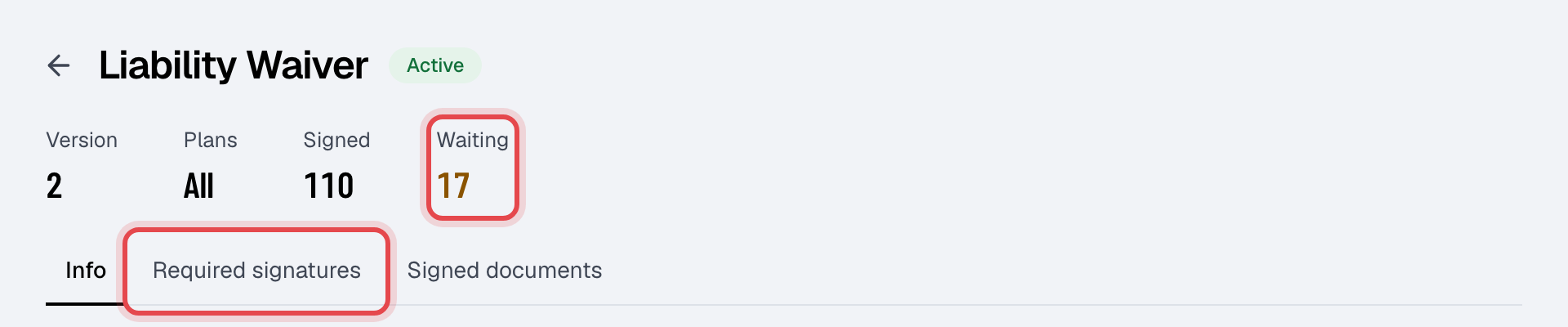
The document's page shows how many have Signed and how many are Waiting. Required signatures lists who still has to sign; Signed documents lists every signature with the version signed, and a PDF of each to download.
Good to know
- Changing the text: on the document's Info tab, Save as draft keeps your edits without members seeing them; Publish makes them the version members sign from now on. A document that is already published asks Publish version N? with a choice: leave Ask everyone to sign this version unchecked for a small fix, and members who signed an earlier version stay signed; check it for new terms, and every member who has to sign gets an email and a text, earlier signatures no longer count, and with signing required they sign the new version before their next booking, payment on your website or check-in. The earlier signatures stay on Signed documents, and the document shows Signatures count from version N.
- A document someone has signed can't be deleted, for its signatures' sake. Switch off Active to stop asking members to sign it.
- A plan or a drop-in bought on your website, and a class or appointment booked with it, are signed for before the payment. A member who buys a plan signs that plan's documents too, before paying.
Related
- Documents at check-in
- The member profile
- Sign documents (for your members)
- Publish your policies