How to Add & Manage Gym Members
Create member profiles and keep their details up to date.
Members are at the heart of your gym business. Finegym provides comprehensive tools for managing member profiles, tracking activity, and maintaining communication.
Adding Members
Manual Creation
Location: Members → Add member
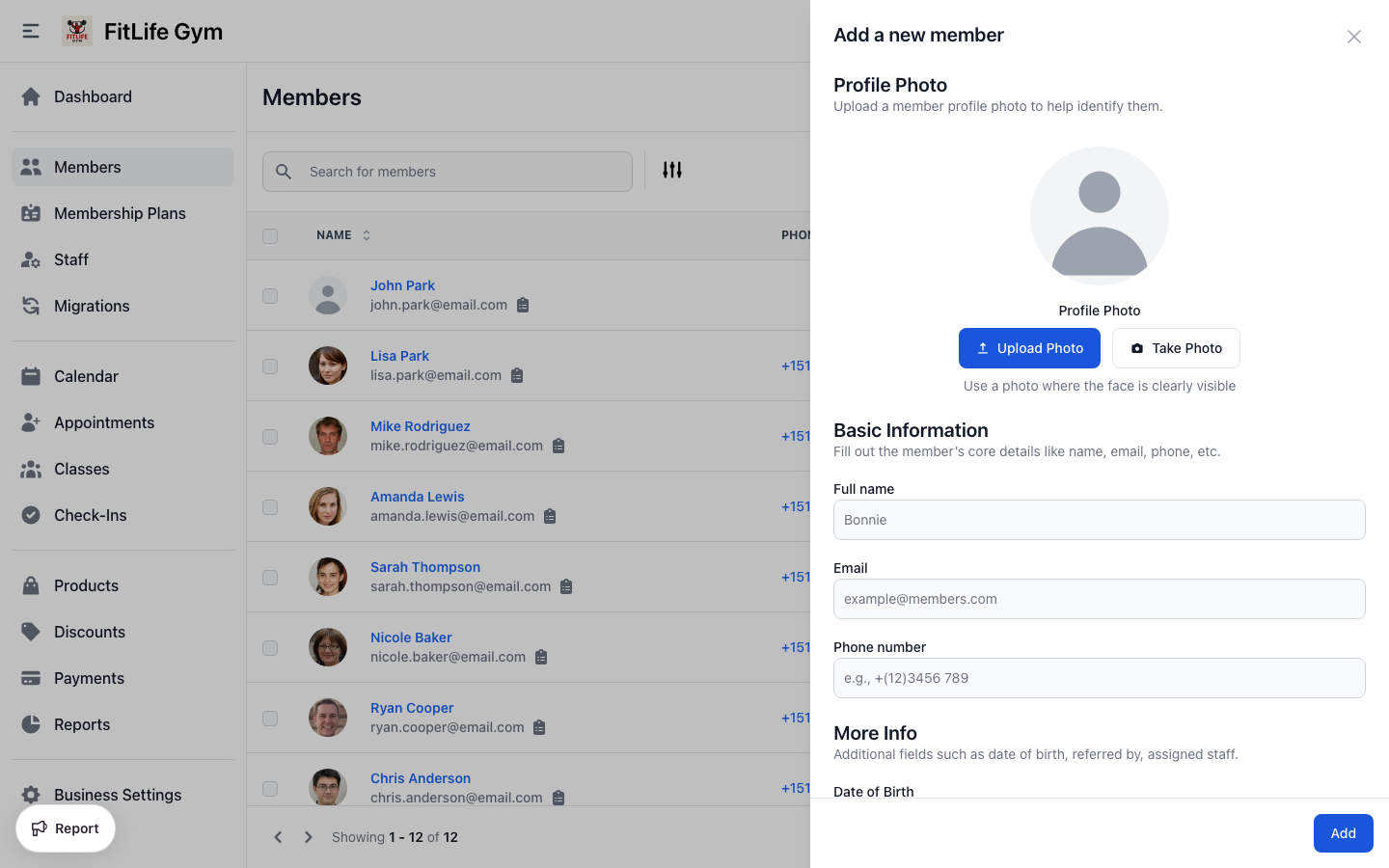
Click Add member to open the member creation form:
Required Information
- Full name — Member's complete name (required)
- Email — Primary email for login and notifications (required)
A child who trains on a parent's membership is added as a dependent from the parent's Family card, not here — dependents have no email and no login. See Family Memberships & Dependents.
Optional Information
- Phone number — Contact phone with country code (optional)
- Profile Photo — Upload or take a photo (optional)
- Date of Birth — Date of birth (optional)
- Address — Street, city, state, postal code (auto-complete available) (optional)
- Country — Defaults to your business country (optional)
- Preferred Language — Language for the member's emails and notifications. Leave as Gym default to use your gym's default language; the member can also change it themselves in the member app (optional)
Guardian Information (for minors)
- Guardian name — Parent/guardian name (optional)
- Guardian email — Guardian's email address (optional)
- Guardian phone number — Guardian's phone number (optional)
Referral Tracking
- Referred by — How they found your gym (Walk-In, Google, Facebook, Advertisement, Website / Blog, Existing Member, Staff Member, Other) (optional)
- Referrer — If referred by another member, select them here (optional)
Staff Assignment
- Assigned to — Staff member responsible for this member (optional) (e.g., personal trainer)
The email address is used for:
- Member login credentials
- Invoice and receipt delivery
- Booking confirmations
- Marketing communications
Bulk Import (CSV)
To import multiple members at once, use the Migration Wizard.
Location: Migrations (in the sidebar)
- Navigate to Migrations
- Download the CSV template
- Fill in member data following the template format
- Upload your completed CSV
- Review and confirm the import
- Optionally assign memberships and send welcome emails in the following steps
See Data Migration Guide for detailed import instructions.
Member Profile
Accessing a Profile
From the Members list, click on any member to view their profile.
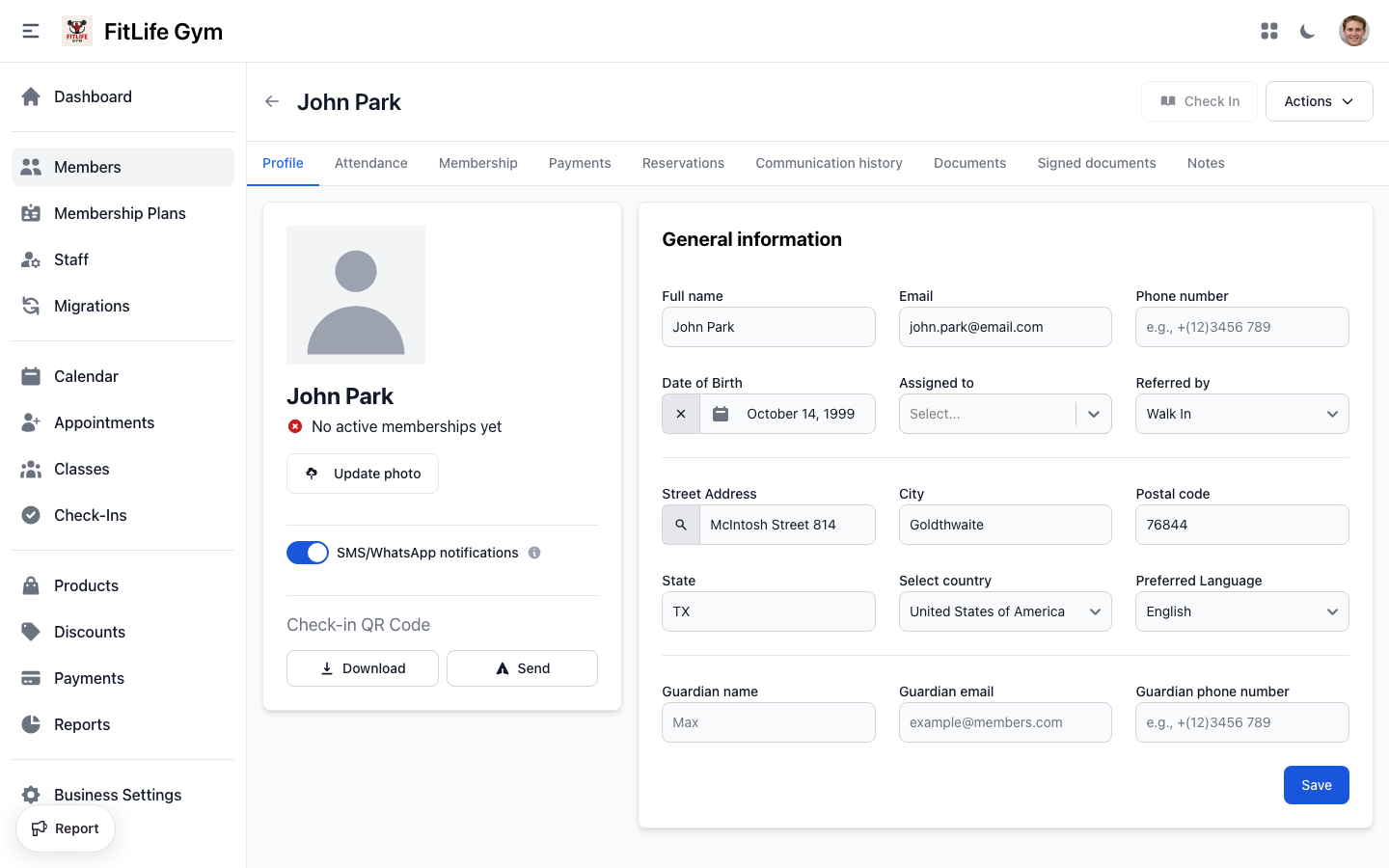
The profile page contains tabs for different information:
- Profile — Basic info, photo, contact details
- Attendance — Check-in history
- Membership — Active and past memberships
- Payments — Payment and invoice history
- Reservations — Class and appointment bookings
- Communication history — Email/SMS history
- Documents — Pending waivers and contracts
- Signed Documents — Signed waivers and contracts
- Notes — Staff notes about the member
General Information
View and edit member details:
- Profile photo
- Contact information
- Address
- Birthday
- Referral source
- Assigned staff
Custom Fields
If you've configured custom fields, they appear in a separate card on the profile page.
Custom fields allow you to track additional information like:
- Emergency contact
- T-shirt size
- Fitness goals
- Health conditions
Member Notes
Add internal notes about members:
- Go to the Notes tab
- Click Add Note
- Enter your note text
- Optionally select a Tag for categorization
- Click Save
Notes are visible only to staff, not to members.
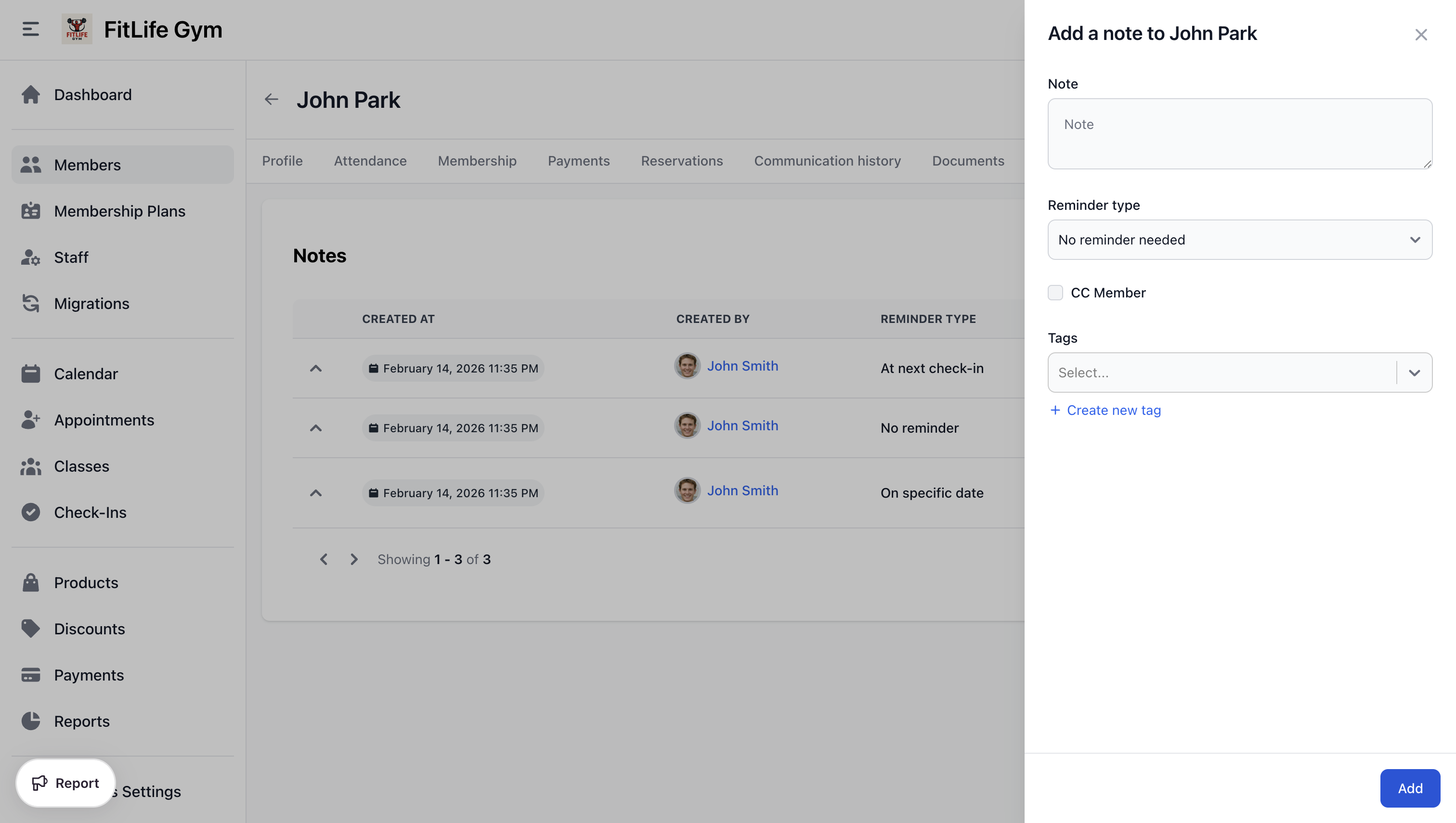
Use Note Tags to categorize notes (e.g., "Medical", "Payment Issue", "VIP").
Block/Unblock Member
If you need to prevent a member from checking in or booking:
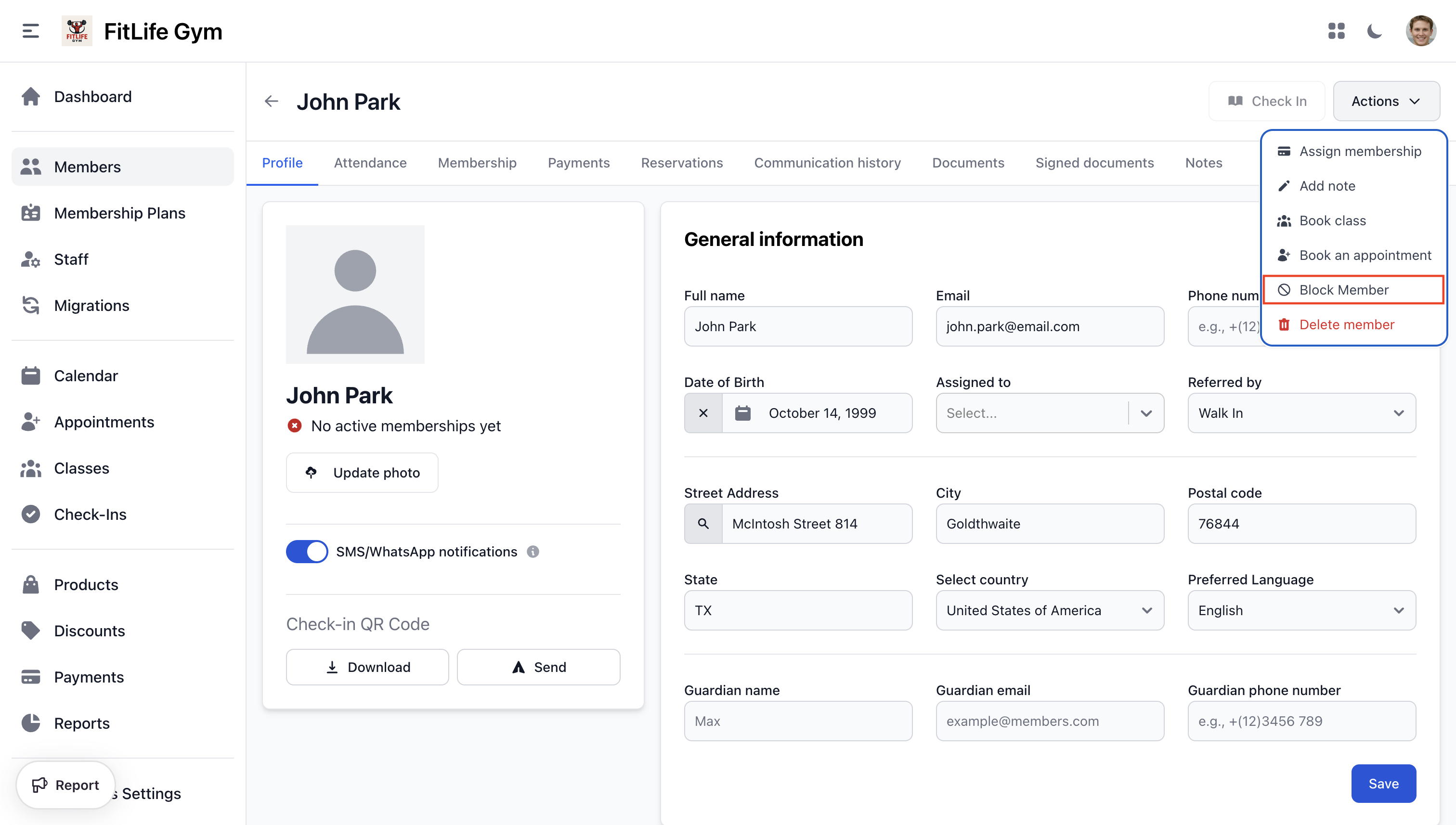
- Click the Block Member button
- Confirm the action
Blocked members:
- Cannot check in
- Cannot make reservations
- Cannot access the mobile app
- Still have their membership data preserved
To restore access, click Unblock Member.
Login Access
Members sign in with their email and a password — either in the mobile app, or in a browser on your gym site at https://<your-tenant>.sites.finegym.io/account, where they get the same bookings, invoices and documents without installing anything. When a member is created — or welcomed at the end of the migration flow — Finegym emails them a welcome message containing a generated password and their check-in QR code.
From the member's Profile tab, the Login access section gives you two ways to help a member who can't sign in:
Resend Welcome Email
If a member never received their welcome email (for example, it went to spam or their address previously bounced), click Resend welcome email. This generates a fresh password, emails it to the member along with their check-in QR code, and confirms before sending.
Resending generates a new password, so the member's previous password stops working. If a member has already logged in and set their own password, resending will reset it.
If a member repeatedly doesn't receive the email, the most common cause is that their email provider previously bounced or flagged a message, so it's being suppressed. Double-check the spelling of their email address, and consider setting a password manually (below) so you can share it another way.
The Resend welcome email button is unavailable if your welcome email template is turned off. Enable it under Settings → Email Templates.
Set Password
For security, Finegym stores passwords encrypted and cannot show you a member's existing password. Instead, you can set a new one and share it directly:
- In the Login access section, click Set password
- Enter a New password and confirm it (minimum 8 characters)
- Click Save password
The member can sign in immediately with the new password, and can change it later themselves from the app.
Deleting a Member
If you need to permanently remove a member, you can delete them from their profile:
- From the Members list, click the member to open their profile
- Click the ⋯ (actions) menu in the top-right of the profile page
- Select Delete member (shown in red)
- Confirm the deletion in the dialog
A member can only be deleted when they have:
- No unpaid invoices (no invoices in an open status)
- No future reservations (upcoming classes or appointments)
If either condition applies, the deletion is blocked. Settle or void any open invoices and cancel any future reservations first, or block the member instead.
When a member is deleted:
- Their active memberships are automatically archived
- Their door access (e.g., Kisi) is revoked
- Payment and check-in history is preserved for your business records, but is no longer linked to a member profile
Deleting a member is permanent and cannot be undone. If you only want to stop someone from checking in or booking, block them instead — this keeps all of their data intact.
Member Documents
The Documents and Signed documents tabs on the member profile show pending and completed document signatures. Documents are automatically assigned based on membership plans.
See the Digital Documents guide for creating documents, configuring plan assignment, and signing on behalf of members.

Sign on Behalf (In-Person)
If the member is present, staff can capture their signature:
- Click Sign Document on a pending document
- Have the member sign on the screen
- Click Submit Signature
Searching and Filtering Members
Quick Search
Use the search bar to find members by:
- Name
- Phone number
Advanced Filters
Filter the member list by:
- Status — Active, Inactive, Blocked
- Membership Plan — Filter by specific plan
- Membership Status — Has active membership, No membership
- Tags — Members with specific note tags
- Assigned Staff — Members assigned to specific staff
Export Members
Download member data as CSV:
- Apply desired filters
- Click Export
- Choose fields to include
- Download the CSV file
Best Practices
Complete Profiles
Encourage complete member profiles:
- Profile photo (helps with identification)
- Phone number (for SMS notifications)
- Birthday (for birthday messages)
- Emergency contact (via custom fields)
Regular Notes
Document important interactions:
- Initial consultation notes
- Goals and preferences
- Issues or complaints
- Special requirements
Keep Data Current
- Update contact information when members notify changes
- Cancel inactive memberships instead of deleting
- Review blocked members periodically
Privacy Considerations
- Only collect necessary information
- Secure access with staff permissions
- Members can request data export/deletion via the app
Troubleshooting
Member Can't Log In
Check:
- Email address is correct
- Member hasn't been blocked
- The welcome email was received (check spam)
From the member's Profile tab, use Resend welcome email to send fresh login credentials, or Set password to assign a password you can share directly. See Login Access for details.
Can't Delete Member
A member can't be deleted while they have:
- Unpaid (open) invoices
- Future reservations
Settle or void any open invoices and cancel upcoming reservations first, then try again. If you'd rather keep their records, block the member instead. See Deleting a Member for full details.
Related Topics
- Membership Operations - Assigning and managing memberships
- Family Memberships & Dependents - Children on a parent's shareable membership
- Member Activity - Attendance, reservations, and transaction history
- Membership Plans - Creating plans to assign
- Check-Ins & Attendance - Processing member check-ins
- Payments & Invoices - Managing member payments
- Data Migration - Importing members from other systems