Assign, Freeze & Manage Memberships
Assign, freeze, switch, and cancel members' plans.
Manage the full lifecycle of member memberships — from assigning plans and processing payments to freezing, modifying, and cancelling memberships.
Assigning Memberships
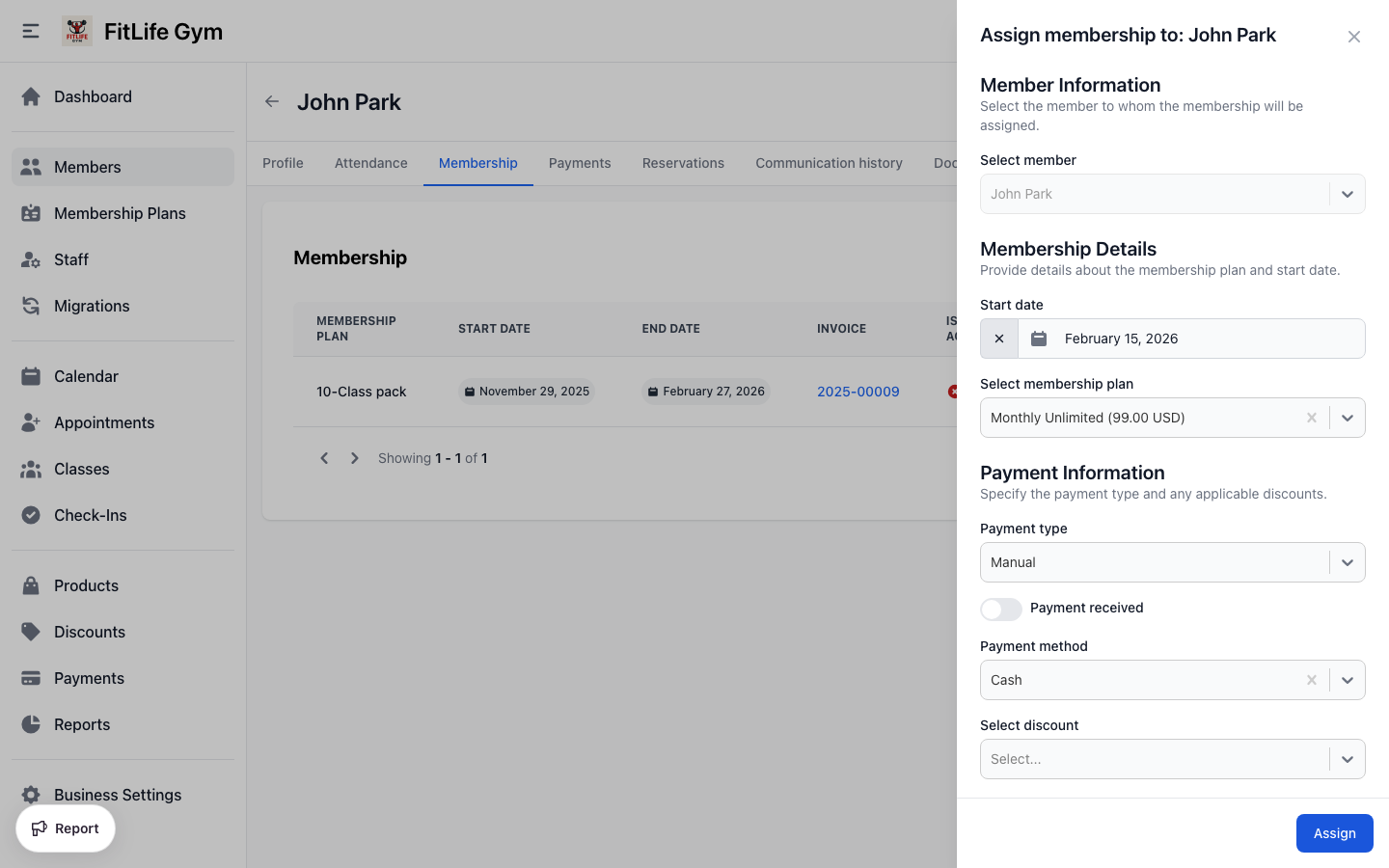
Assign a Membership Plan
Location: Member Profile → Membership → Assign membership
- Click Assign membership
- Select the Member (pre-filled if on member profile)
- Select the Membership Plan
- Choose the Start Date
- Select Payment Type:
- Card (Stripe payment)
- Manual — then select a payment method: Cash (default) or any custom methods you've created
- Optionally apply a Discount
- Review the pricing estimate
- Click Assign
Payment Processing
Card Payment:
- Member is redirected to Stripe checkout
- Payment processed immediately
- Recurring billing set up automatically
Cash/Manual Payment:
- Invoice created in "Pending" status
- Record payment when received
- First recurring charge happens on next bill date
Pricing Estimate
Before confirming, you'll see a breakdown of:
- Charge amount — Regular plan price
- Setup fee — One-time fee (if applicable)
- Discount — Amount saved
- Tax — Applicable taxes
- Total Due Today — Amount to charge now
View Membership Details
From the member's Membership tab, click on any membership to see:
- Plan name and type
- Status (Active, Frozen, Archived)
- Start and end dates
- Next billing date (recurring)
- Payment method
- Applied discount
- Usage statistics
Switch Plan
Switch a member from one membership plan to another, with automatic prorated credit from the current plan.
Location: Member Profile → Memberships → ⋯ (Actions) → Switch Plan
Switch plan is available for both recurring and non-recurring memberships. Members can only switch to a plan of the same type (recurring to recurring, non-recurring to non-recurring).
How to Switch a Plan
- Go to the member's Membership tab
- Click the ⋯ (actions menu) on the active membership
- Select Switch Plan
- Select the New Membership Plan
- Optionally apply a Discount
- Select Payment Type:
- Card — redirects to Stripe checkout
- Manual — then select a payment method
- Optionally toggle Payment Received and select the payment method (for manual payments)
- Review the Pricing Summary
- Click Switch Plan (or Proceed to Payment for card)
Pricing Summary
The pricing summary shows a full breakdown:
- New Plan Charge — The new plan's regular price
- Setup Fee — One-time fee on the new plan (if applicable)
- New Plan Price — Total price for the new plan (may be prorated for recurring plans with a set billing day)
- Credit from Current Plan — Prorated credit based on remaining days
- Discount — Amount saved (if a discount is applied)
- Tax — Applicable taxes
- Amount Due — Final amount to charge
How Credit is Calculated
For recurring memberships:
Credit = Plan Price × (Remaining Days Until Next Bill Date ÷ Full Billing Cycle Days)
For non-recurring memberships:
Credit = Plan Price × (Remaining Days Until End Date ÷ Total Membership Days)
If the credit from the current plan exceeds the new plan's price, the amount due will be zero — no negative balance is carried over.
Requirements
The Switch Plan option is available when the membership is:
- Active (not expired)
- Not archived (not cancelled)
- Not frozen
Punchcard memberships do not support plan switching.
Freeze Membership
Temporarily pause a membership (vacation, injury, etc.):
- Click Freeze on the active membership
- Optionally set a Reason
- Optionally set an Unfreeze Date (auto-resume)
- Click Freeze Membership
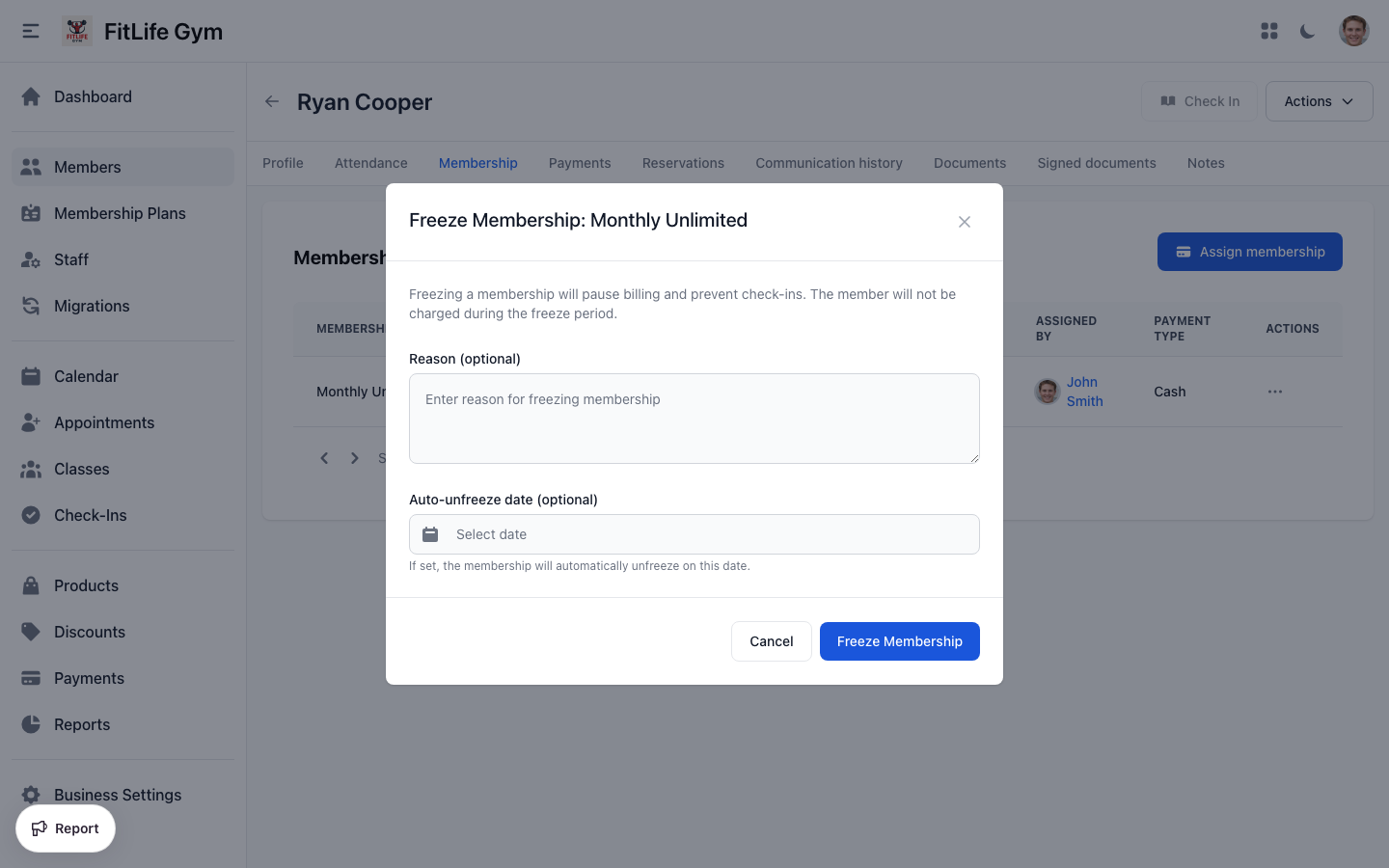
When frozen:
- Billing is paused
- Check-ins are prevented
- Usage counters pause
- End date extends by freeze duration
Punchcard memberships cannot be frozen since they don't have recurring billing.
Unfreeze Membership
Resume a frozen membership:
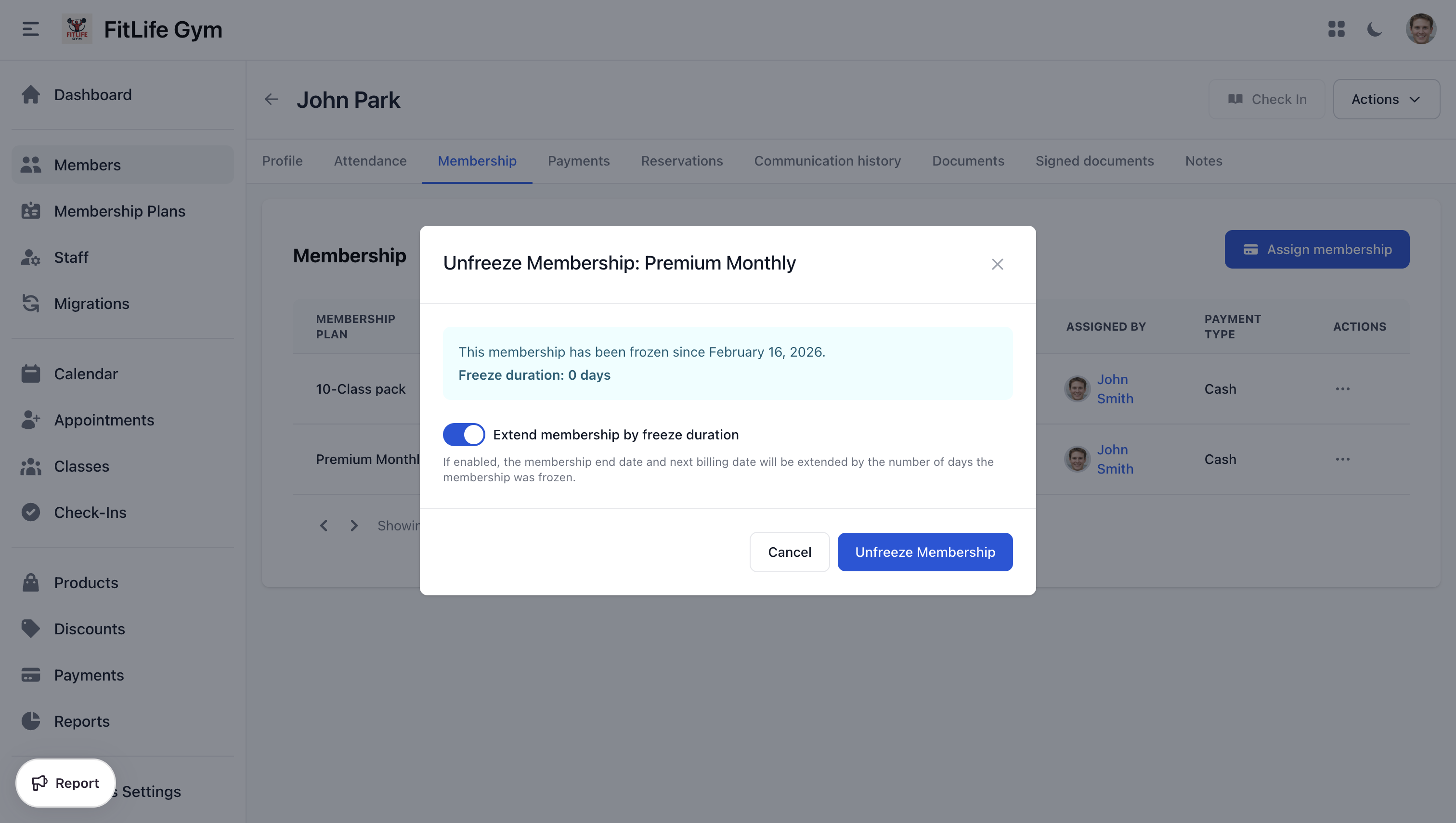
- Click Unfreeze on the frozen membership
- Confirm the action
The membership resumes immediately with:
- Billing restarted
- Check-ins enabled
- Usage counters active
If an automatic unfreeze date was set, it will be cleared.
Change Billing Date
Adjust when a recurring membership is charged:
- Click Change Billing Date
- Select the new billing date
- Click Save
The next charge will occur on the new date.
Change Payment Method
Update how a membership is billed:
- Click Change Payment Method
- Select the new payment method:
- Different saved card
- Manual — Cash (default) or any custom methods you've created
- Click Save
Change Discount
Apply or modify a discount on an active membership:
- Click Change Discount
- Select a discount or remove the existing one
- Click Save
The discount applies to future billing cycles.
Cancel Membership
End a membership permanently:
- Click Cancel membership
- Confirm the action
Cancelled memberships:
- Stop all billing
- Prevent check-ins
- Remain in history for records
- Cannot be reactivated (assign a new membership instead)
Troubleshooting
Membership Not Showing as Active
Verify:
- Start date has passed
- End date hasn't passed
- Membership isn't archived
- Membership isn't frozen
Related Topics
- Adding & Managing Members - Member profiles and management
- Member Activity - Attendance and transaction history
- Membership Plans - Creating plans to assign
- Payments & Invoices - Handling membership billing
- Discounts - Creating and applying discounts