Member Activity, Notes & Communication History
Everything a member has done, in one place.
View and track all member activity including attendance history, class and appointment reservations, financial transactions, and communication records.
Activity
Location: Member Profile → Activity
The Activity tab is a single timeline of everything involving this member — check-ins, membership changes, class and appointment bookings, payments, and refunds — newest first. It's the quickest way to see a member's full history in one place; the tabs below drill into a specific area.
Filter by action type or date range to narrow the timeline. See Activity Log for how activity tracking works across your account.
Attendance History
Location: Member Profile → Attendance
View the complete check-in history:
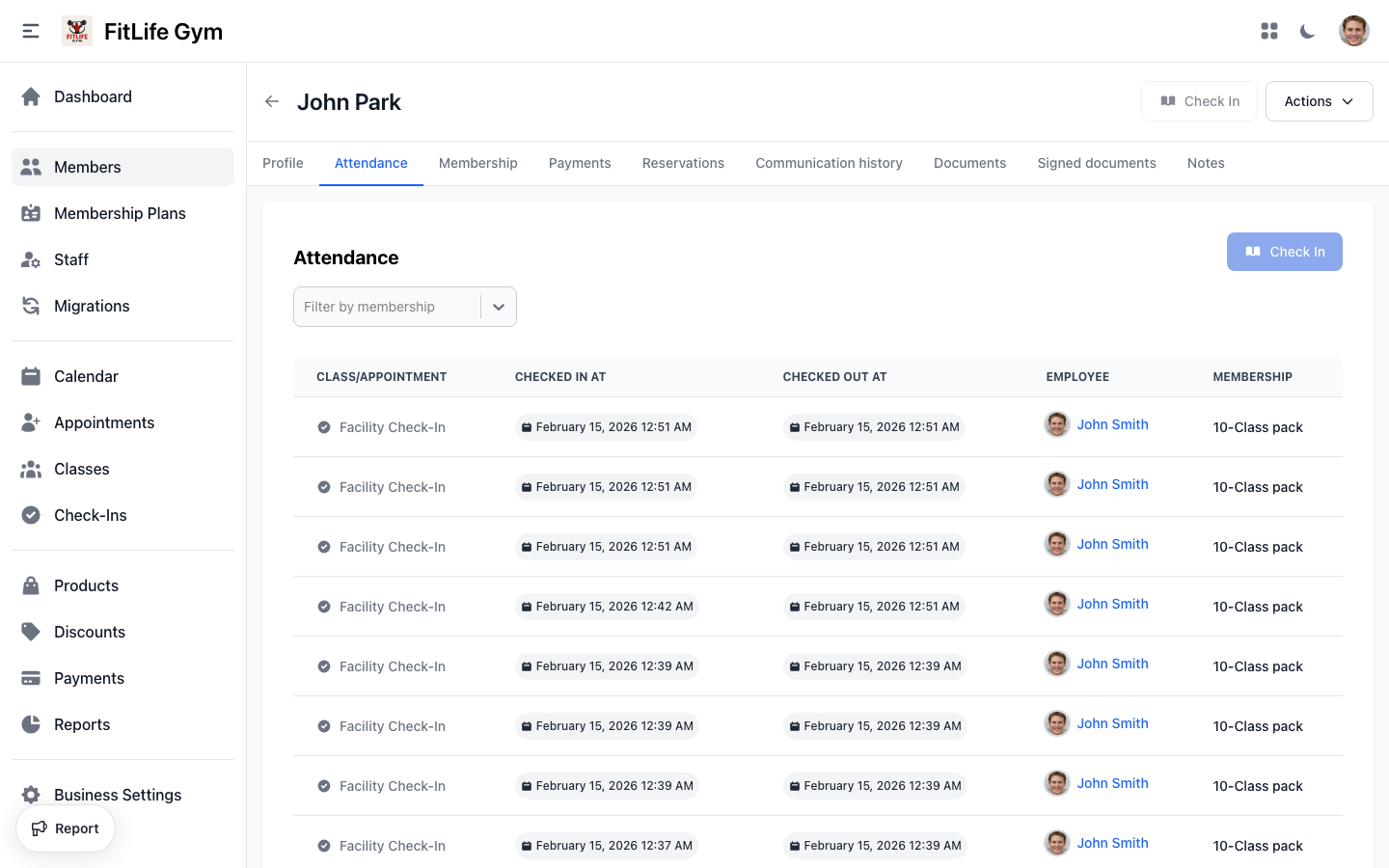
- Class/Appointment — Class or appointment name
- Checked in at — When they checked in
- Employee — Who processed the check-in
- Membership — Which membership was used
Filter by date range to see specific periods.
Reservations
Location: Member Profile → Reservations
View all class and appointment bookings:
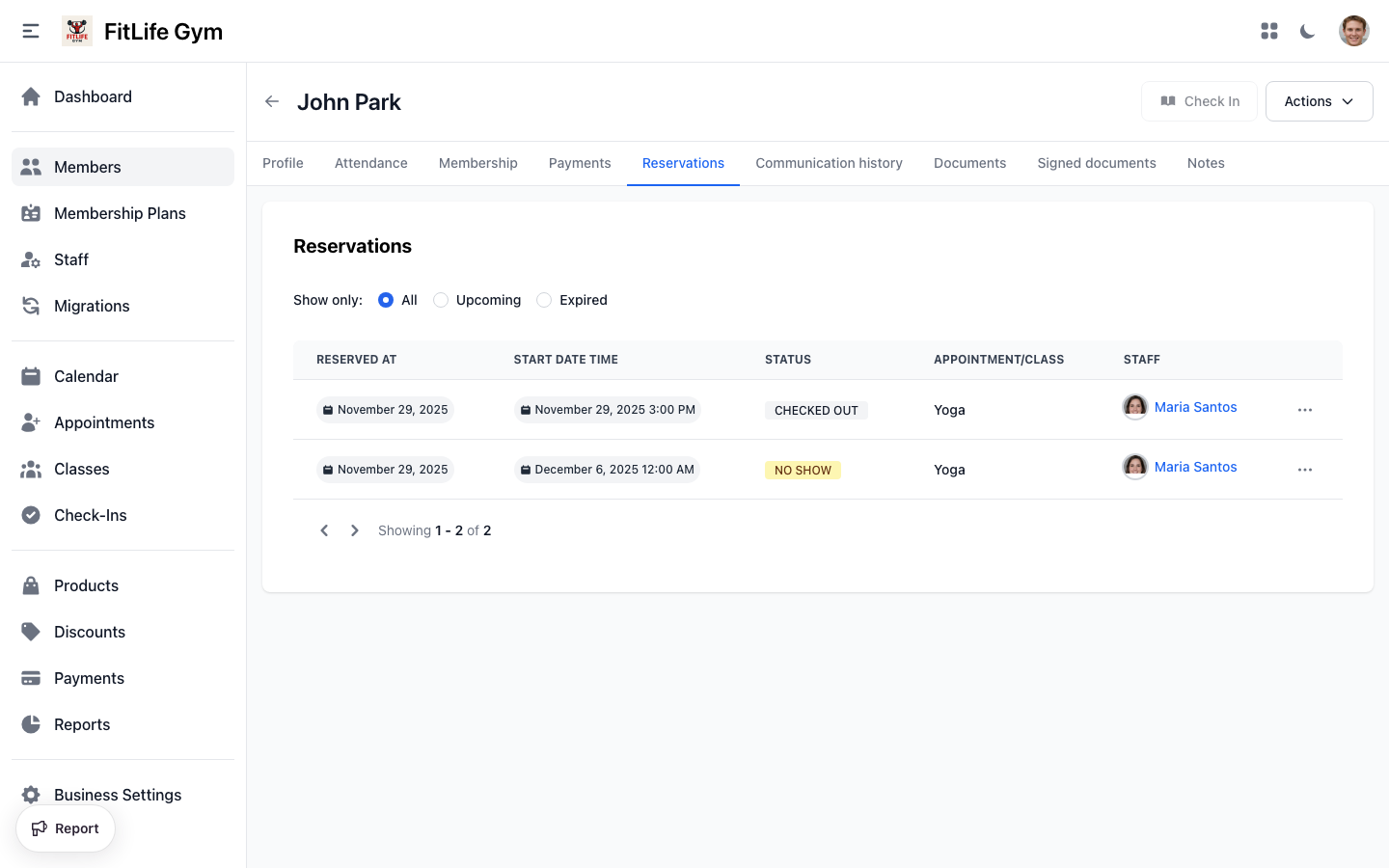
- Reserved at — When the reservation was made
- Start date time — Scheduled date and time
- Status — Reserved, Checked In, Cancelled, No-Show
- Appointment/Class — Class or appointment type name
- Staff — Assigned staff member
- Actions — Check in, edit, manage, or cancel
Payments
Location: Member Profile → Payments
View all financial activity:
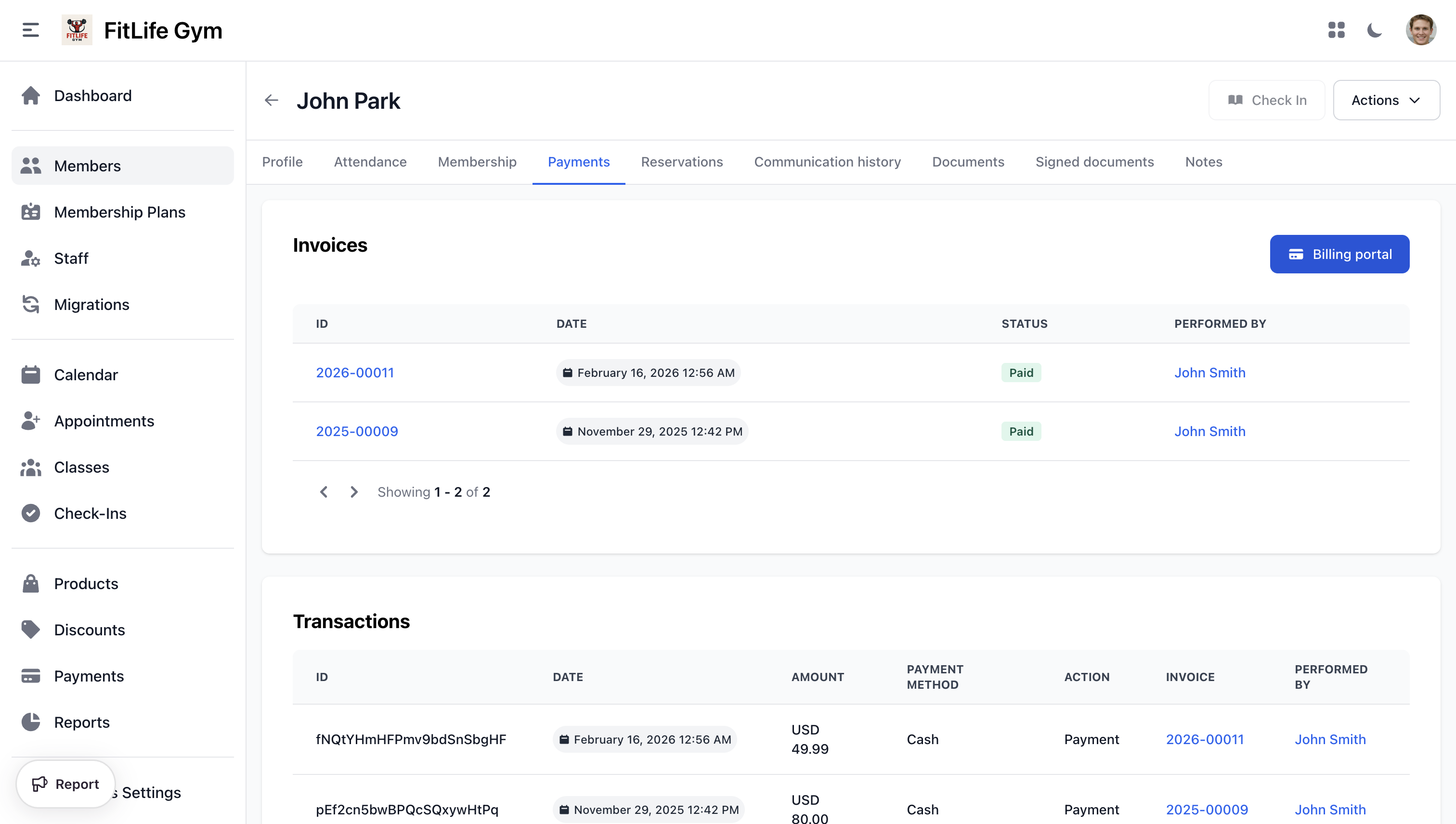
Billing Portal
If Stripe is connected, a Billing portal button appears on the Payments tab. Clicking it opens a Stripe-hosted self-service portal where the member can:
- Update their payment method
- View and download invoices
- Manage billing information
The portal opens in a new tab and is fully managed by Stripe.
Communication History
Location: Member Profile → Communication history tab
View all messages sent to a member across all channels:
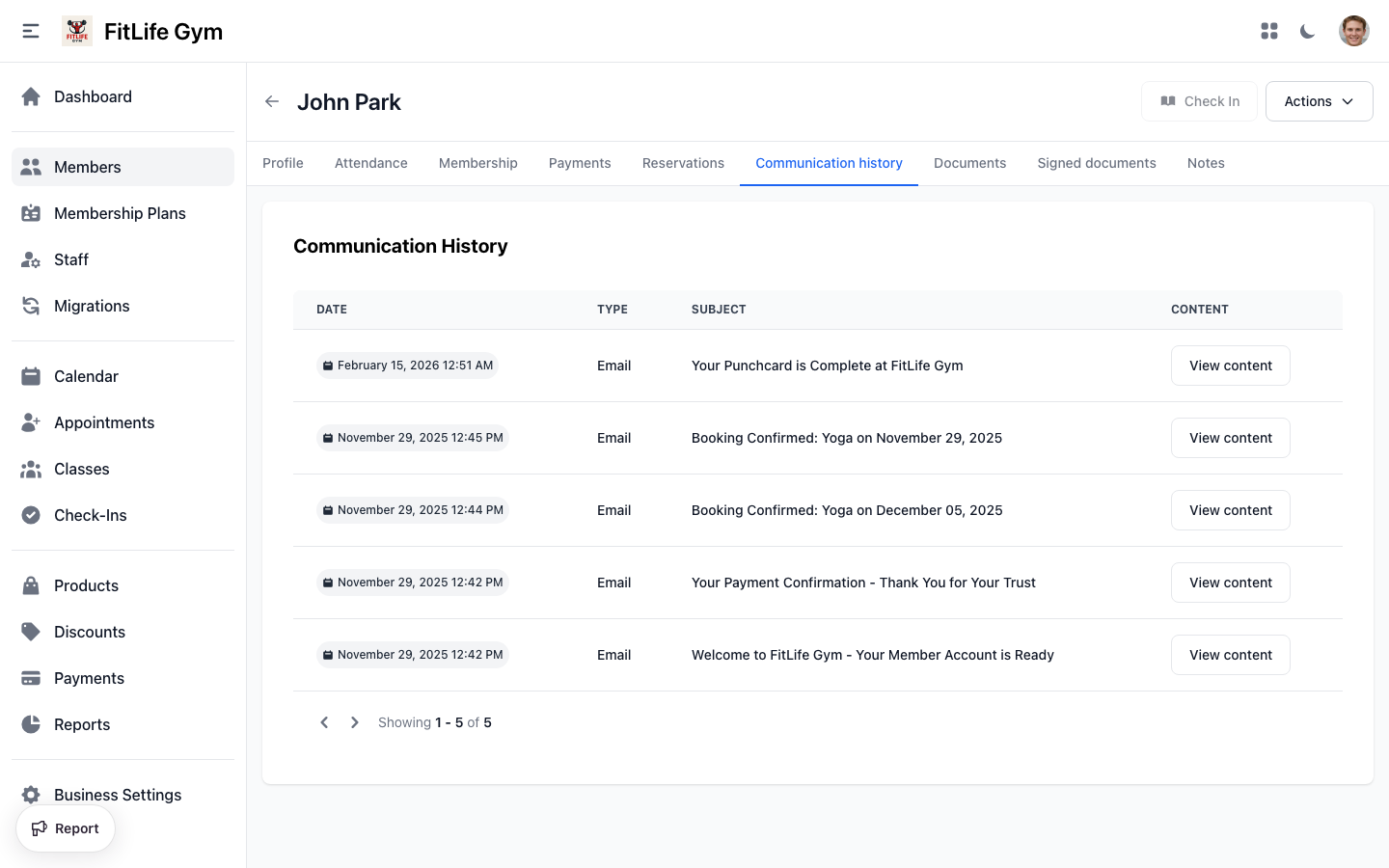
- Date — When the message was sent
- Type — Email, SMS, or WhatsApp
- Subject — Message subject line
- Content — Click "View content" to see the full message in a modal
Messages are displayed in reverse chronological order. Content is rendered as sanitized HTML.
Notes & Reminders
Location: Member Profile → Notes tab
Staff can add notes to any member's profile with optional reminders.
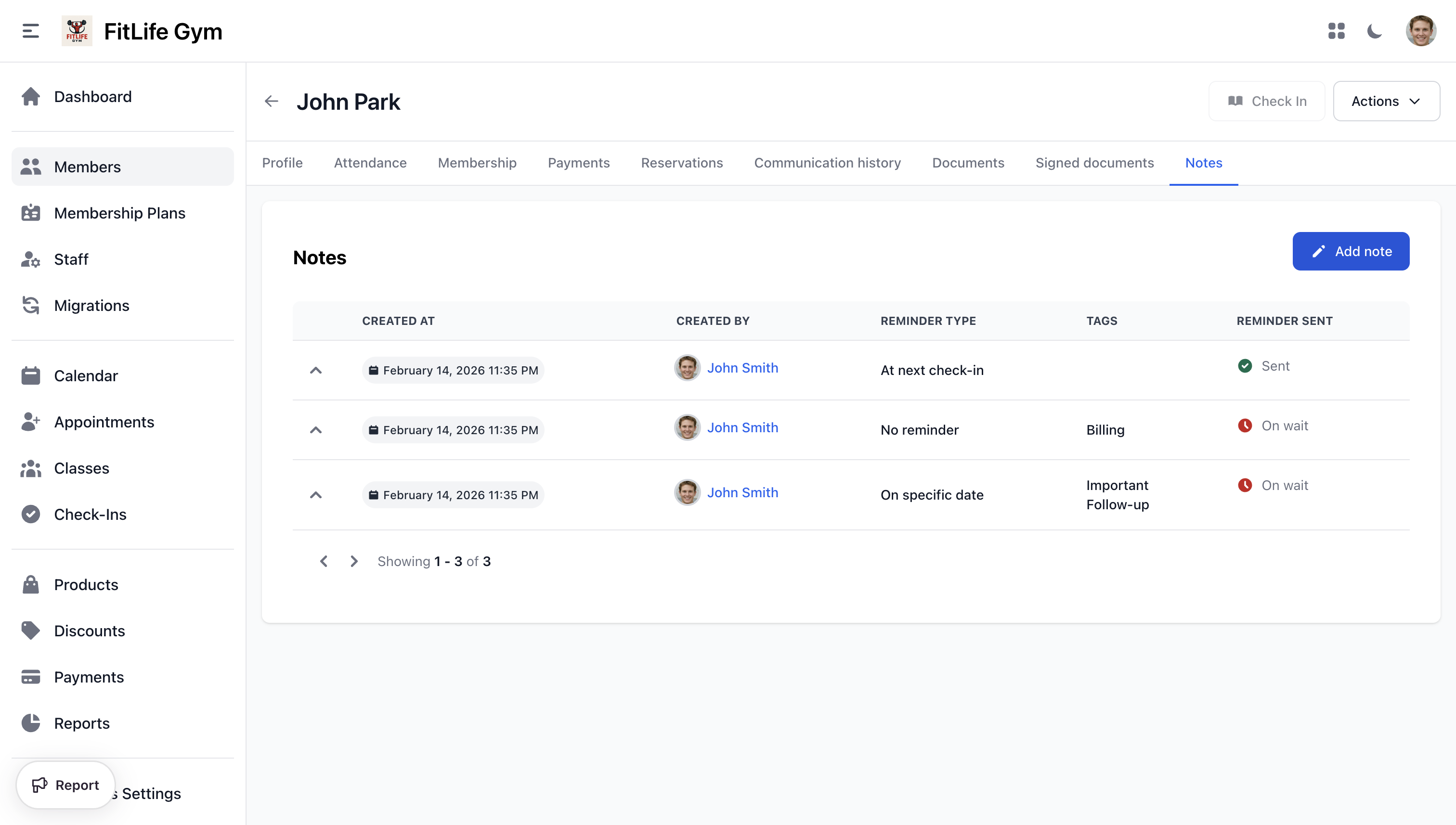
Adding a Note
- Go to the member's Notes tab
- Click Add Note
- Enter your note text
- Optionally add tags to categorize the note
- Set a reminder type:
- No reminder: Note only, no follow-up
- On specific date: Set a date and time for a reminder
- At next check-in: Reminder triggers when the member checks in
- Optionally check CC Member to notify them
- Save the note
Reminder Status
- Green checkmark ("Sent") — Reminder has been delivered
- Red clock ("On wait") — Reminder is pending
Note Tags
Organize notes with custom tags managed at Settings → Note Tags. Tags help staff filter and categorize notes across members.
Related Topics
- Adding & Managing Members - Member profiles and management
- Membership Operations - Assigning and managing memberships
- Check-Ins & Attendance - Processing check-ins
- Payments & Invoices - Invoice and payment details
- Schedule & Classes - Class reservations