Advanced Membership Plan Settings
Fine-tune access, limits, and cancellation rules.
Fine-tune your membership plans with time window restrictions, usage limits, class and appointment restrictions, commitment periods, and cancellation policies.
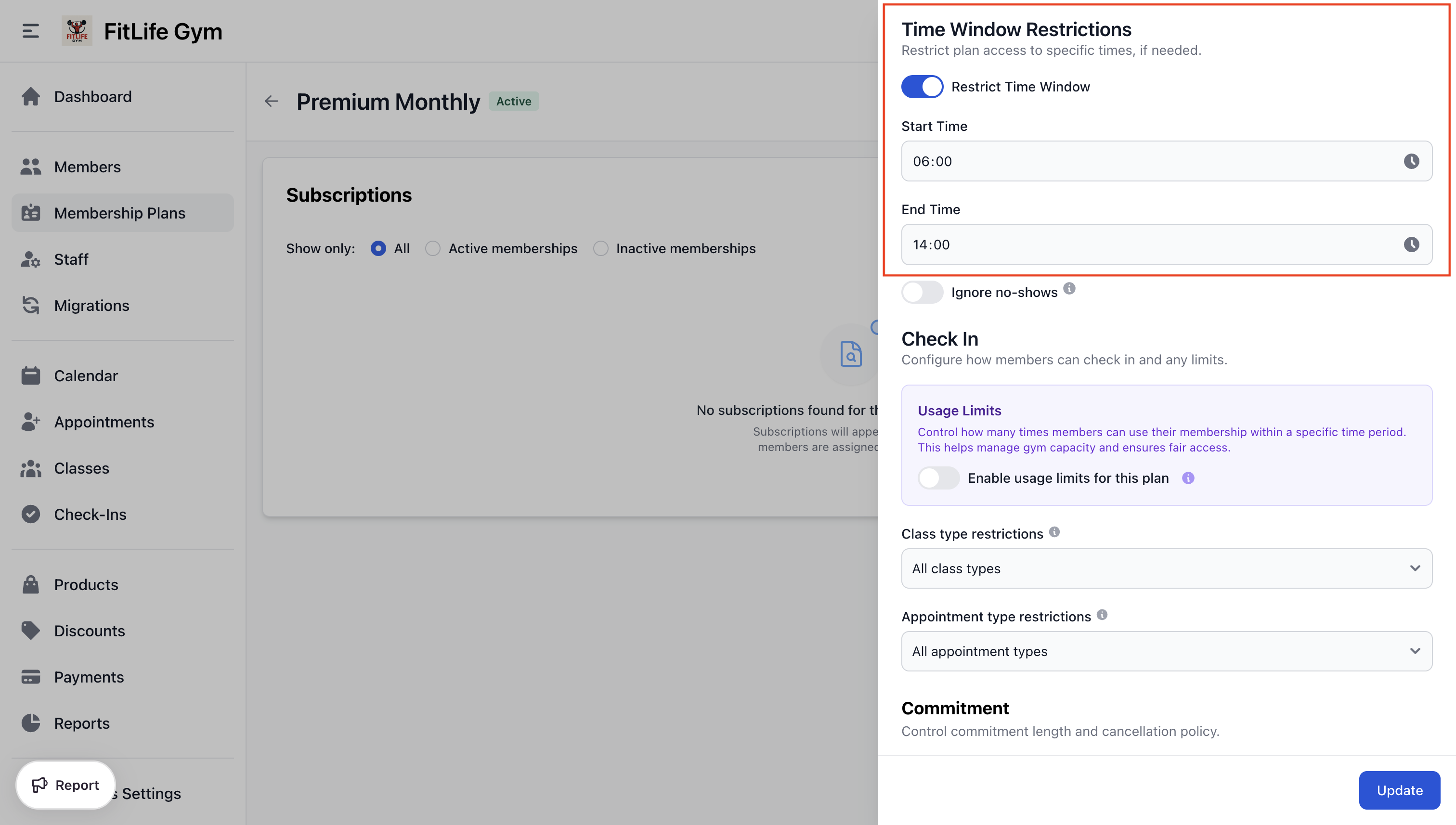
Time Window Restrictions
Limit when members can check in:
- Enable Restrict Time Window
- Set Start Time (e.g., 06:00)
- Set End Time (e.g., 14:00)
Use cases:
- Off-peak memberships (cheaper rates for non-busy hours)
- Morning-only or evening-only passes
- Seniors programs during specific hours
Usage Limits
Control how often members can use their membership within a time period:
- Toggle on Enable usage limits for this plan
- Set Maximum usages allowed (e.g., 4)
- Choose Reset period:
- Per billing cycle - Resets when membership renews
- Weekly (every 7 days) - Resets every 7 days
- Monthly (calendar month) - Resets each calendar month
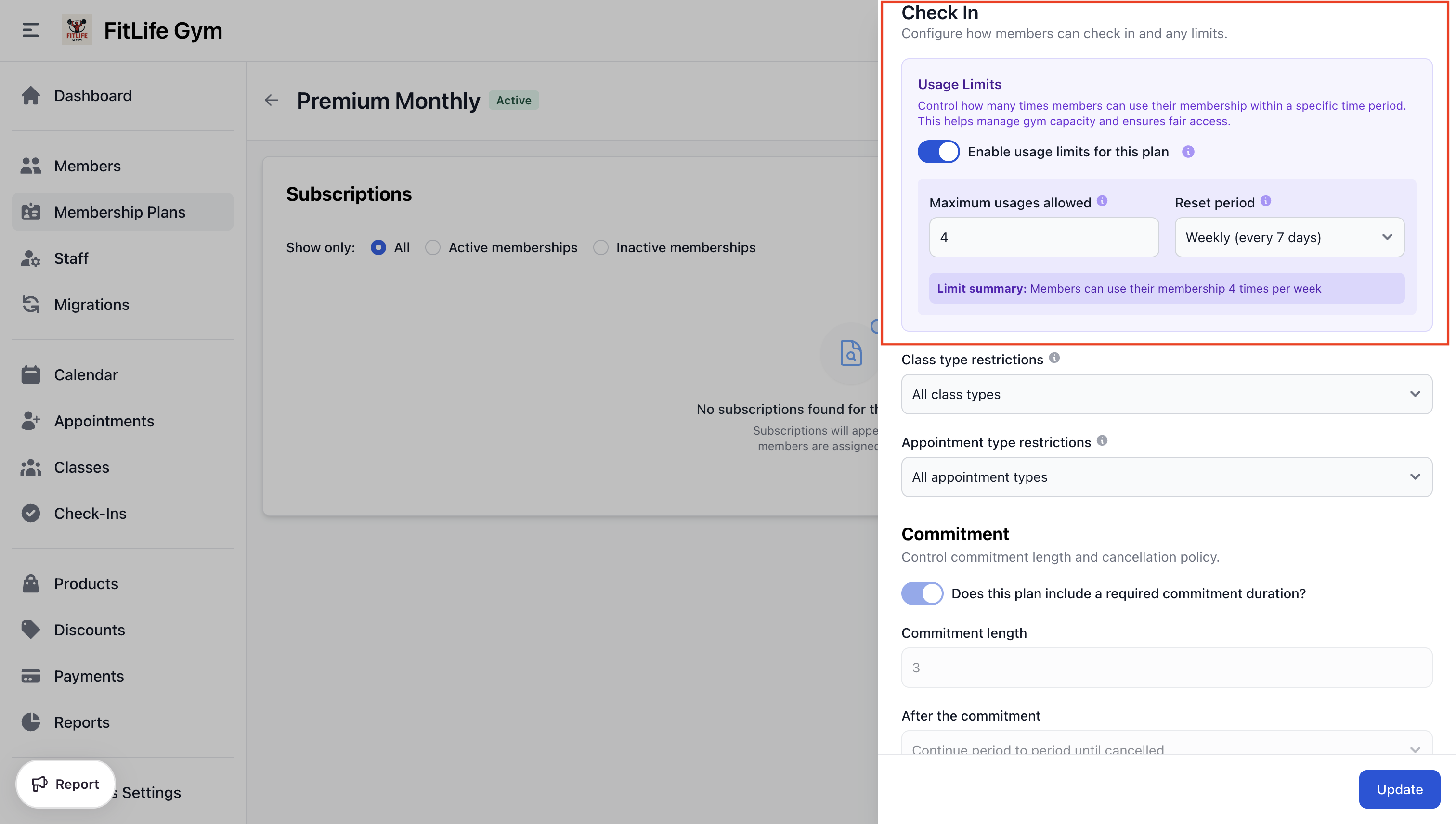
Example: 4x per week membership
- Enable usage limits for this plan: Yes
- Maximum usages allowed: 4
- Reset period: Weekly (every 7 days)
Class Type Restrictions
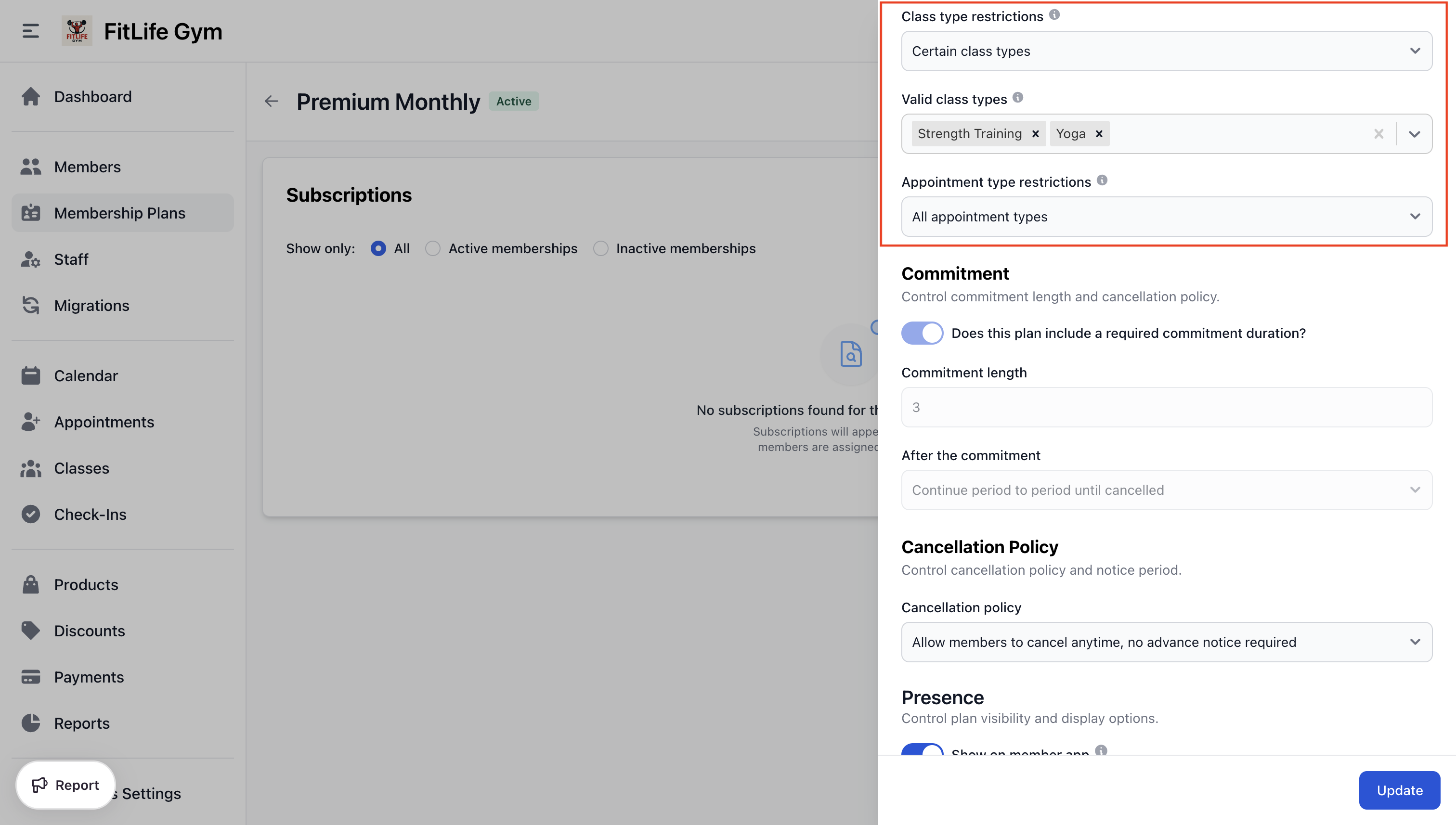
Control which classes members can attend:
- All class types — Access to all classes
- Certain class types — Select specific class types
- Do not allow classes — No class access (gym-only membership)
When "Certain class types" is selected, search and add the allowed class types.
Appointment Type Restrictions
Control which appointment types members can book:
- All appointment types — Can book any appointment
- Certain appointment types — Select specific appointment types
- Do not allow appointments — No appointment access
Ignore No-Shows
When enabled, reservations marked as "No-Show" won't count against the member's check-in allowance. This is useful for:
- Punchcard plans where you don't want to penalize missed bookings
- Plans with strict usage limits
Commitment & Cancellation (Recurring Plans Only)
Setting a Commitment Period
Require members to commit for a minimum period:
- Toggle on Does this plan include a required commitment duration?
- Set Commitment length (in billing cycles)
- Choose After the commitment:
- Expire the plan and do not bill again - Plan ends and billing stops
- Continue period to period until cancelled - Continues billing until cancelled
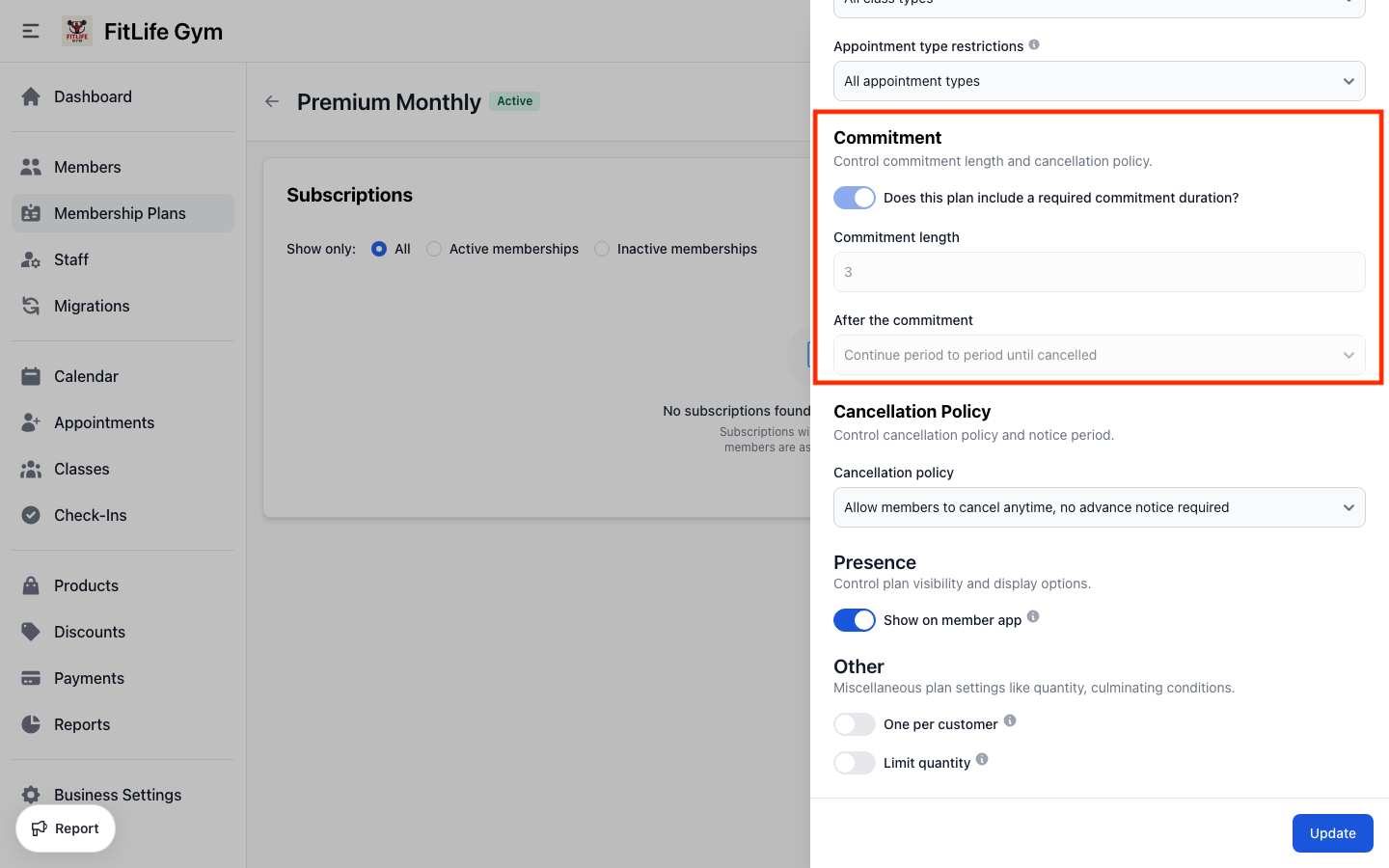
Example: 12-month commitment
- Does this plan include a required commitment duration?: Yes
- Commitment length: 12
- After the commitment: Continue period to period until cancelled (month-to-month after)
Commitment settings cannot be changed after the plan is created.
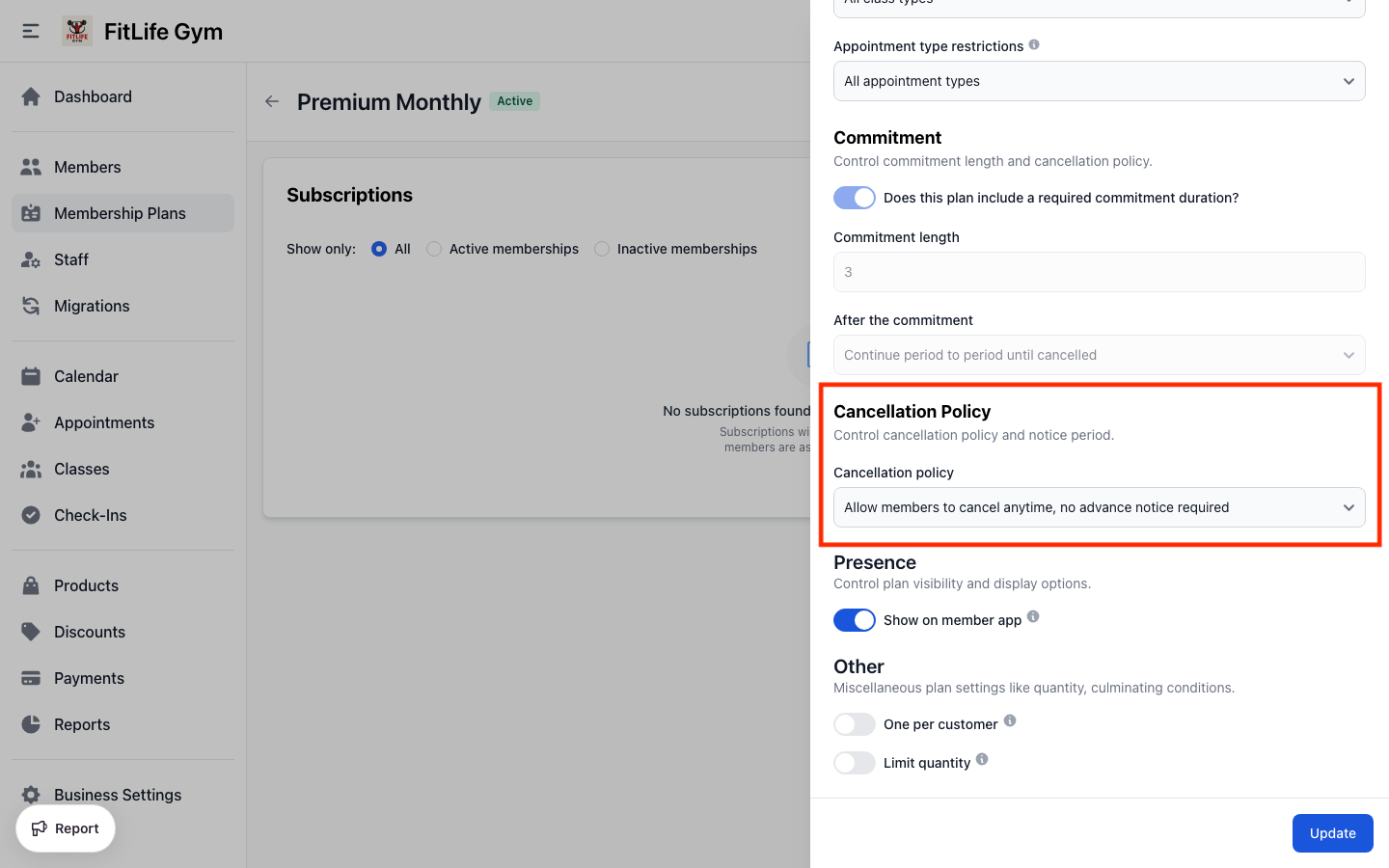
Cancellation Policy
If the plan continues after commitment (or has no commitment), choose a cancellation policy:
- Cancellations allowed only by staff via the admin panel — Only staff can cancel
- Allow members to cancel anytime, no advance notice required — Members can cancel anytime, effective immediately
- Require members to cancel within a minimum notice period — Members must cancel X days before next billing
When the minimum notice option is selected, set the Minimum notice period (days).
Other Settings
Visibility
- Show on member app — Plan visible in mobile app for purchase
Disable this for:
- Internal/staff-only plans
- Plans being phased out
- Plans only sold in-person
Family Sharing
- Shareable with family — One member buys the plan and the people in their family train on it too
Everyone in the holder's family can check in and book on the membership, and they all draw on the same usage limit. Any plan type can be shared. See Family Memberships & Dependents for how families are set up.
Purchase Limits
- One per customer — Members can only purchase this plan once
- Limit quantity — Stop selling after a set number sold
One per customer is ideal for:
- Trial memberships
- Introductory offers
- New member specials
Limit quantity is useful for:
- Limited-time promotions
- Exclusive packages
- Capped class sizes
Common Plan Examples
Example 1: Unlimited Monthly Membership
- Type — Recurring
- Name — Unlimited Monthly
- Charge Amount — $99
- Recurring Interval — 1 Month
- Billing Day — Purchase Date
- Class Restrictions — All class types
- Show on Member App — Yes
Example 2: 10-Class Punchcard
- Type — Punchcard
- Name — 10-Class Pack
- Charge Amount — $150
- Total Usages — 10
- Punchcard Expires — Yes
- Expire In — 3 Months
- One Per Customer — No
Example 3: 3-Month Commitment Plan
- Type — Recurring
- Name — 3-Month Commitment
- Charge Amount — $79/month
- Recurring Interval — 1 Month
- Does this plan include a required commitment duration? — Yes
- Commitment length — 3
- After the commitment — Continue period to period until cancelled
- Cancellation policy — 30-day notice
Example 4: Off-Peak Membership
- Type — Recurring
- Name — Off-Peak Access
- Charge Amount — $49
- Recurring Interval — 1 Month
- Restrict Time Window — Yes
- Start Time — 06:00
- End Time — 16:00
Example 5: Limited Visits Membership
- Type — Recurring
- Name — 8 Visits/Month
- Charge Amount — $69
- Recurring Interval — 1 Month
- Enable usage limits for this plan — Yes
- Maximum usages allowed — 8
- Reset period — Monthly (calendar month)
Best Practices
Naming Conventions
Use clear, descriptive names:
- ✅ "Unlimited Monthly"
- ✅ "10-Class Pack (3 Month Expiry)"
- ❌ "Plan A"
- ❌ "Membership 1"
Pricing Strategy
Consider offering:
- A low-commitment trial or day pass
- A mid-tier option with some limits
- An unlimited premium option
- Annual discounts for longer commitments
Managing Changes
Editing locked fields (billing interval, commitment period, billing day) is not possible on recurring plans after creation. In this case:
- Create a new plan with the desired settings
- Archive the old plan to stop new signups
- Existing members stay on their original plan terms
- Assign new members to the new plan
Related Topics
- Membership Plans - Plan types and creation basics
- Membership Operations - Assigning plans to members
- Schedule & Classes - Class type restrictions
- Appointments - Appointment type restrictions