Create a membership plan
Set up a plan you sell, from scratch or from a ready-made template, and put it in its place in the list.
A membership plan is what you sell: its price, how it bills, and what it lets members do.
Before you start
- You need the Plans and products permission. The Owner and Managers have it.
- Know which type you need: see Membership plan types. The type can't be changed later.
Steps
-
In Plans, click Add membership plan.
-
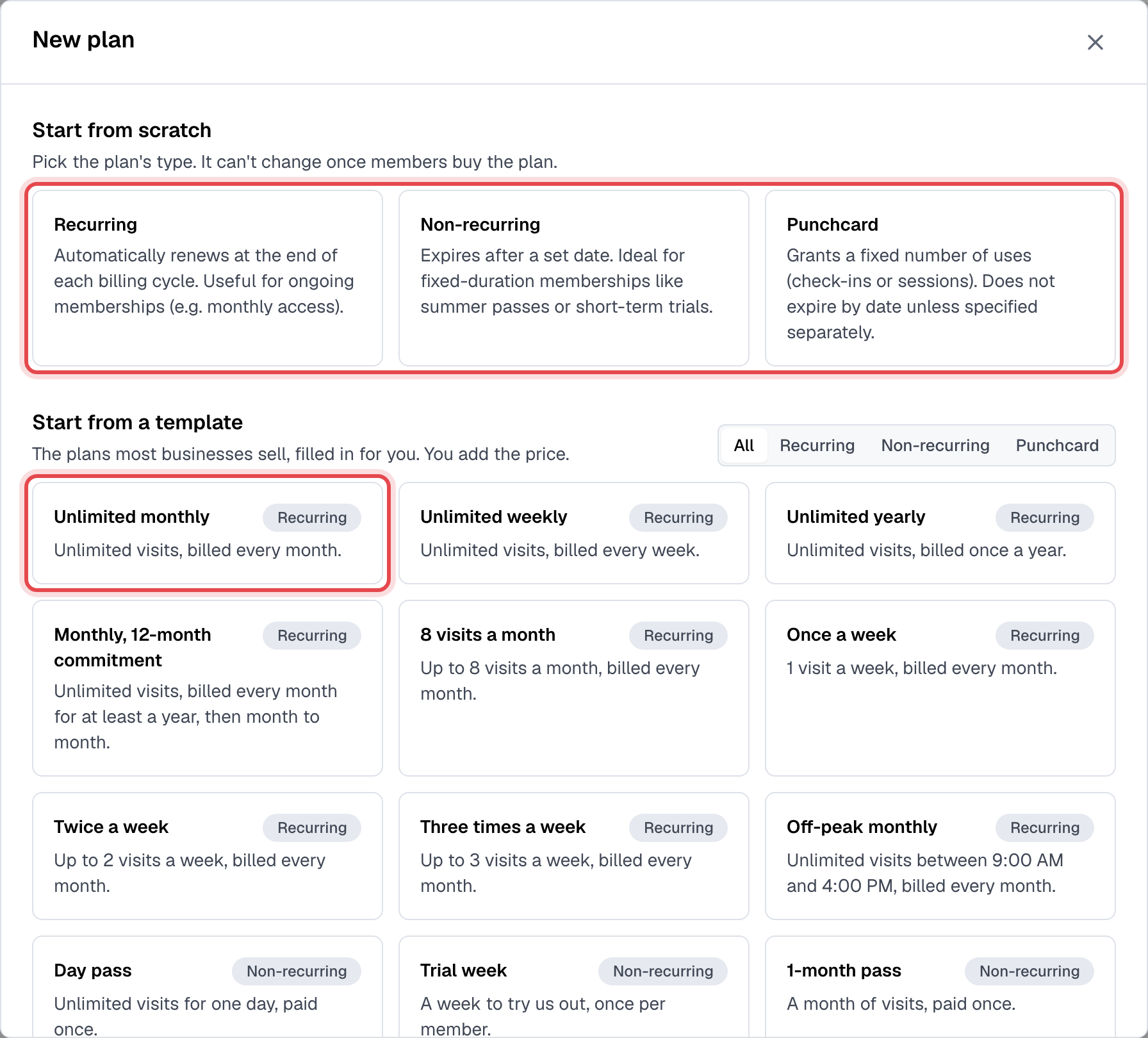
In the New plan window, click a type under Start from scratch, or a plan under Start from a template. A template fills in everything except the price.
-
Under Basic information, enter the Name and Description members will see.
-
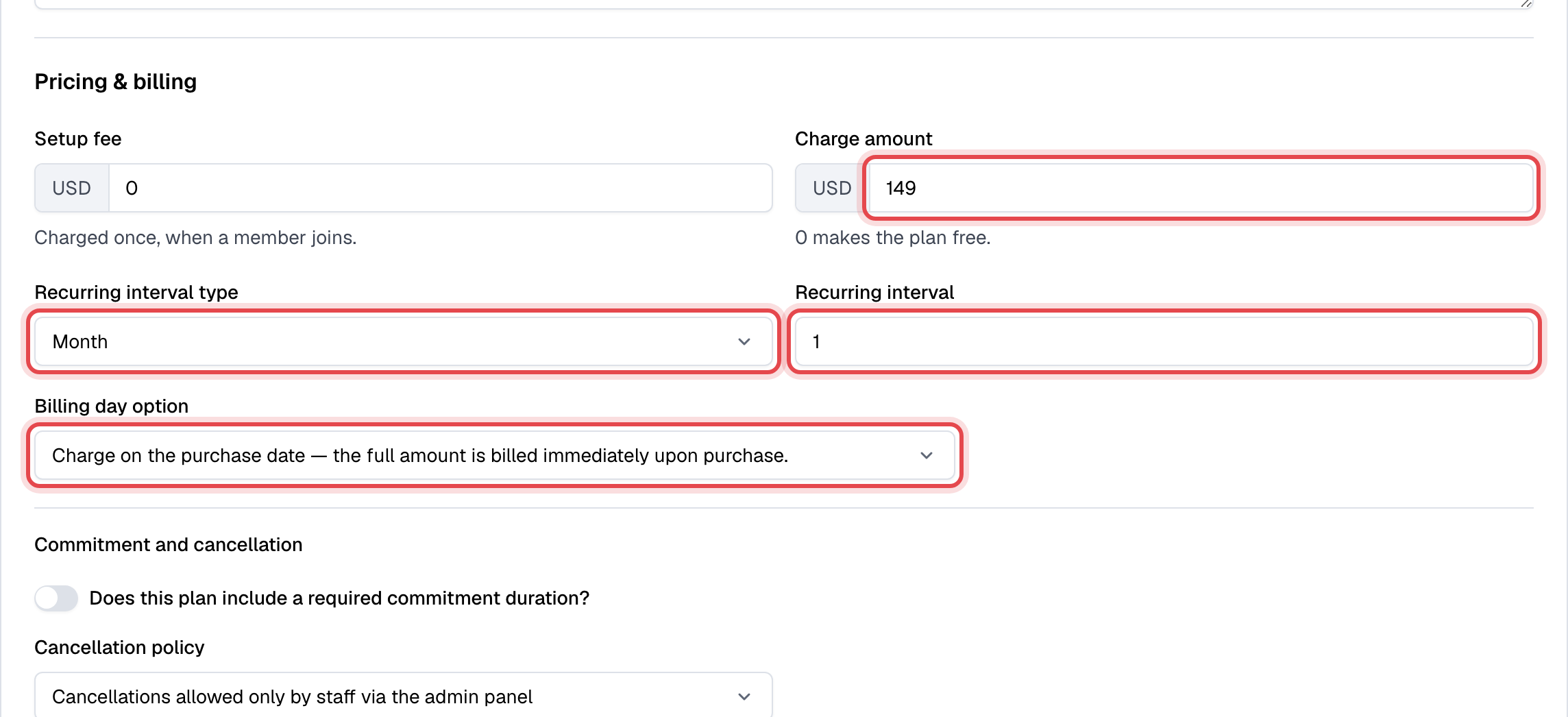
Under Pricing & billing, enter the Charge amount and any Setup fee. Then set how the plan bills or ends: how often and on which day for a recurring plan, how long it lasts for a non-recurring plan, how many visits for a punchcard.
-
Under Access & entitlements, set any usage limit and which classes and appointments the plan covers. See Set a plan's limits and restrictions.
-
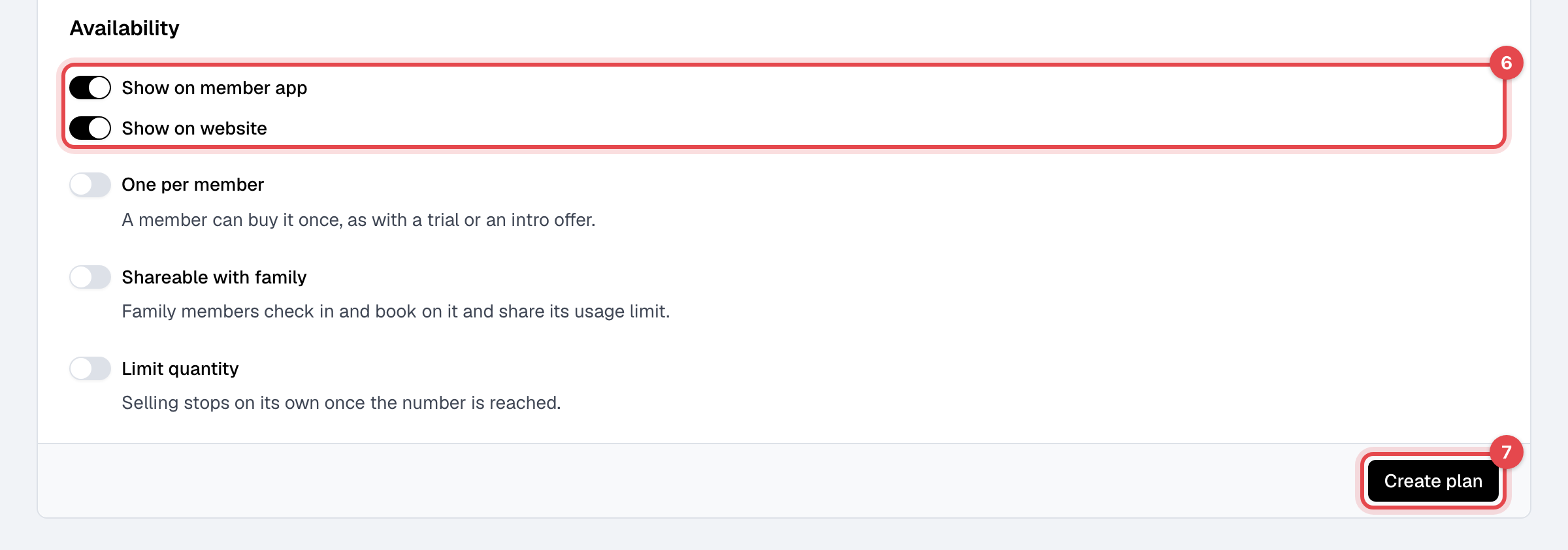
Under Availability, choose where members can buy it (Show on member app, Show on website), and whether it's One per member, Shareable with family, or limited in quantity.
-
Click Create plan.
Put the plan in its place
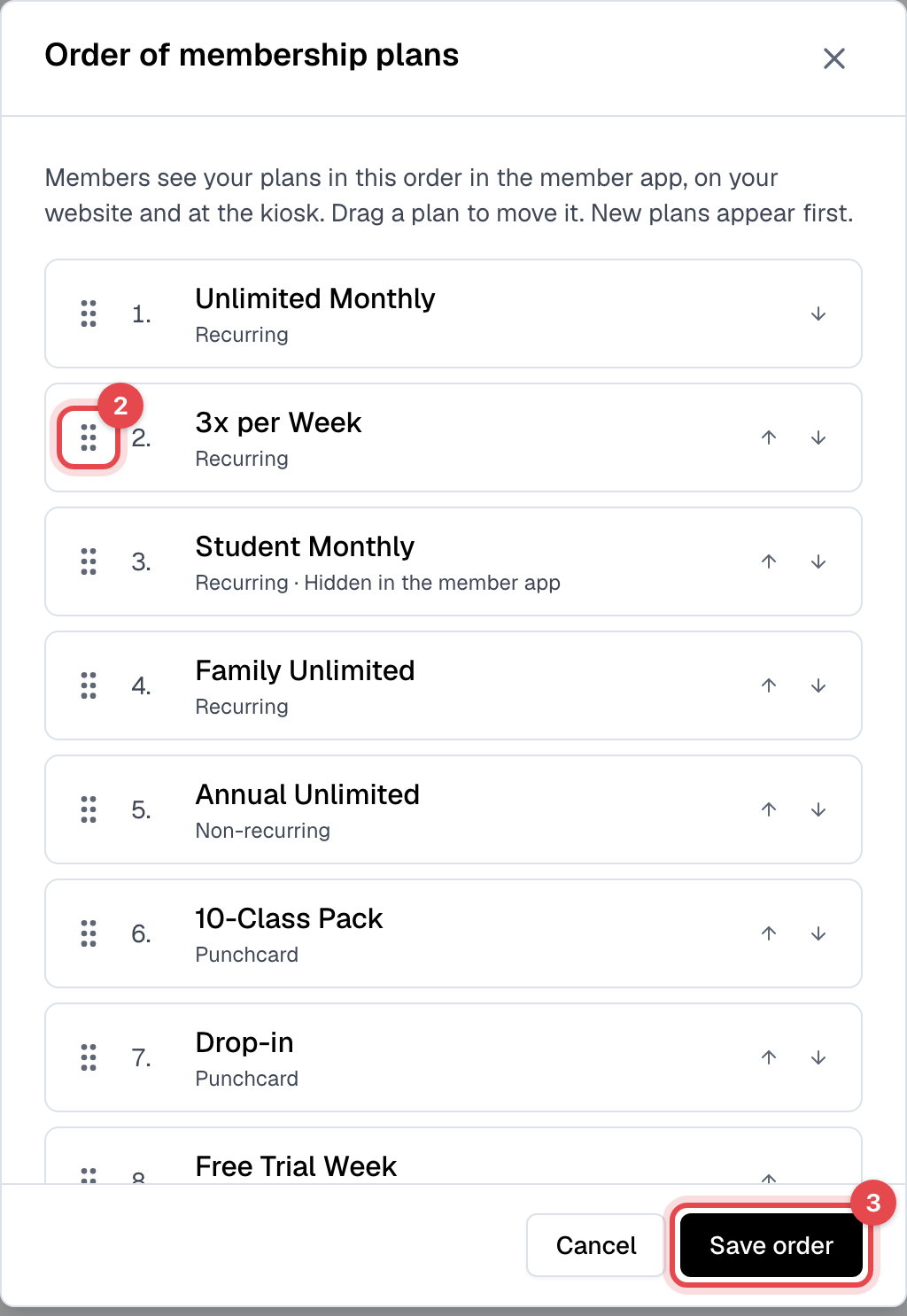
Members see your plans in the same order in the member app, on your website and at the front desk kiosk. A new plan appears at the top until you move it.
- In Plans, click Change order.
- Drag the plan by its handle, or move it with the arrows.
- Click Save order.
What happens next
The plan opens on its own page, ready to assign to members. Members can buy it in the app with Show on member app on, and on your website and at the front desk kiosk with Show on website on. Staff can assign it either way.
Good to know
- A recurring plan's billing and commitment are fixed once it's created. To sell different terms, create another plan and archive the old one. See Edit or archive a plan.
- Limit quantity counts down with every sale, including the ones staff make. At zero, nobody can buy or be assigned the plan until you raise the number.