Create a discount
Take money off memberships or products with a code members enter or staff pick, for a set time or number of uses.
A discount takes an amount or a percentage off what members pay: by its code, or picked by staff.
Before you start
- You need the Plans and products permission. The Owner and Managers have it.
Steps
-
In Discounts, click Create discount.
-
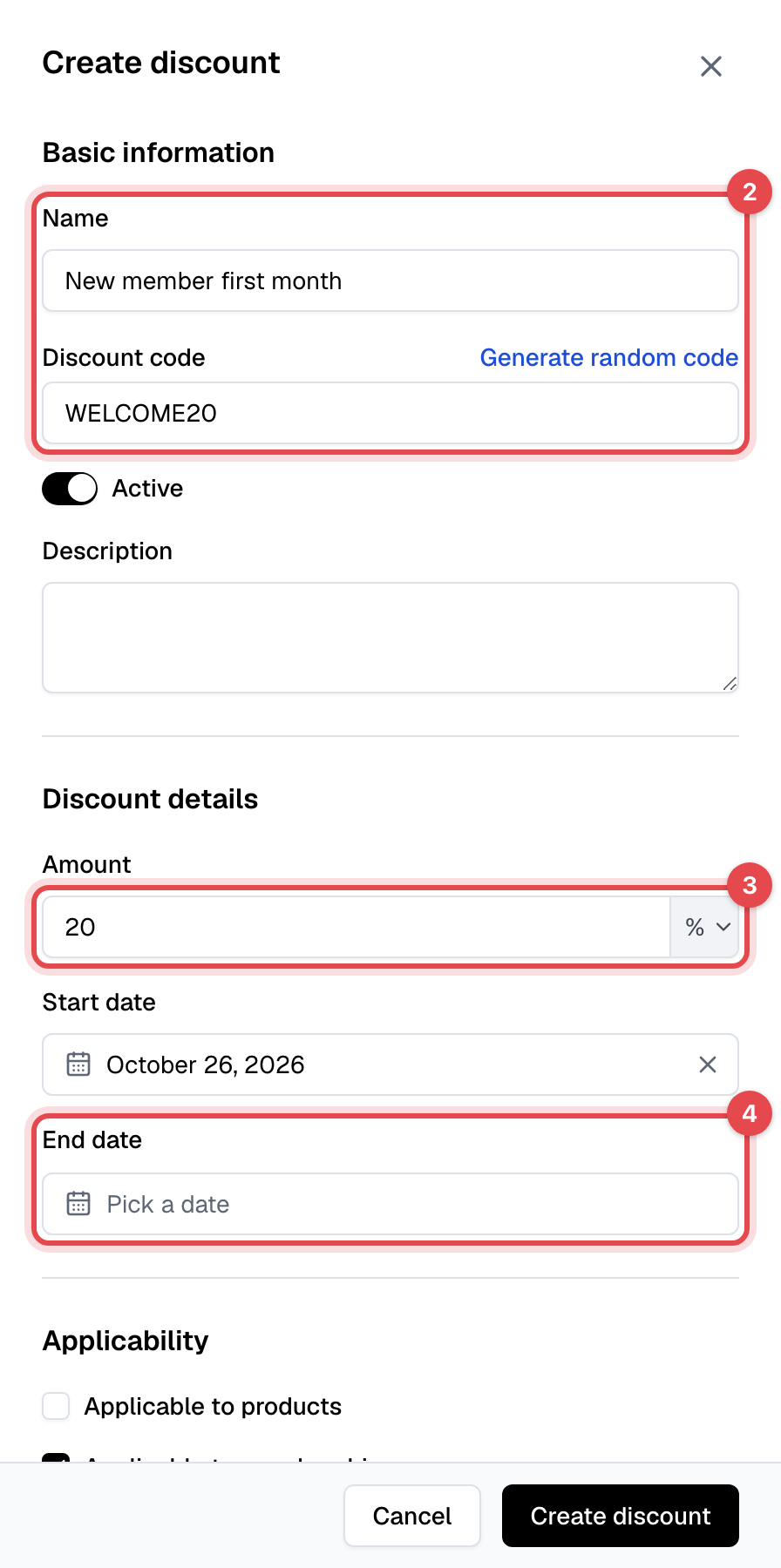
Enter a Name and the Discount code members type, or click Generate random code.
-
Enter the Amount, and pick your currency or % next to it.
-
Check the Start date, and pick an End date if the offer ends.
-
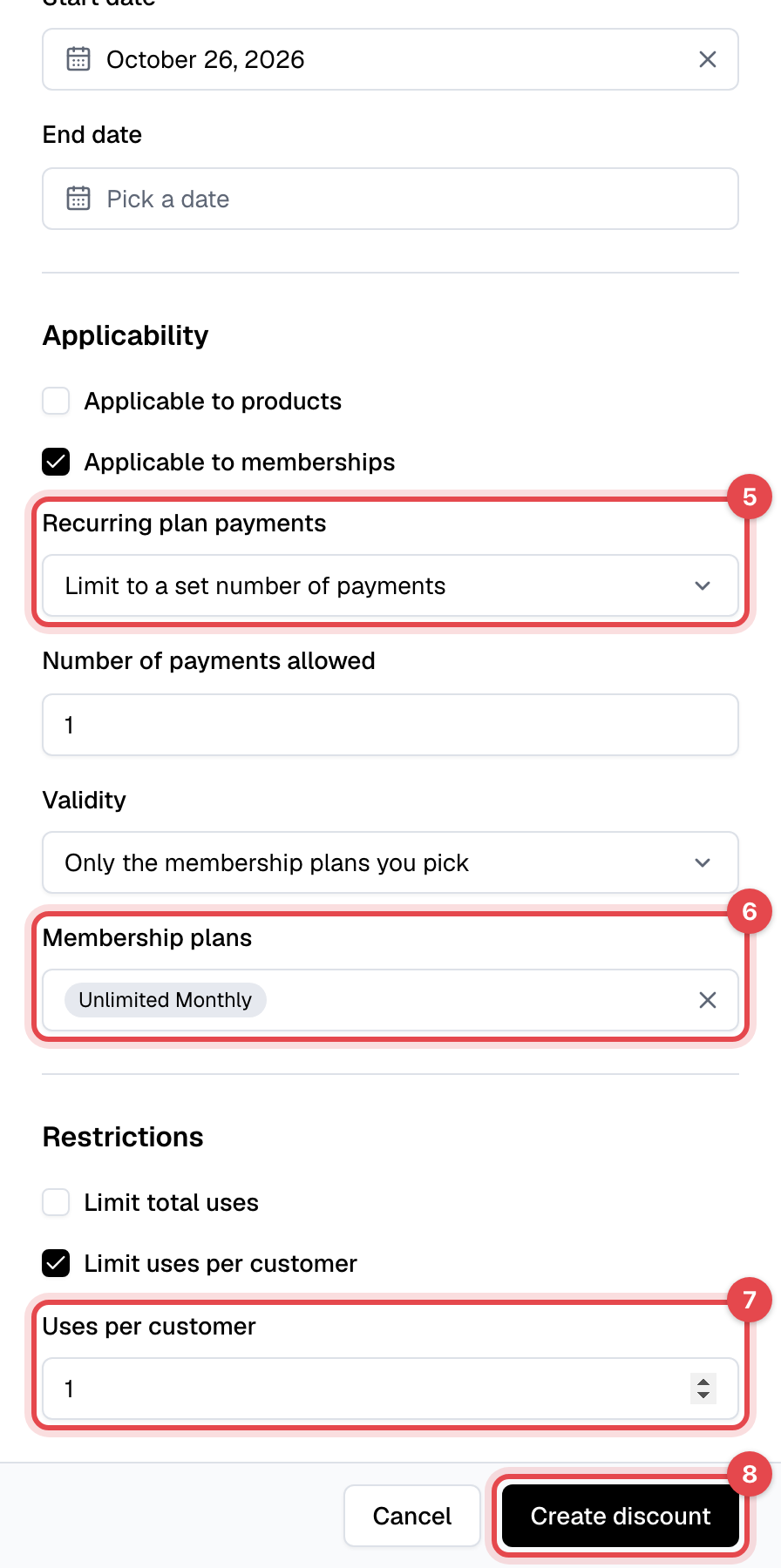
Tick Applicable to memberships, Applicable to products, or both. For memberships, choose under Recurring plan payments: Apply to every payment, or Limit to a set number of payments and enter the Number of payments allowed.
-
Under Validity, keep Every membership plan, new ones included (or every product), or choose Only the membership plans you pick (or products) and pick the Membership plans or Products it covers.
-
Under Restrictions, tick Limit total uses or Limit uses per customer if it should run out.
-
Click Create discount.
What happens next
- The discount shows as Active, or Upcoming until its start date, and Expired after its end date.
- Members can enter the code when they buy a membership in the app or on your website, exactly as you wrote it, capitals included. Products have no code box: staff add the discount on the invoice.
- Staff can pick it when selling a membership, when switching a plan, or on one invoice.
- On a recurring membership it comes off each renewal until the number of payments is used up. Each discounted invoice counts as one use. Tax is worked out on the discounted price.
Common setups
| Offer | Amount | Applies to | Recurring plan payments | Restrictions |
|---|---|---|---|---|
| First month off for new members | 20 % | Memberships | Limit to 1 payment | 1 use per customer |
| Student price | 15 % | Memberships, specific plans | Every payment | None |
| Referral reward | $25 | Memberships | Limit to 1 payment | 1 use per customer |
Good to know
- To stop a discount, open it and turn Active off. Memberships that have it are billed without it from their next renewal, and with it again if you turn it back on. Past invoices don't change.
- Delete discount is only offered for a discount never used on an invoice.
- An invoice holds one discount. A percentage can't be more than 100%.
- The discount's Usage tab lists its recent invoices and the memberships using it.