Change a membership's billing date, payment or discount
Move a renewal date, switch between manual and card payment, or give a discount on the next renewals.
Change how a member's recurring membership renews: the day, how it's paid, or its discount. You can also change any membership's start and end dates.
Before you start
- You need the Sales permission. The Owner, Managers and Front desk have it.
- The billing date, payment type and discount are on recurring memberships only. The billing date can't be changed while the membership is frozen.
Steps
-
Open the member from Members and click the Memberships tab.
-
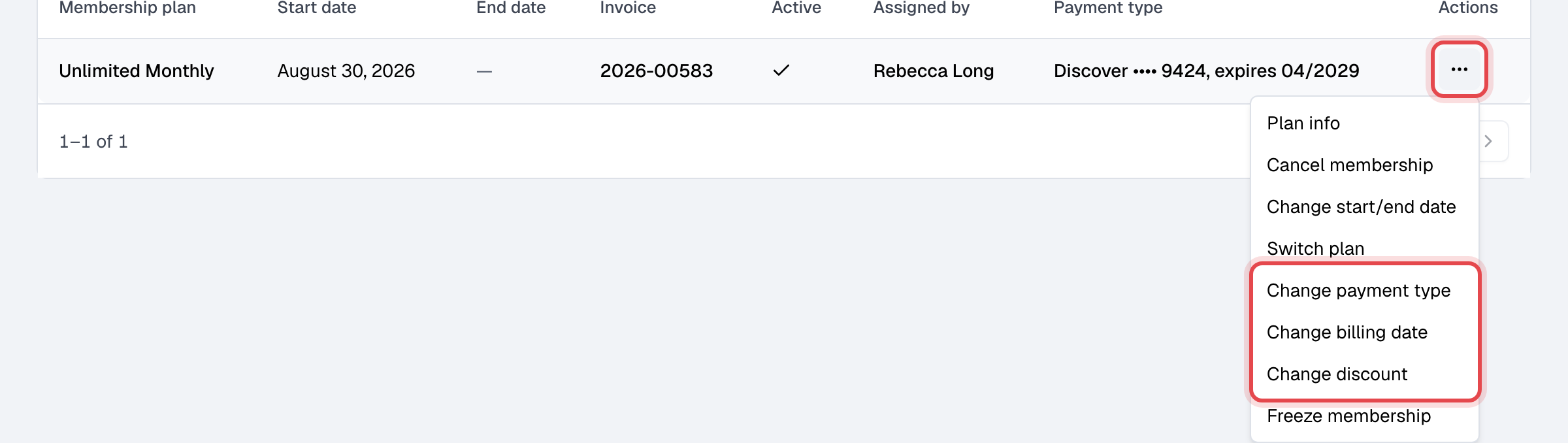
In the membership's row, click ⋯ and choose the change.
-
Set the new value and save:
| Choose | Set | Save with | What changes |
|---|---|---|---|
| Change billing date | The Next billing date, tomorrow or later | Save billing date | The next renewal is on that date, and later ones follow from it. Nothing is charged or refunded for the days in between. |
| Change payment type | Manual, or Card and the member's saved card under Payment method | Save payment type | How renewals are paid from now on. A newly chosen card is charged at once for any declined invoice of this membership. |
| Change discount | A discount, or none to remove it | Save discount | The discount on the renewals from the next one on. Invoices already made don't change. |
| Change start/end date | The Start date, and an End date or Never expires | Save dates | When the membership can be used. |
Discount only the next payment
To take money off a member's next renewal only, such as one month free or half price:
- In Discounts, use or create a discount that applies to memberships, with Recurring plan payments set to Limit to a set number of payments and Number of payments allowed set to 1. See Discounts.
- On the membership, choose Change discount, pick that discount and click Save discount.
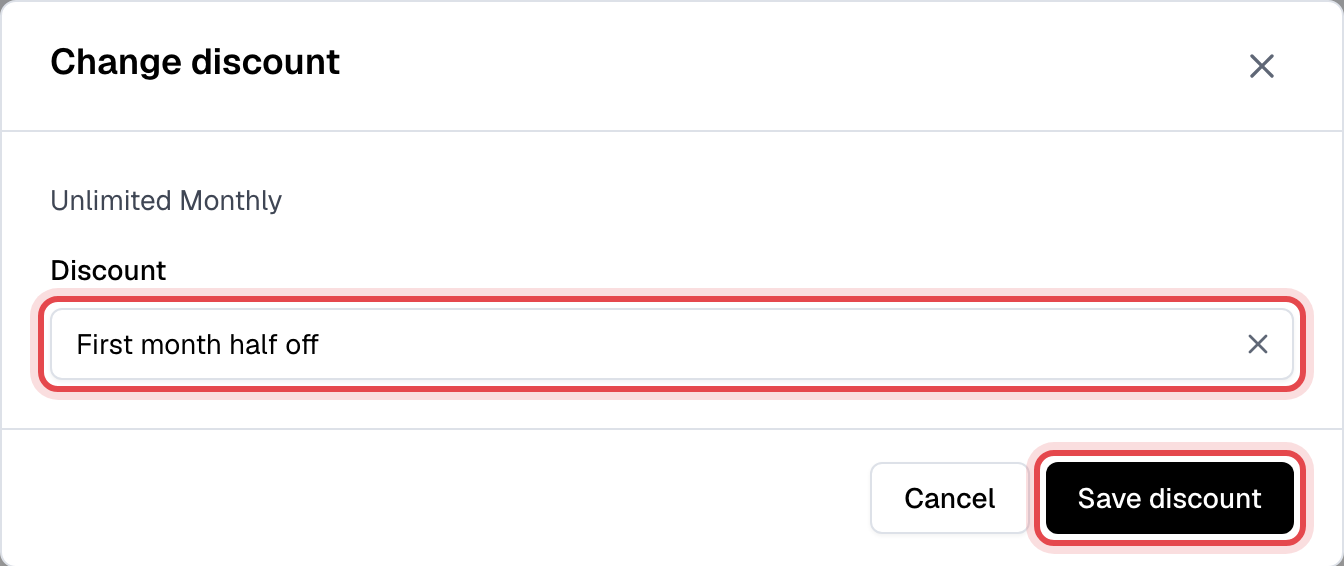
The next renewal invoice gets the discount; the ones after it are at the plan's normal price. The discount stays named on the membership, but it isn't applied again.
How the payments are counted: at each renewal, Finegym counts this membership's invoices that already carry the discount, and applies it while there are fewer than Number of payments allowed. So if this membership already had the same discount, for example when it was assigned, its one payment is used up and the next renewal is at the full price. The discount must also still be valid on the renewal day: active, set for this plan, and with uses left under its own limits.
To discount an invoice that's already been made instead, see Give one invoice a discount.
Good to know
- Change discount lists all your discounts. One that doesn't apply to this plan, or has expired, is refused when you save, with the reason.
- A renewal is billed at midnight, your business's time, on its billing date.