Set a plan's limits and restrictions
How often members can use a plan, which classes and appointments it covers, at what hours, and how it can be canceled.
A plan can limit how often it's used, which classes and appointments it covers and at what hours. A recurring plan also has a cancellation policy, and can have a commitment.
Before you start
You need the Plans and products permission. The Owner and Managers have it.
Steps
-
In Plans, click the plan's name. On a new plan, the same fields are on its page.
-
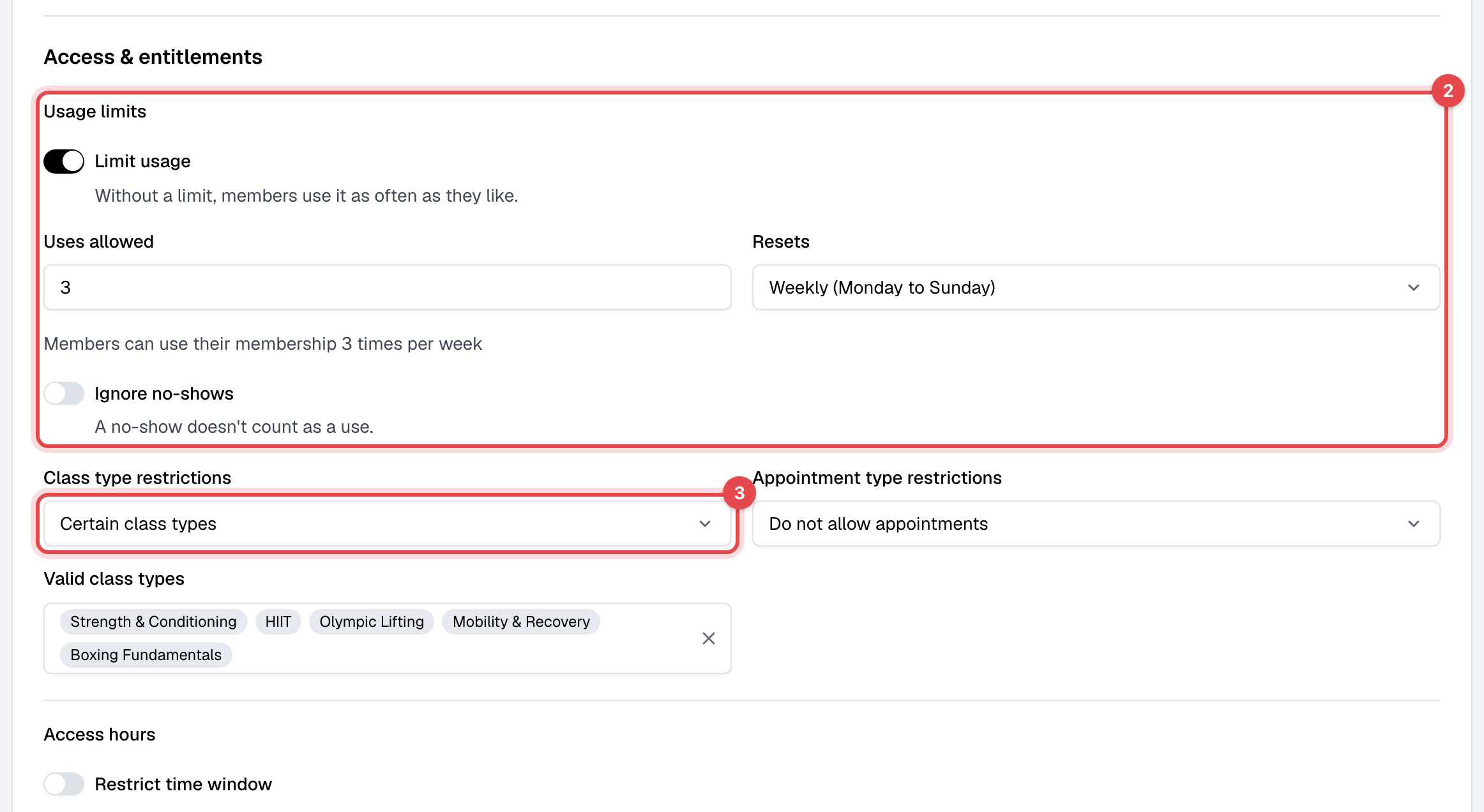
Under Access & entitlements, turn on Limit usage, then set Uses allowed and Resets. Turn on Ignore no-shows if a missed booking shouldn't count.
-
Choose the Class type restrictions and Appointment type restrictions. With Certain class types, pick them under Valid class types; appointments work the same way.
-
To allow only some hours, turn on Restrict time window under Access hours, and set the Start time and End time.
-
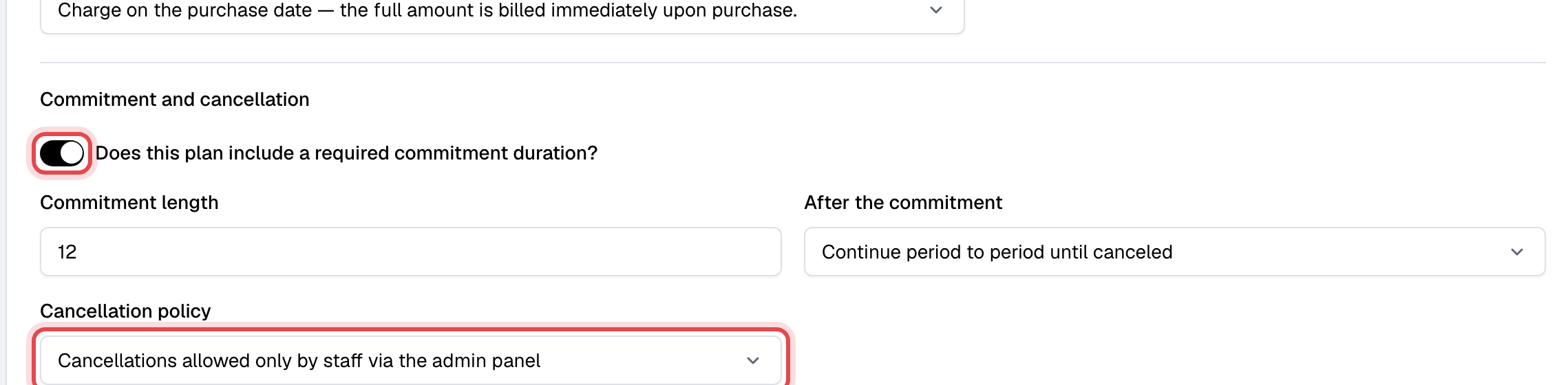
For a recurring plan, choose the Cancellation policy under Commitment and cancellation. A new plan can also have a commitment there.
-
Click Save changes, or Create plan for a new plan.
How each setting works
| Setting | What it does |
|---|---|
| Limit usage | Each facility check-in and each booking is one use, counted on the day it's made. Weekly (Monday to Sunday) counts the calendar week, Monthly (calendar month) from the 1st, and Per billing cycle (recurring plans) the billing period the member is in. With none left, the member sees "Usage limit reached for this membership." |
| Ignore no-shows | A booking marked as a no-show isn't a use. |
| Class type restrictions | Which classes members can book with the plan. Facility check-ins aren't affected. |
| Appointment type restrictions | Which appointments members can book with the plan. |
| Restrict time window | Members can check in, and book classes and appointments that start, only between these times, on your business's clock. |
Changes apply at once to everyone who holds the plan.
Commitment and cancellation
On recurring plans only:
- Commitment: the Commitment length in billing cycles, and what happens After the commitment: Expire the plan and do not bill again, or Continue period to period until canceled. It can't be added, removed or changed once the plan is created.
- Cancellation policy, which you can change at any time: Cancellations allowed only by staff via the admin panel, Allow members to cancel anytime, no advance notice required, or Require members to cancel within a minimum notice period. With a notice period, the membership ends at the end of the billing period that contains the last day of the notice.
A canceled recurring membership runs to the end of the period paid for, and never ends before its commitment. A plan set to expire after its commitment ends on its own. See Cancel a membership.