A member can't buy a plan online
A plan is for sale online only where it's switched on, and only once your business can take card payments.
Why it happens
From most to least common:
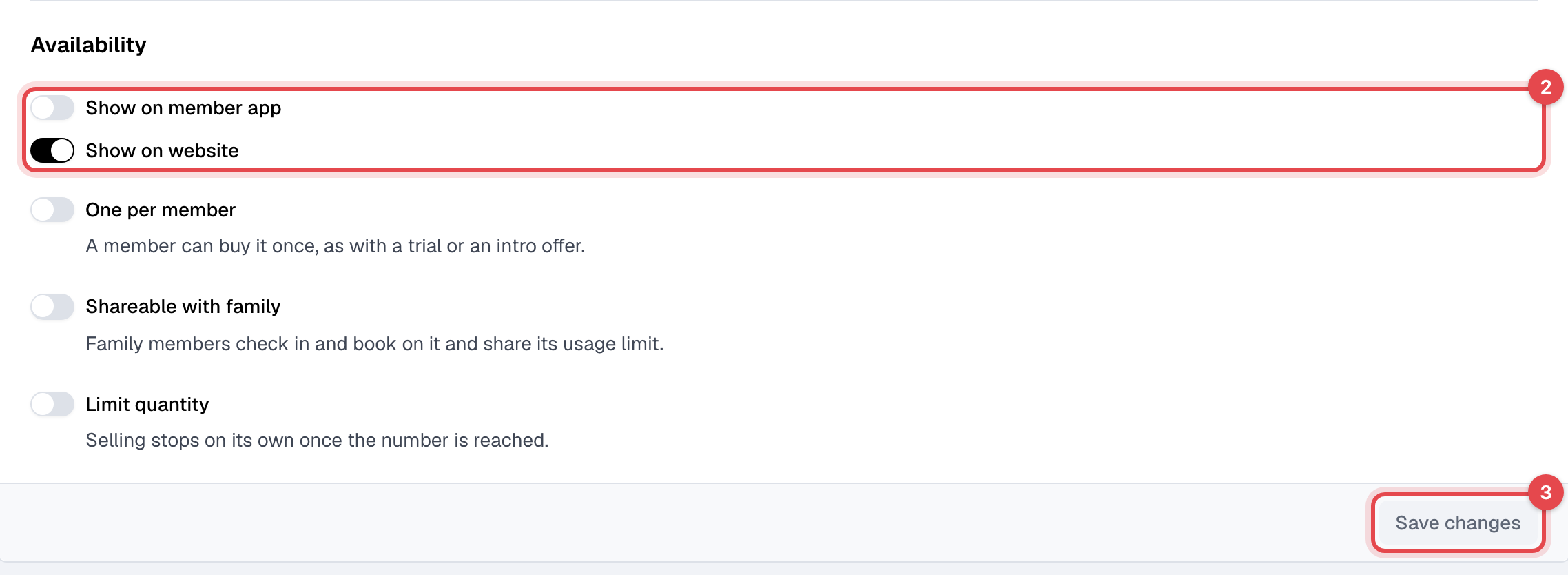
- The plan isn't switched on there. Each plan has Show on member app and Show on website. The app lists only plans with the first; your website and the kiosk list only plans with the second. Archived plans are never for sale. A website link to a hidden plan says "This link is no longer available."
- Your business can't take card payments yet. Until your Stripe account is connected and approved, the app and your website show "Online payments are currently unavailable. Please contact [your business] to purchase this membership." and Billing not available. In the app a free plan can still be claimed; on your website even a free plan needs card payments. The kiosk asks the member to pay at the desk.
- It's one per member. A plan with One per member can be bought once, ever: "This membership plan can only be assigned once per customer." A membership on it that has ended still counts.
- It's sold out. A plan with Limit quantity sells only as many as its Quantity available. Your website shows Sold out.
- The card was declined. Stripe's payment form shows the bank's reason. Nothing is bought or charged until a payment goes through, so the member can try another card.
- The discount code doesn't work. "Invalid discount code.", or the reason the discount can't be used, such as "Discount has expired." See A discount isn't offered on an invoice for how discounts are limited.
- It's for a child. The app and your website sell plans only to the member who is signed in. A plan with Shareable with family covers the family's dependents; otherwise, staff assign the child's membership.
- It's a staff account. On your website: "This account is not a member account and cannot purchase memberships on the website."
What to do
-
Open the plan in Plans. The list's Member app column shows which plans the app offers.
-
Under Availability, turn on Show on member app or Show on website, and check One per member and Limit quantity.
-
Click Save changes. This needs the Plans and products permission.
-
If the plan shows Archived, click Actions, then Unarchive.
-
If card payments are the problem, the owner opens Settings > Bank connection. It must say Connected; with Action required, click Continue onboarding and finish what Stripe asks for.
To sell it anyway, open the member's Memberships tab and click Assign membership (with the Sales permission). At the kiosk, Buy a plan needs the kiosk's staff sign-in to have Sales, and New here? Sign up needs Members too; see The kiosk doesn't recognize a member's PIN.
Still stuck?
Write to support@finegym.io with your business name, the member's email, the plan's name, where they tried to buy it (the app, your website or the kiosk), and the message they saw.