A discount isn't offered on an invoice
The discount list on an invoice shows only the discounts that can apply to it today.
Why it happens
From most to least common:
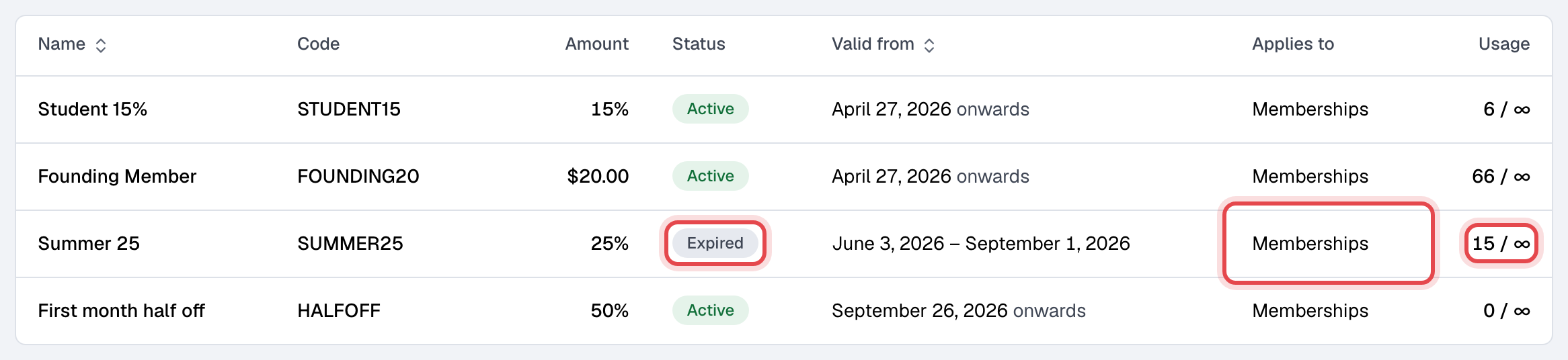
- It doesn't apply to what's on the invoice. Each discount is for memberships, products or both. An invoice with only a membership on it lists only discounts with Applicable to memberships ticked; an invoice with only products lists only those with Applicable to products.
- It isn't active today. The list leaves out a discount that is switched off, hasn't reached its Start date or is past its End date. In Discounts its status shows Inactive, Upcoming or Expired.
- It's only for certain plans or products, or its limit is used up. These discounts are in the list, but saving is refused with "The discount is not applicable to any of the invoice items." That happens when the discount is valid only for specific plans or products and none of them is on the invoice, or when its Total uses or Uses per customer is reached. Every invoice that carries the discount counts as a use, voided ones and each renewal of a discounted membership included.
- The invoice already has a payment. Once a payment or refund is recorded, or the invoice is paid or void, Edit next to Discount is gone.
- It's a walk-in sale. A sale checked out as a guest has no member, and a discount needs one. It can't take a discount, when it's made or after.
- You don't have the Sales permission. Only staff with Sales see Edit next to Discount.
What to do
Fix the discount
You need the Plans and products permission. The Owner and Managers have it.
-
In Discounts, click the discount.
-
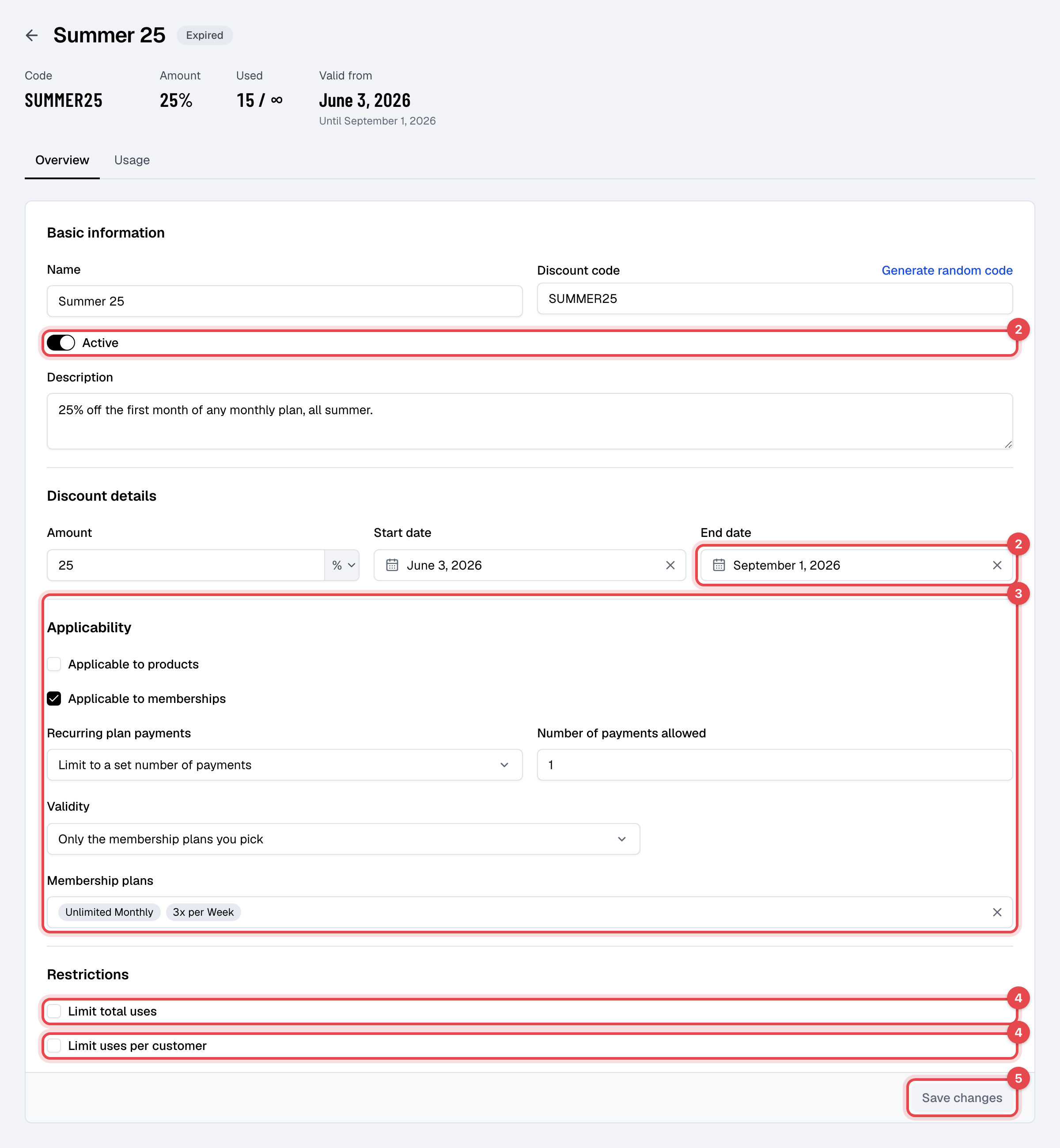
Under Basic information, turn on Active. Under Discount details, set the End date later, or clear it.
-
Under Applicability, tick Applicable to memberships or Applicable to products for what's on the invoice. If Validity is set to specific items, add the plan or product.
-
Under Restrictions, raise Total uses or Uses per customer, or untick the limit. Used at the top shows how often it has been used.
-
Click Save changes.
Then add it to the invoice: see Give one invoice a discount.
When the invoice can't take it
- Already paid: refund the difference from the payment on the invoice. See Refund a payment.
- Walk-in sale: to sell at a discount, create the sale for a member instead of checking out as a guest.
Still stuck?
Write to support@finegym.io with your business name, the invoice number, the member's email, the discount's name, and what you saw: the discount missing from the list, or the message when you saved.